
Step 1: Open the schedule
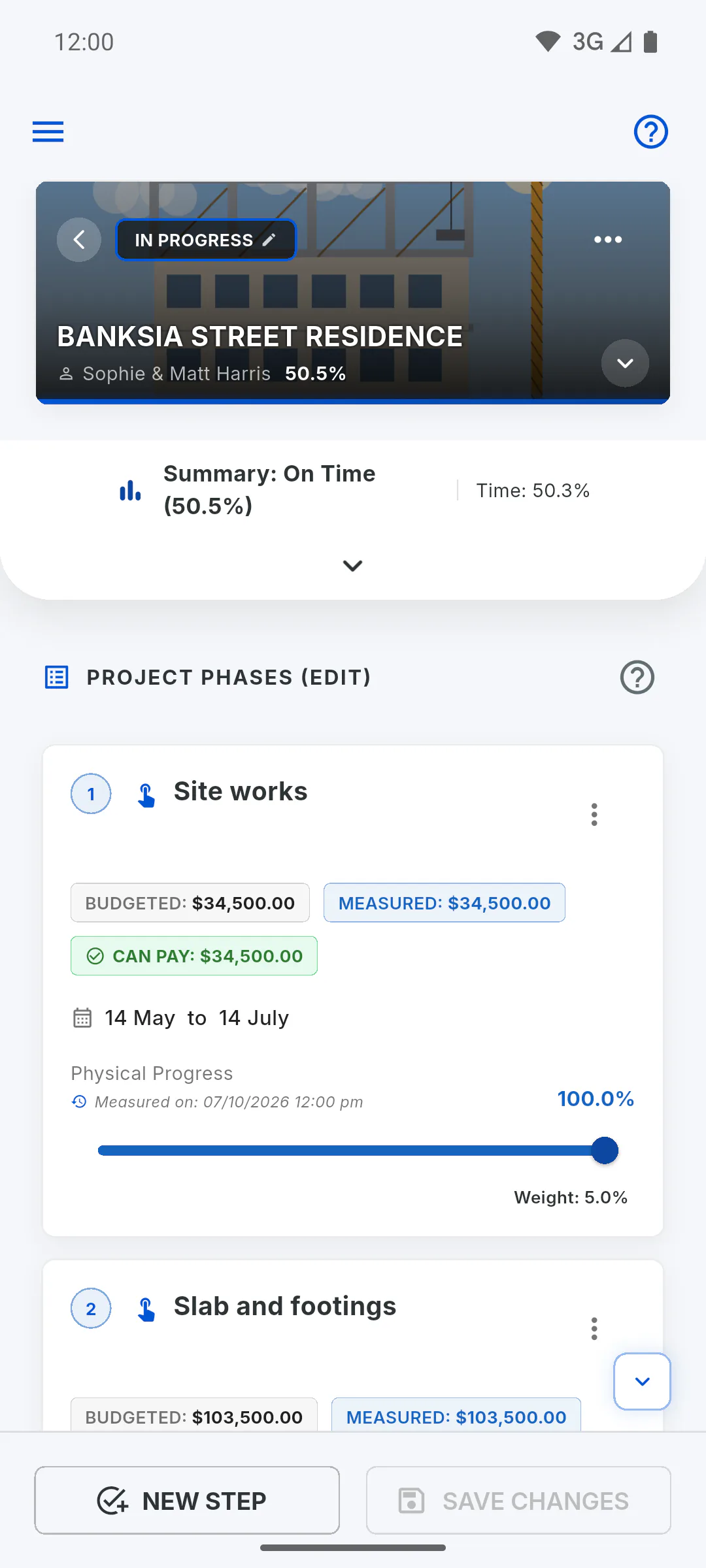
Open the project on Schedule. Each stage has a card with Physical Progress, the current percentage and a slider. Only people who manage the project (the owner and an invited engineer) can change progress.
Step 2: Drag the slider
Drag the stage's slider from 0% to 100%, in 0.1% steps. Just below, Measured on: shows the date and time of the change, and Weight: shows how much the stage counts towards project progress.
- For a stage with Active Micro-management, move the sub-stage sliders instead: How to use sub-stages with weights and dates
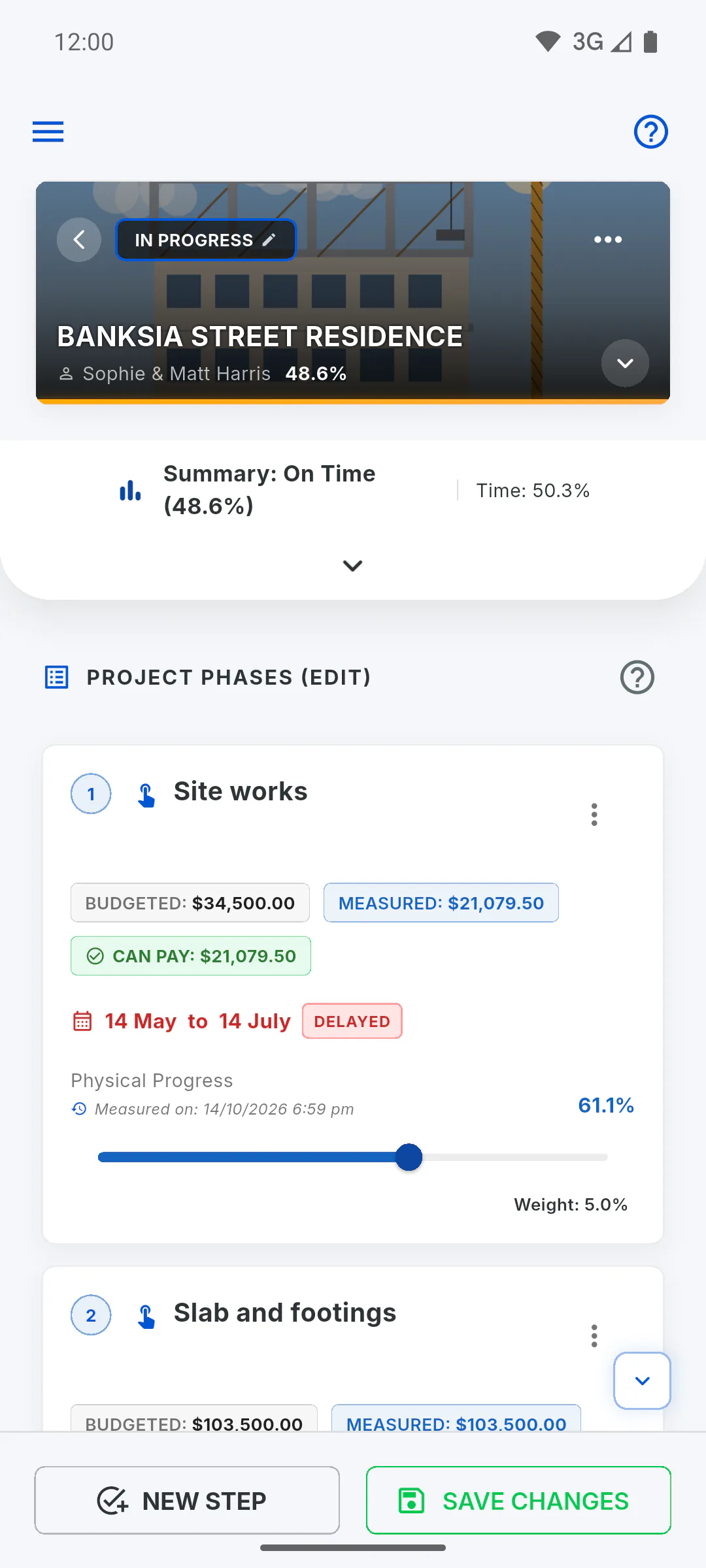
Step 3: See the effect right away
The panel at the top and the card labels, such as Measured and Can Pay, change as soon as you move the slider:
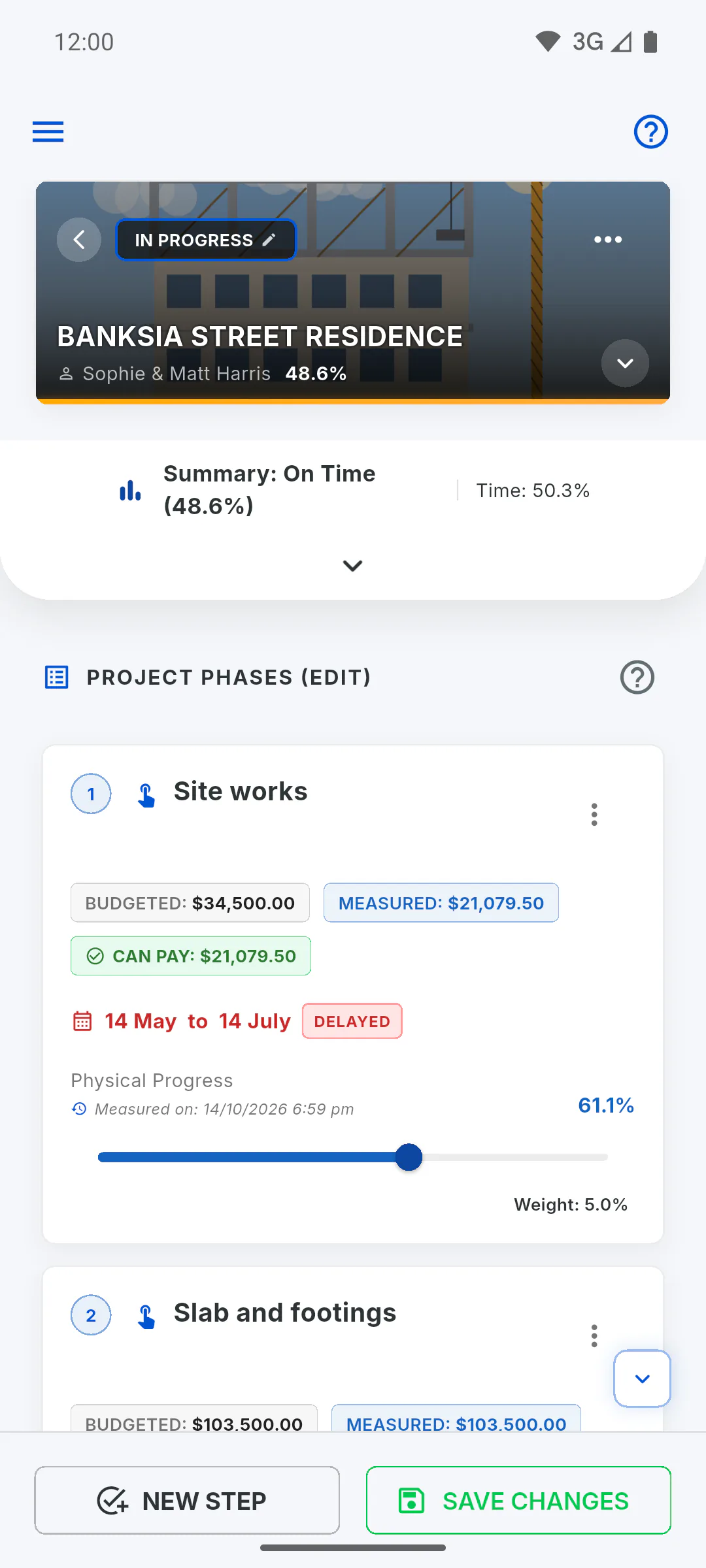
Step 4: Save
Tap Save Changes on the bottom bar; the button is only active when something has changed. You'll see Saved successfully! If you switch areas or leave the project first, Unsaved Changes appears, with Discard or Save.
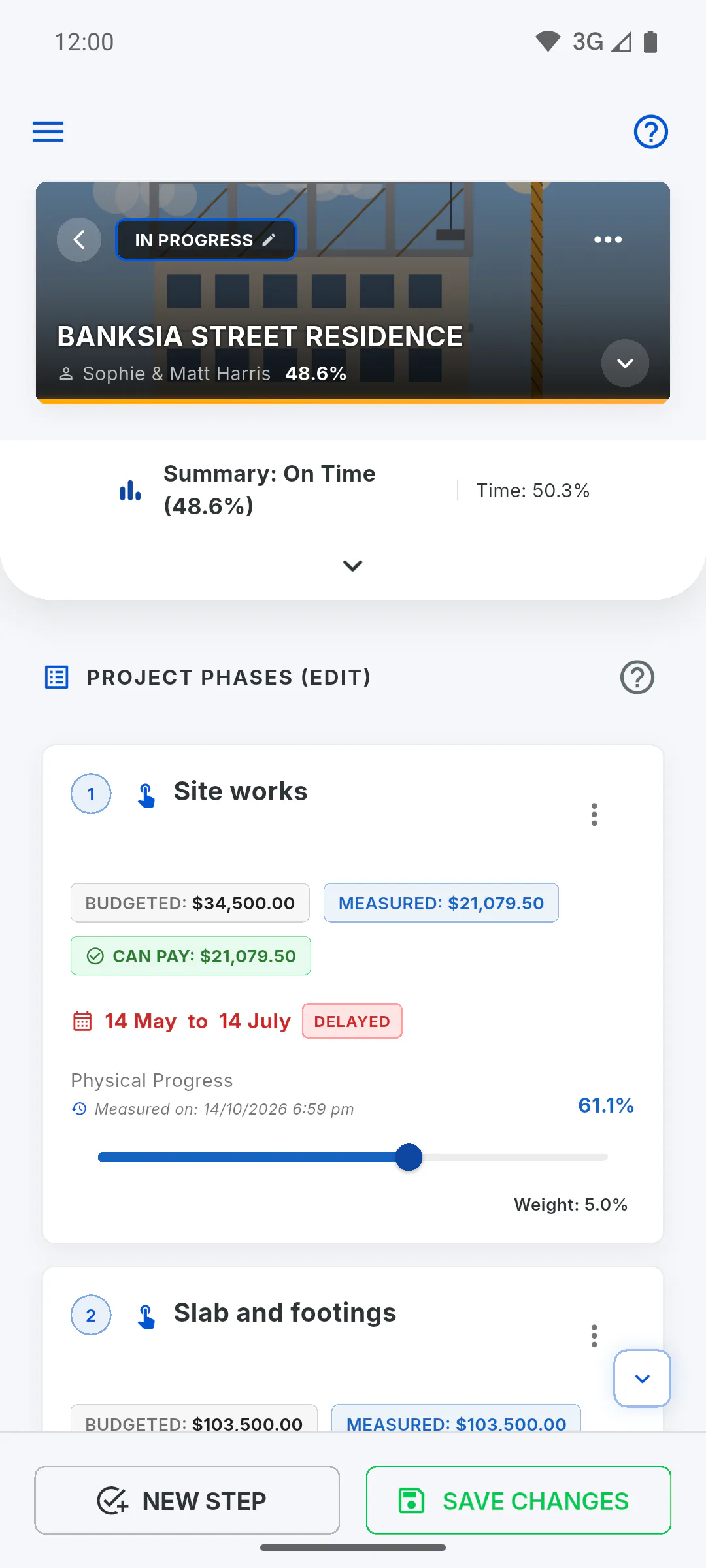
Step 5: The status changes on its own
When you save, the app checks overall project progress: if it reached 100%, the project becomes Completed; if it was Not Started and went past 0.1%, it becomes In Progress: Project status
- If the Contract value box on the Overview tab still shows an available amount, overall progress can't reach 100%, even with every stage complete.
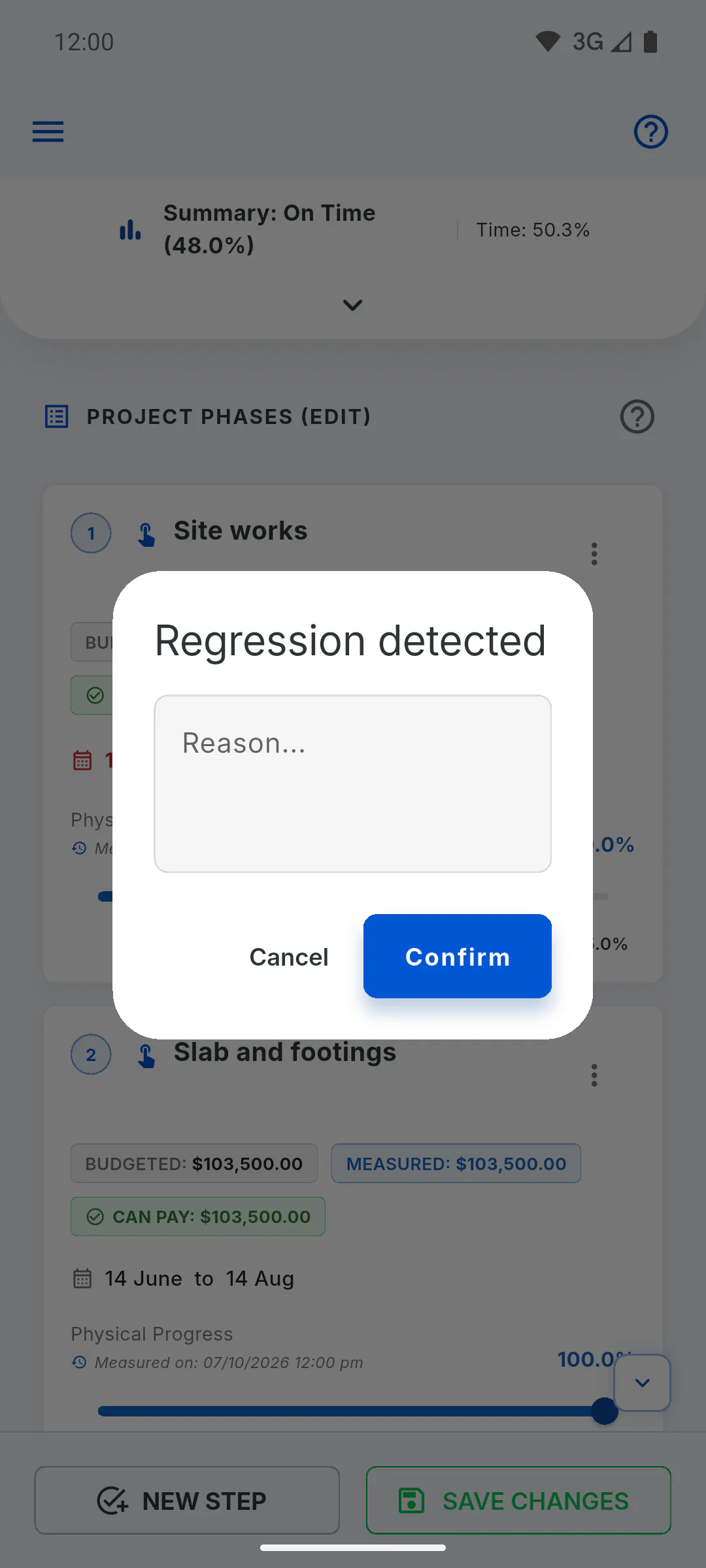
Step 6: If progress goes down
If overall progress ends up lower than the last saved value, the app asks for a reason before saving: Progress regression: why the app asks for a reason
How to update stage progress and save the schedule
Record how much of each stage has been done and save the schedule. When you save, the project progress and status are updated.
For managers6 steps
Didn't find what you were looking for?
Chat with support on WhatsApp or raise a ticket in the app.