
Step 1: Where the indicators are
The indicators sit at the top of the Financial tab in the Portal, when the manager unlocks full financials for you. When collapsed with the arrow, the panel shows only Total spent, the sum of the expenses recorded on the project, and Contract. Total Paid in the summary is a different figure: it adds up incoming payments. Tap the info icon next to each number to read the explanation. If the manager turned the chart off, you only see Costs.
Step 2: Efficiency: physical vs financial
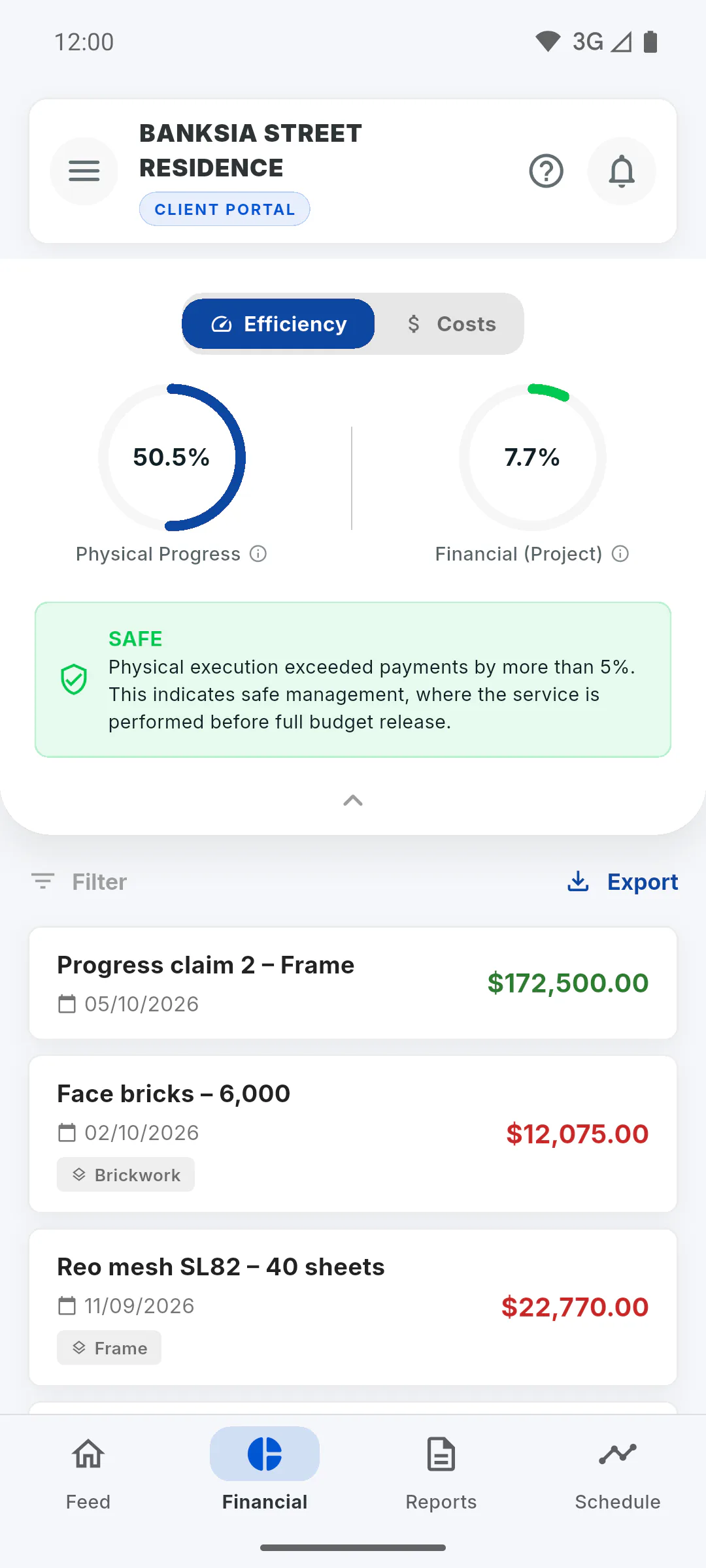
Under Efficiency, two gauges are compared:
- Physical Progress: how much of the project has been built, based on the measurement of the schedule stages;
- Financial (Project): how much has been paid in expenses linked to stages, relative to the contract value. Admin costs are left out so the comparison is fair.
If the manager hasn't entered the contract value, this percentage and the status below don't mean anything: the status may show Ahead for no reason.
Step 3: The statuses
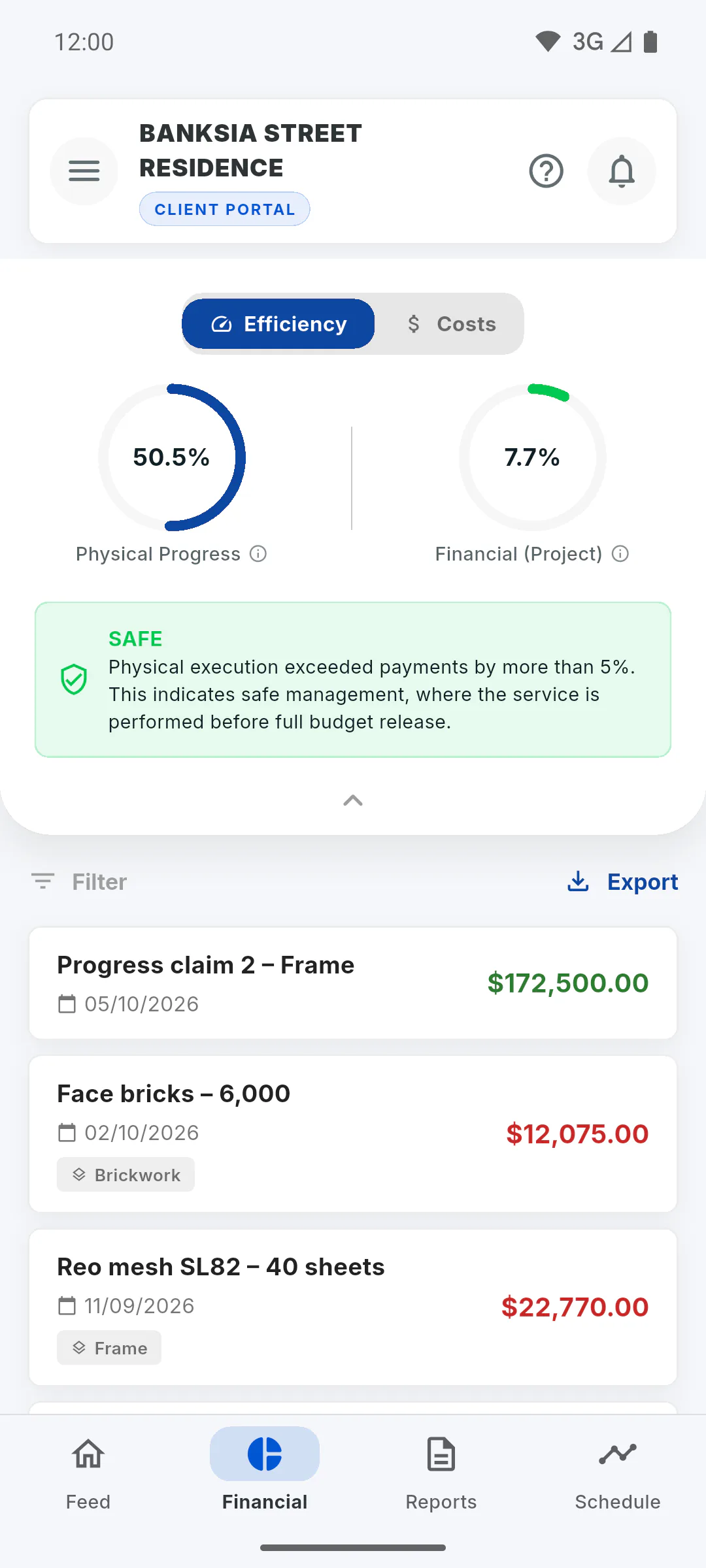
Below the gauges you see a status, based on the gap between the two:
- Ahead: financial is more than 5 percentage points ahead of physical progress, meaning payments came before the work;
- Safe: physical progress is more than 5 points ahead of financial, meaning the work comes before payment;
- Balanced: both are moving together, within the 5-point margin.
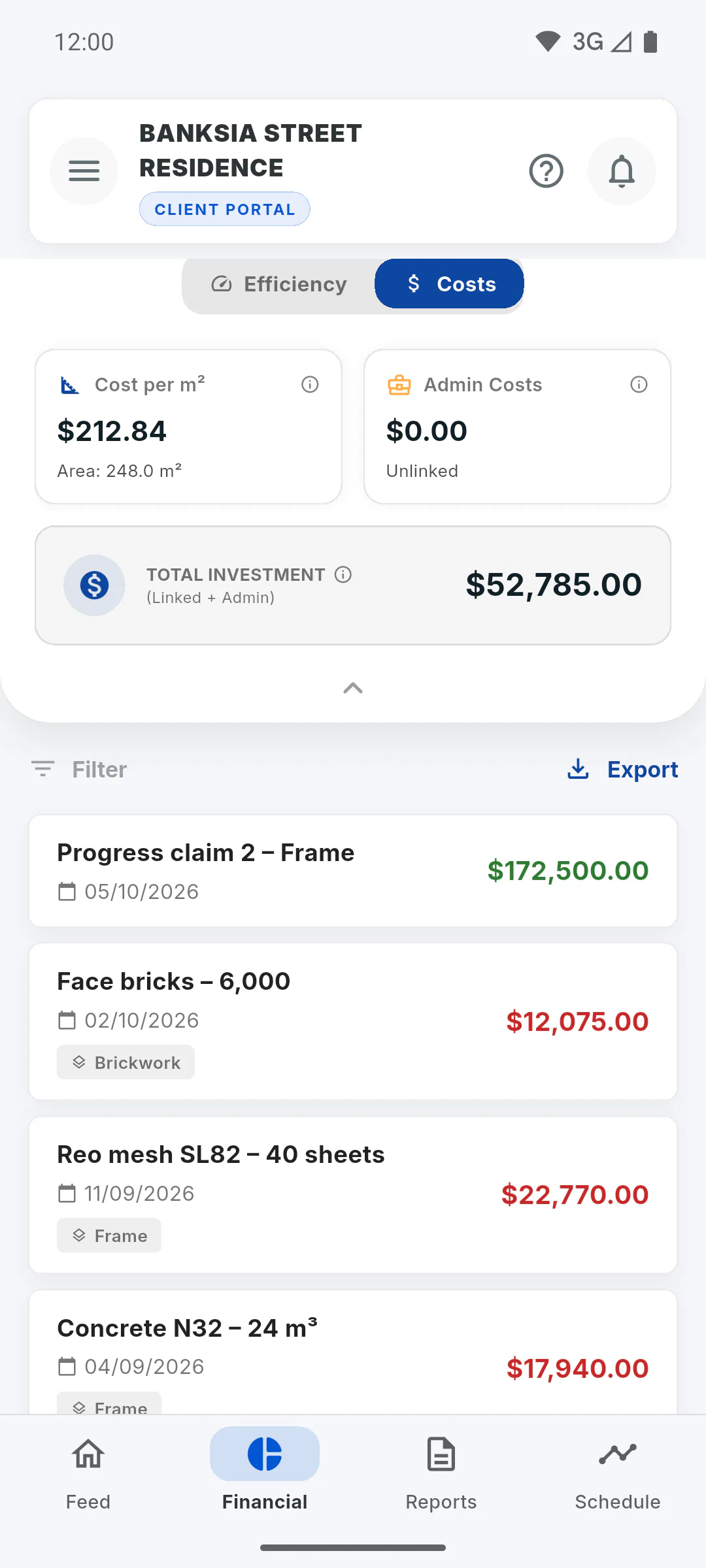
Step 4: Costs
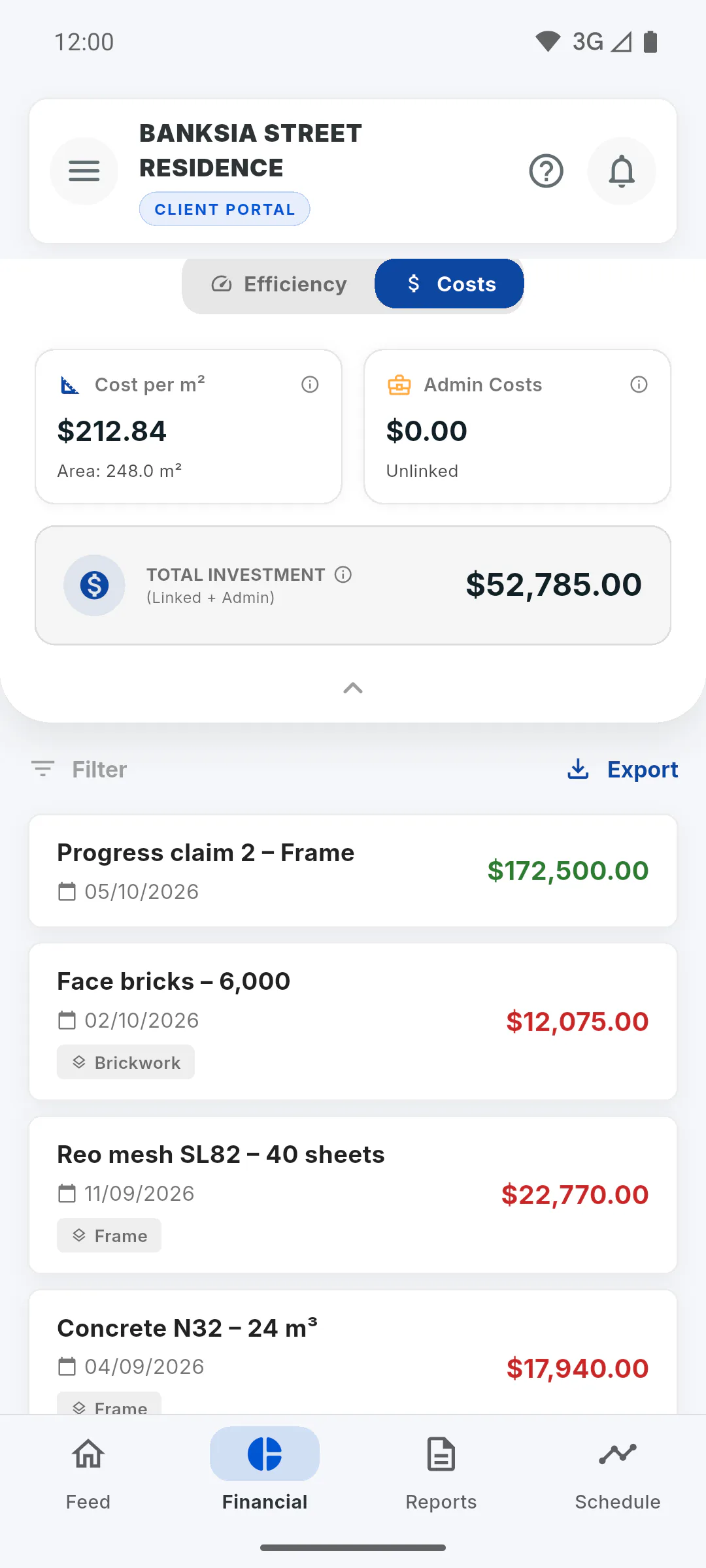
Under Costs:
- Cost per m²: all project expenses divided by the total area (with an account in the United States, Cost per ft²). With no area entered, you'll see Area not provided;
- Admin Costs: expenses not linked to any stage (Unlinked);
- Total Investment: the sum of all expenses, both stage-linked and admin.
Step 5: The project's deadline
How the project is tracking against the deadline, such as ahead or behind schedule, is in the Schedule tab.
What Efficiency, Cost per m² and the project statuses mean
Understand the physical and financial progress gauges, the Ahead, Safe and Balanced statuses, Cost per m² and admin costs in the Client Portal.
For clients5 steps
Didn't find what you were looking for?
Chat with support on WhatsApp or raise a ticket in the app.