
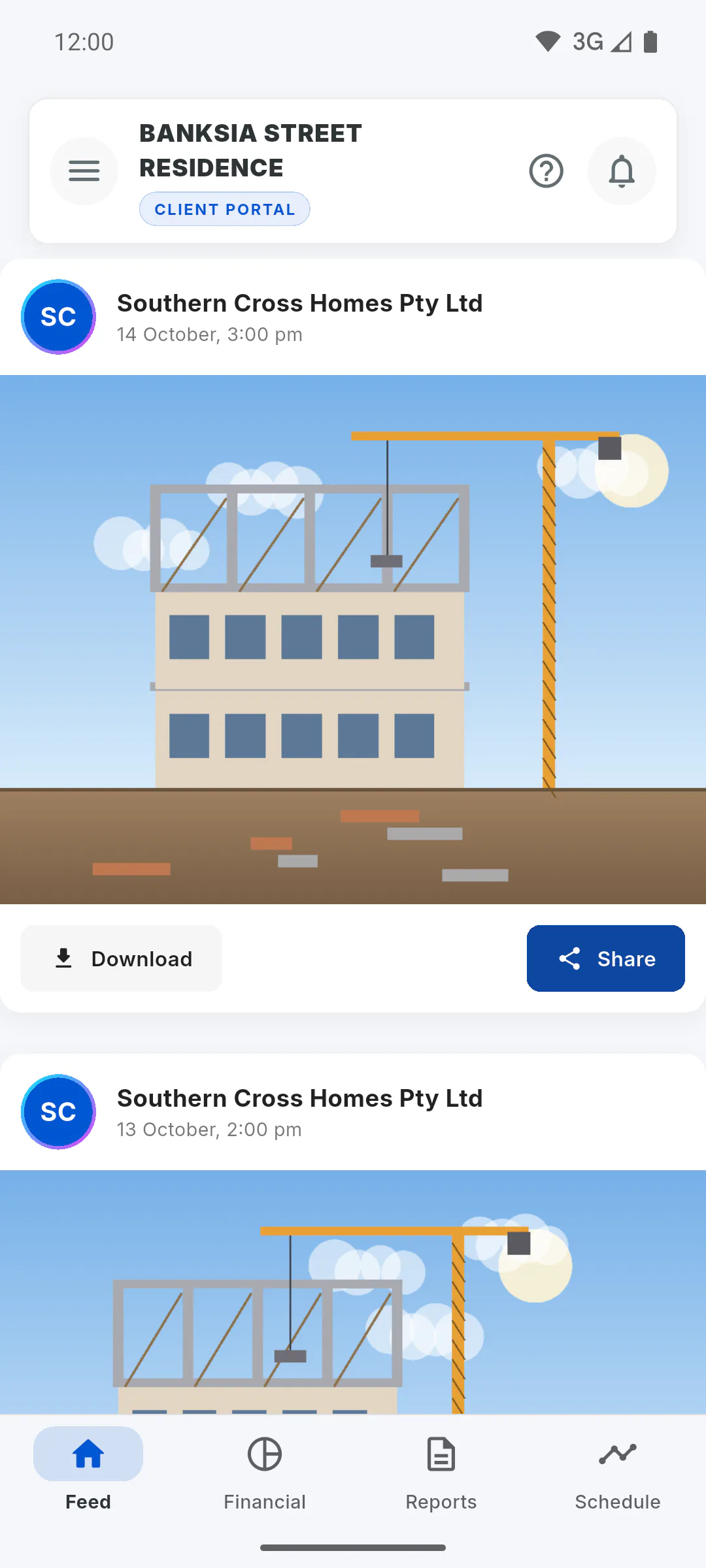
Step 1: Open the Reports tab
In the project's Portal, tap the Reports tab. Reports are listed newest first. Scroll to load more and pull the list down to refresh. If there are no reports yet, you'll see No Reports.
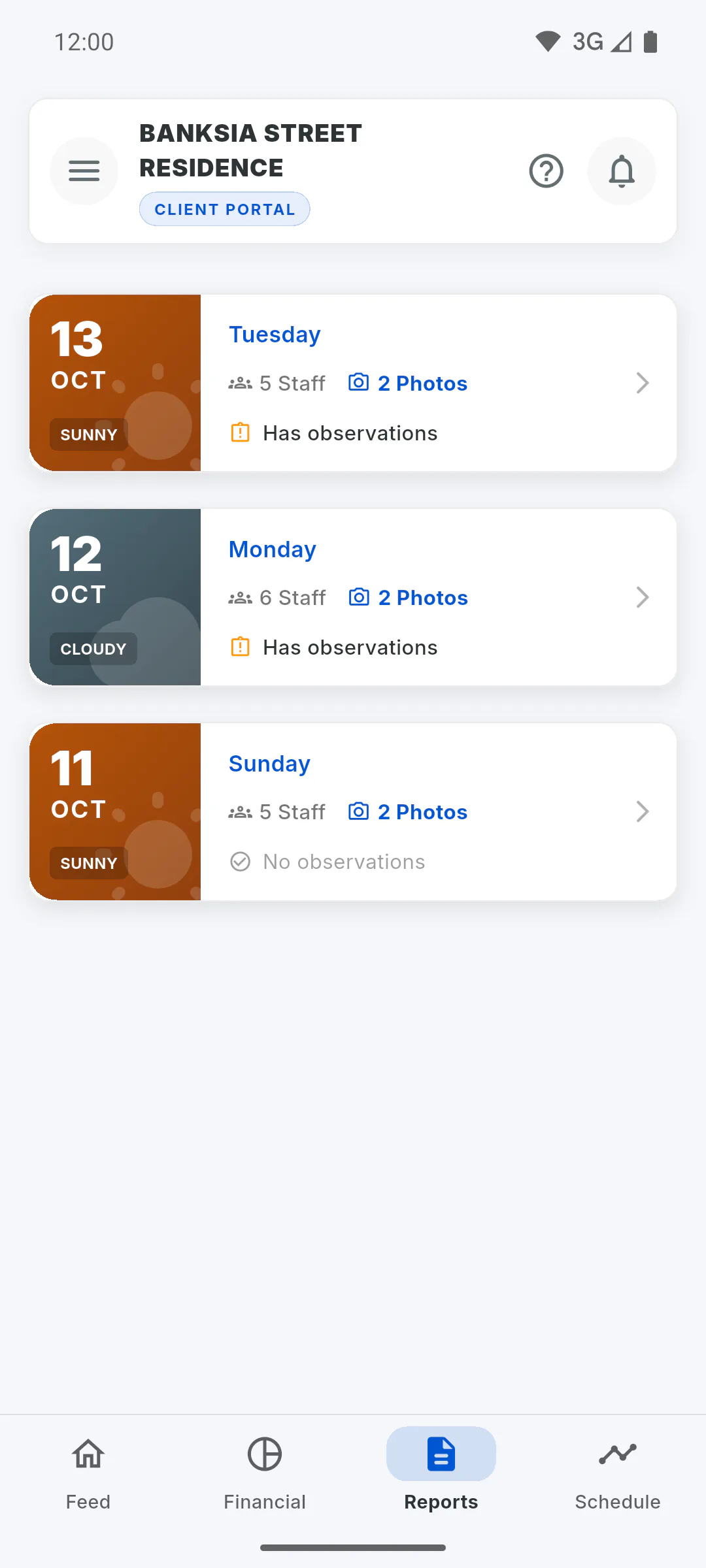
Step 2: Read each day's card
Each card shows the date, the day of the week and the weather. It may also show how many people worked (Staff), how many photos the day has (Photos) and whether there are notes (Has observations or No observations).
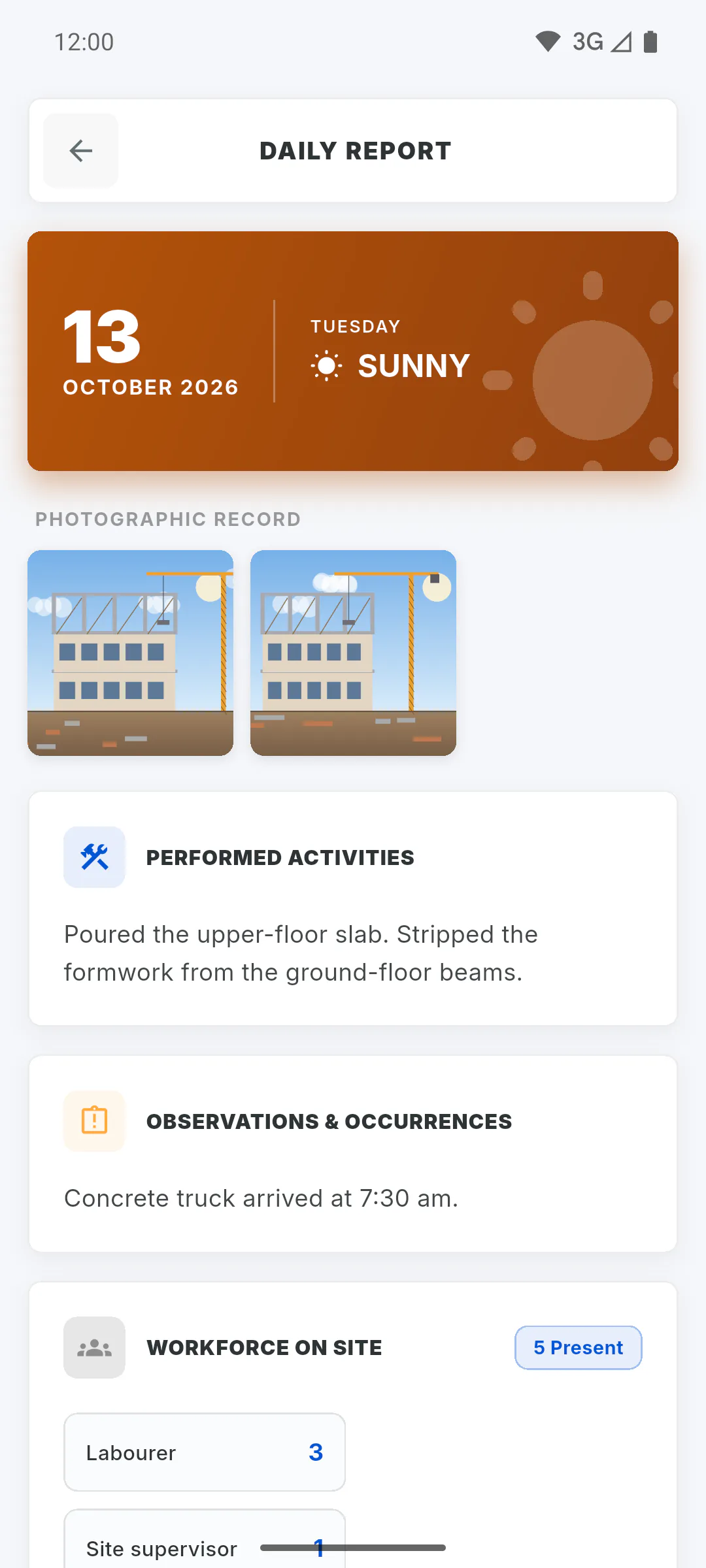
Step 3: Open the report
Tap the card to open the Daily Report. It shows the day's weather, the Photographic Record (tap a photo to view it full screen), the Performed Activities and, when there are any, Observations & Occurrences.
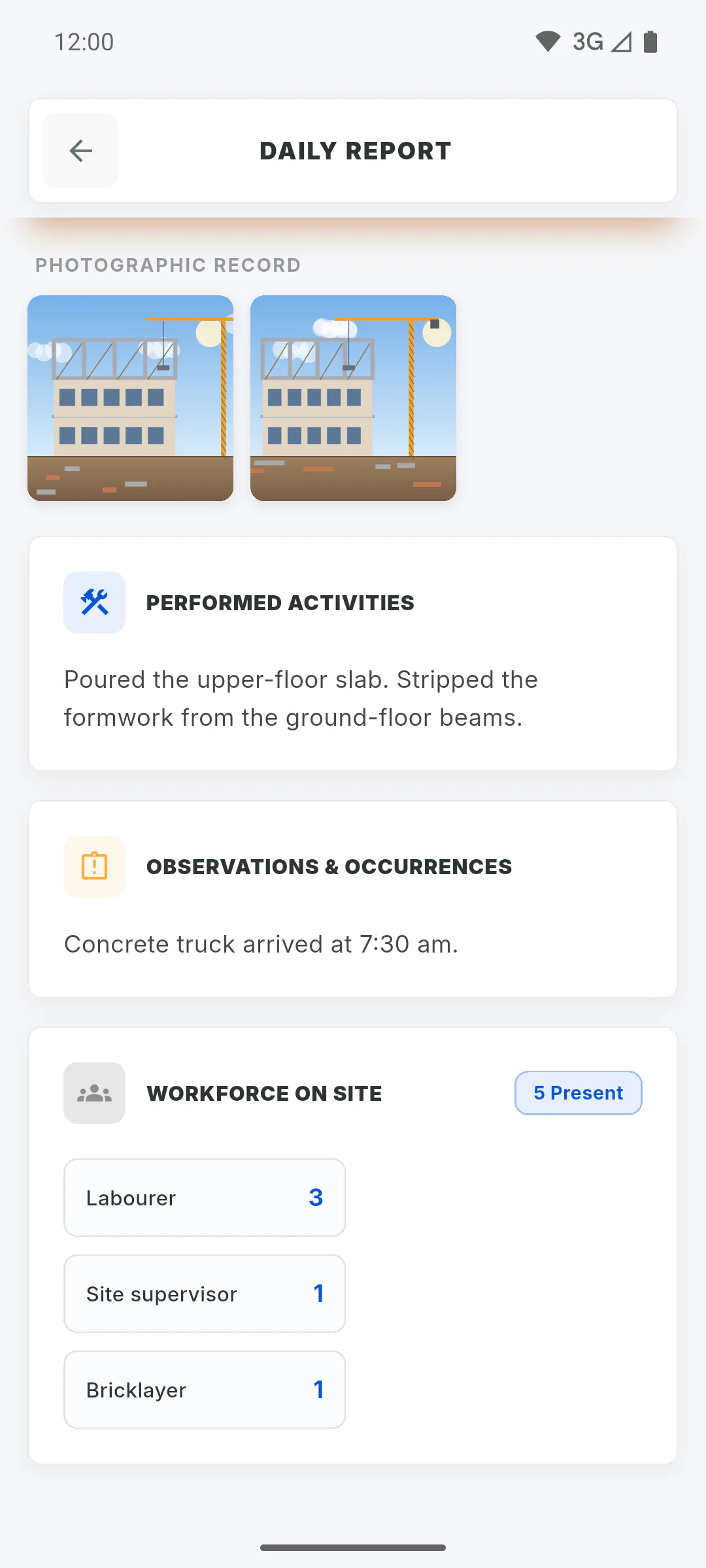
Step 4: Crew and signature
When the day has crew recorded, Workforce on Site shows how many people from each role were present. If the report was signed with an image or a drawing, the signature appears at the end, under Digitally Signed by:.
Step 5: Notifications and PDF
When a new report is published, a New Daily Report notification arrives in the bell. The Portal has no daily report PDF download: if you need the file, ask the project manager.
How to read your project's daily reports
Follow what was done each day on your project from the Client Portal: weather, photos, activities, observations, crew on site and sign-off.
For clients5 steps
Didn't find what you were looking for?
Chat with support on WhatsApp or raise a ticket in the app.