
Step 1: Open the report
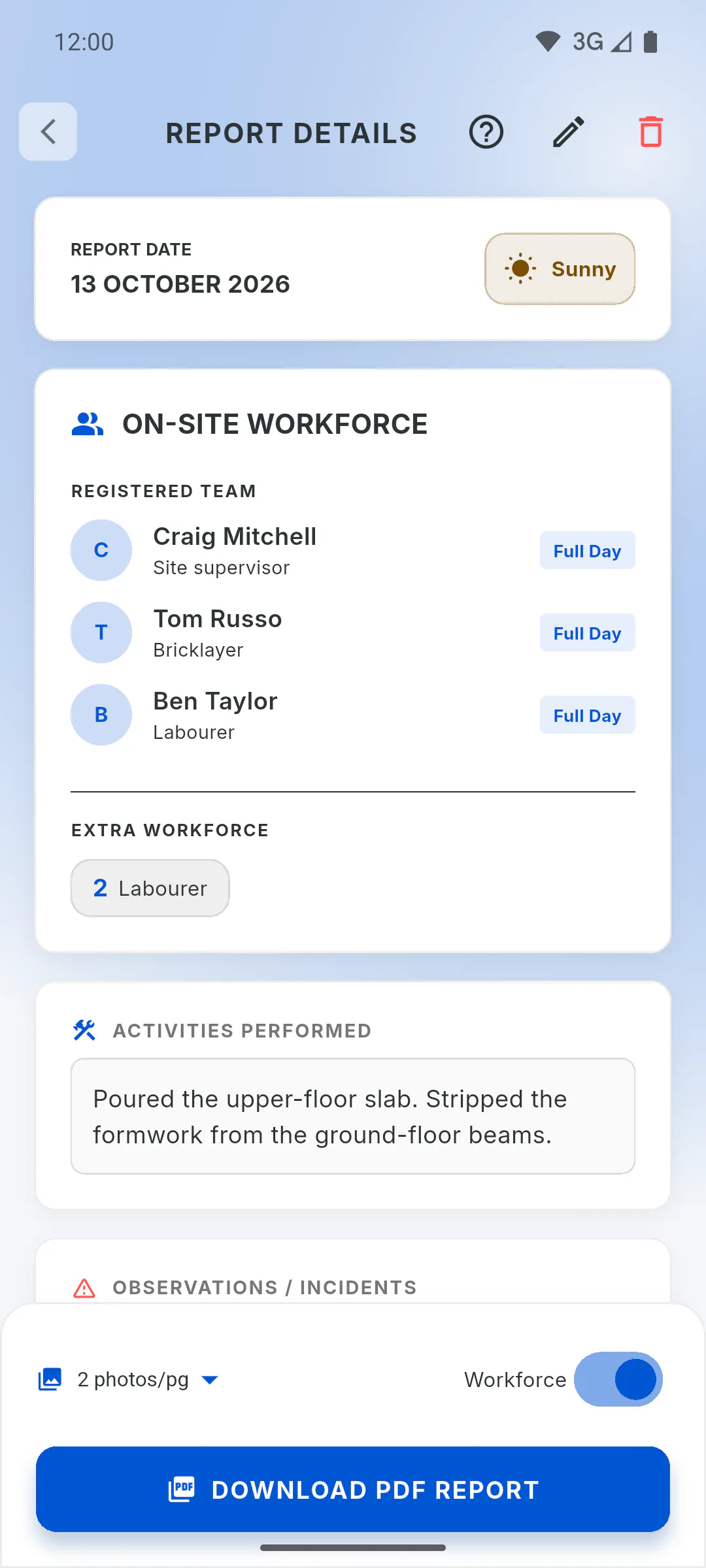
In Daily Reports, tap the report card, then tap the red bin at the top of the screen (Delete Report).
Step 2: Confirm
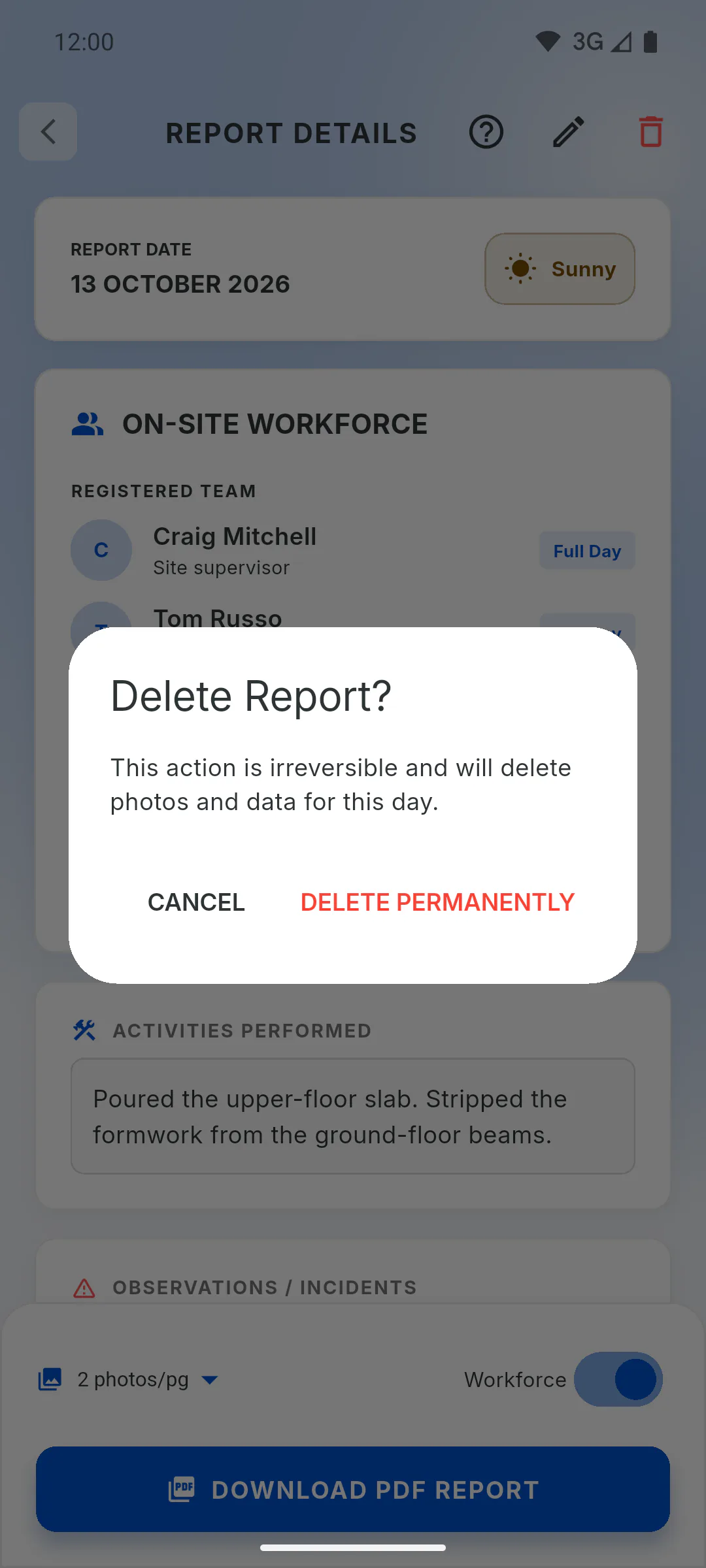
Delete Report? appears, warning that the action is irreversible and deletes that day's photos and data. Tap Delete Permanently to delete it or Cancel to go back. When it's done, Daily report deleted successfully! appears.
Step 3: What gets deleted
The report, its photos (which also leave the project's Gallery) and the signature image. That day's attendance and absences no longer count in payroll. This can't be undone: if you need the record, download the PDF first.
Step 4: Who can delete
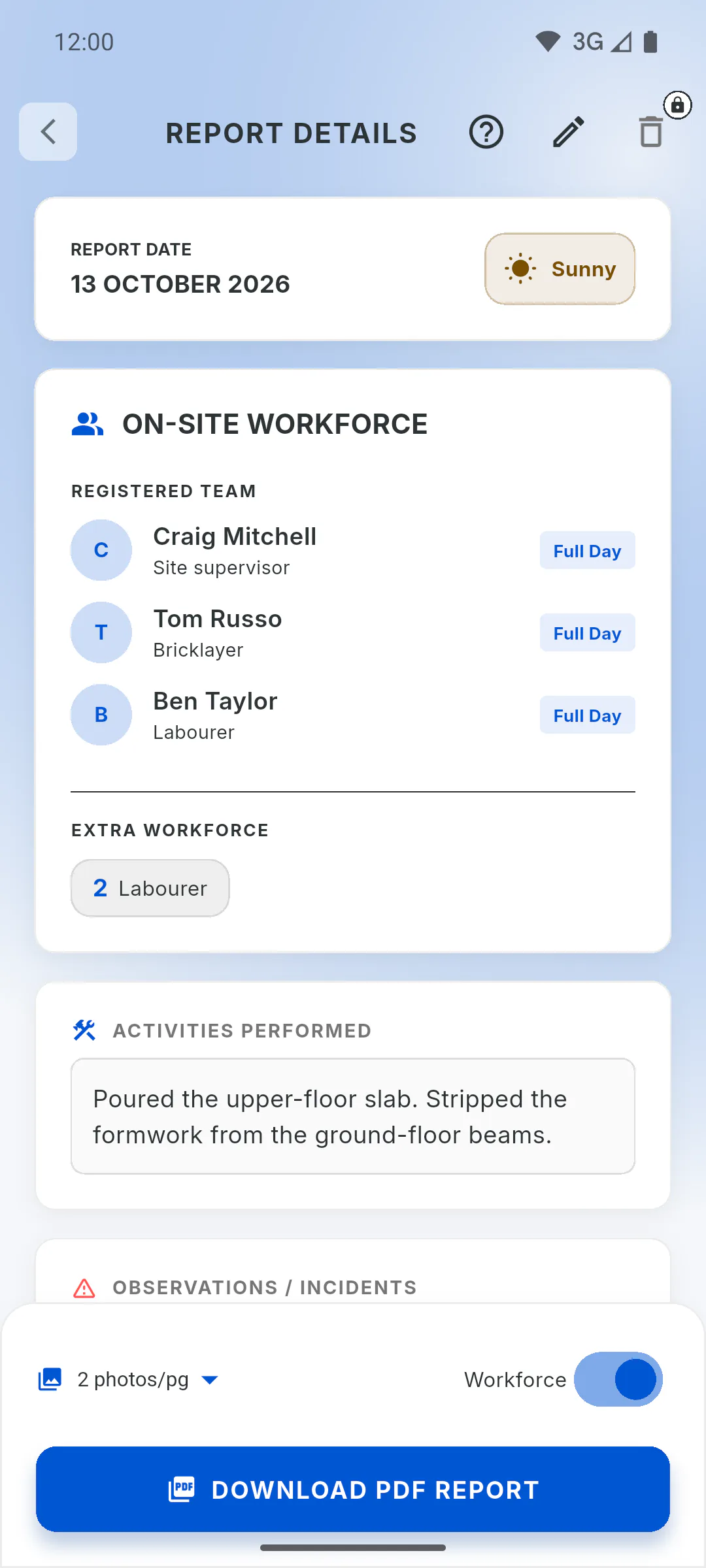
Only the project owner. For invited engineers and crew members, the bin appears greyed out with a padlock; tapping it opens a window that shows their role on the project and who can delete. If a report needs to go, ask the owner.
Step 5: Offline
Offline, the report leaves the list right away and the deletion is kept on the device. When the connection comes back, it reaches the cloud and the report's photos and signature are deleted automatically.
Step 6: Wrong date or crew
The date, crew attendance and extra workforce can't be edited. To fix them, delete the report and create a new one with the right details.
How to delete a daily report
Remove a report made by mistake or with the wrong date or crew. Deleting can't be undone and also removes that day's photos.
For managers and team members6 steps
Didn't find what you were looking for?
Chat with support on WhatsApp or raise a ticket in the app.