
Step 1: Managers and team: in About the App
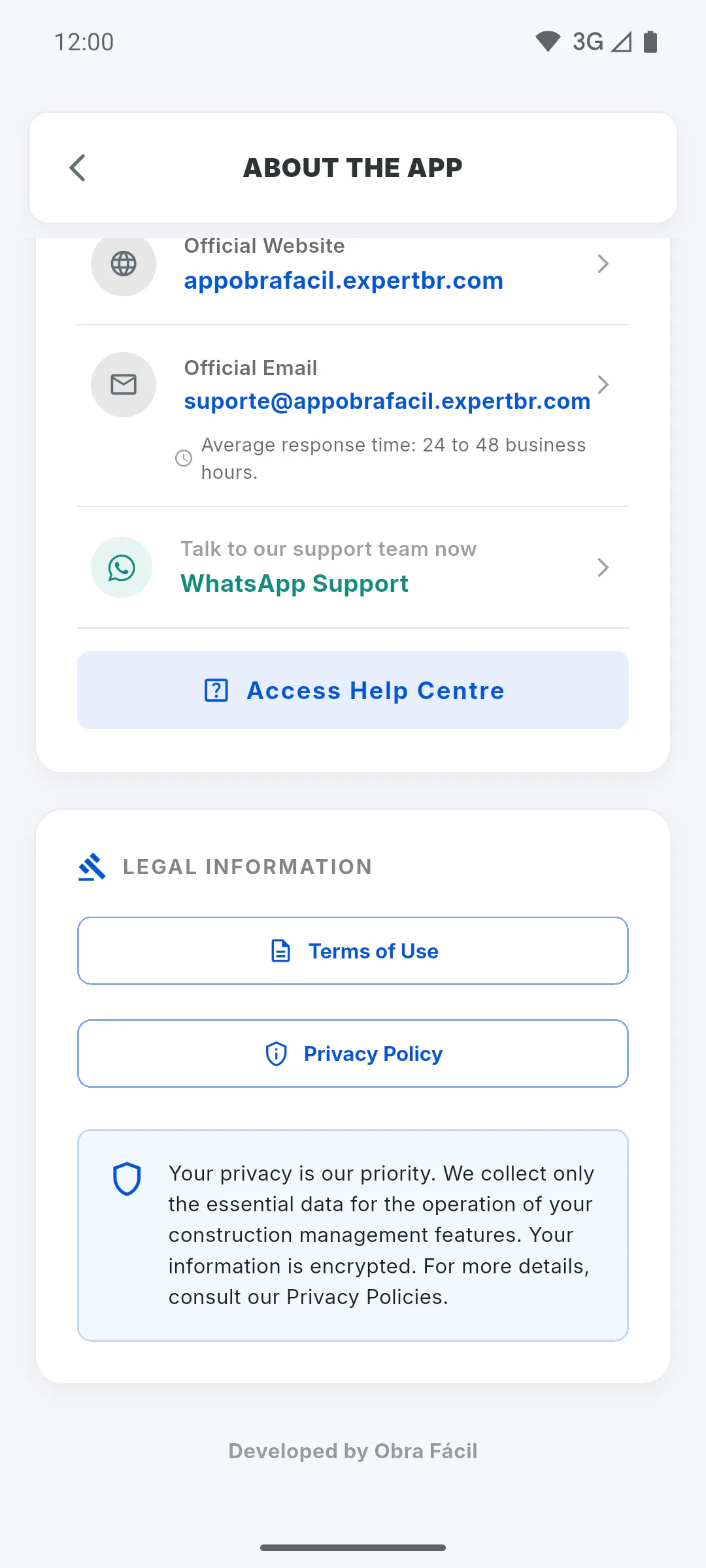
In the side menu, tap About the App and, under Legal Information, tap Terms of Use or Privacy Policy. The text opens on its own screen; to go back, use the arrow at the top.
Step 2: Other places with the same links
- the sign-up screen
- the footer of the PRO plans screen
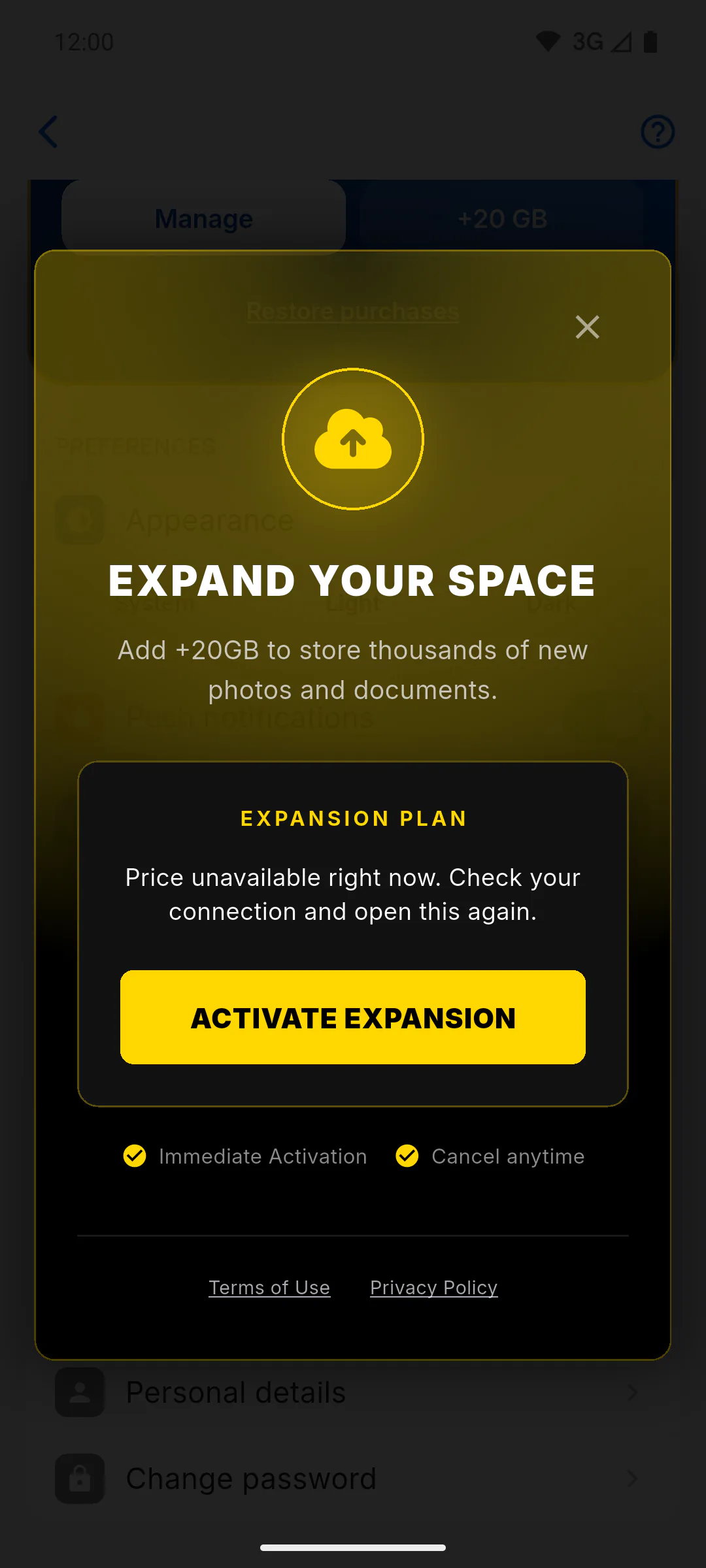
- the purchase windows, such as +20 GB storage and extra downloads
Clients in the Client Portal: the links are on the sign-up screen and in the gallery's extra downloads window.
Step 3: What each document covers
- Terms of Use: rules of use, subscriptions and cancellation, purchases in the app stores and on the website, artificial intelligence features, account deletion and the minimum age of 18
- Privacy Policy: what data is processed, what it's used for, who it's shared with, how long it's kept, including on the device when offline, and how to ask for deletion
At the top of each document you'll see the version and the date it took effect, such as Version 2.0 · in effect since followed by the date.
Step 4: Language of the text
The documents follow the app language. To read them in another language, change the app language: How to change the language.
Step 5: Accepting a new version
When a new version of the Terms or the Policy takes effect, the app shows We've updated our terms when you sign in, with what changed, the buttons to read each document and the boxes to accept. Before that, you get a notice by email and in the app: Why you need to accept the Terms of Use.
Where to read the Terms of Use and Privacy Policy
Where to find the ObraFácil Terms of Use and Privacy Policy in the app, what each document covers and what happens when a new version comes out.
For managers, team members and clients5 steps
Didn't find what you were looking for?
Chat with support on WhatsApp or raise a ticket in the app.