
Step 1: Two ways to split a stage
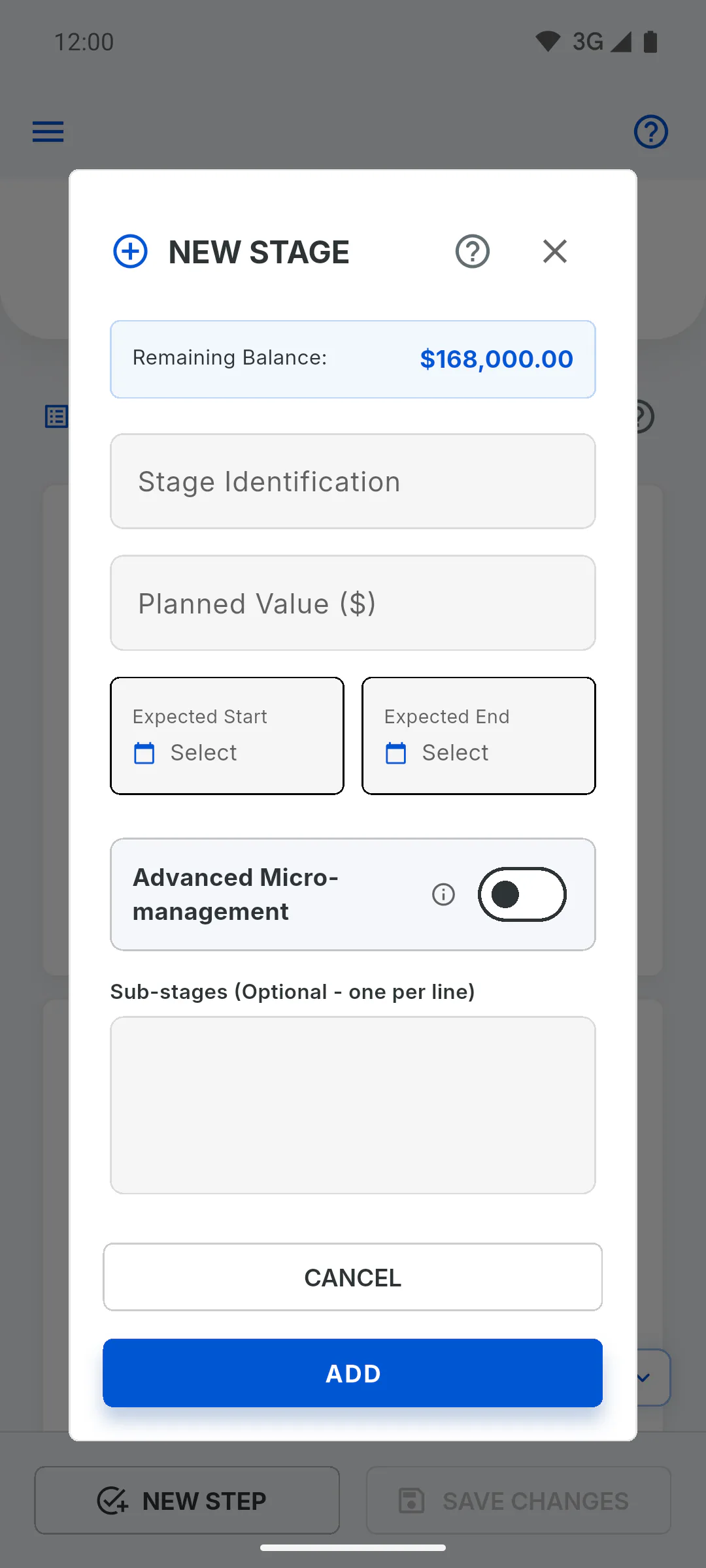
The stage window gives you two ways to split the work:
- the simple list, Sub-stages (Optional - one per line), which is for reference only
- Advanced Micro-management, where each sub-stage has its own weight, dates and progress
Open New Stage or, from a stage's three-dot menu, Edit Stage.
Step 2: Set the stage's dates first
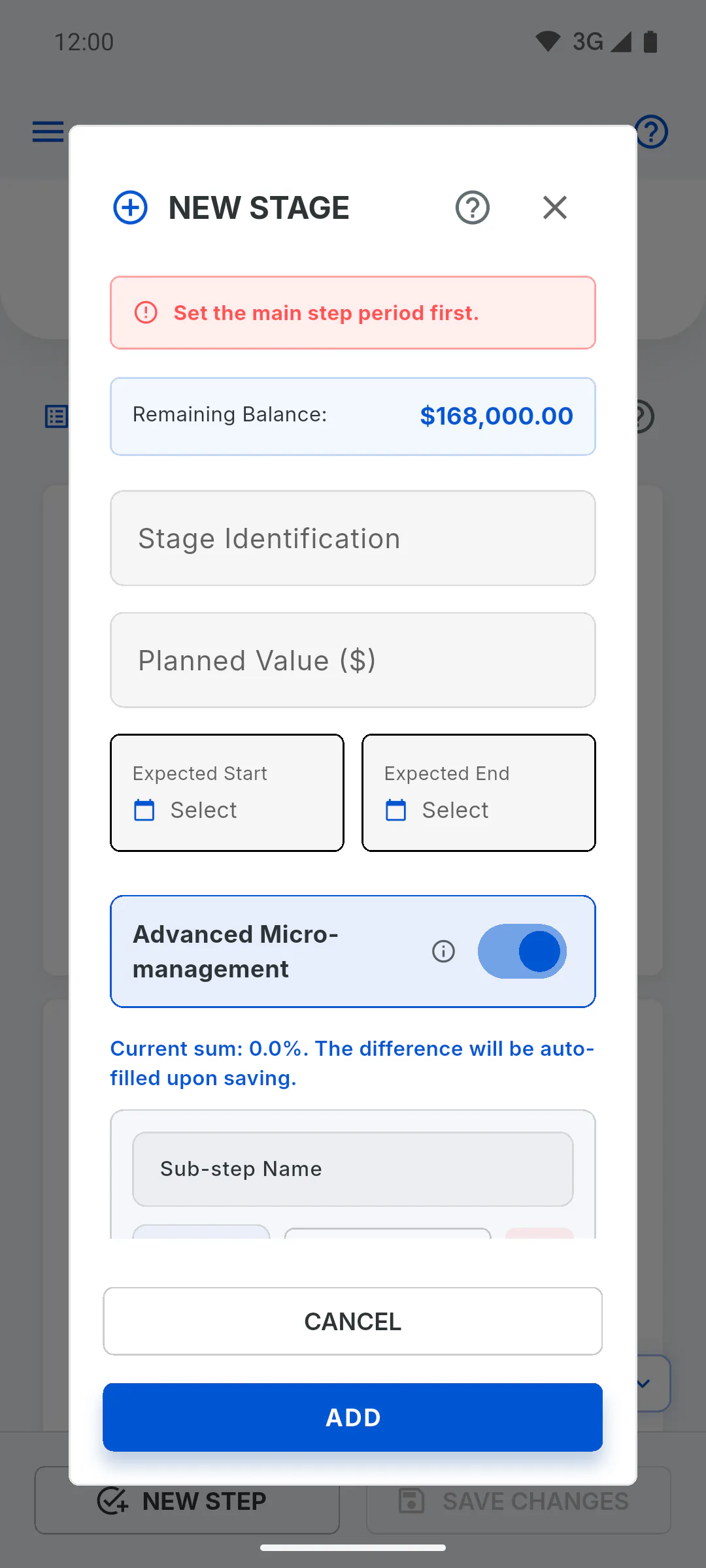
With micro-management, the stage's Expected Start and Expected End are required and come first: sub-stage dates have to fall within that period. Without them you'll see Set the main step period first.
Step 3: Add the sub-stages
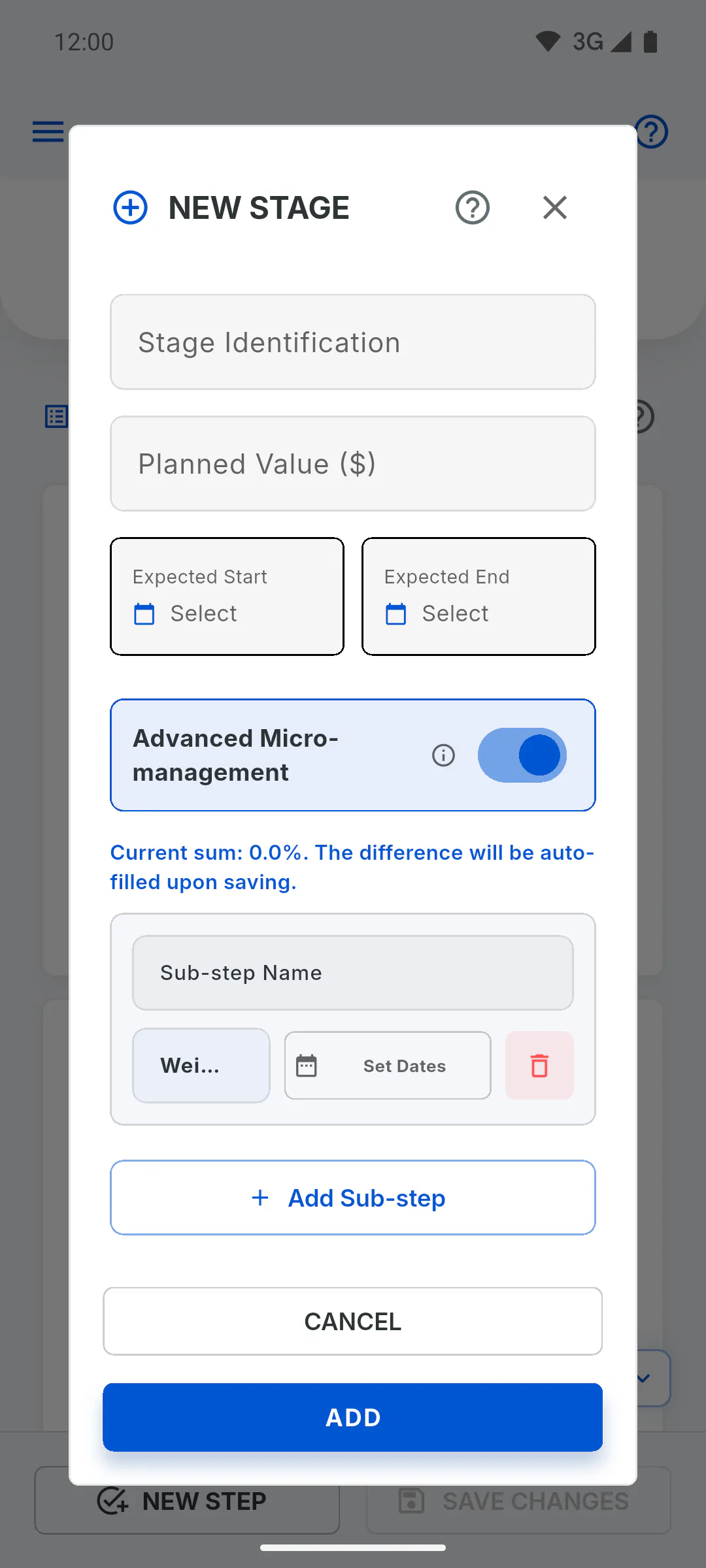
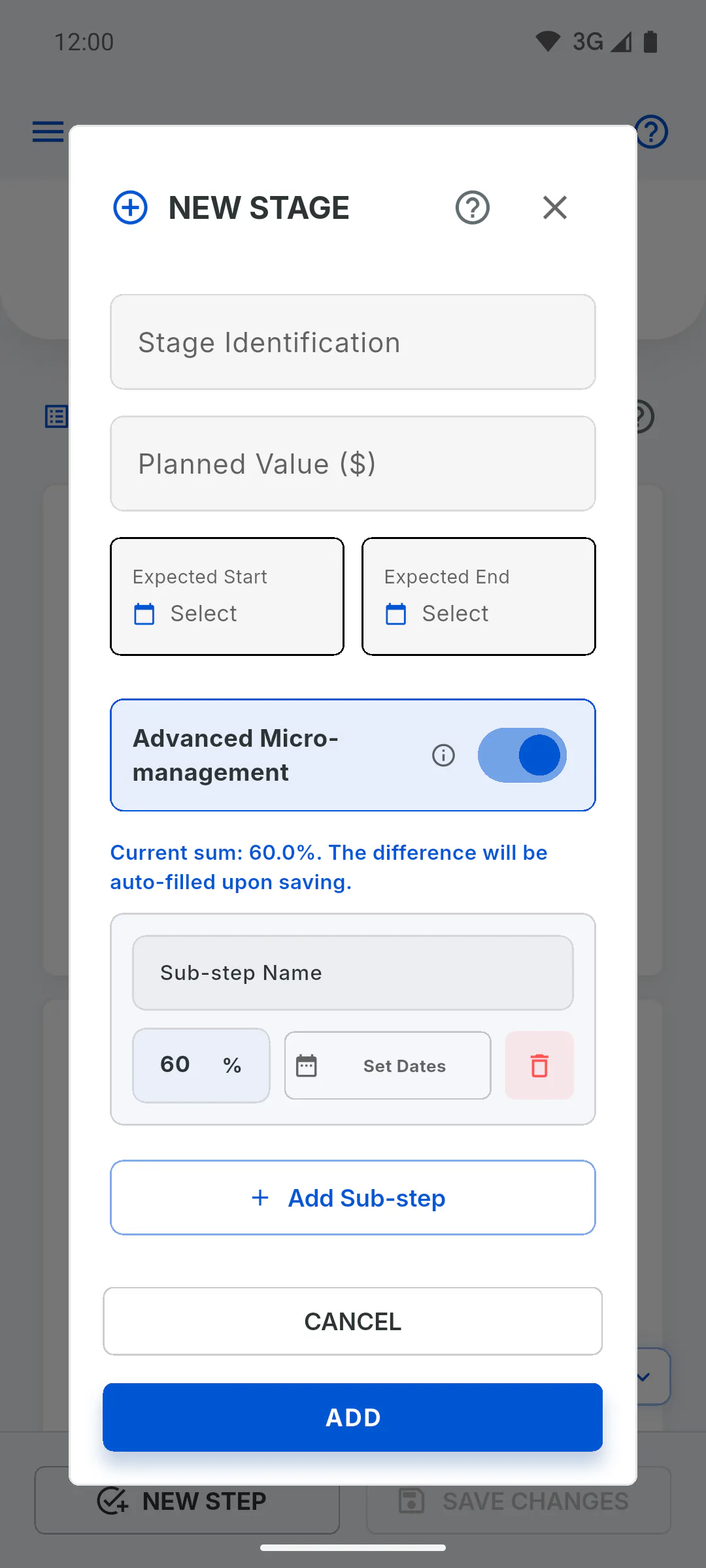
Turn on Advanced Micro-management and tap Add Sub-step. On each row:
- Sub-step Name
- Weight, as a percentage
- Set Dates, to pick the period
- the bin icon, to remove the row
Every field is required; if one is missing you'll see Fill name, weight and dates for all sub-steps.
Step 4: Weights
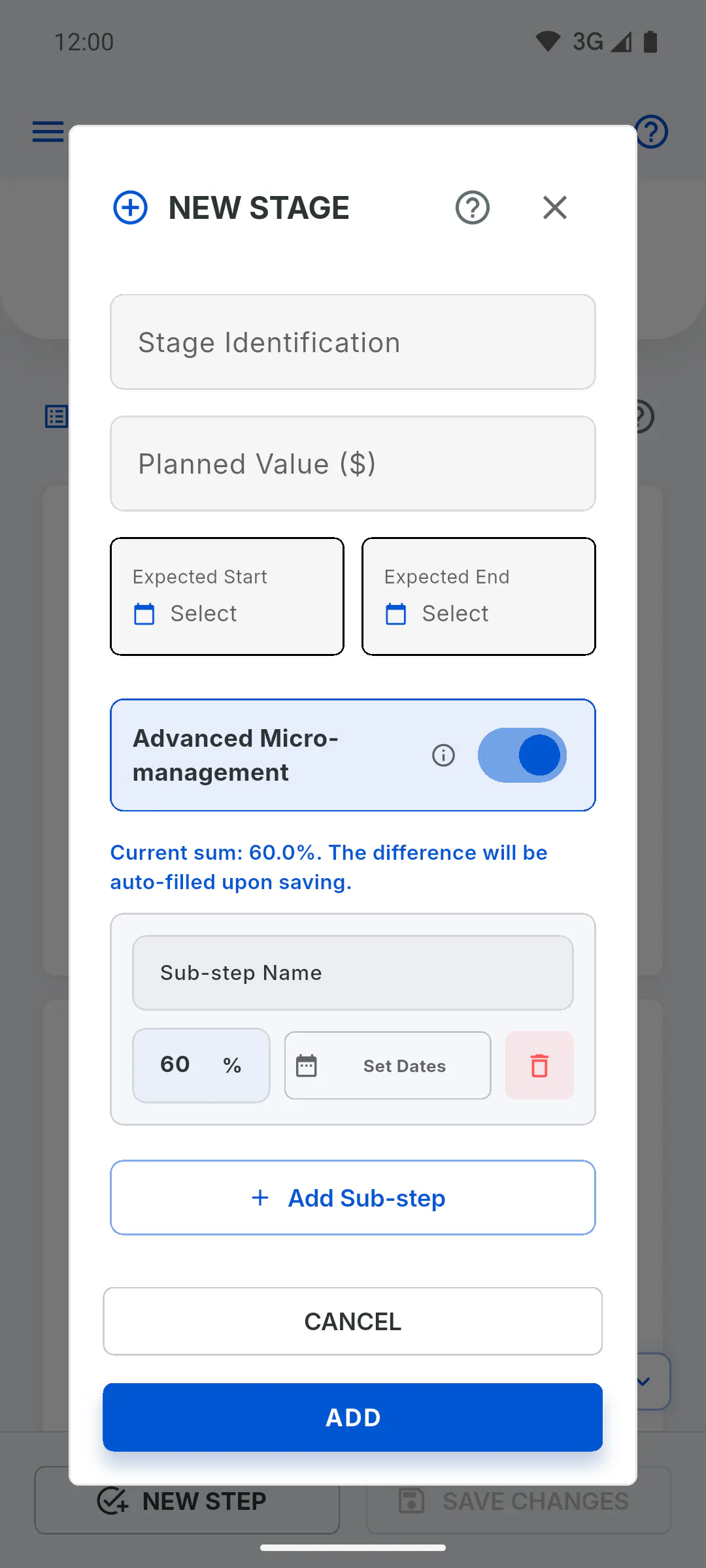
Weights add up to 100% at most: as you type, the app won't let the total go over that. If it's below 100%, you'll see the Current sum notice, and when you save, the remainder is split equally across the sub-stages.
Step 5: Save
Tap Add (new stage) or Save Changes (editing), then Save Changes on the schedule's bottom bar.
- Turning on micro-management for a stage that had a simple list replaces that list with the weighted sub-stages.
- The stage's progress now comes from its sub-stages: if it already had progress, it starts again from zero and the app may ask for a reason when you save: Progress regression
Step 6: Track it on the schedule
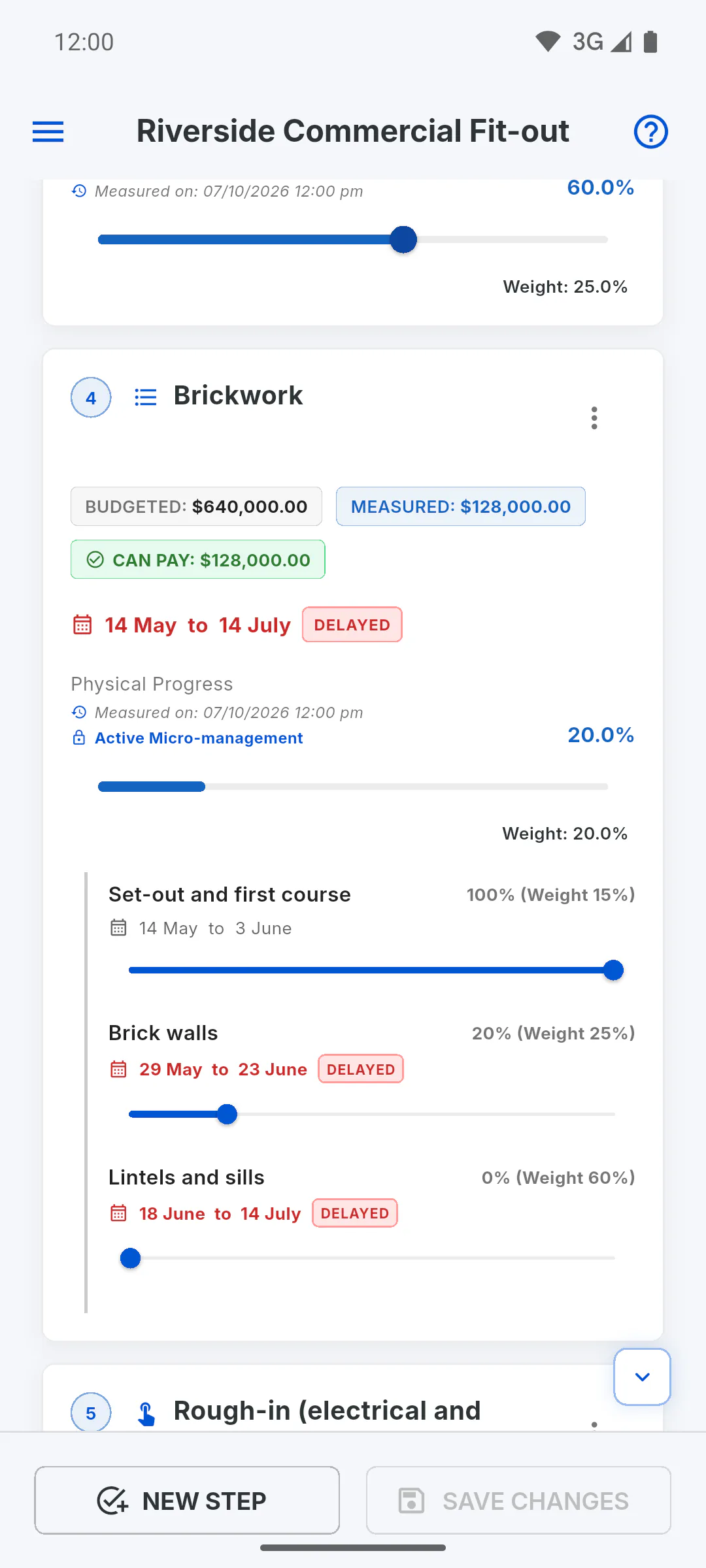
The card shows Active Micro-management and the stage's own slider is locked. Each sub-stage has its own slider, in 1% steps, with its weight, its period and a Delayed label once it's overdue. The stage's progress is each sub-stage's progress times its weight, added up: How to update stage progress
Step 7: Turning micro-management off
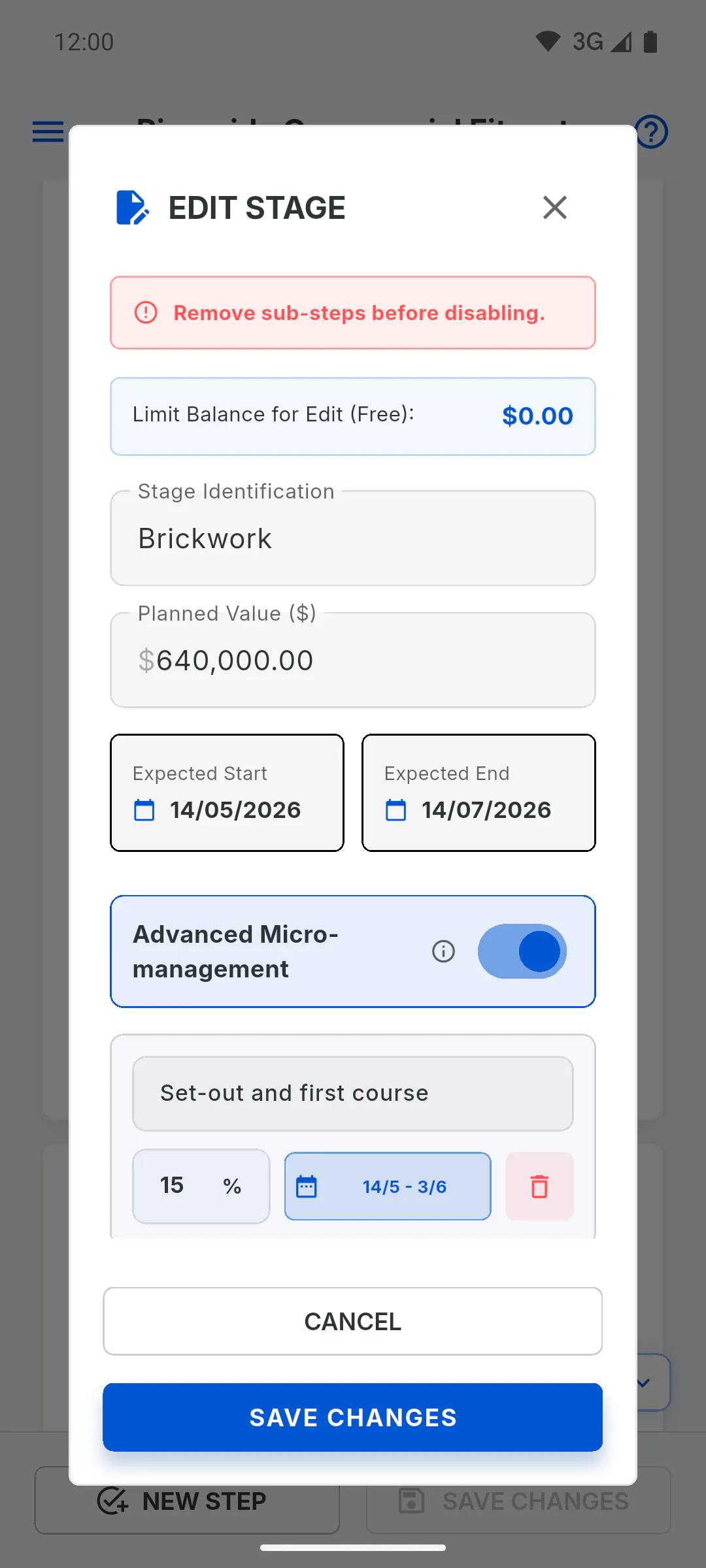
To turn it off, first remove every sub-stage with the bin icon; otherwise you'll see Remove sub-steps before disabling.
- Don't leave micro-management on with no sub-stages: the stage's slider stays locked at 0%.
How to use sub-stages with weights and dates
Split a stage into sub-stages with weights and dates: each one gets its own slider and the stage's progress is calculated for you.
For managers7 steps
Didn't find what you were looking for?
Chat with support on WhatsApp or raise a ticket in the app.