
Step 1: When it appears
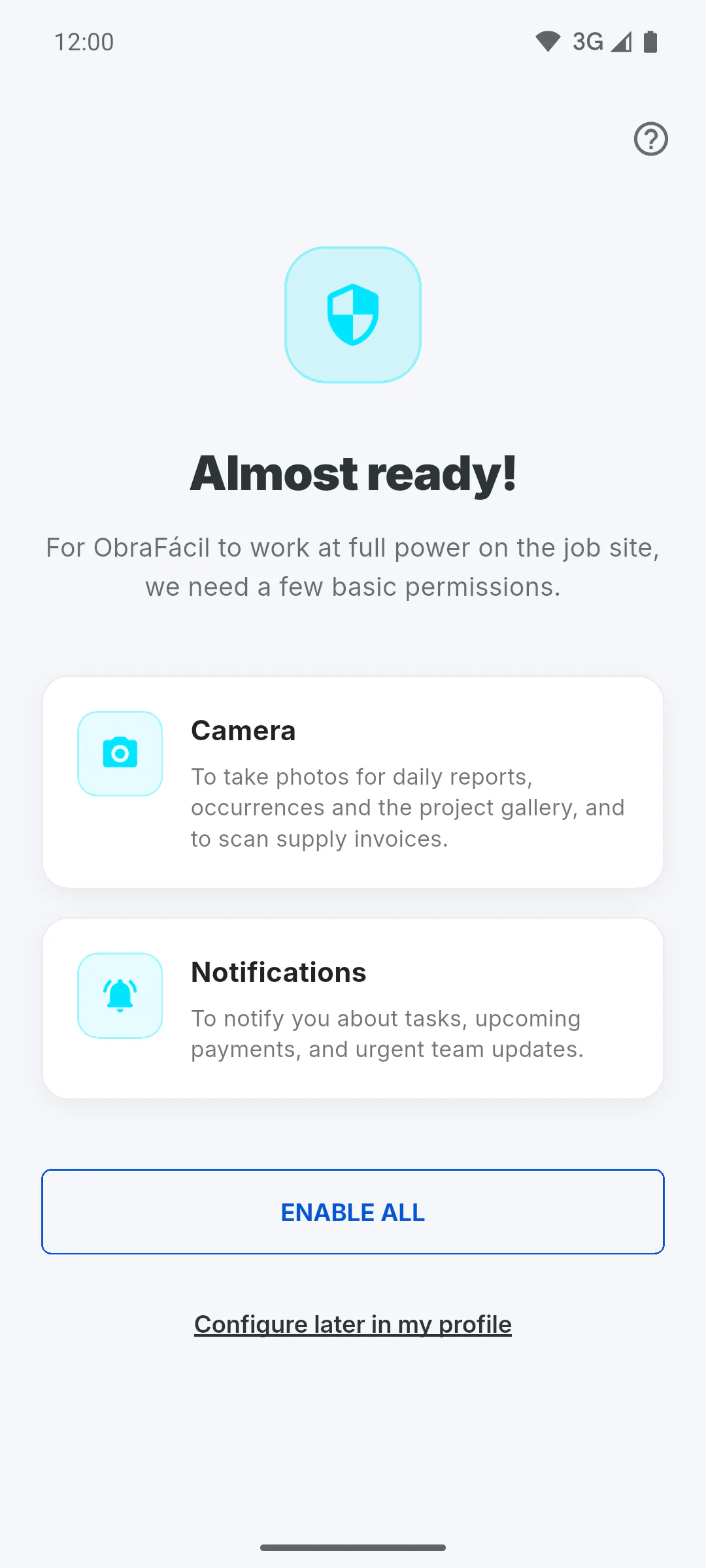
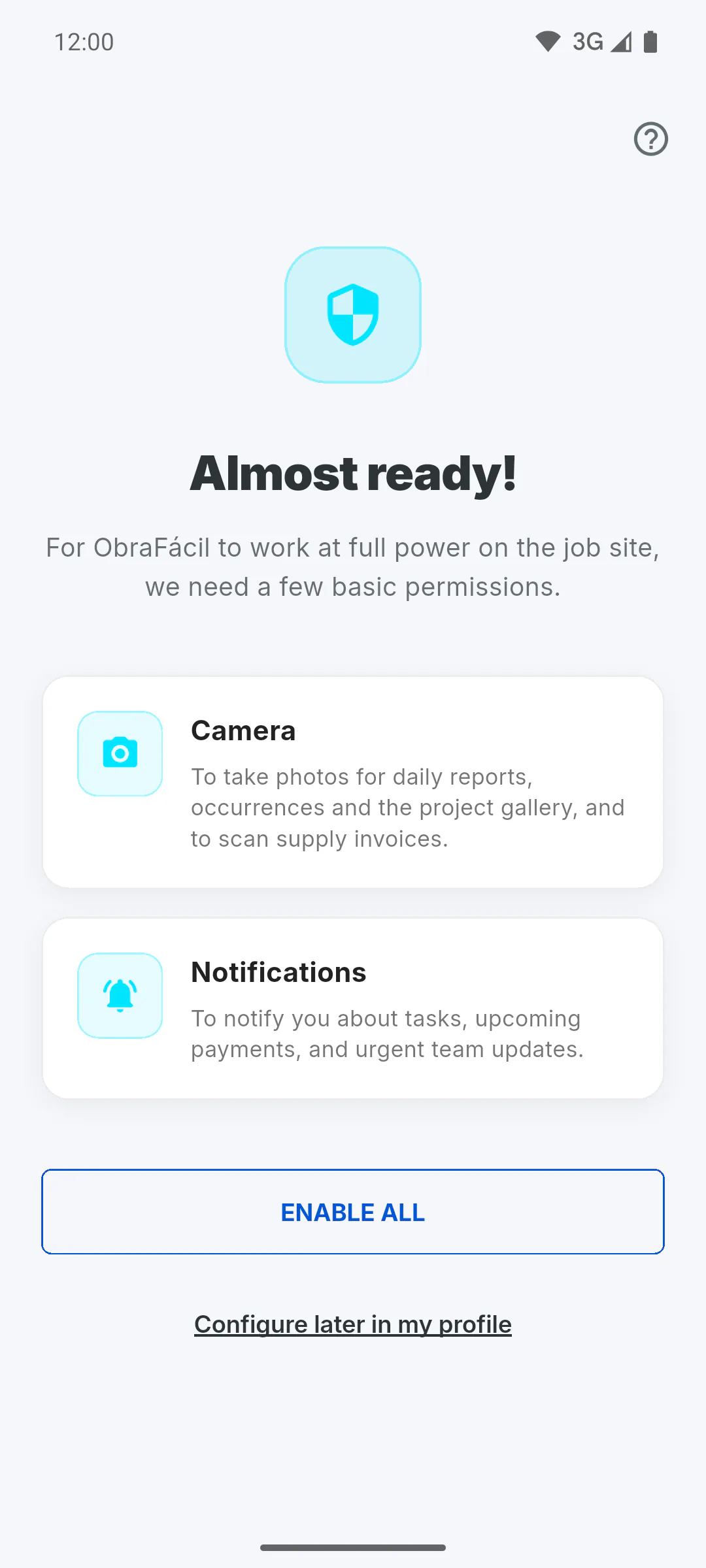
The Almost ready! screen appears once per device, on mobiles and tablets (Android, iPhone and iPad), when the app opens with your account already signed in: right after you sign up or, if you just signed in, the next time you open the app. It doesn't appear in a web browser or on a computer, and it doesn't come back later, even if another account signs in on the same device.
Step 2: Camera
The Camera card explains what it is for: taking photos for daily reports, occurrences and the project gallery, and scanning supply invoices, straight from the app.
Step 3: Photo Gallery
The Photo Gallery card only appears on iPhone and iPad: it's access to the photos and files already on the device, to upload invoices, blueprints and older site photos.
Step 4: Notifications
The Notifications card lets the app alert you about tasks, payments and team issues, even when the app is closed. Reminder alarms also use notifications.
Step 5: Enable now or later
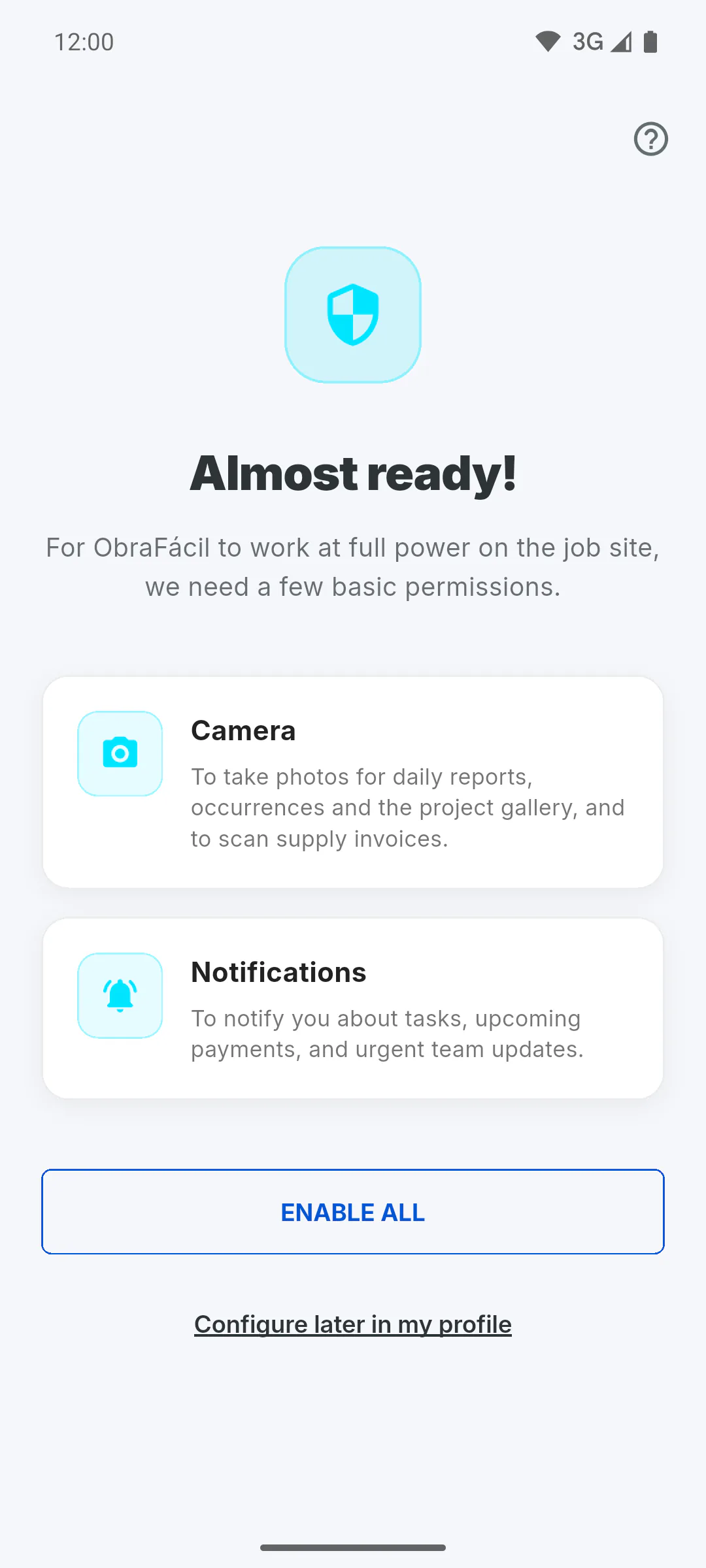
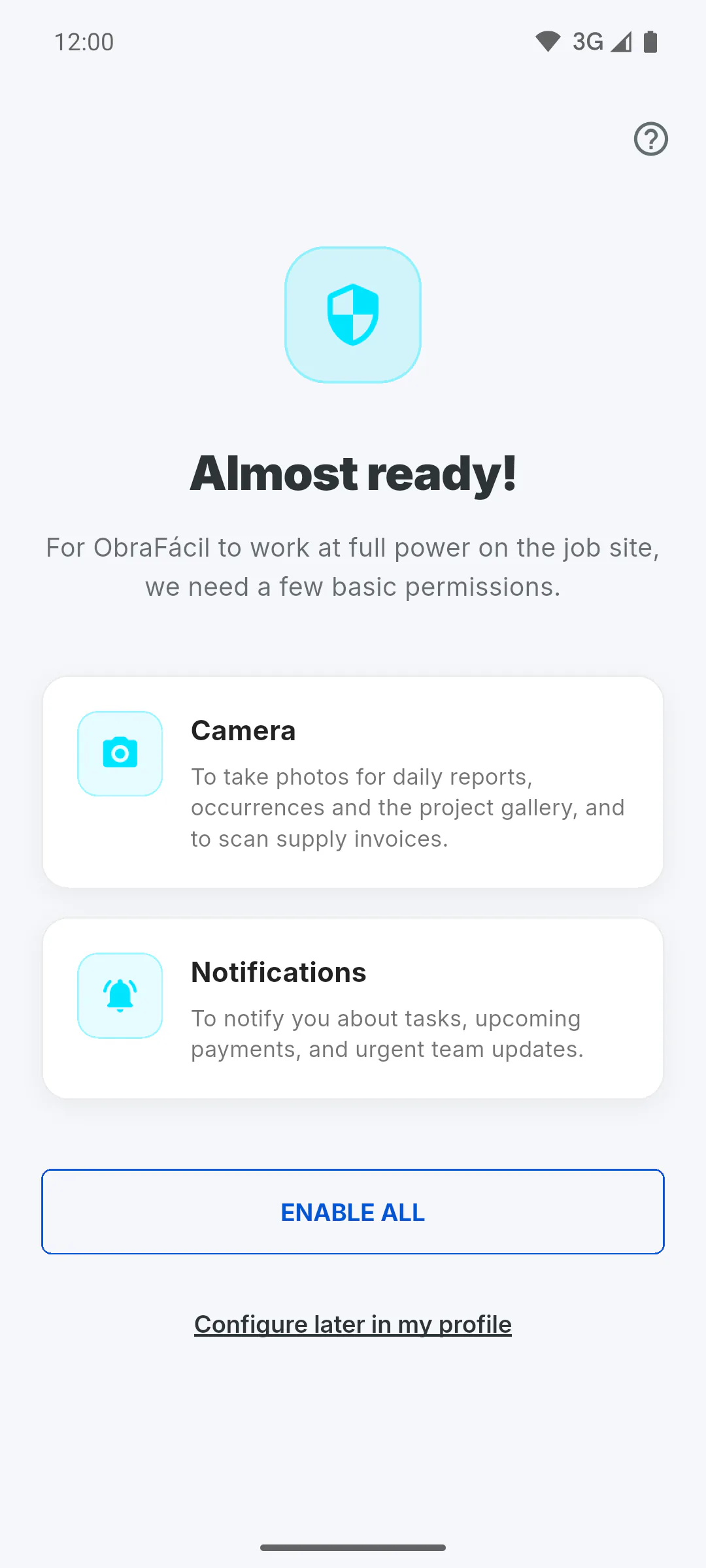
Tap Enable All: your mobile asks about each one, and you can allow or deny each. To skip, tap Configure later in my profile. Either way, the app moves on to your home screen.
Step 6: If you skipped or denied
The profile has no button to ask for these permissions again. The notification switches in Profile (PREFERENCES group) and in the Client Portal settings let you choose what you want to receive, but they don't change the permissions on your mobile. To allow them, open your mobile's settings, find ObraFácil in the app list and turn on camera, photos or notifications. How to turn mobile and email notifications on or off
Why the app asks for camera, gallery and notification access
The first time you sign in on a mobile, the app asks for access to the camera, notifications and, on iPhone, your photos. See what each one is for and how to allow it later if you skipped it.
For managers, team members and clients6 steps
Didn't find what you were looking for?
Chat with support on WhatsApp or raise a ticket in the app.