
Step 1: Only in the mobile app
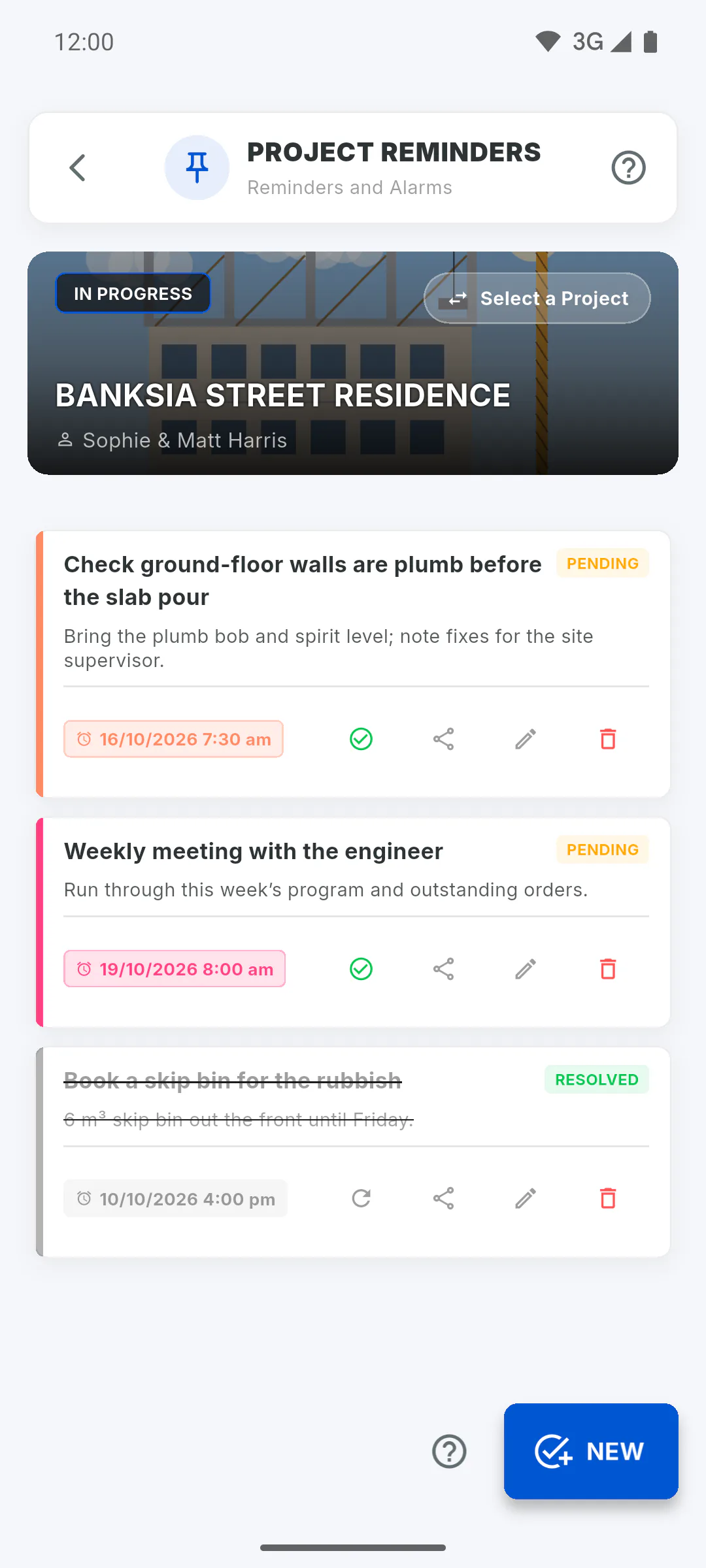
The alarm only goes off in the Android and iPhone app. On a computer, in the browser or on Windows, you can save the date and time, but no alarm will go off.
Step 2: Only on the device that saved it
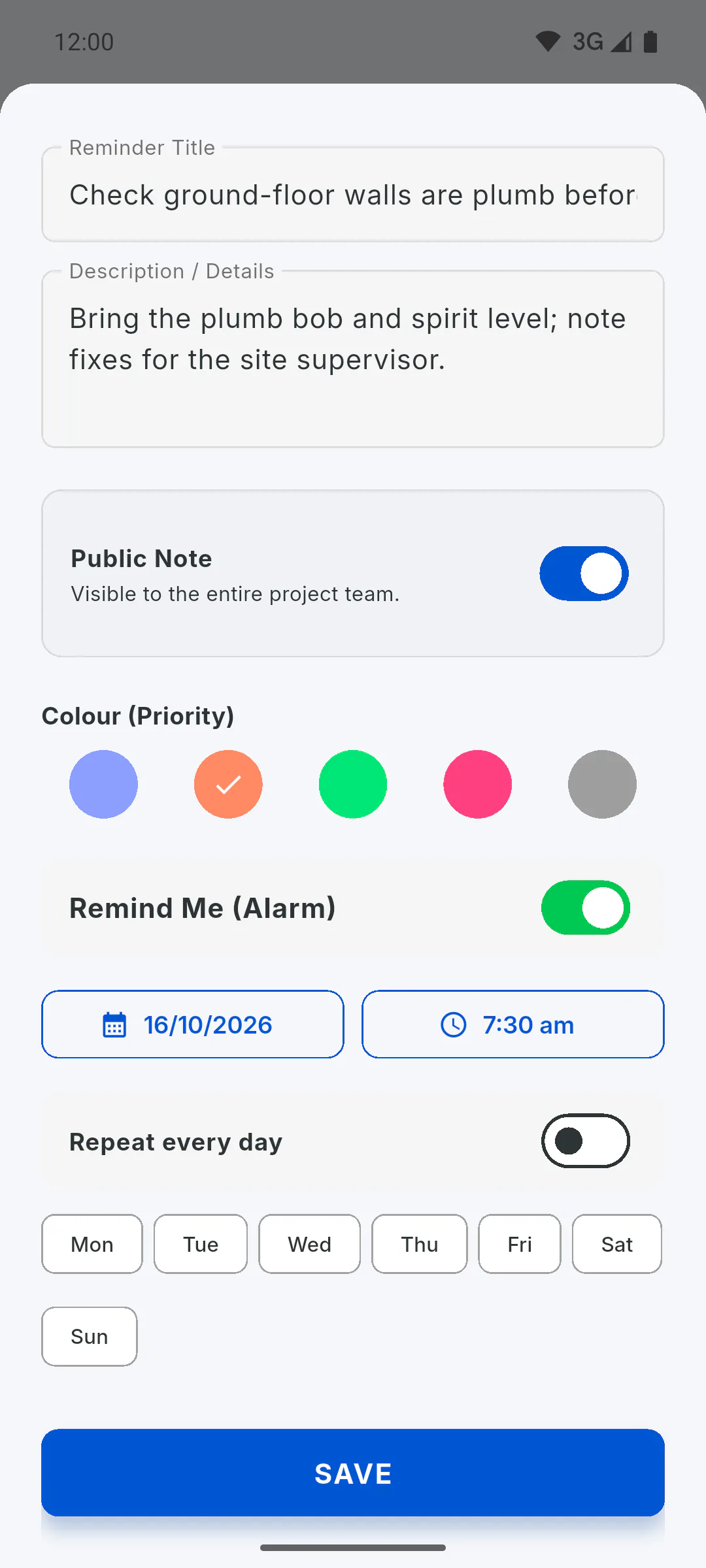
The alarm is set on the mobile of whoever saved the reminder, or whoever last edited or reopened it. Other people on the project don't get the alarm, even if they're ticked. Got a new mobile or reinstalled the app? Open the reminder, tap Edit and then Save to set it again. If someone else resolves or deletes the reminder, the alarm on your mobile stays set.
Step 3: A time that has already passed
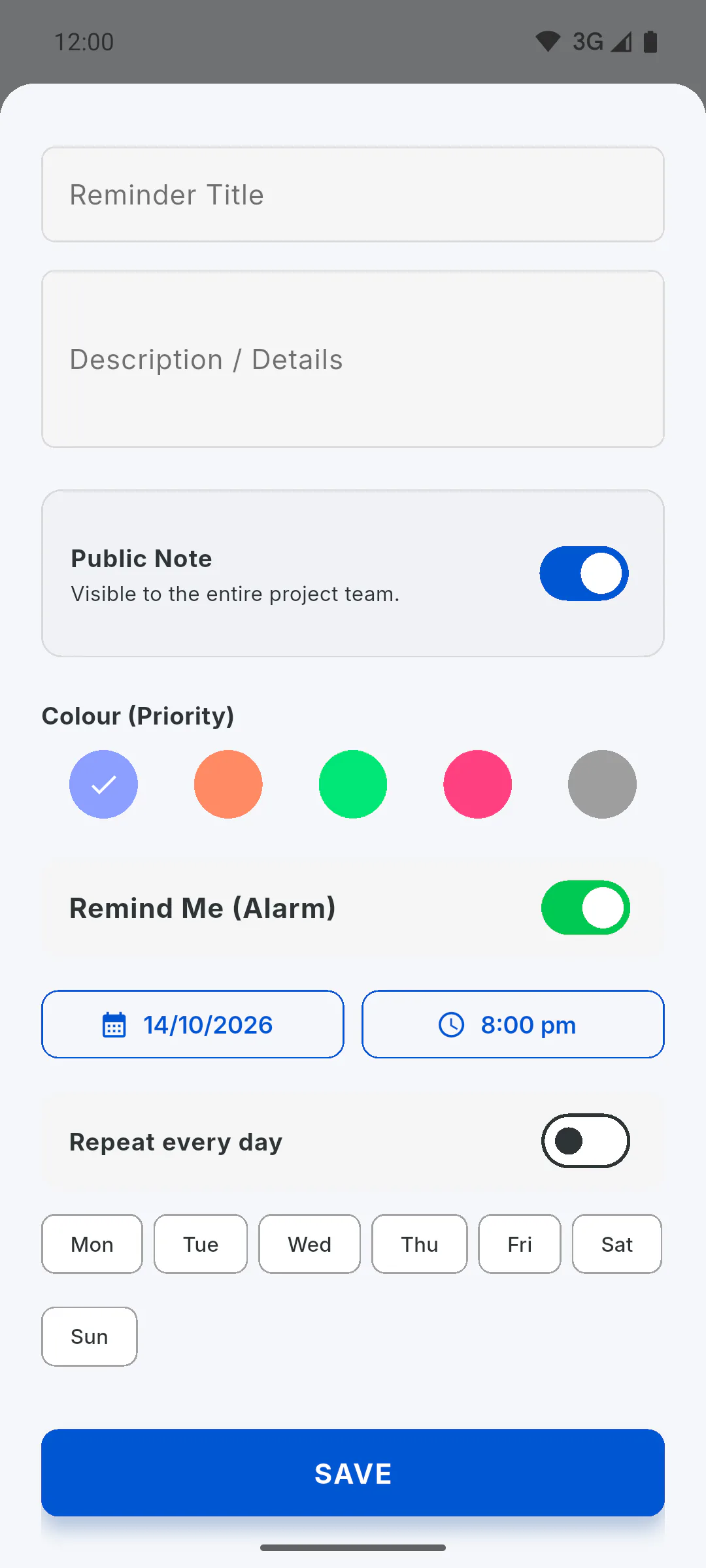
A one-time alarm needs a date and time in the future. The time starts at the next full hour. If you pick a date and time that have already passed, That date and time have already passed. Choose a future time for the alarm. appears, and the reminder is only saved once you pick a future time. Reminders marked Resolved don't go off.
Step 4: Mobile notifications
The alarm shows up as a Project Reminder notification, with the reminder title. In your mobile settings, keep notifications for ObraFácil turned on; on Android, also check the Project Reminders category. On an iPhone, the app asks for this permission when you turn on Remind Me (Alarm): Why the app asks for camera, gallery and notification access.
Step 5: Save while online
The alarm is set after the reminder is saved to the cloud. Without internet, the Reminder saved successfully! message doesn't appear and the alarm is only set once you're back online with the app open. If you saved it offline, edit it and save again while connected.
Why the reminder alarm didn't go off
A reminder alarm only goes off on the mobile it was saved on, and only for a time in the future. See the most common causes and how to fix them.
For managers and team members5 steps
Didn't find what you were looking for?
Chat with support on WhatsApp or raise a ticket in the app.