
Step 1: Open the project reminders
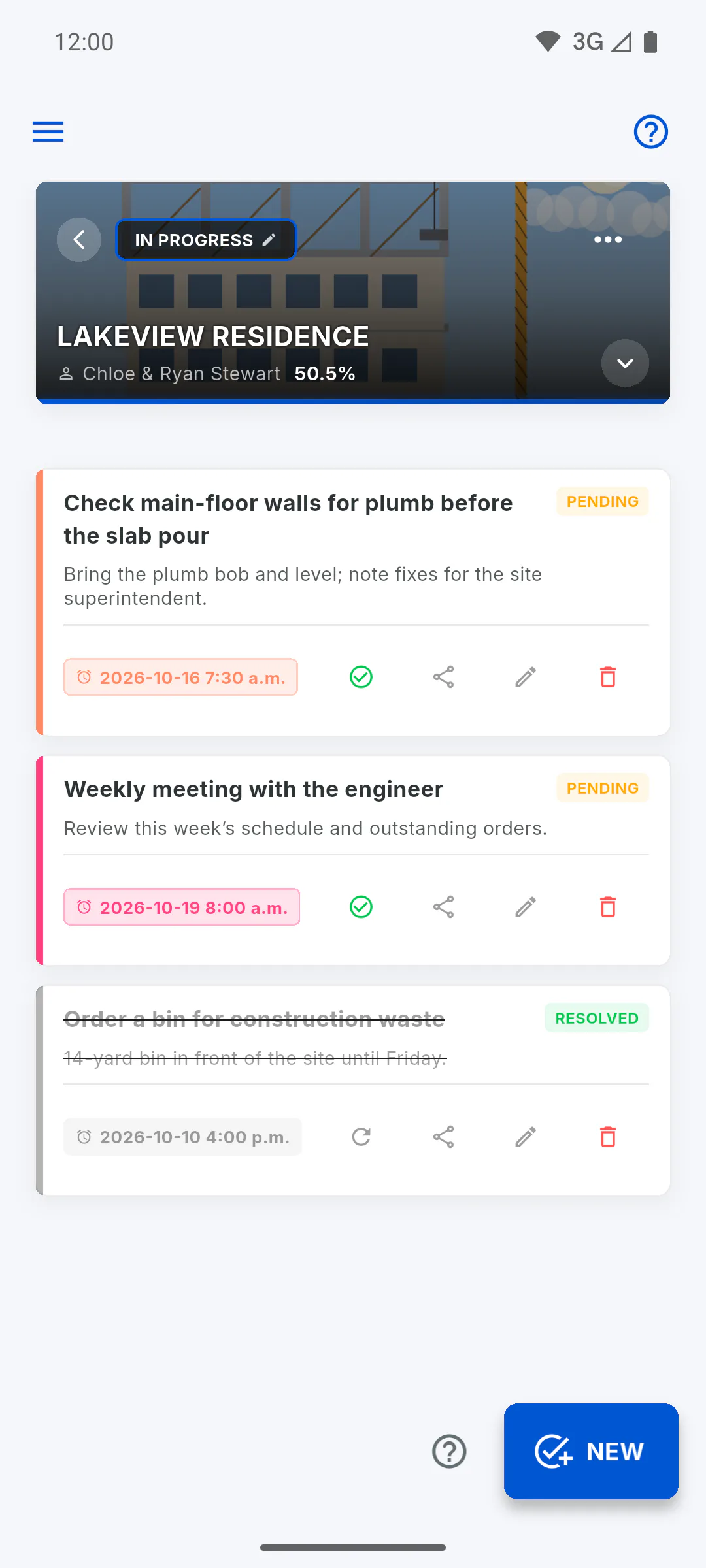
Open the project and, in the Project Menu, tap Project Reminders. From the home dashboard, use the Project Reminders shortcut (on a phone, it's in the Tools tab of the bottom bar) and pick the project. Tap the New button.
Step 2: Write the reminder
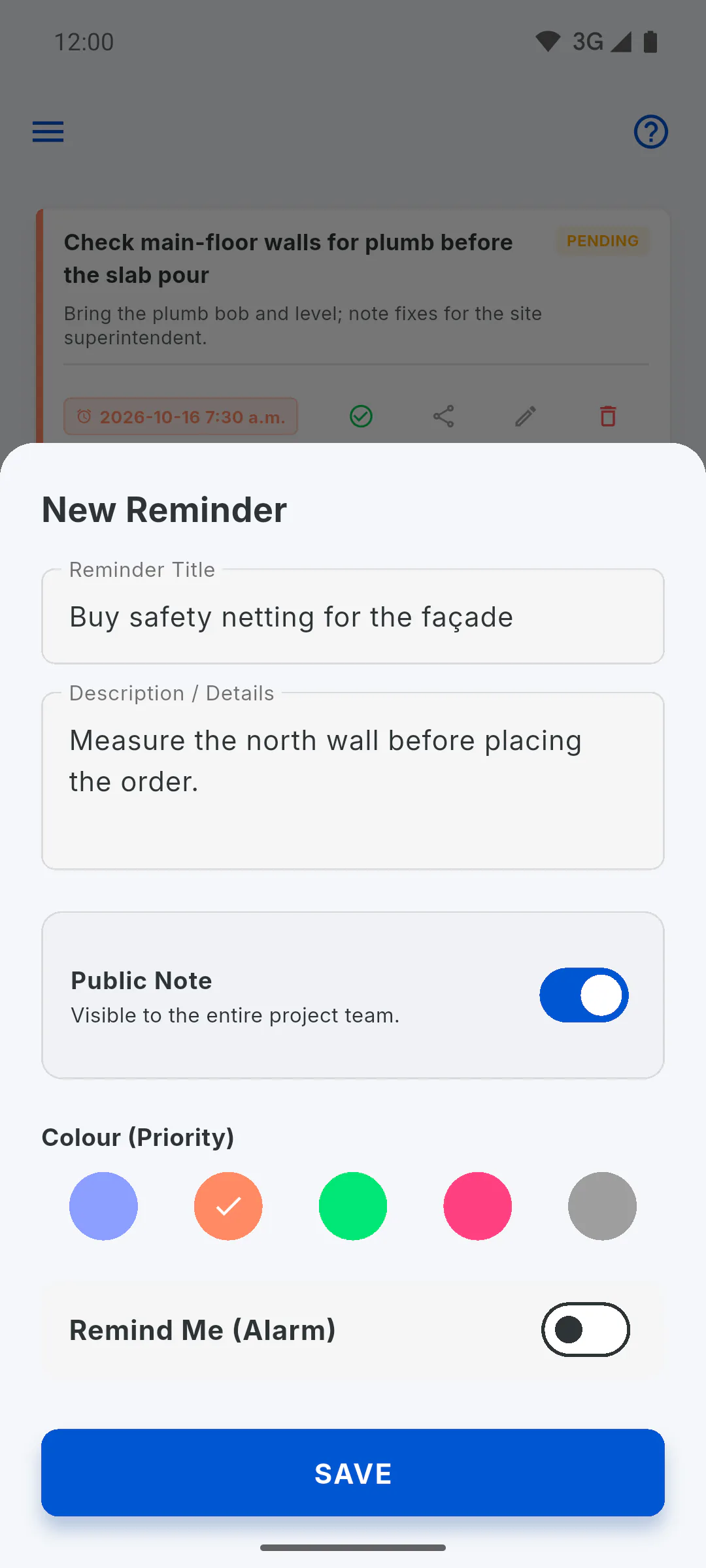
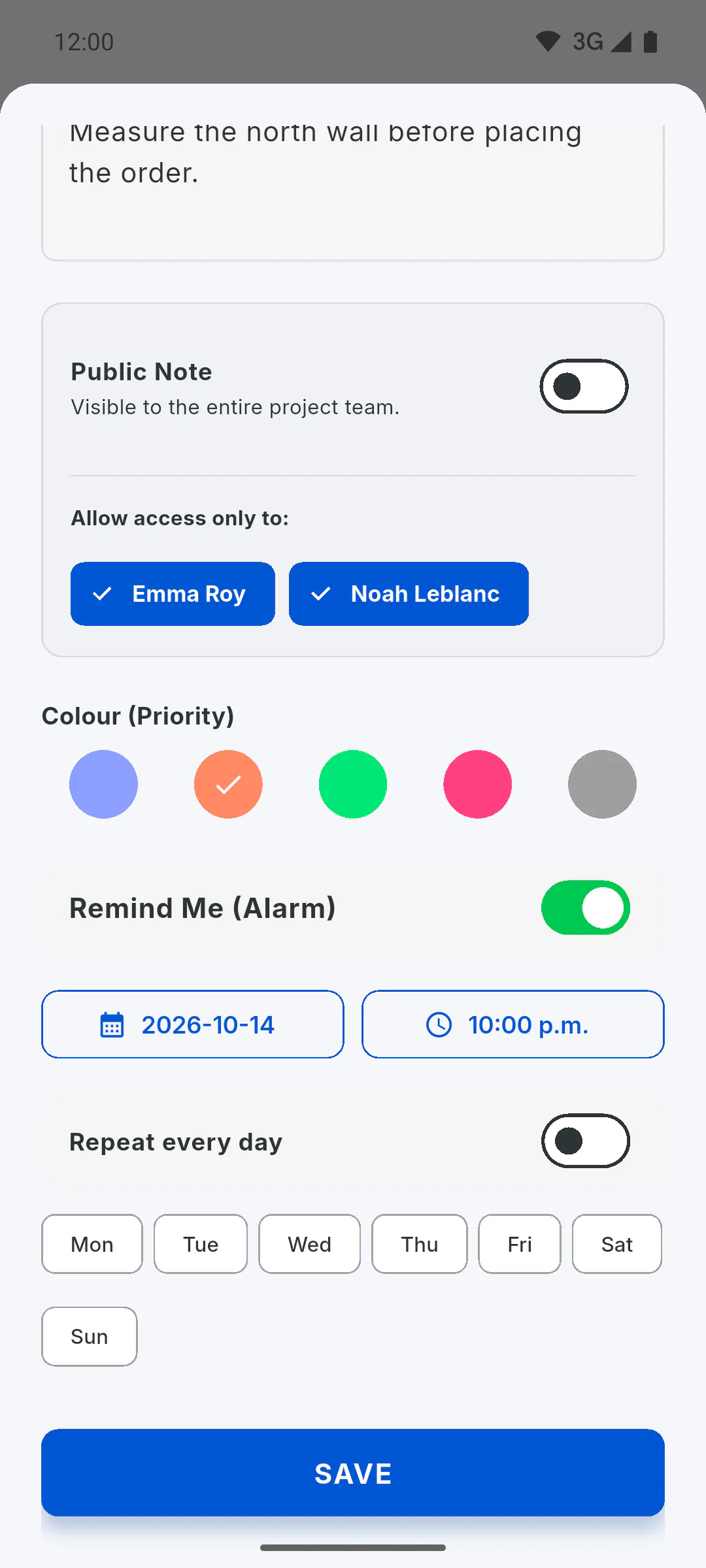
Fill in Reminder Title, which is required, and Description / Details if you want. Under Colour (Priority), tap one of the 5 colours: it shows as the stripe down the side of the card.
Step 3: Choose who can see it
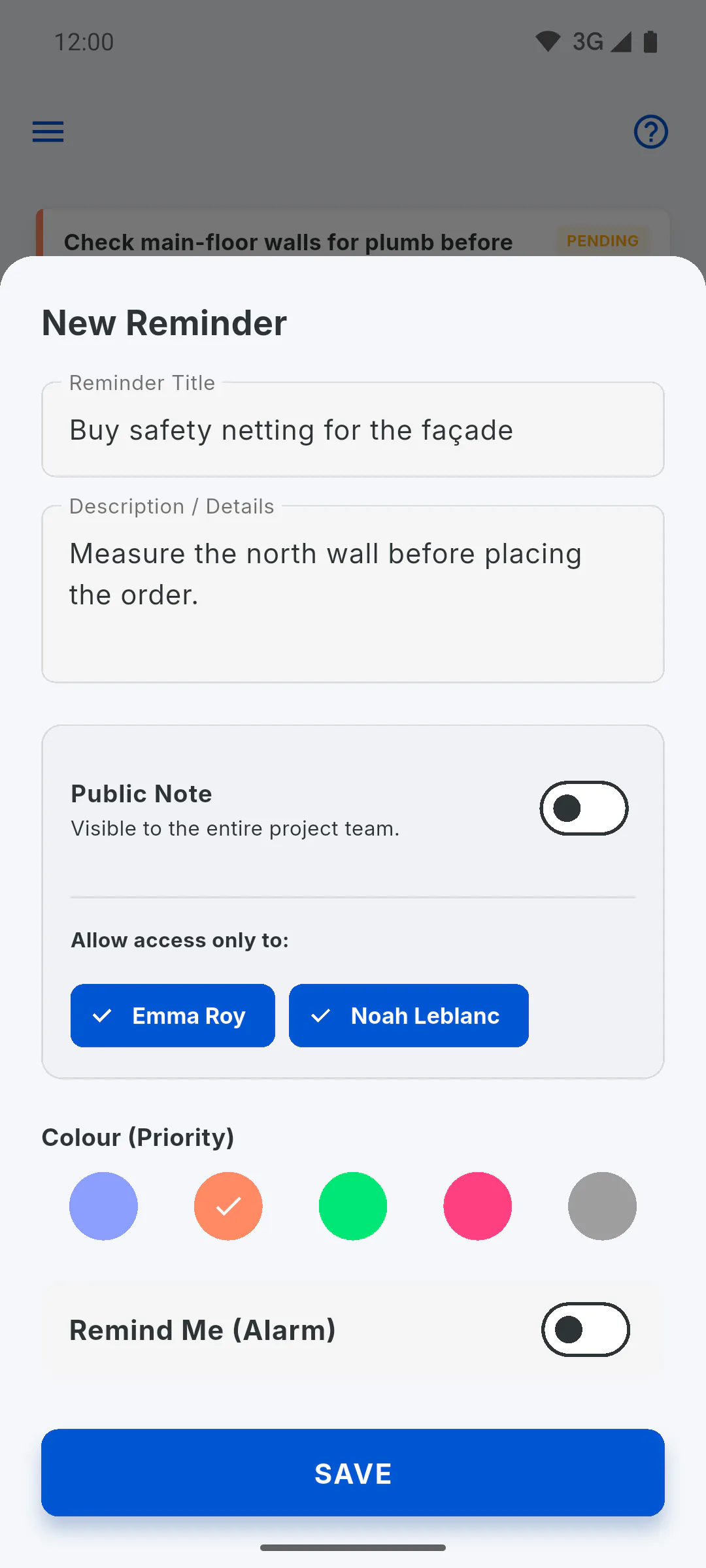
Public Note is on by default: the reminder is visible to the whole project team. Turn it off to choose who can see it under Allow access only to:: Public or restricted reminder.
Step 4: Set the alarm
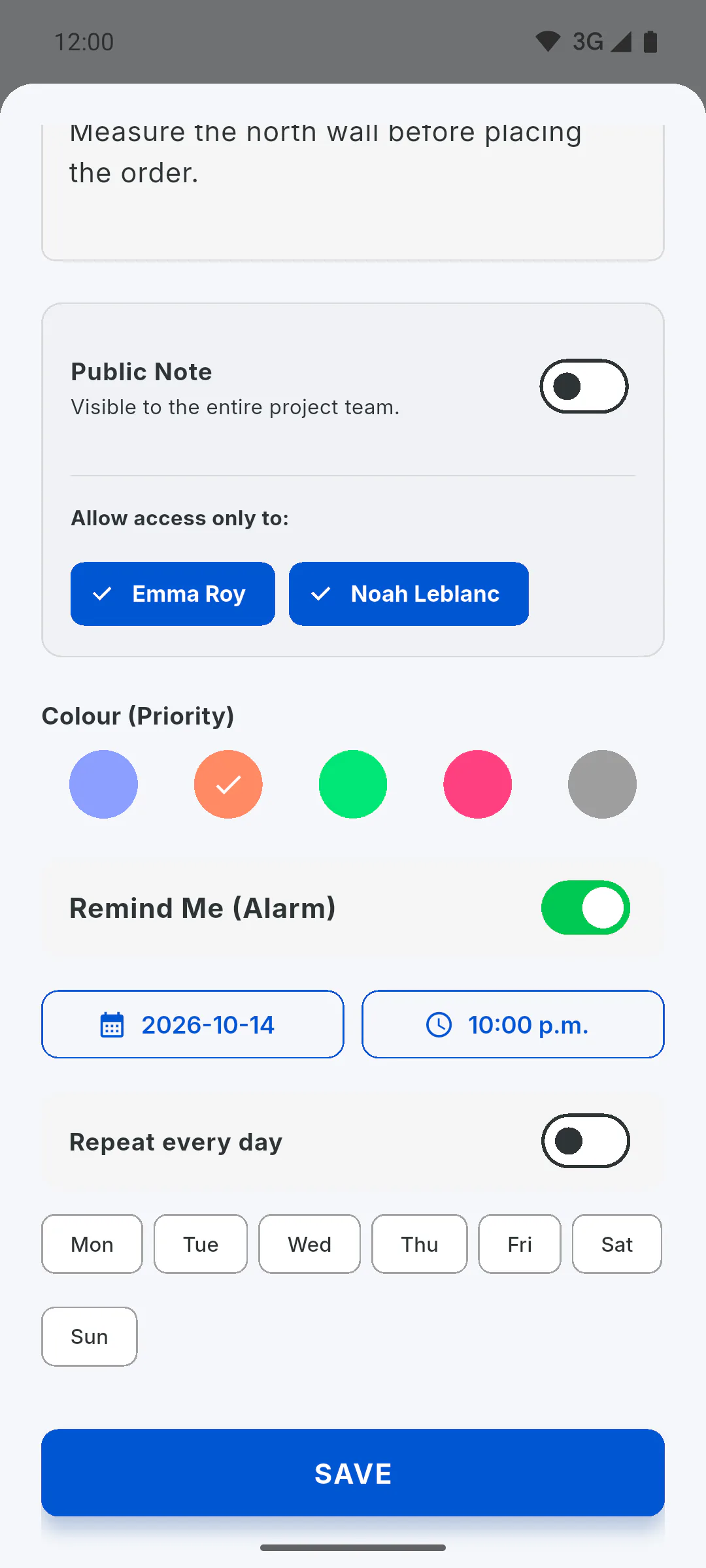
Turn on Remind Me (Alarm) and choose:
- once: tap the date and the time
- every day: turn on Repeat every day and pick the time
- on certain weekdays: tap the days and pick the time; the alarm repeats every week
The time starts at the next full hour (at 2:23, for example, it shows 3:00). For a one-time alarm, if the date and time have already passed, That date and time have already passed. Choose a future time for the alarm. appears and the reminder isn't saved. On an iPhone, turning on the switch asks for permission to send notifications.
Step 5: Save it
Tap Save. You'll see Reminder saved successfully! and the card appears in the list as Pending, with the alarm date and time. The alarm only goes off on the Android phone or iPhone you saved it on: Why the reminder alarm didn't go off.
How to create a reminder with an alarm on a project
Jot down project to-dos as colour-coded reminders and, if you like, set an alarm for one date, every day or certain days of the week.
For managers and team members5 steps
Didn't find what you were looking for?
Chat with support on WhatsApp or raise a ticket in the app.