
Step 1: Use the invited email
The project manager invites you by email, and the invitation includes a link to create your access. They may also send it via WhatsApp. Create your account with the same email address the invitation was sent to.
Step 2: Confirm your email
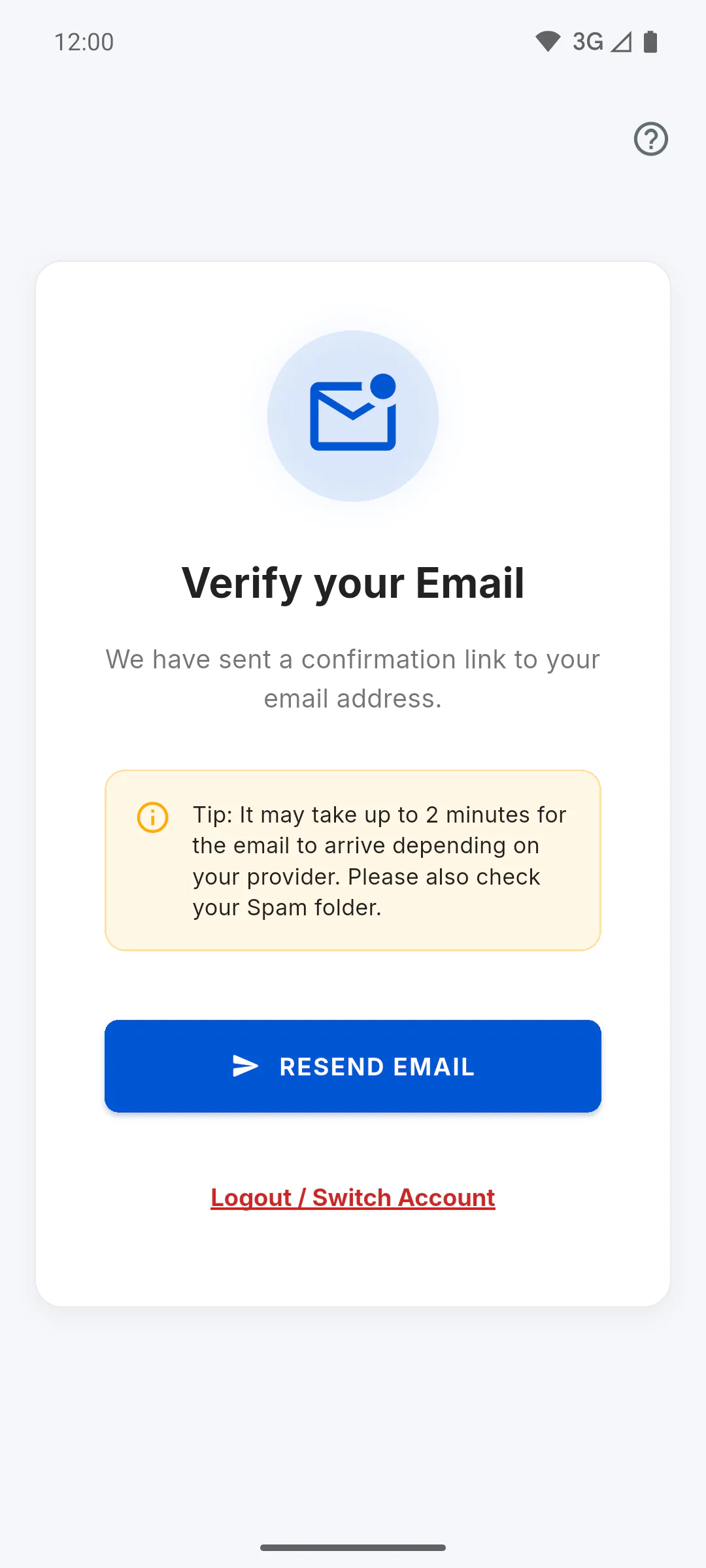
Before you can sign in, the app asks you to confirm your email using the link sent to your inbox.
Step 3: Pick the project
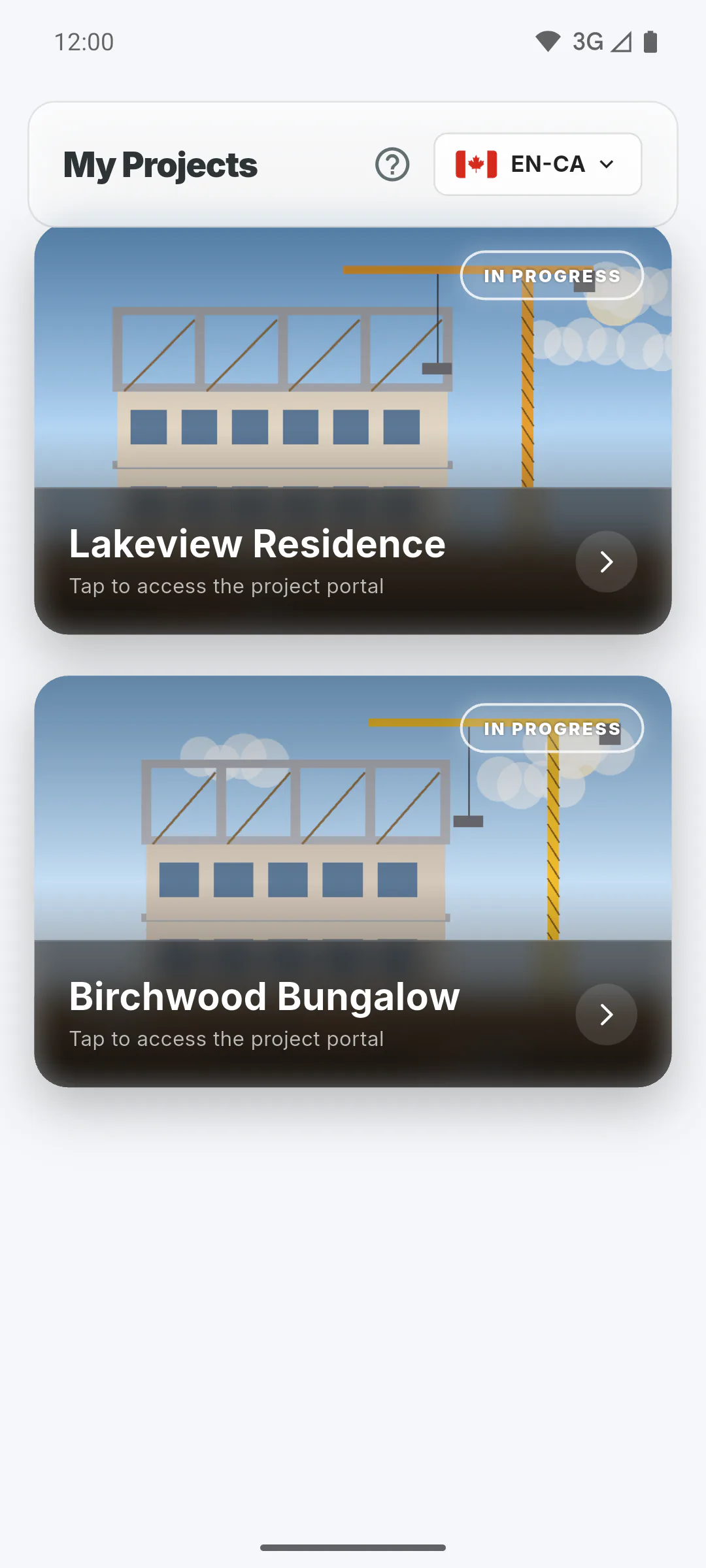
When you sign in, the app goes straight to the Client Portal. If you follow just one project, it opens on its own. If you follow more than one, My Projects appears: tap the project's card. At the top of that screen you can also change the language.
Step 4: Get to know the top bar
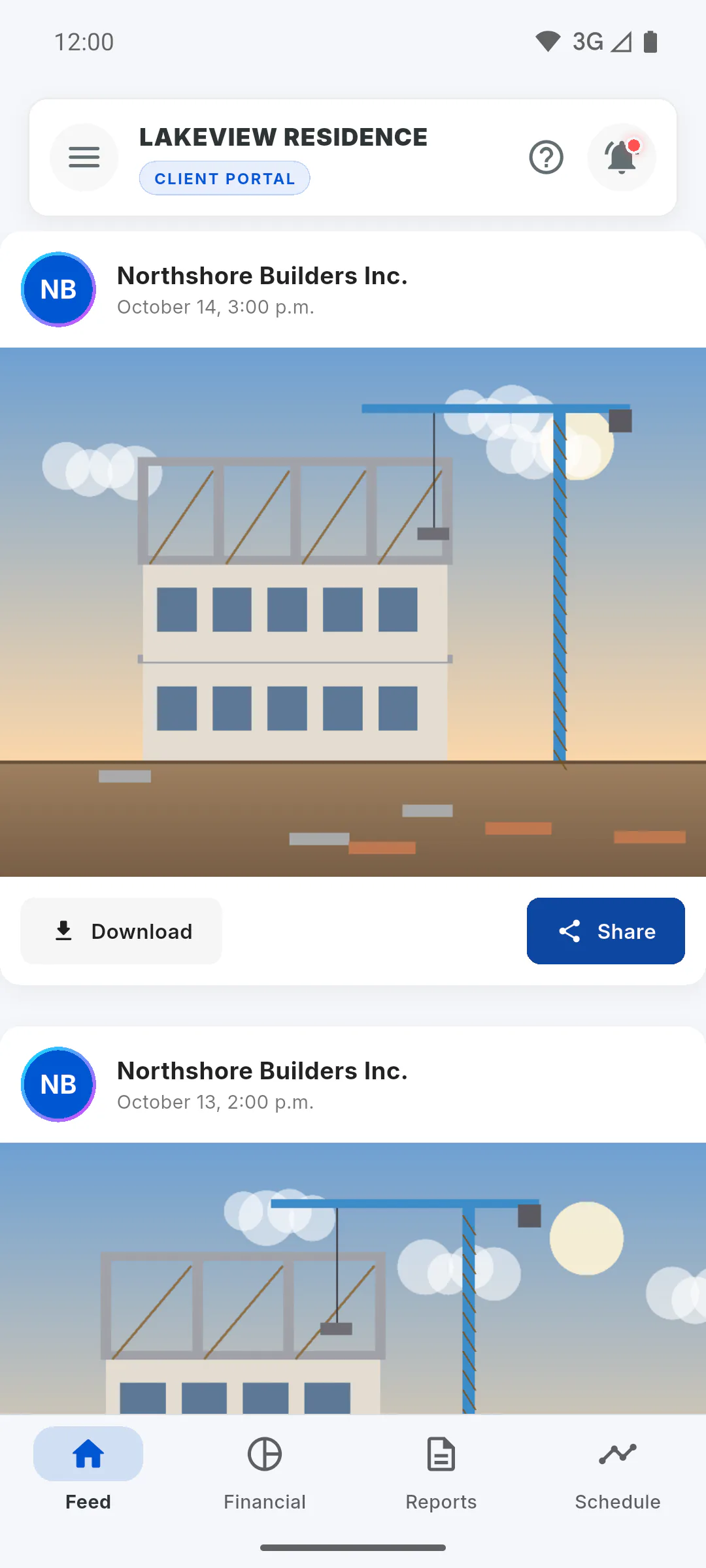
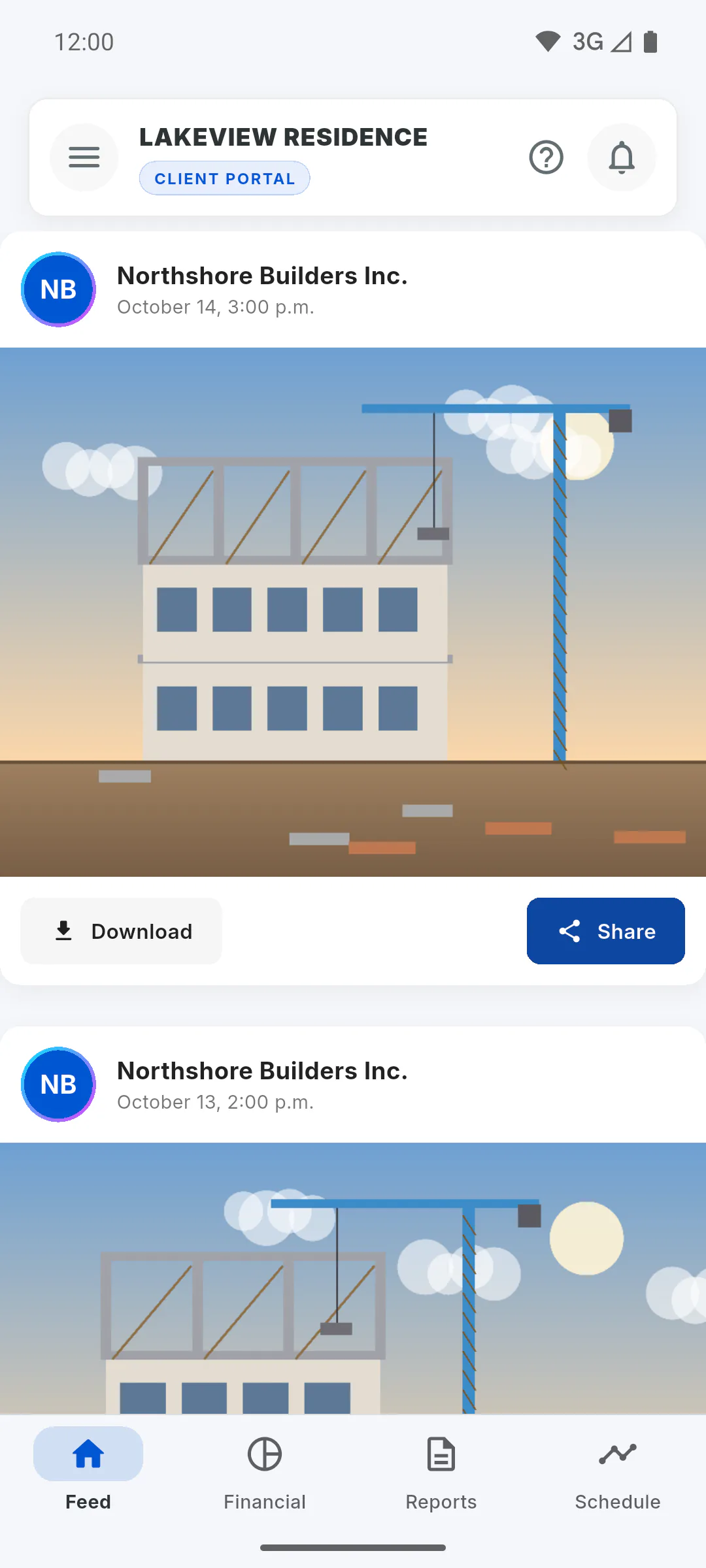
At the top you'll find the project cover, the menu button, the project name with the Client Portal badge (and the project status, unless hidden by the manager), the help button and the bell. A red dot on the bell indicates unread alerts: tap it to see Project Notifications.
Step 5: Move between tabs
The tabs sit at the bottom of the screen:
- Feed: project photos
- Financial: project spending
- Reports: daily reports
- Schedule: deadline and stages
Step 6: Use the menu
Tap the menu button to see Switch Project (only if you follow more than one project), Project Gallery, Occurrences, Help Centre, Settings and Logout.
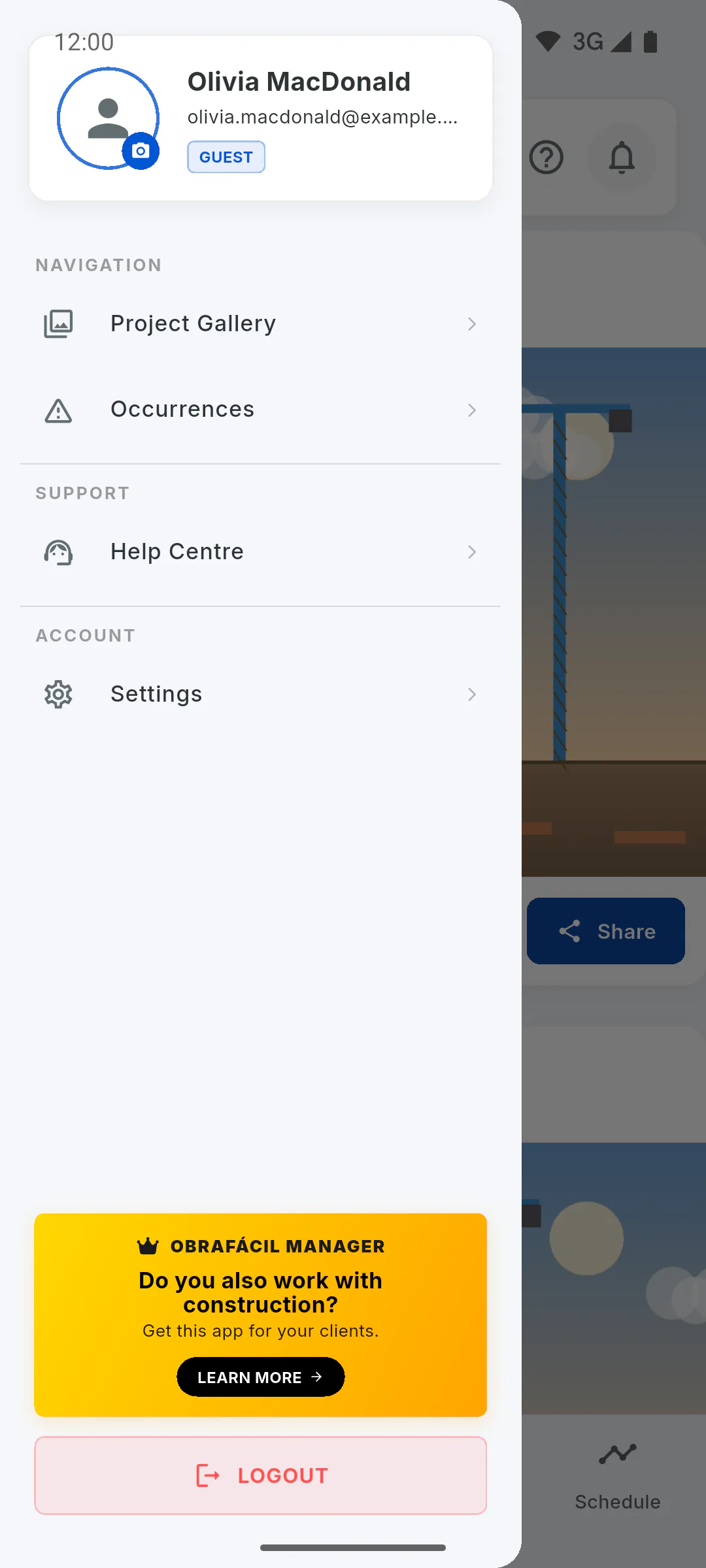
Step 7: Seeing a different screen?
If you also work on any project in the app, as owner, engineer or crew, the app opens the regular dashboard instead of the Portal. There, the project where you're the client shows the You're the Client badge: tap its card to open its Portal. To go back to the dashboard, tap the arrow at the top of the screen or Back to management dashboard in the menu. If the project doesn't show up, check with the manager that the invitation went to the same email you sign in with.
First time in the Client Portal: choosing the project and finding your way
From the invitation to your first visit: create your access with the invited email, sign in to the Client Portal, pick the project and learn the tabs and menu.
For clients7 steps
Didn't find what you were looking for?
Chat with support on WhatsApp or raise a ticket in the app.