
Step 1: It stays on the device
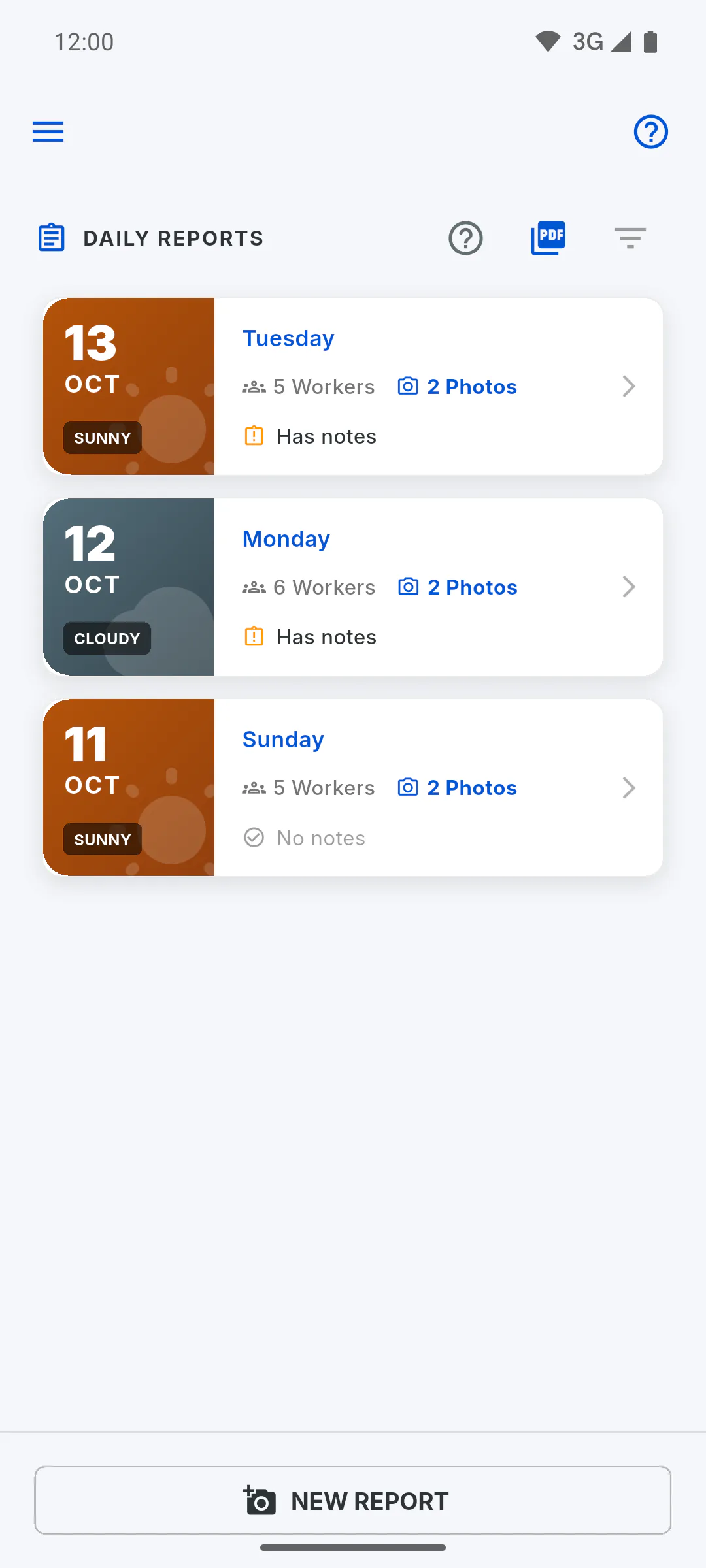
What you save offline stays on the device and shows up for you right away. When the connection comes back, with the app open, it's sent on its own: there's no send button. Until then, other people don't see those changes.
Step 2: Report photos on a phone
On Android and iPhone, photos and image signatures from reports saved offline are sent when the app opens with internet or when the connection comes back while it's open. This works for the projects you own and the ones you were invited to. Anything that fails is retried next time. No message shows during this upload: open the report to check the photos.
Step 3: Keep the photos on the phone
Until they're sent, the photos only exist on that phone. Don't uninstall the app, clear its data or log out before then: the upload only happens with your account signed in, and a photo that's gone from the device isn't sent.
Step 4: Notifications after the upload
A report saved offline doesn't create the new report notification in the bell. The new report alert on the phone goes out when the report reaches the cloud.
Step 5: Inventory photos
The receipt photo of a tool movement made offline is also sent on its own. Until then, only the device that recorded it shows the photo: Moving tools without internet: what you can and can't do
Step 6: Background upload
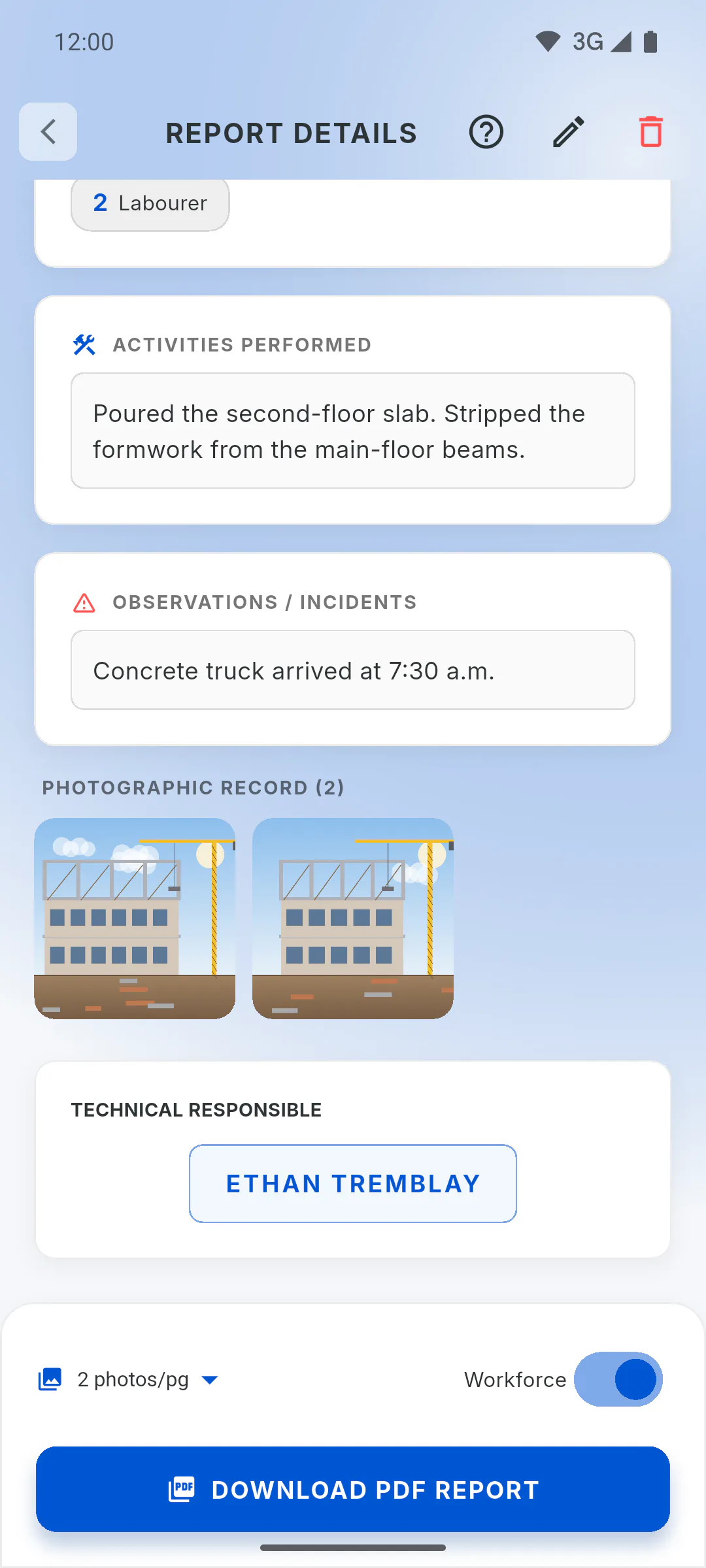
With internet, when you save a daily report on a phone, the photos upload in the background: Saving the daily report. appears and, with notifications allowed, the phone shows Uploading Daily Report... and, at the end, Daily Report Sent! Background photo uploads: what happens after you send
Step 7: Check the photos
If Attention shows how many files went up, such as 3 of 5 files uploaded. The rest will upload automatically when the connection improves., or shows Upload paused. The system will try again., you don't need to do anything: what's missing stays on the phone and is sent on its own later. Later, while online, open the report and check. Only add a photo again if it's still missing: How to edit a daily report (and what you can't change)
Step 8: Weak signal or Wi-Fi without internet
The app treats itself as online whenever the device is on Wi-Fi or mobile data, even without working internet, and tries to send right away. On a phone, nothing is lost: the photos and signature are saved on the device before the upload, and whatever doesn't go up is sent later. You don't need to turn on airplane mode to save the report.
Step 9: Web browser and Windows
In a web browser and in the Windows app, photos and signatures aren't kept for a later upload. Offline, a report with photos or an image signature isn't saved, and you see Without internet, photos and signatures can only be kept for later upload in the mobile app. Connect to the internet to save here. Save those reports while online, or use the phone app.
How what you did offline gets sent later
What you save without internet stays on the device and is sent when the connection returns. See how report photos are sent, what can stop them and how to check that everything arrived.
For managers and team members9 steps
Didn't find what you were looking for?
Chat with support on WhatsApp or raise a ticket in the app.