
Step 1: Where to cancel
Your subscription is cancelled where it was bought:
- through your mobile's app store (Google Play or App Store): cancel in the store
- on the website or in a computer browser: cancel on the payments page, which opens in your browser
Cancelling in one place doesn't cancel a subscription bought in the other.
Step 2: Tap Manage
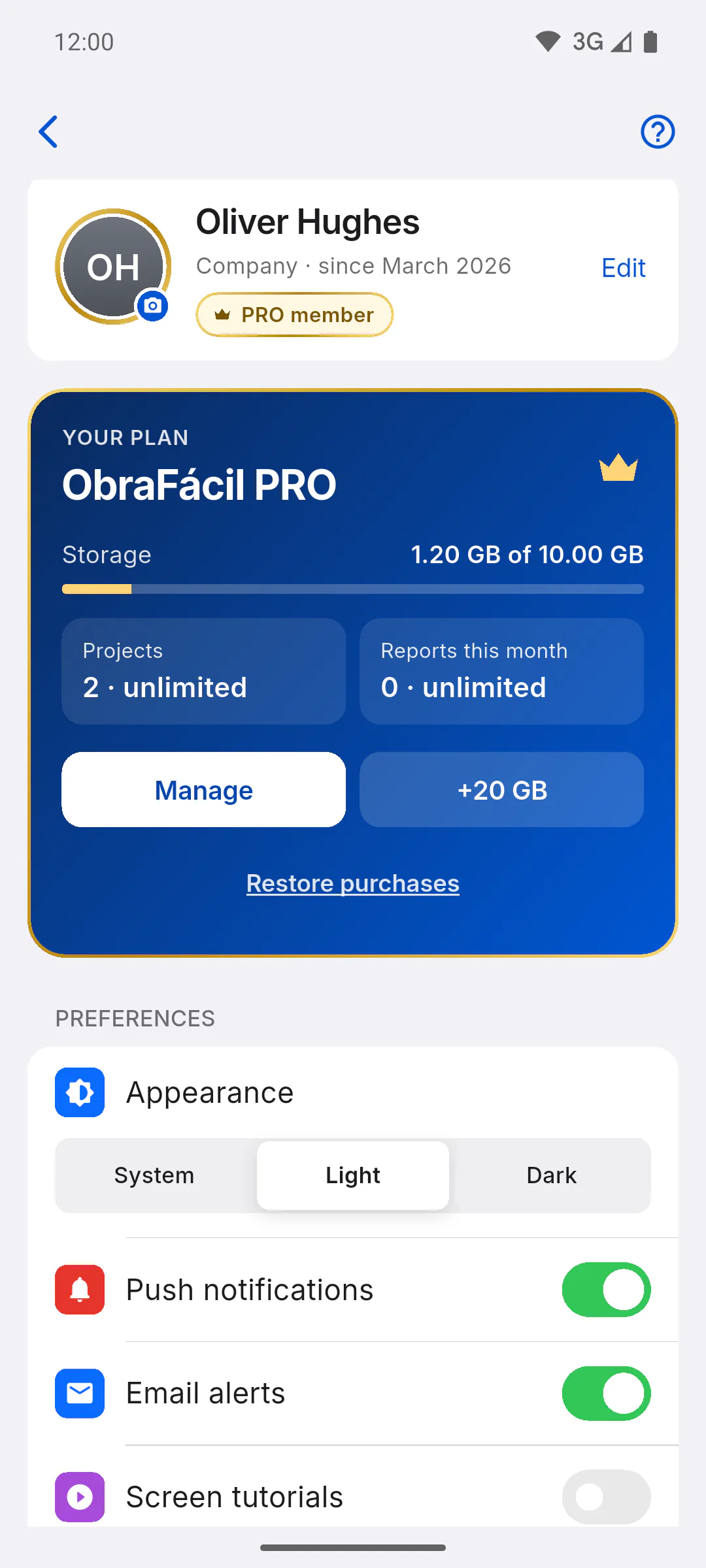
Open Profile and, on the YOUR PLAN card, tap Manage. The button shows up if you have a PRO subscription or the extra 20 GB. With a PRO courtesy there's no subscription to cancel.
Step 3: If you subscribed on your mobile
On Android, the button opens Google Play's subscriptions area; on iPhone, the App Store's. Pick ObraFácil and cancel there. If you subscribed on the website, that store page won't show your subscription: use a computer, as in the next step.
Step 4: If you subscribed on the website
Open ObraFácil in a computer browser (or in the Windows app) and tap Manage. Generating secure access to portal... appears and the payments page opens in your browser, where you cancel the subscription. If Could not open portal shows up with a server error, your subscription wasn't bought on the website: cancel it in your mobile's app store.
Step 5: After you cancel
- In your mobile's app store, PRO stays on until the end of the period you already paid for; then your account goes back to the free plan
- On the website, the payments page shows your subscription status after cancelling
- Your projects and data stay in your account, with free plan limits: Free vs PRO: what changes
- The extra 20 GB is a separate subscription: cancel it too if you want
- Refunds: Payment history and refunds
How to manage or cancel your subscription
Cancel or manage your PRO subscription where you signed up: in your mobile's app store or on the website payments page. See what happens afterwards.
For managers5 steps
Didn't find what you were looking for?
Chat with support on WhatsApp or raise a ticket in the app.