
Step 1: Open Financial
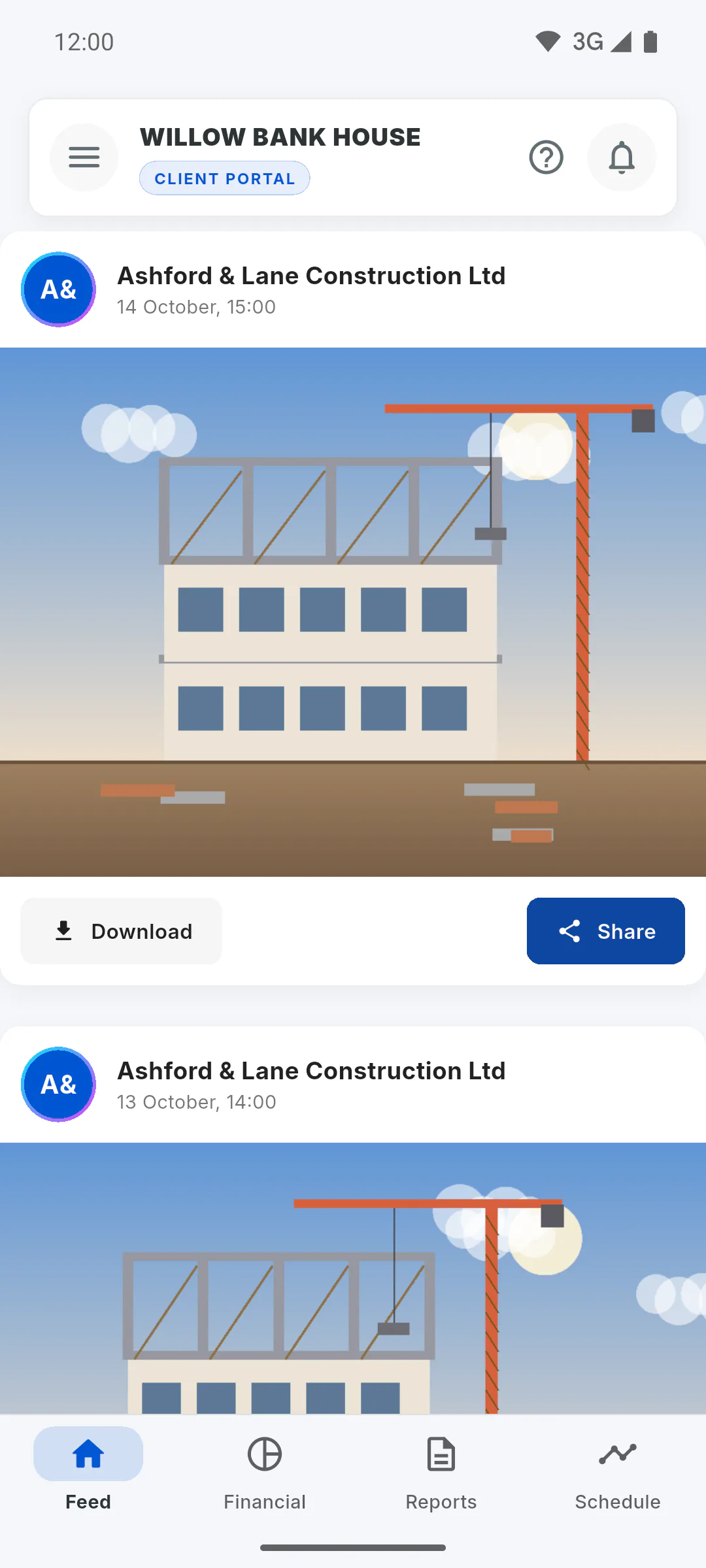
In the project's Portal, tap the Financial tab. What you see depends on what the manager has unlocked for you: the summary or full financials. Amounts are shown in the project's currency.
Step 2: The summary
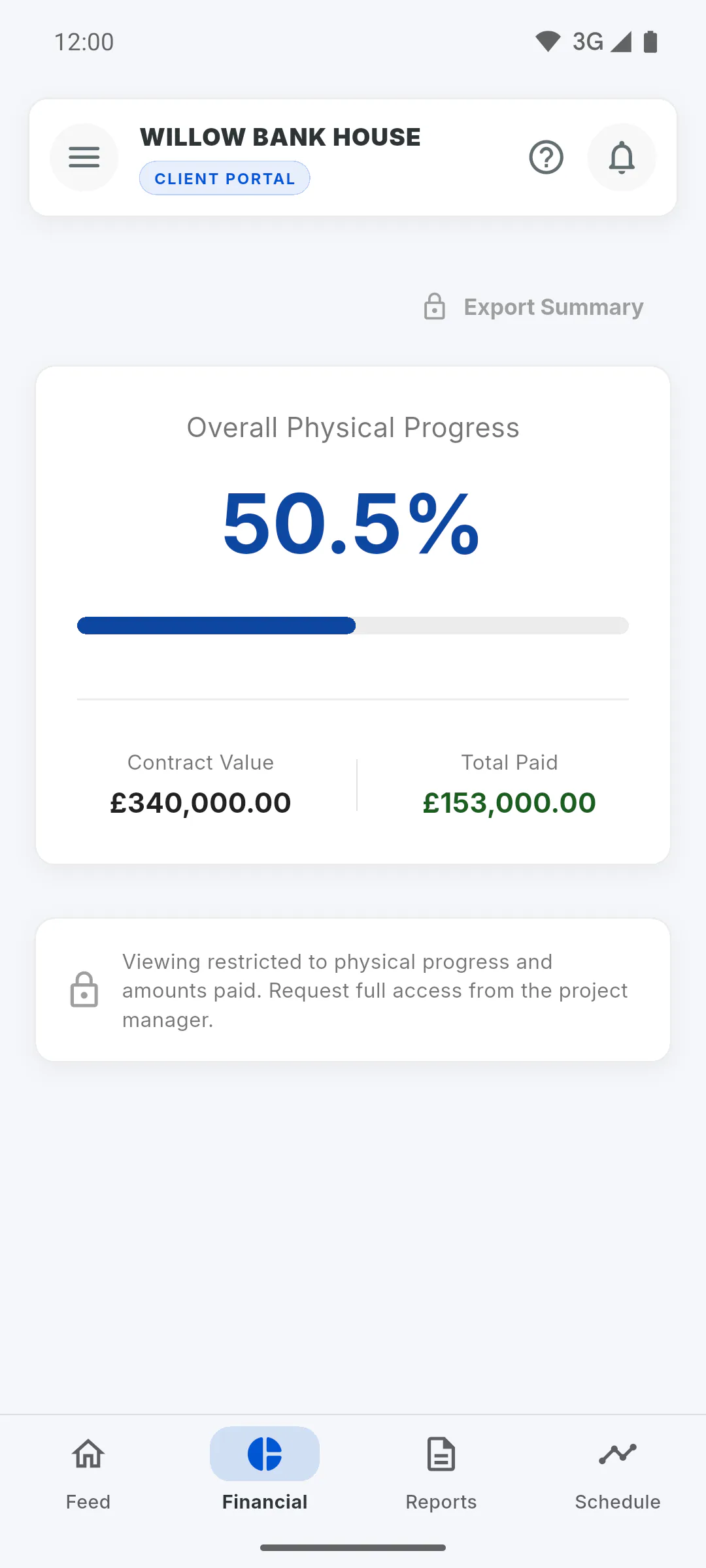
The summary shows Overall Physical Progress, Contract Value and Total Paid, which adds up the money coming into the project. The note below explains that the view is restricted: to see the transactions, ask the manager for full financials.
Step 3: Full financials indicators
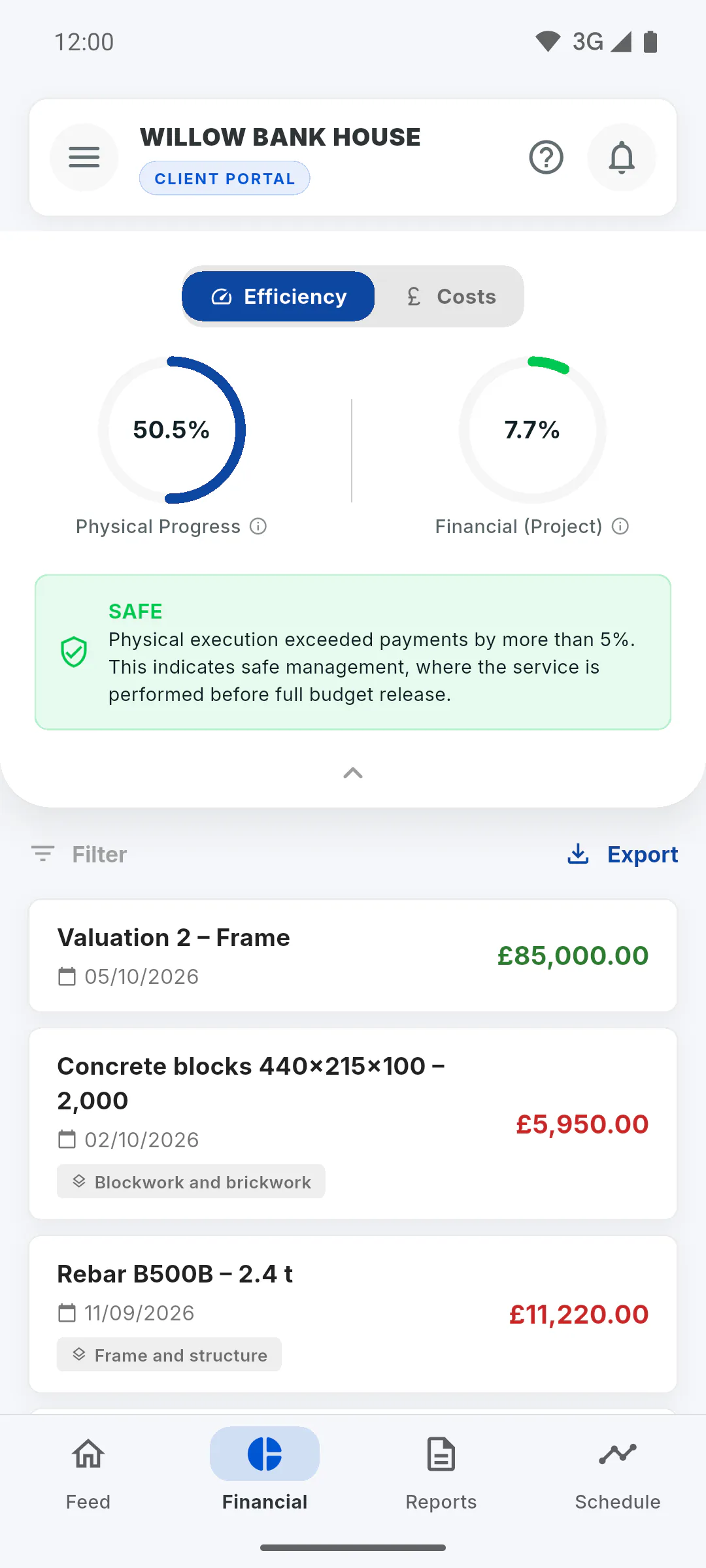
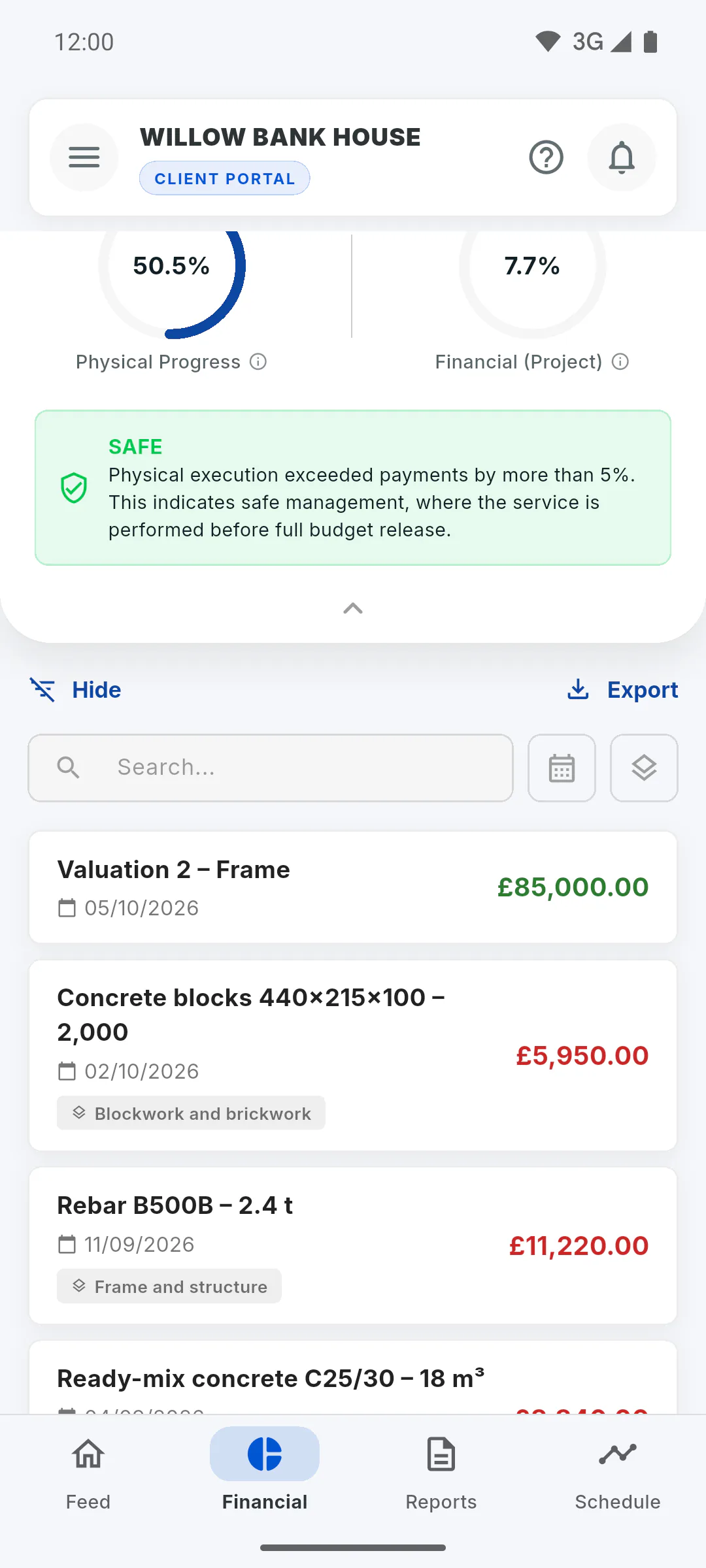
At the top, switch between Efficiency and Costs; if the manager turned the chart off, you only see Costs. Tap the info icons to read what each number means. The arrow below the indicators collapses the panel, leaving only Total spent and Contract. Total spent adds up the expenses (outflows) recorded on the project; Total Paid in the summary adds up the incoming payments.
Step 4: Find a transaction
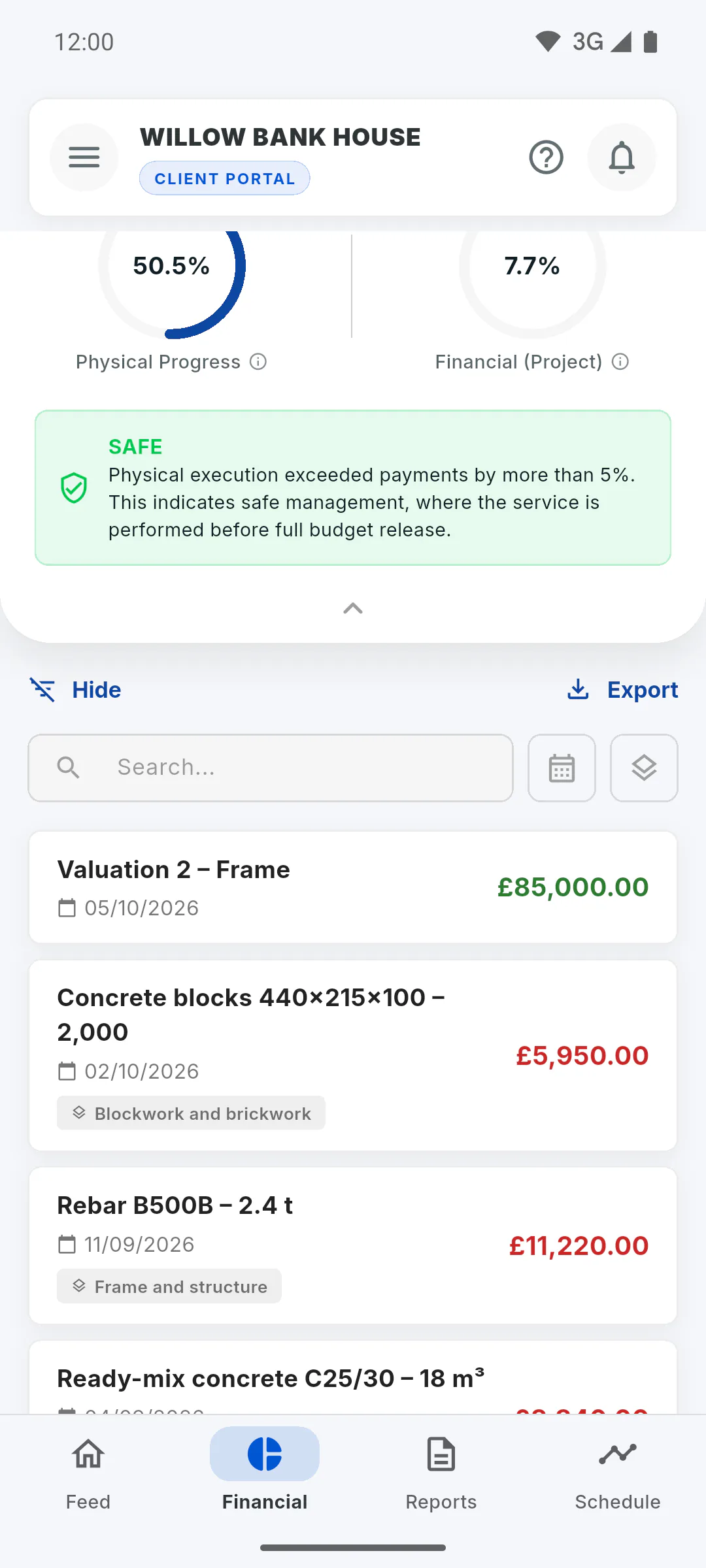
Below the indicators is the list of income and expenses. Tap Filter to search the description in Search..., pick a period in Filter by Date or a stage in Filter by Phase. Hide hides the bar, but the filters stay applied.
Step 5: Export the statement
Tap Export (in the summary, Export Summary). You'll see Generating PDF statement... and the app opens the options to save or share the PDF. In full financials, the statement includes the transactions in the list, with your filters applied.
Step 6: Export with a padlock
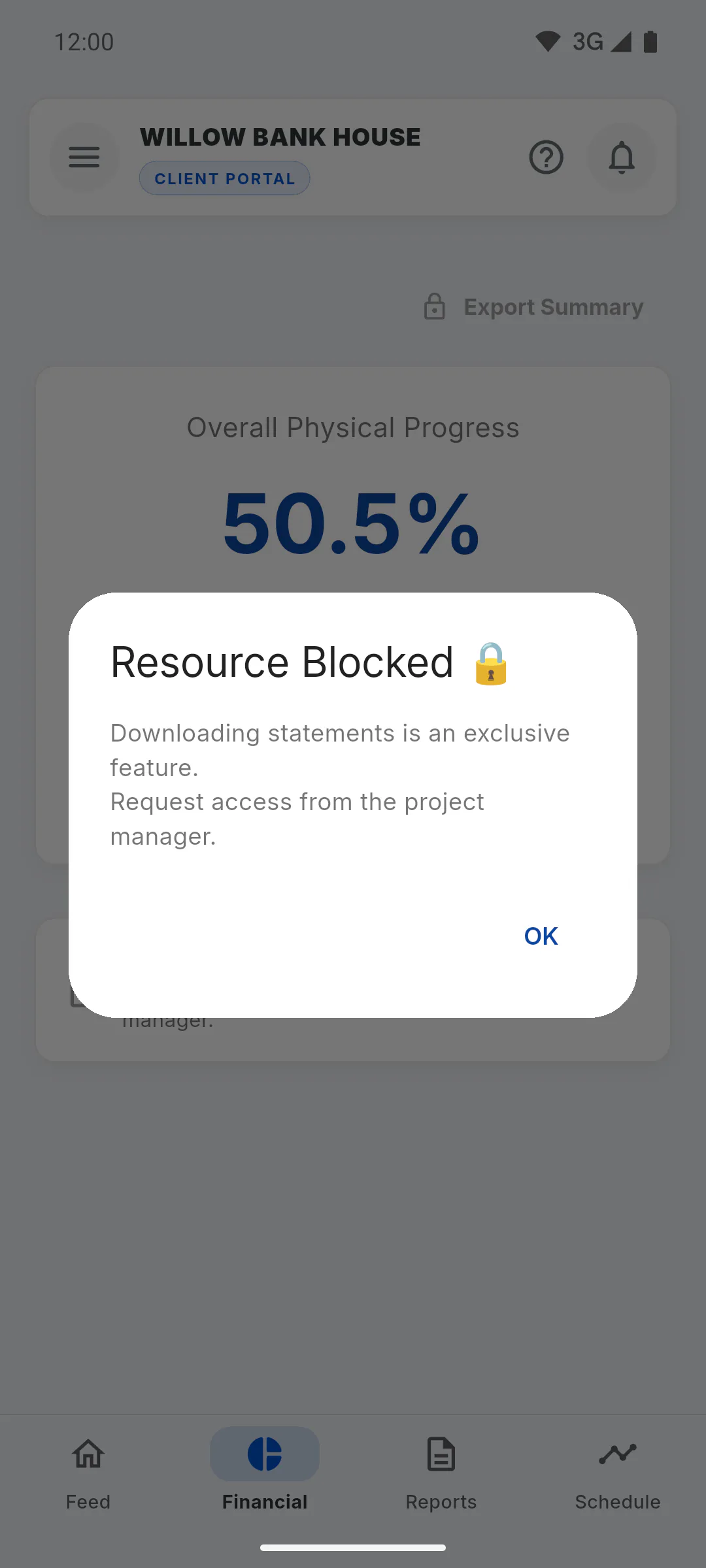
If the export button shows a padlock, you'll see Resource Blocked: the project manager needs to unlock exporting. If the project has no transactions yet, you'll see No data to export.
How to follow the project's spending and export the statement
Use the Financial tab in the Client Portal to see the project's summary or transactions, filter by date or stage, and export the statement as a PDF.
For clients6 steps
Didn't find what you were looking for?
Chat with support on WhatsApp or raise a ticket in the app.