
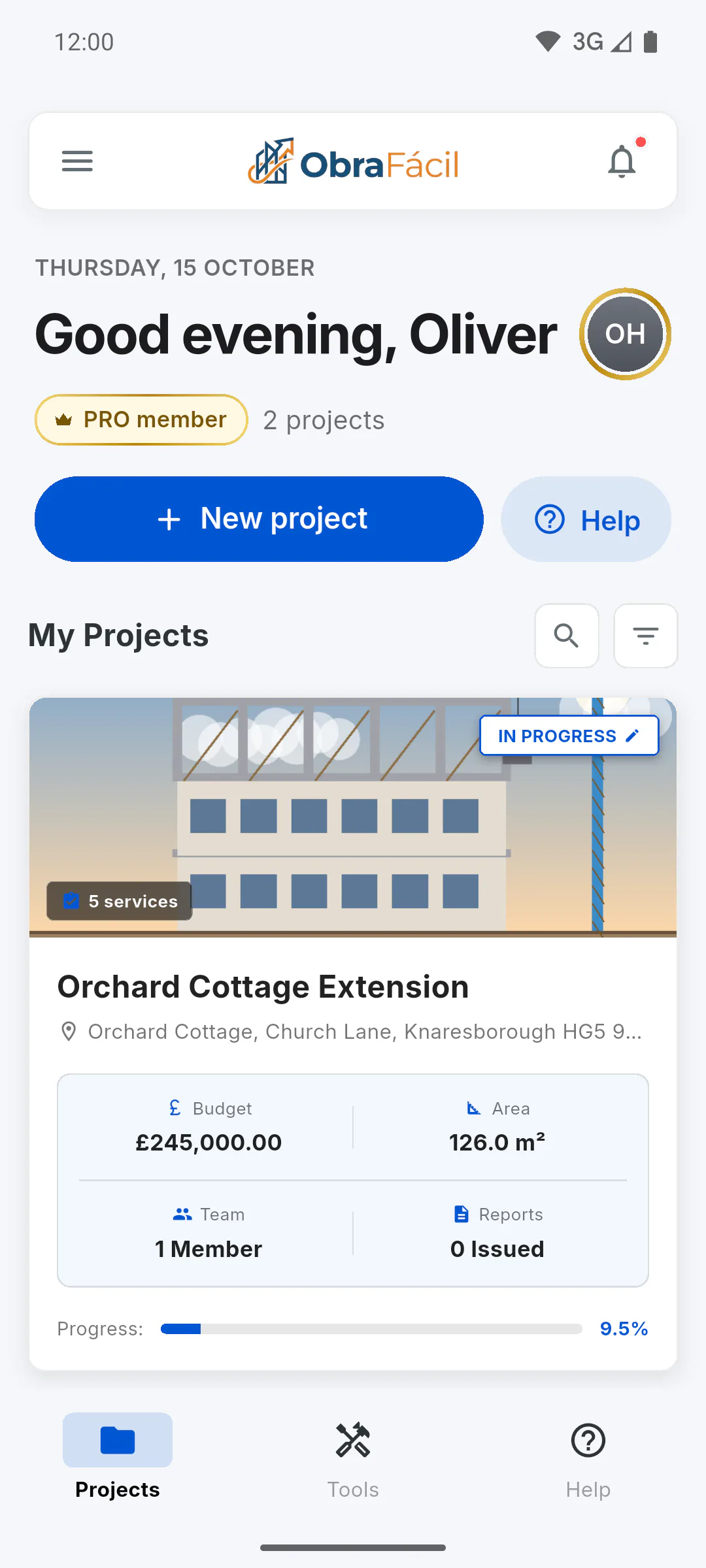
Step 1: Create the project
On the dashboard, tap New project. Fill in Project Name and Owner / Client; Start Date is already set to today. Also enter Est. Delivery, which the schedule uses to track the deadline. Tap Create & Open: the Project Hub opens on its own.
- How to create your first project
- The free plan allows 1 project: How many projects can I have on the free plan
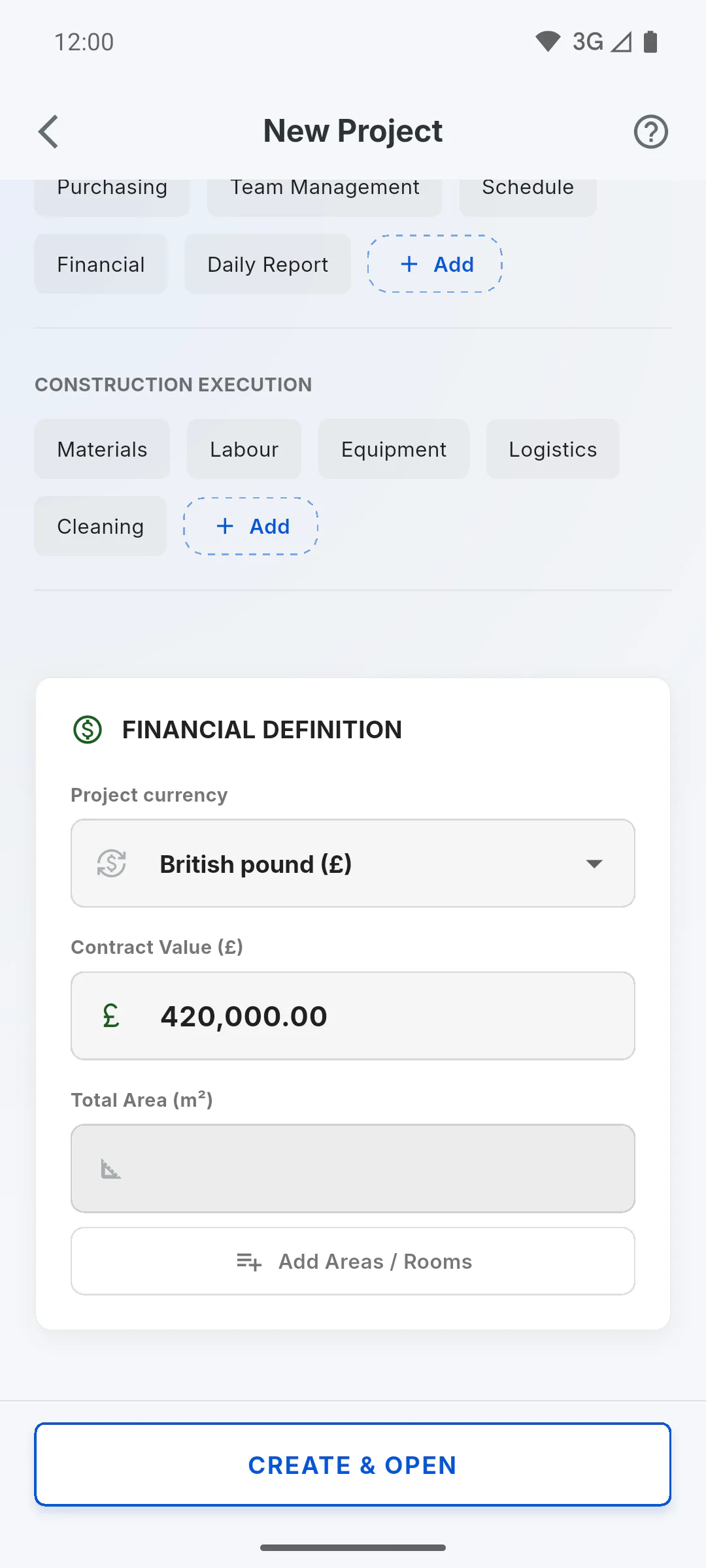
Step 2: Enter the contract value
Still on that screen, under Financial Definition, type the Contract Value. Each schedule stage gets a share of this value; without it, you can't create stages later.
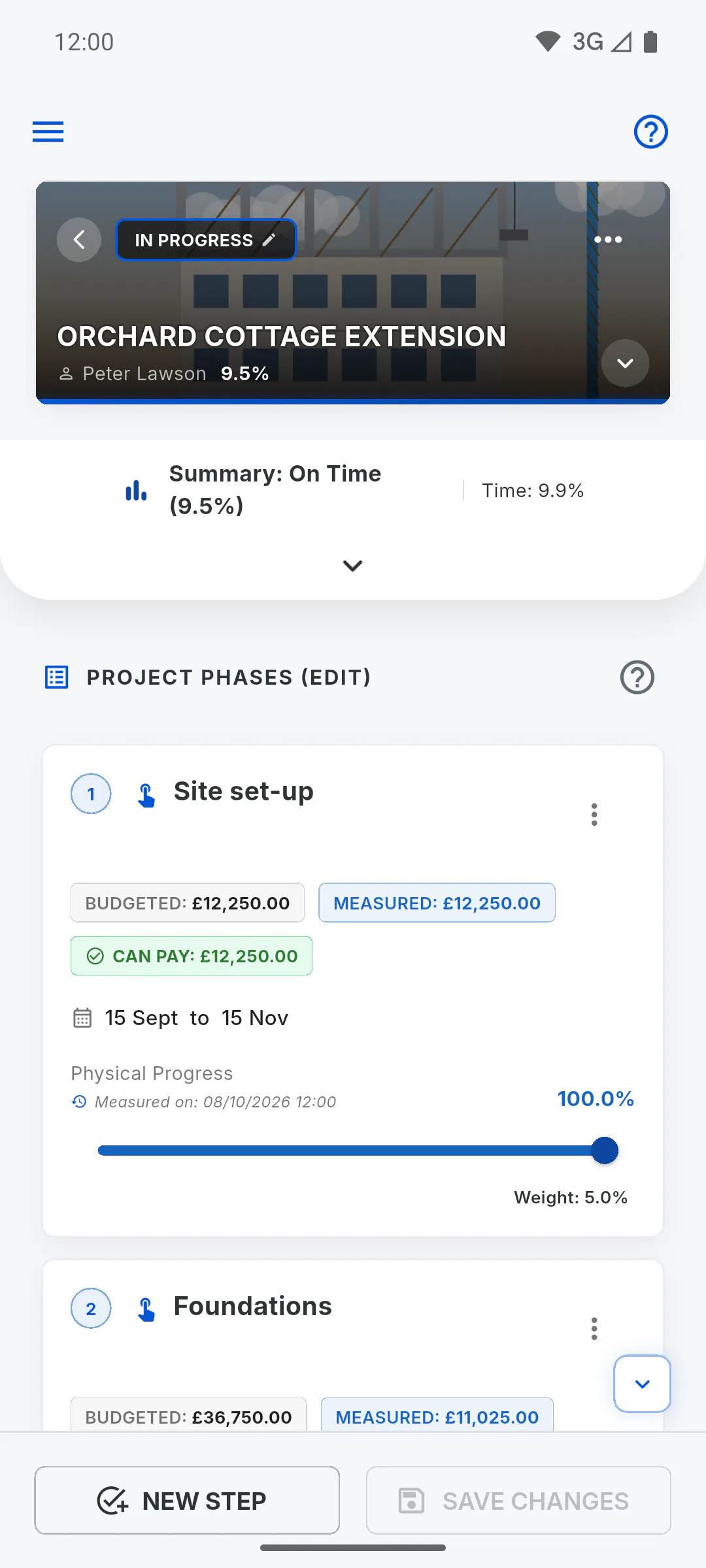
Step 3: Set up the stages
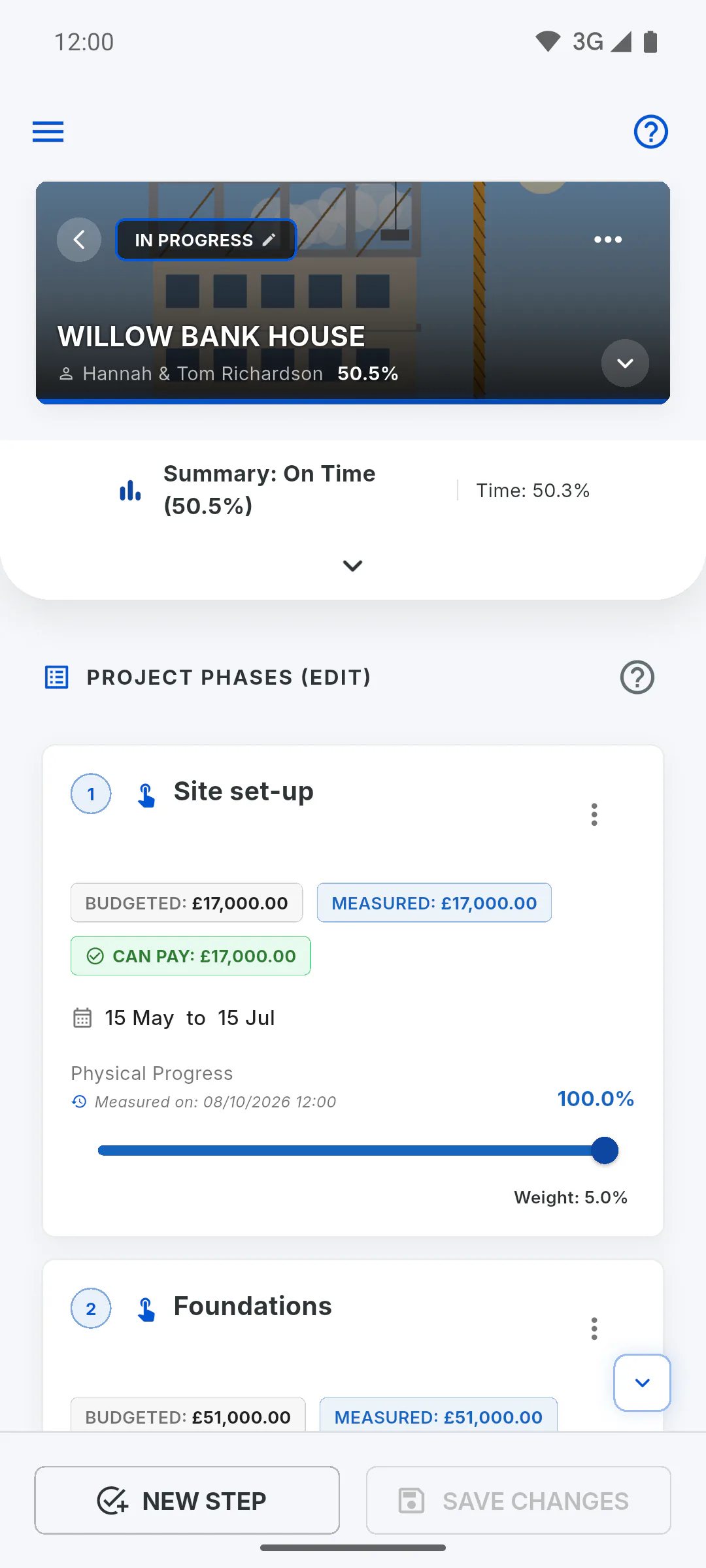
People who manage the project start on Schedule. Tap New Step, fill in Stage Identification and Planned Value, and tap Add. Stages are only saved when you tap Save Changes.
- How to create a schedule stage
- If the stage won't take a value: Why I can't create a stage
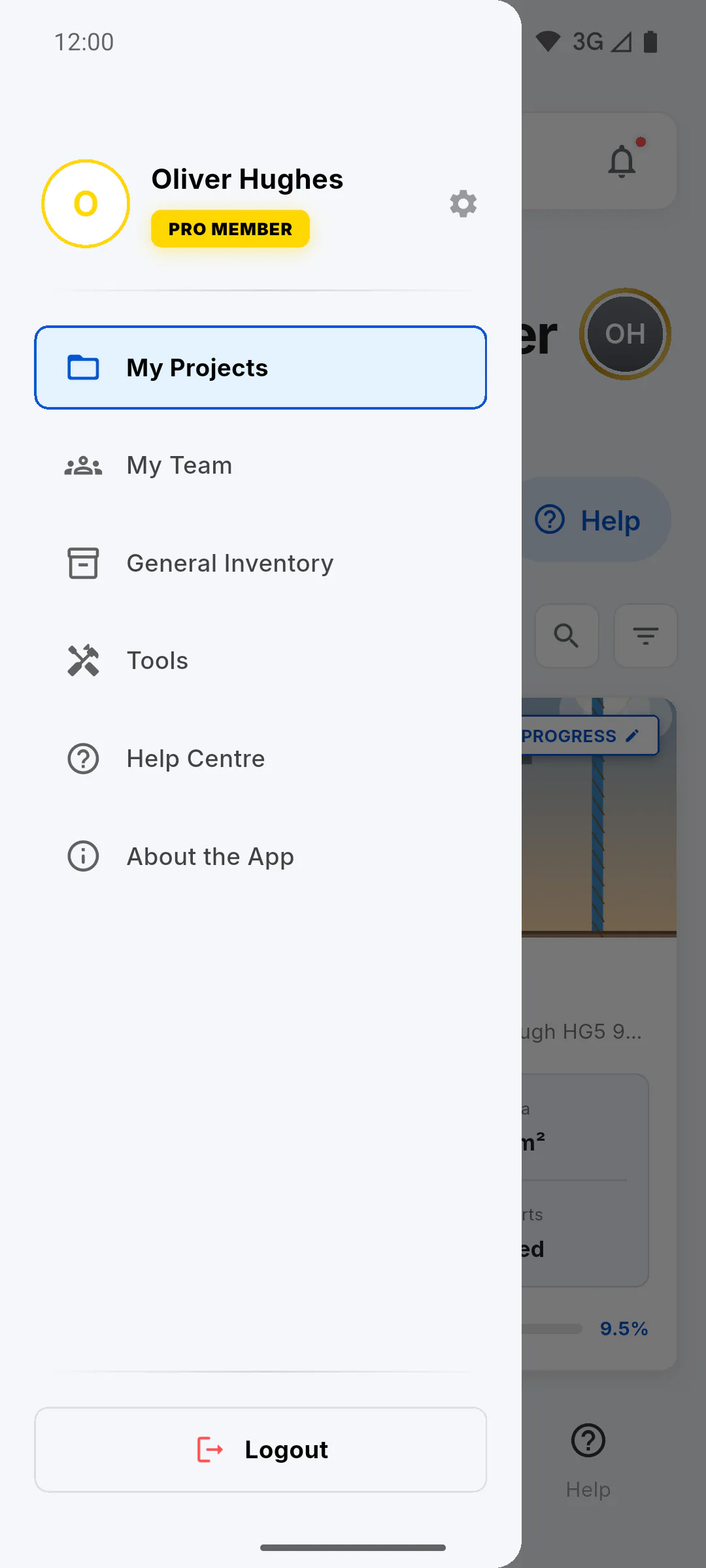
Step 4: Add your crew (optional)
To mark each person's attendance in the daily report, first add the people who work with you: in the side menu, tap My Team. They're available on all your projects. If you'd rather do it later, anyone who isn't on your team list can go in the report as extra workforce.
Step 5: Create your first daily report
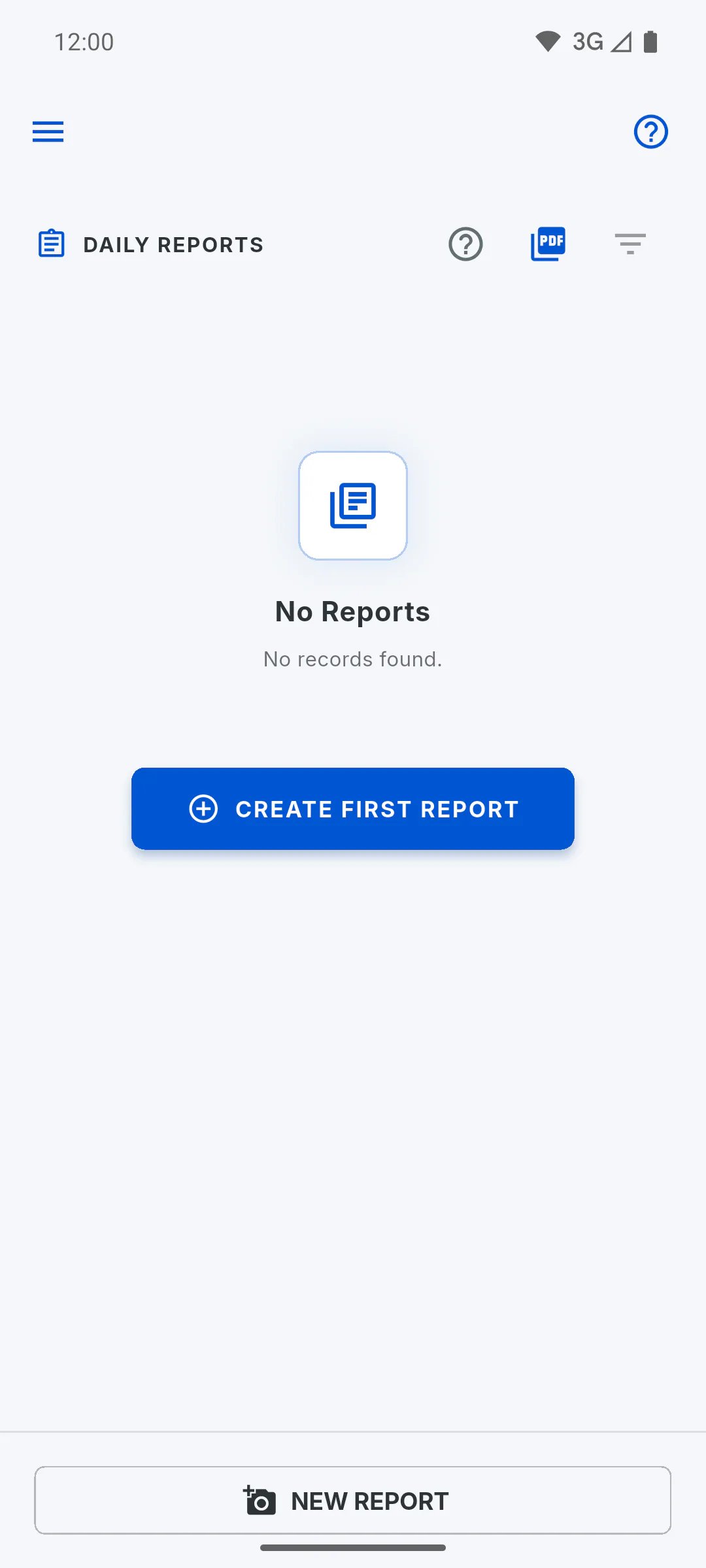
In the project menu, tap Daily Reports, then Create First Report. Pick the weather, describe the Activities Performed (required), mark the crew, add up to 20 photos and sign. Tap Finish and Save Report.
- How to create a daily report
- It also works offline: Daily reports without internet
Step 6: Download and share the PDF
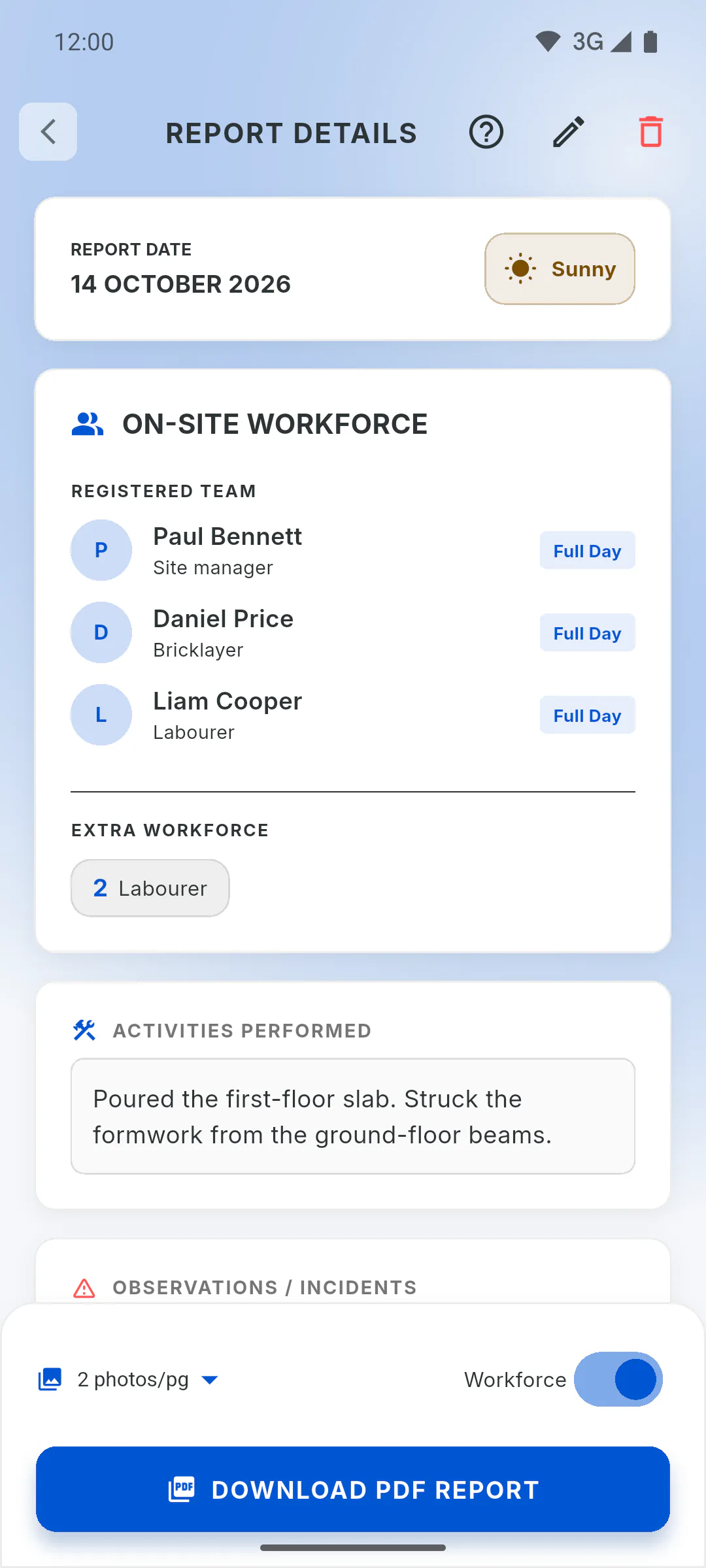
In the Daily Reports list, tap the report to open it, then tap Download PDF Report. On a mobile, your device's share options open, so you can send it by WhatsApp or email, for example.
- How to download and share the report PDF
- On the free plan, PDFs have a monthly limit and a watermark: PDF report limit on the free plan
Step 7: From here on
Write a daily report for every working day. As work moves forward, update stage progress on Schedule and tap Save Changes.
- How to update stage progress
- To bring more people onto the project: How to invite someone to your project
From scratch to your first daily report: create the project, build the schedule and log the day
The full path to get started: create the project, set up the schedule stages, write your first daily report and share the PDF.
For managers7 steps
Didn't find what you were looking for?
Chat with support on WhatsApp or raise a ticket in the app.