
Step 1: Open your details
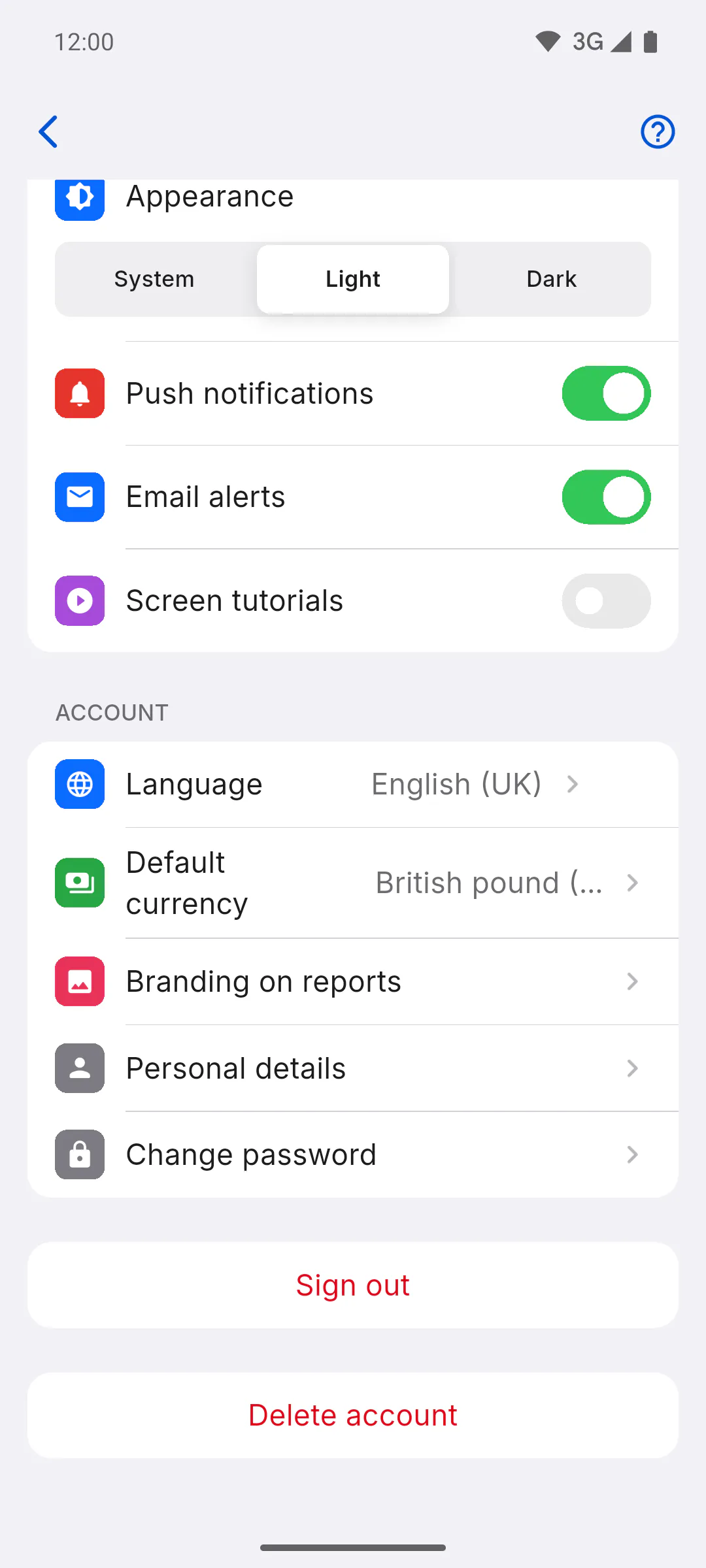
Open Profile and, in the Account group, tap Personal details. Edit, on the top card, opens the same screen: How to open and use your profile.
Step 2: Pick your country
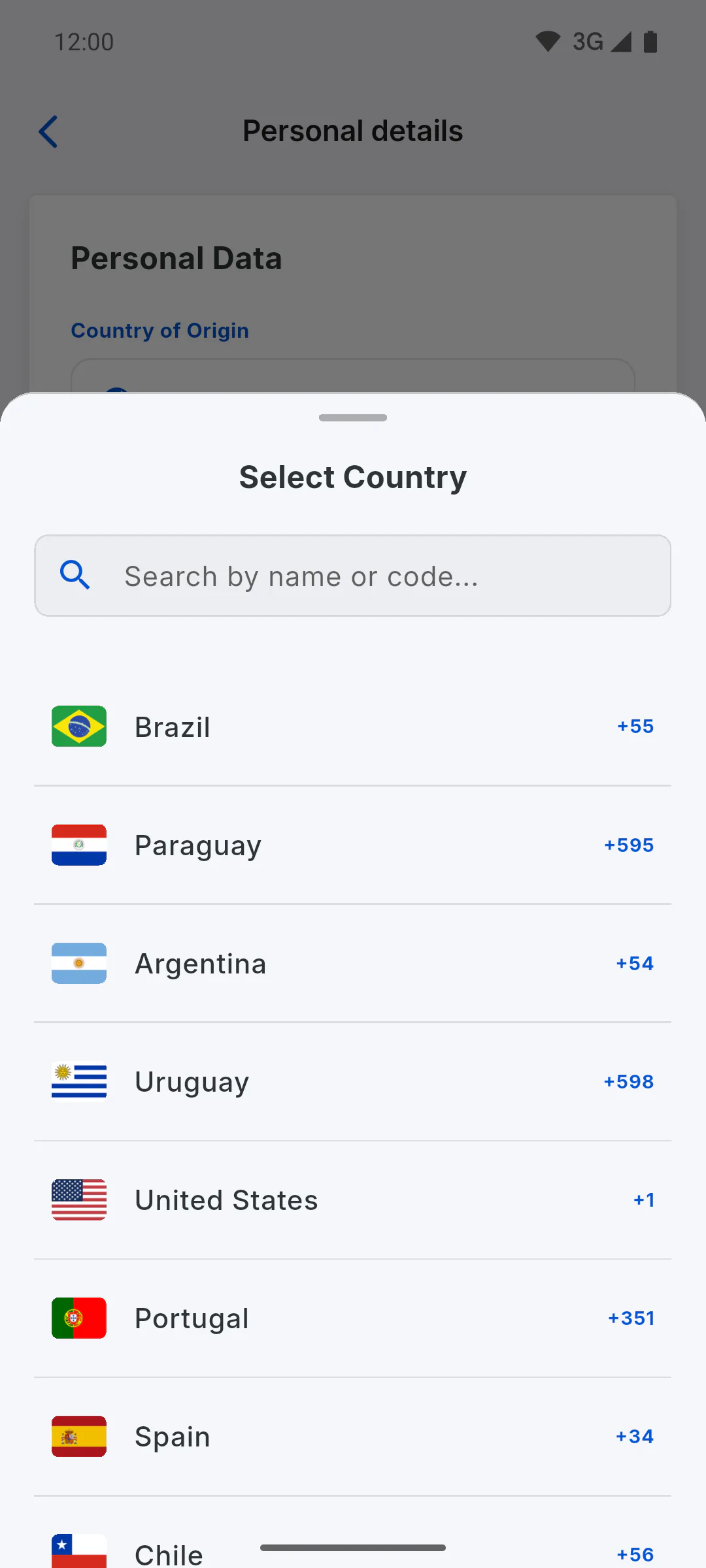
Tap the Country of Origin field and pick your country from the Select Country list. You can search by name or by the country calling code, such as +44. Your country of origin starts as the country you picked when you signed up. It changes the name and format of the ID field and, if the phone field is still empty, also picks the phone's country code.
Step 3: Name and email
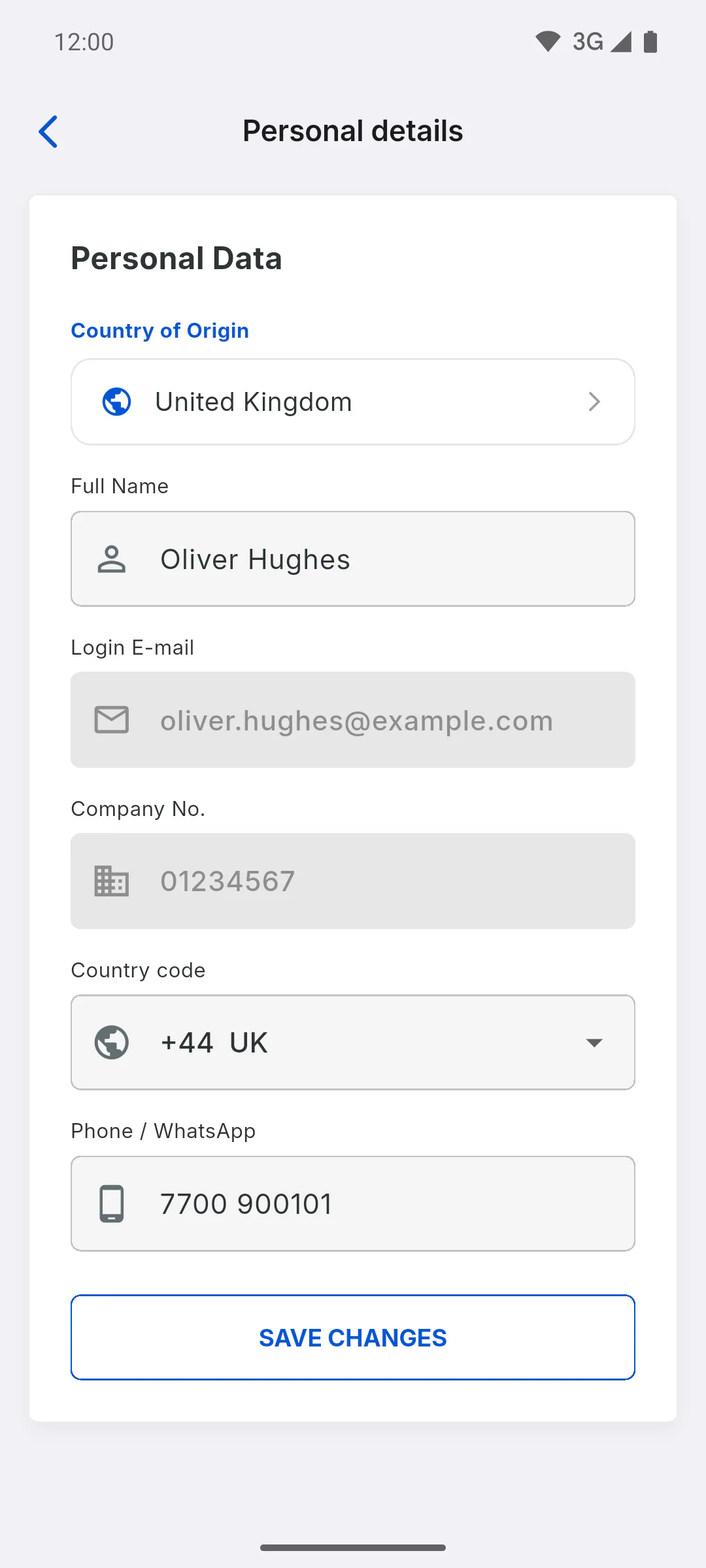
Under Full Name, fix your name if needed. If you sign in with Google, you can't change your name here. The Login E-mail is shown for reference only: your account email can't be changed in the app.
Step 4: ID number and phone
The ID field's name follows your country and the account type shown on the top card of Profile: for example, CPF or CNPJ for Brazil and NIF or NIPC for Portugal. Double-check it before saving: once saved, the ID number is locked and can't be changed here. Your phone has two fields: under Country code, pick the number's country; under Phone / WhatsApp, type the number, which takes that country's format. If your country isn't on the list, pick Other and type the full number, including the country code. Changing the country clears the number you've typed.
Step 5: Save your changes
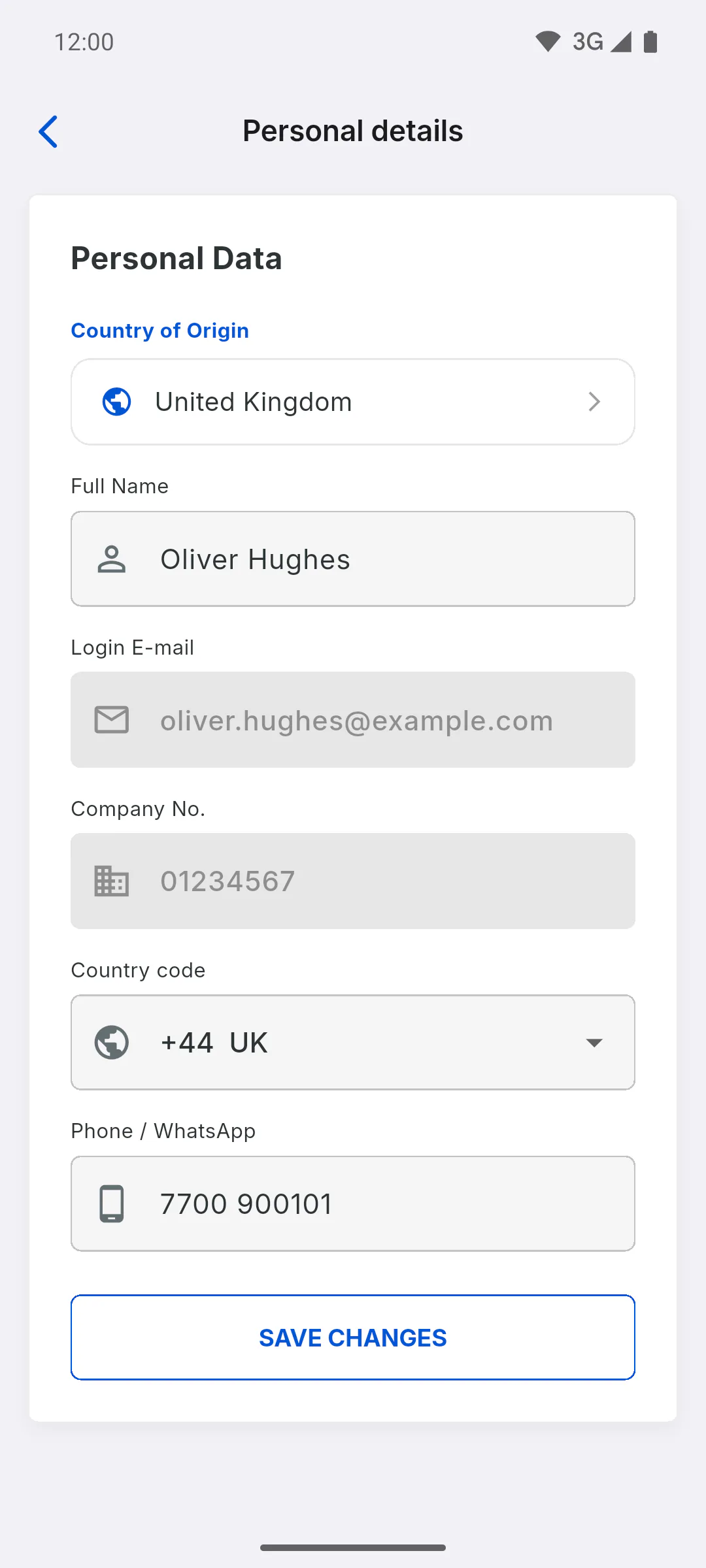
Tap Save Changes. If the phone is empty or doesn't match the chosen country, Required field or Invalid phone appears below it and nothing is saved: fix it and tap again. When everything is right, Profile updated successfully! appears. Your country, name, ID number and phone are only stored after this tap, so do it while you're online.
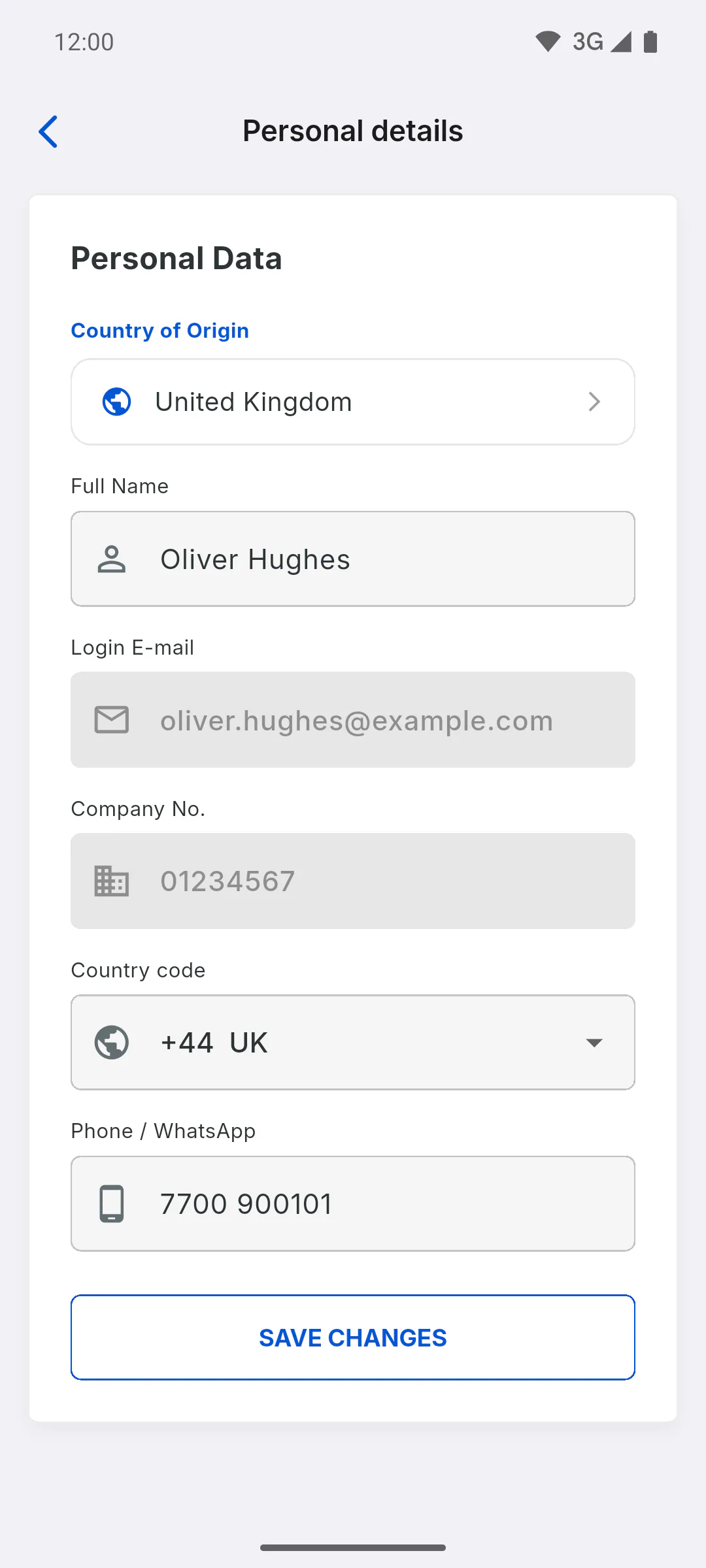
How to edit your personal details and country
Update your account country, name, ID number and phone under Personal details in Profile, and see what each field changes in the app.
For managers and team members5 steps
Didn't find what you were looking for?
Chat with support on WhatsApp or raise a ticket in the app.