
Step 1: When it happens
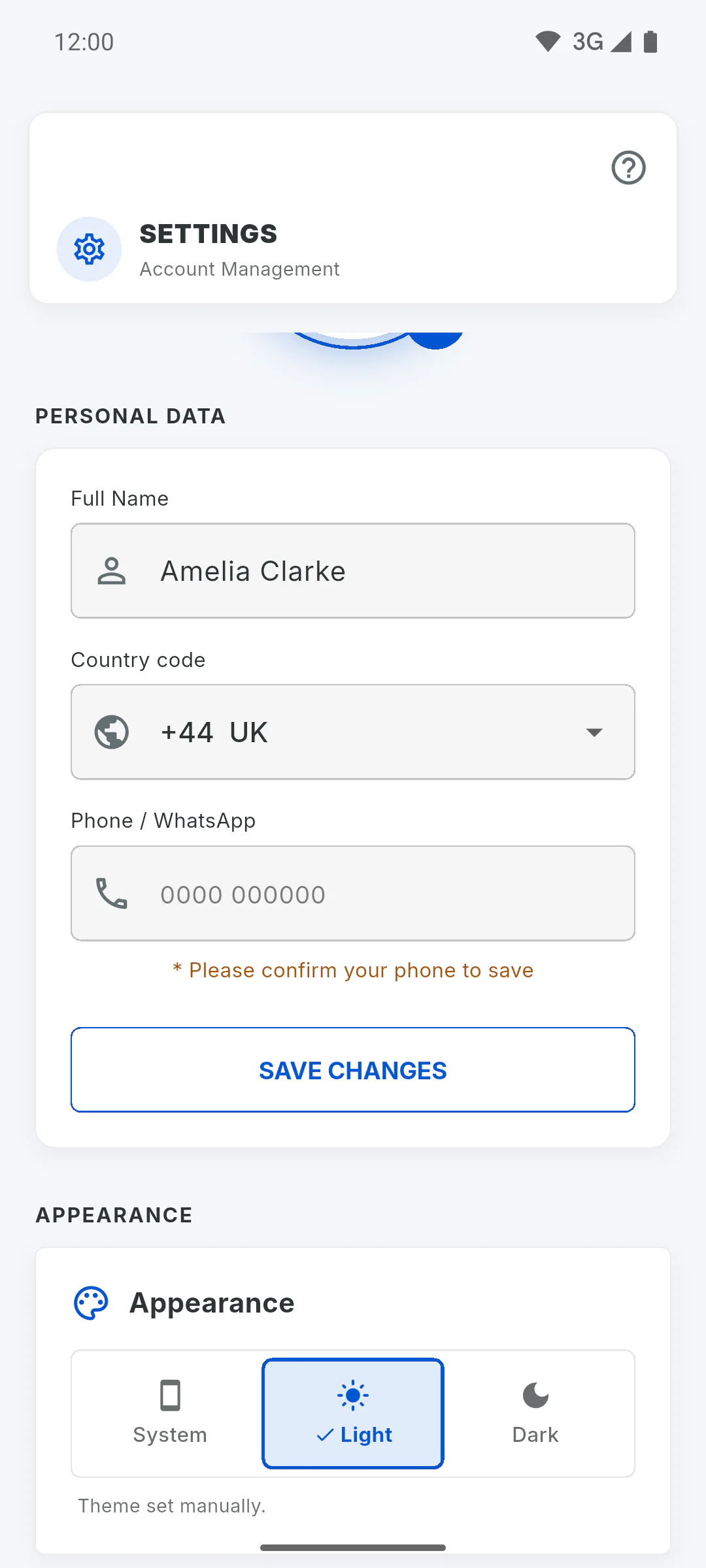
When you open Settings in the Portal, the app checks the phone number on your profile. If it's empty or incomplete for the selected country, you'll see Please fill out your phone correctly to continue. and, under the field, Please confirm your phone to save.
Step 2: What gets locked
Until the phone number is saved, the screen won't let you leave: the back button disappears, your device's back action just repeats the message, and the language picker at the top is hidden. The lock only applies to the Settings screen: it doesn't block your account or the project.
Step 3: How to unlock it
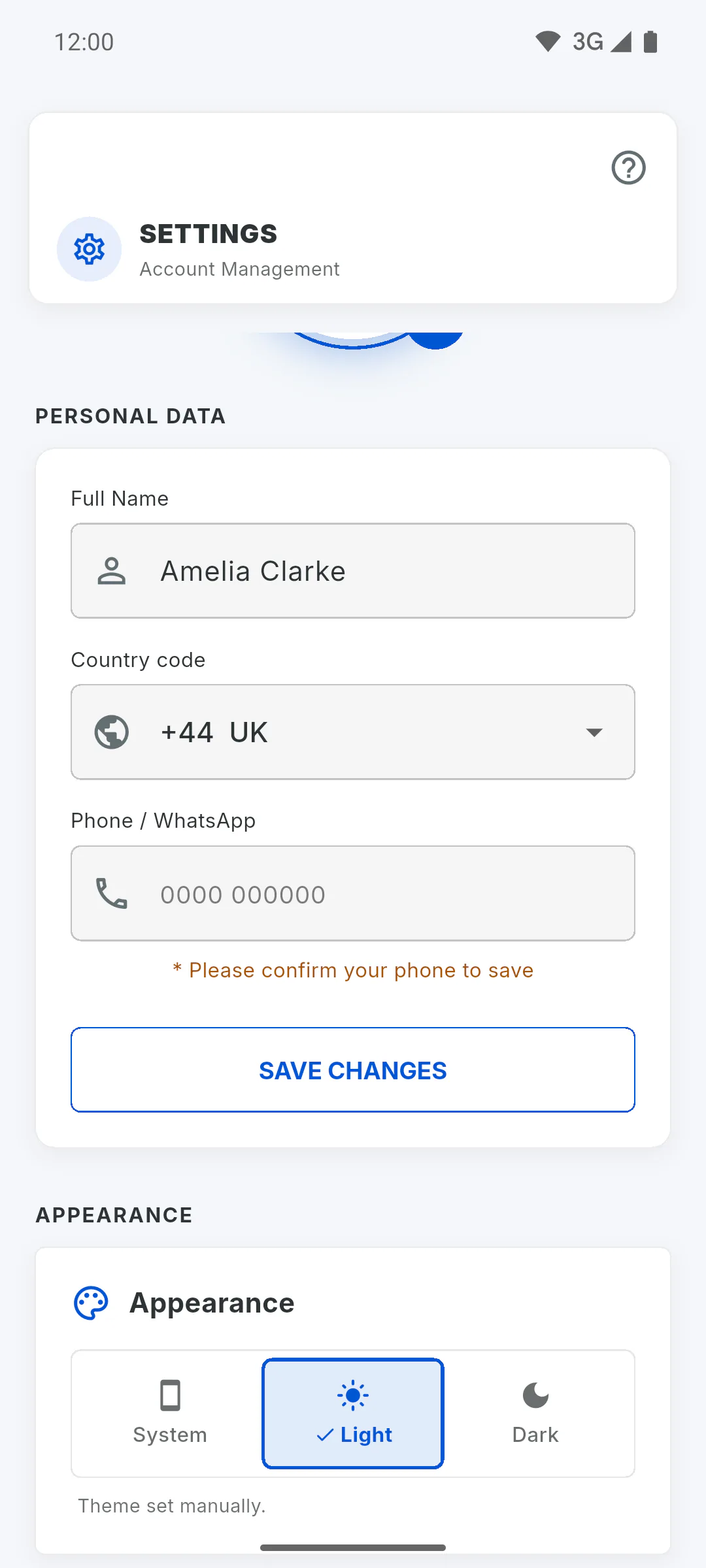
Under Country code, check your number's country. Then, under Phone / WhatsApp, enter the number without the country code, using digits only: the field follows that country's format (in the UK, 10 digits after the code, like 0000 000000). Check Full Name, which is also required, and tap Save Changes. Once you see Profile updated!, the back button comes back.
Step 4: Number from another country
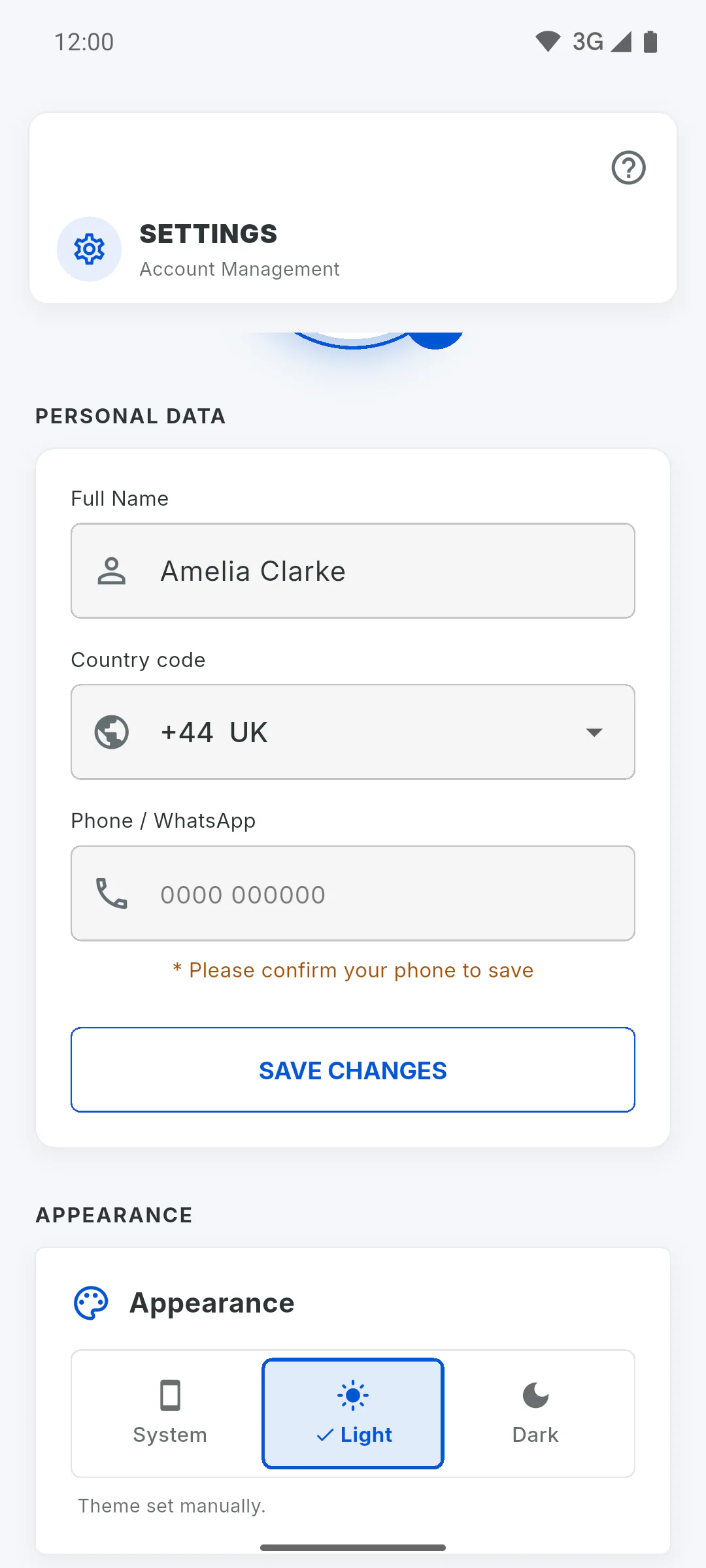
The Country code list includes Brazil, Portugal, Angola, Mozambique, the US and Canada, Spain, Mexico, Argentina, Colombia, Chile, the UK, Australia and other countries in Europe, the Middle East and Asia. If your country isn't on it, choose Other and enter the full number, including the country code (for example, +353 87 123 4567). If you still can't save, close and reopen the app: it goes back to the Portal. Then contact support through the Help Centre in the menu.
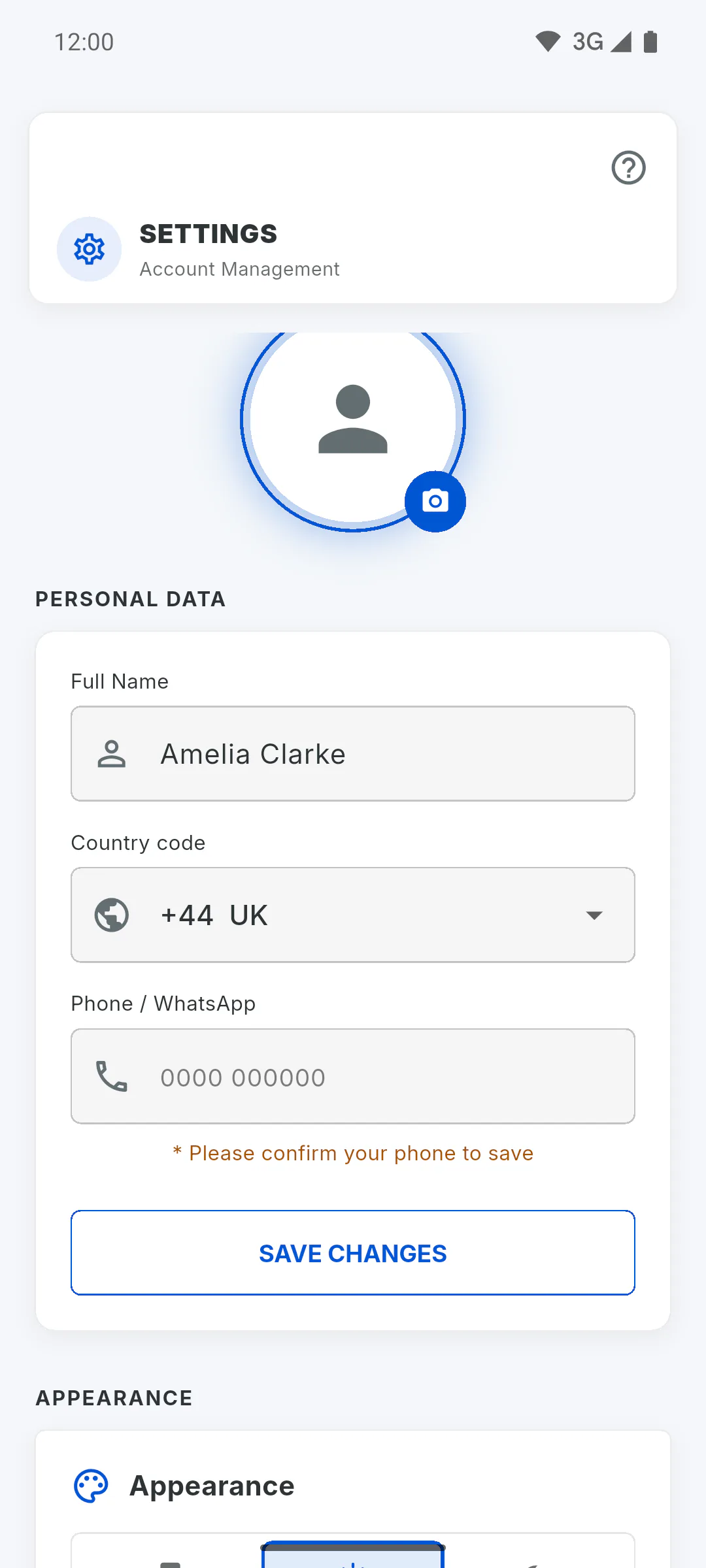
Why the app asks for my phone number before I can leave Settings
Find out why the Portal's Settings screen won't let you leave without a valid phone number, and how to get out.
For clients4 steps
Didn't find what you were looking for?
Chat with support on WhatsApp or raise a ticket in the app.