
Step 1: Open About the App
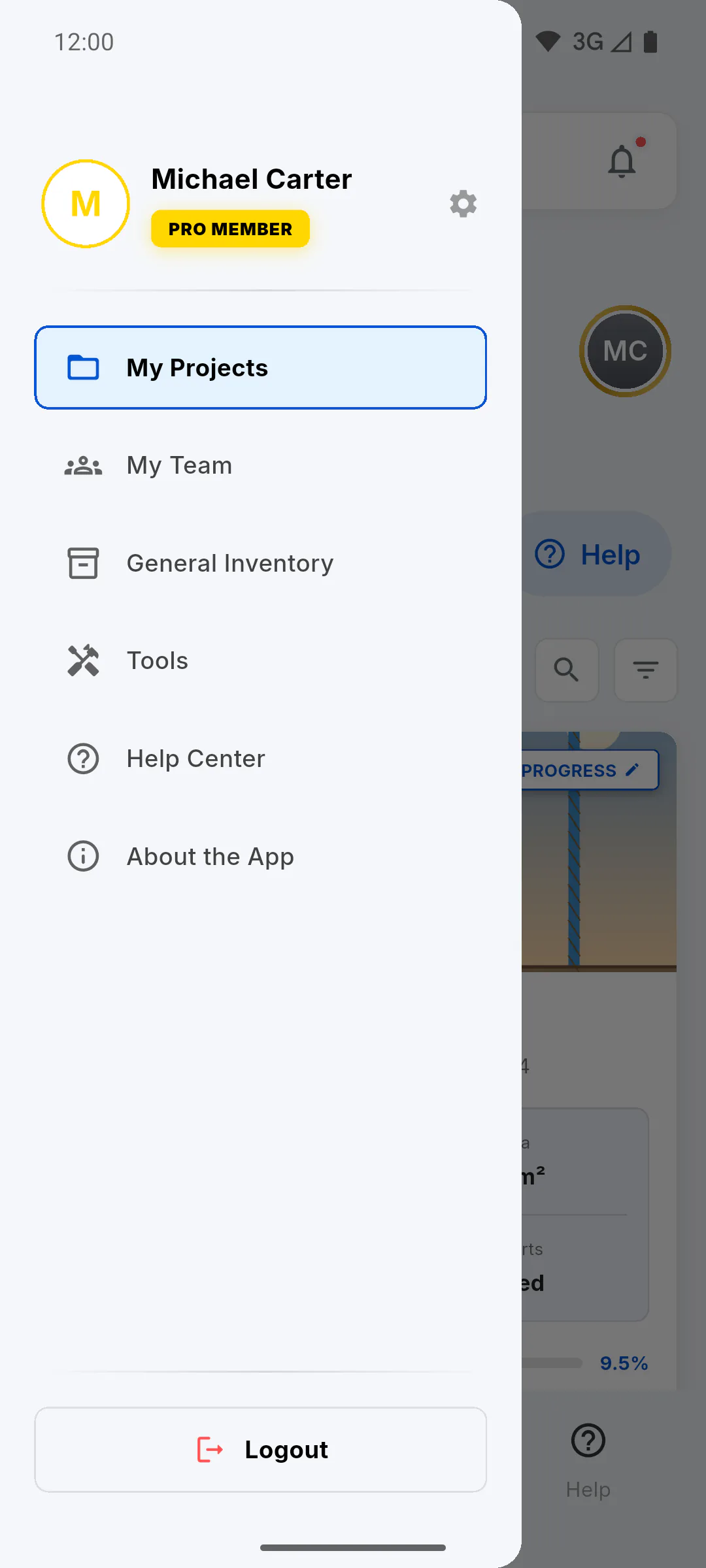
In the side menu, tap About the App. The About the App screen opens. To go back, use the arrow at the top.
Step 2: Check the installed version
In the first box, below the logo, you'll see Version and the number of the version installed on the device. Give this number to support when you report a problem.
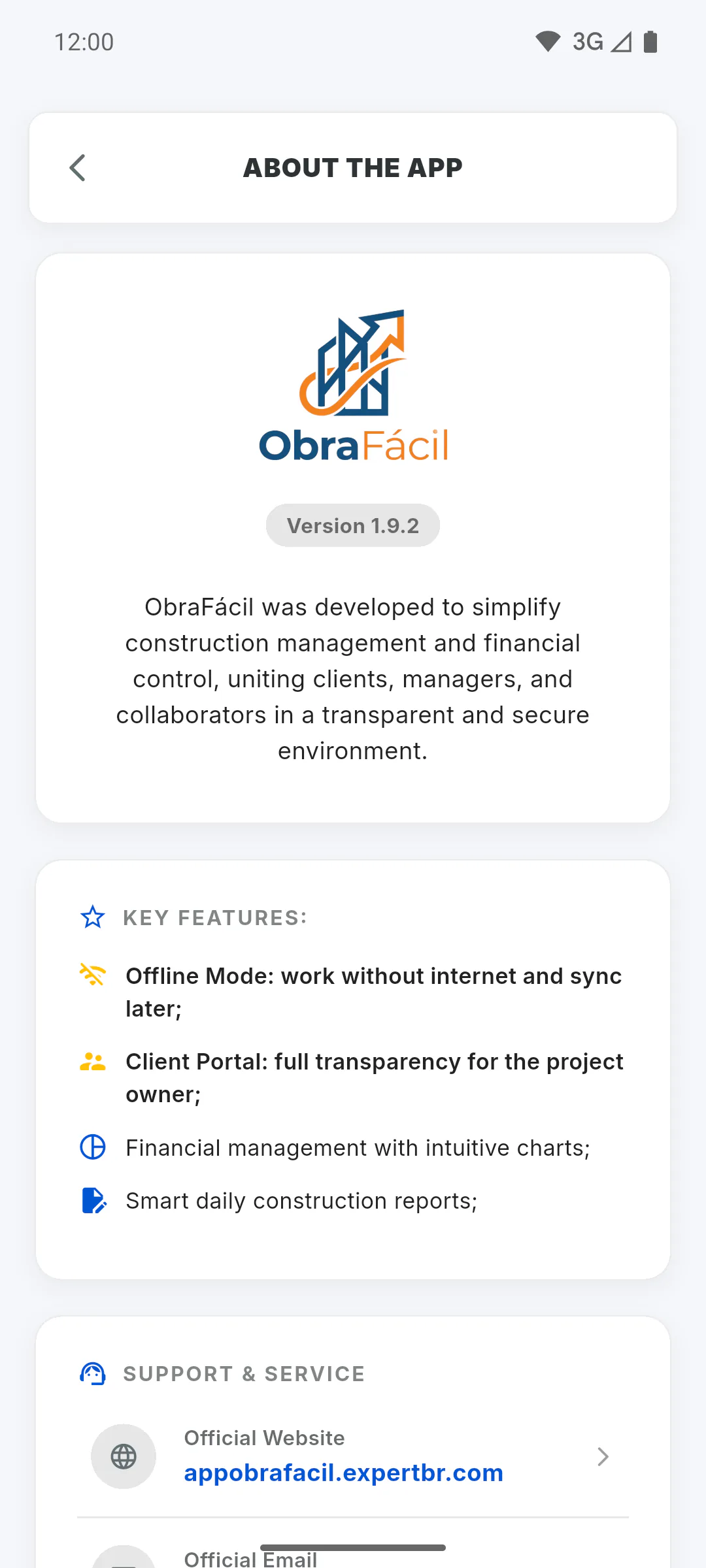
Step 3: Key features
Key Features: sums up what the app does. Common questions are answered in the Help Center: tap Access Help Center in the Support & Service box, or read Using the app offline and How much storage do I have.
Step 4: Support & Service
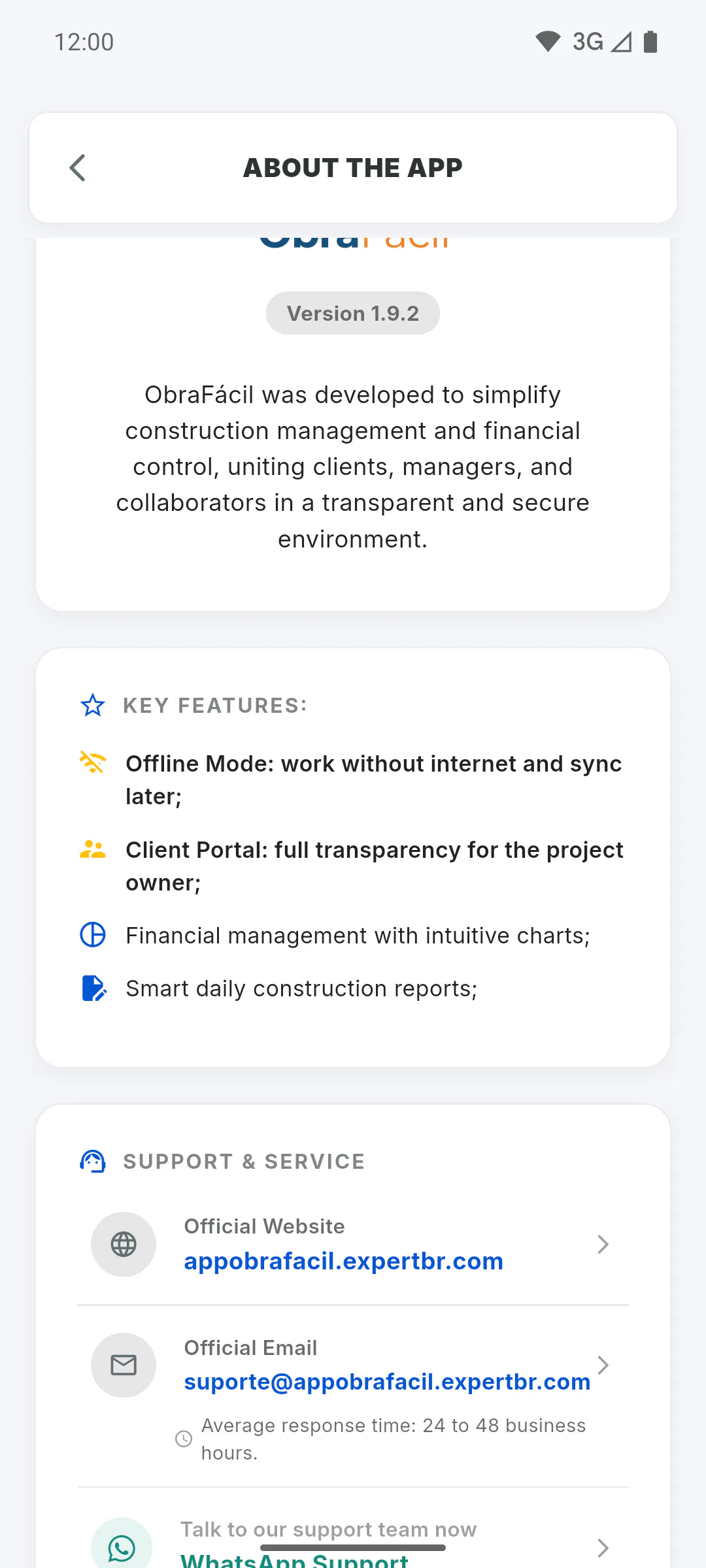
Under Support & Service:
- Official Website: opens the ObraFácil website in your browser
- Official Email: opens your email with the support address; the average response time is 24 to 48 business hours
- the support WhatsApp button
- Access Help Center: closes this screen and opens the Help Center
More in How to contact support.
Step 5: Legal information
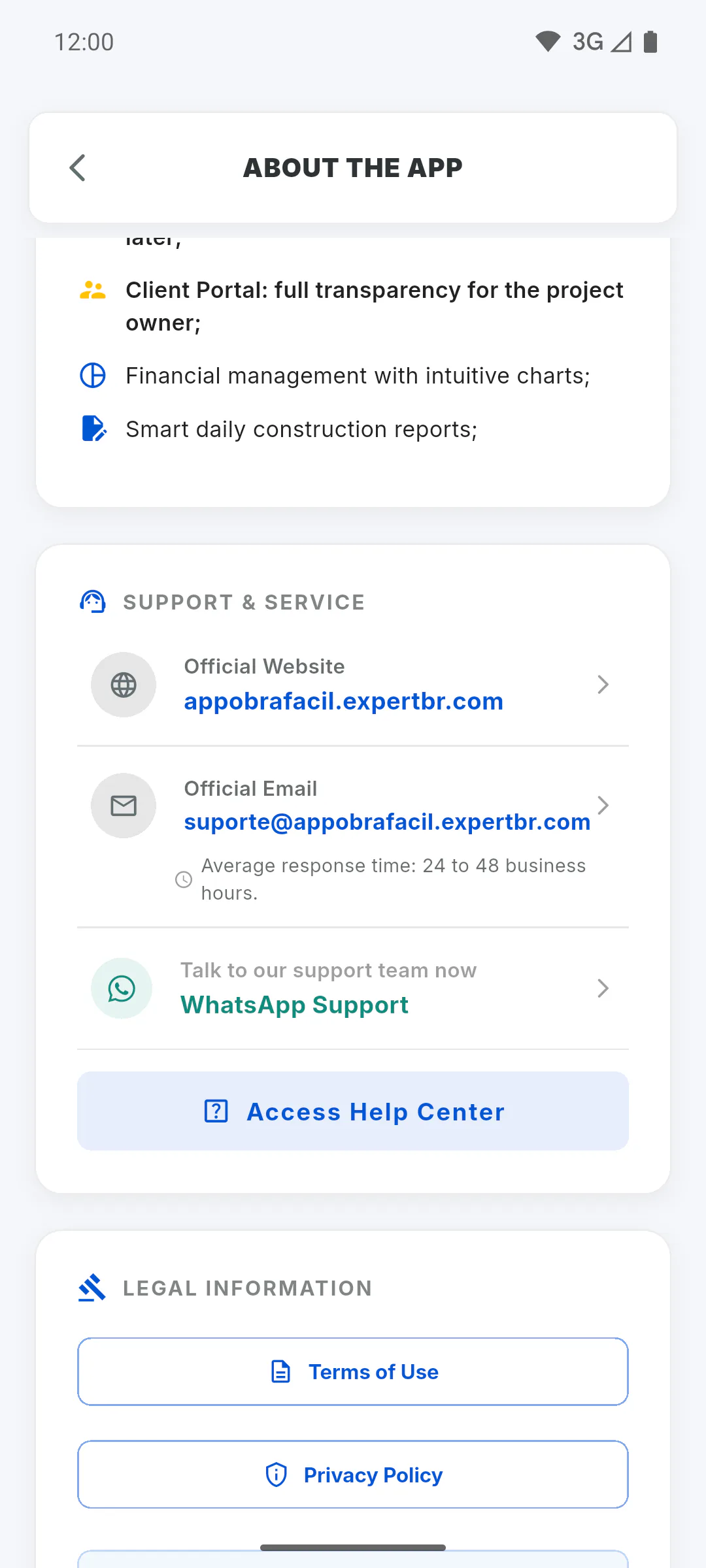
Under Legal Information, tap Terms of Use or Privacy Policy to read the full text: Where to read the Terms of Use and Privacy Policy.
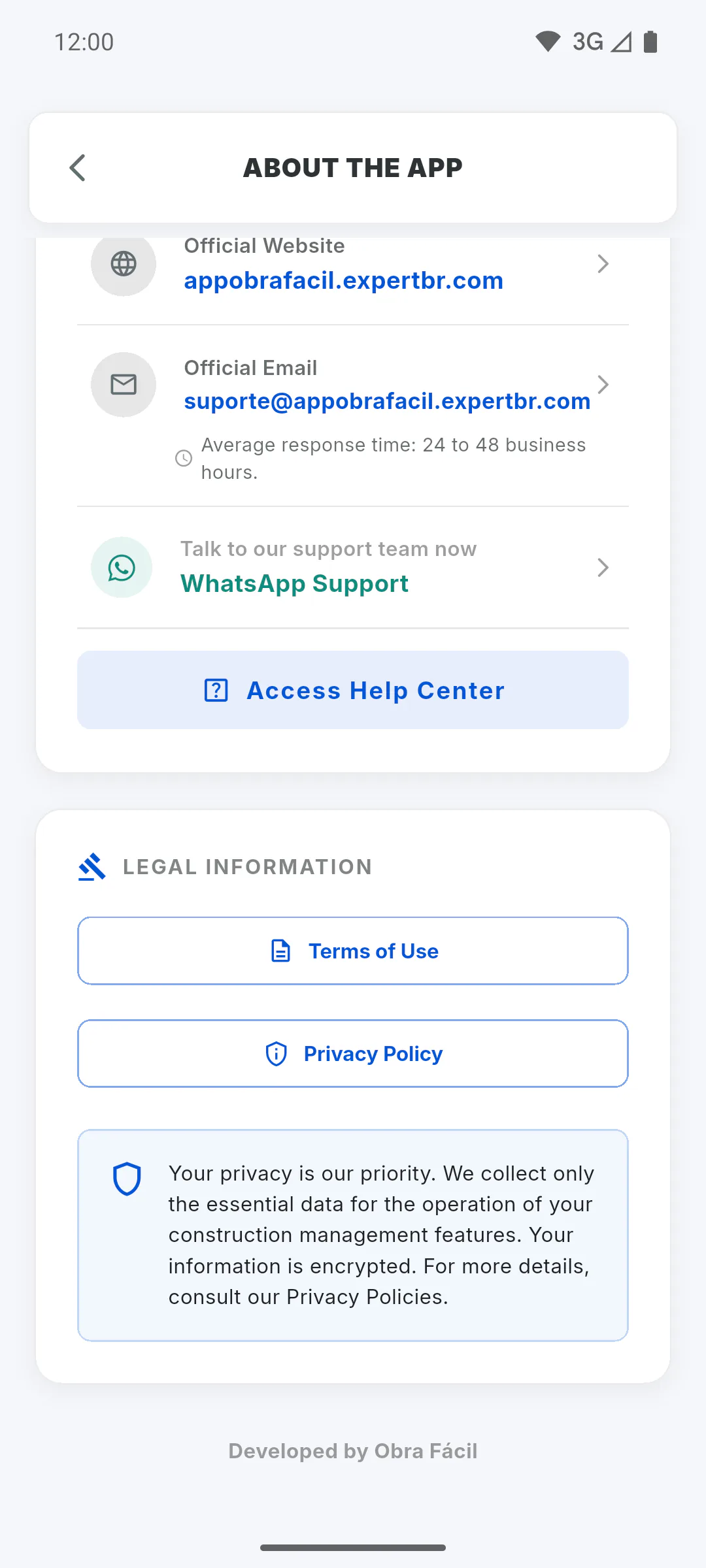
About the App: version, features and contacts
Check which app version is installed, see the key features and find the support contacts and legal documents.
For managers and team members5 steps
Didn't find what you were looking for?
Chat with support on WhatsApp or open a ticket right in the app.