
Step 1: Before you delete
Deleting is permanent. It erases your access, your profile and photo, your notifications and the ZIP files you requested. The project and everything in it (photos, reports, financials) belong to the manager and stay with them. Download any photos you want to keep first.
Step 2: Find the option
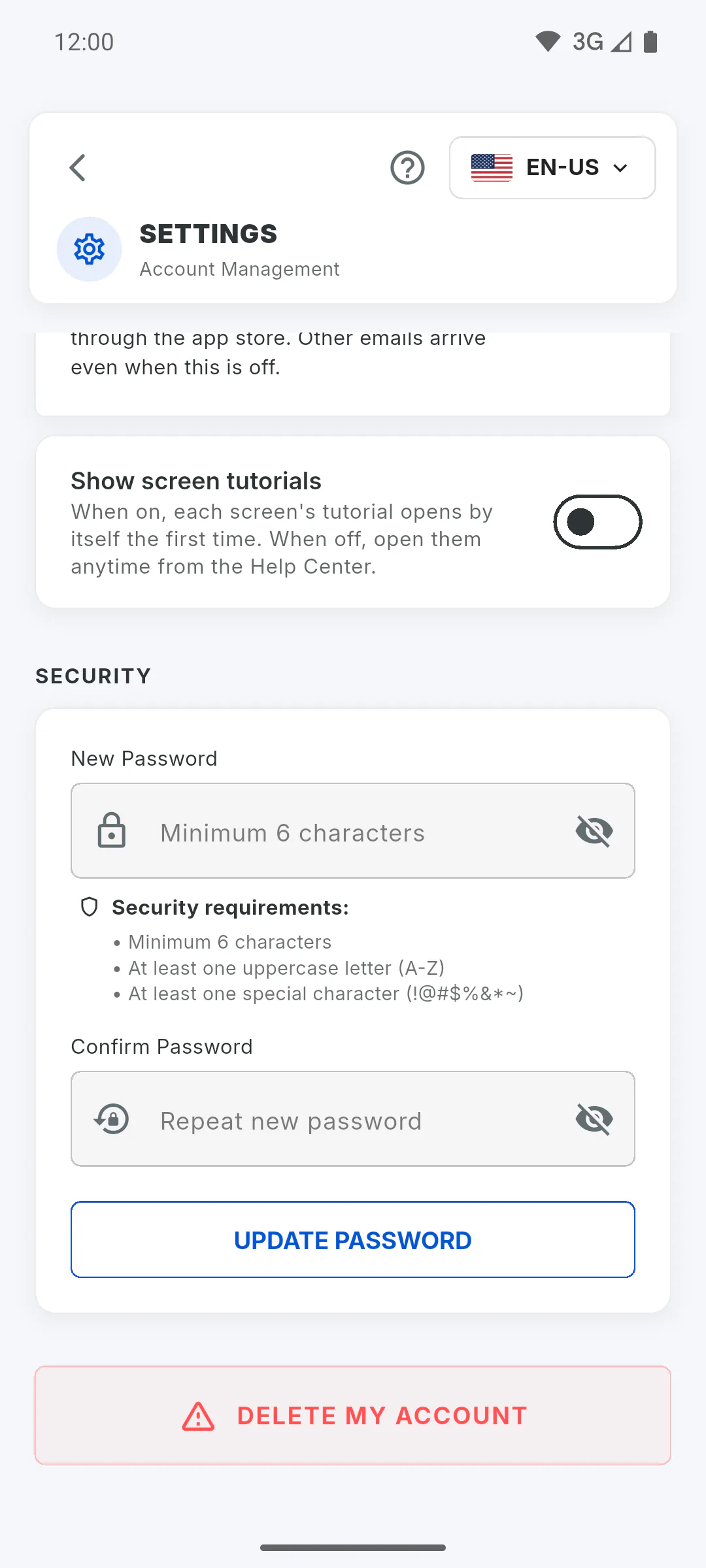
In the Portal, tap the menu button, then Settings. At the bottom of the screen, tap Delete My Account.
Step 3: Confirm the deletion
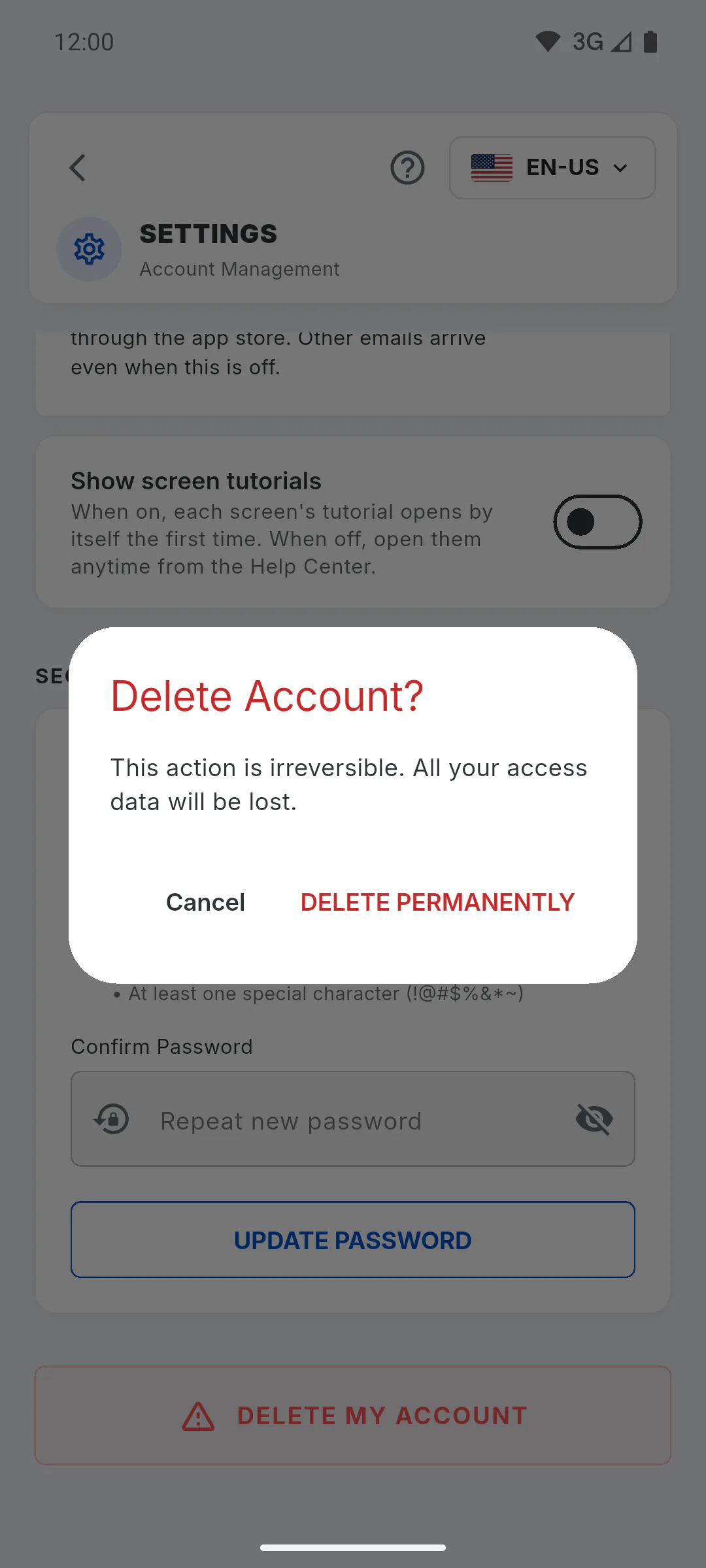
You'll see Delete Account?. Tap Delete Permanently to continue, or Cancel to back out.
Step 4: Confirm it's you
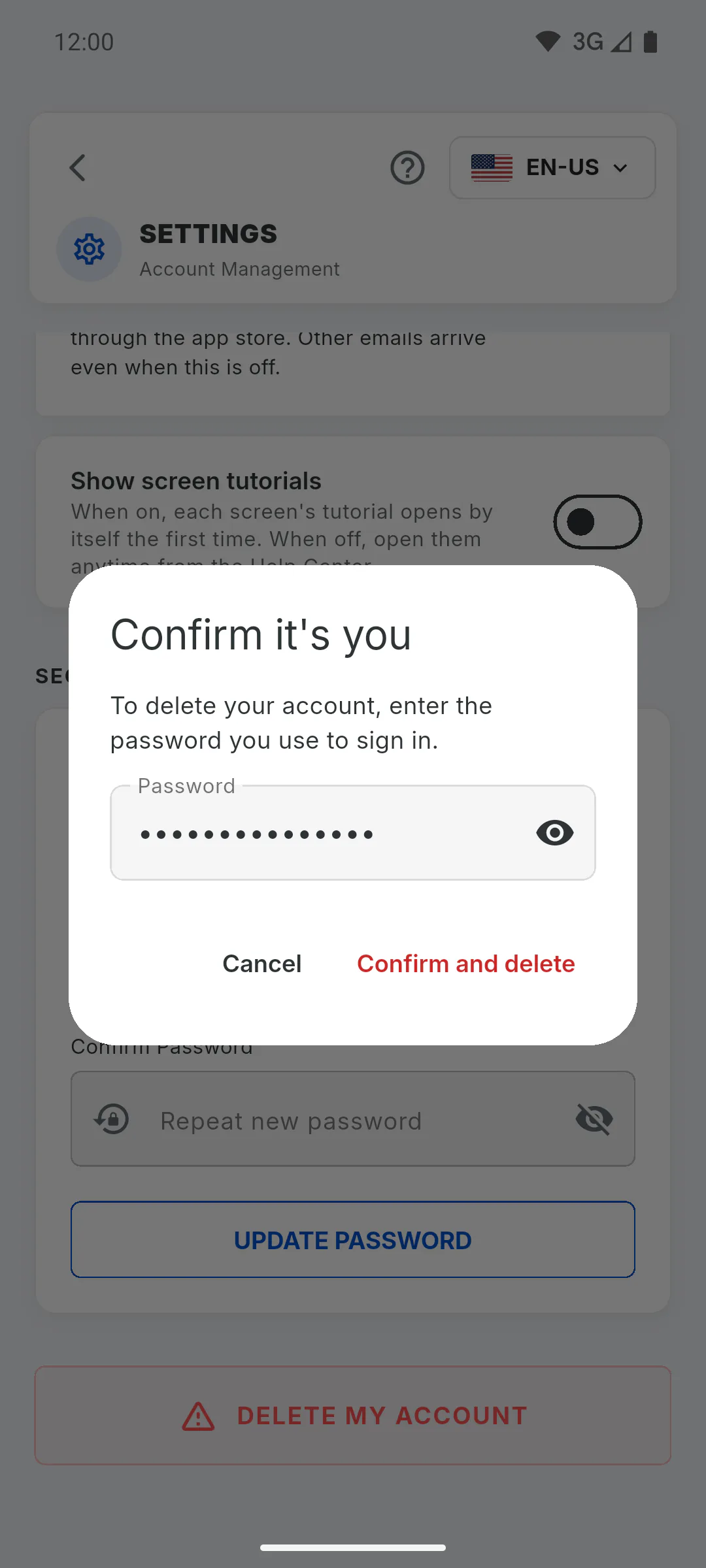
If you sign in with email and password, Confirm it's you appears: enter your Password and tap Confirm and delete. If you sign in with Google or Apple, the app asks you to confirm your account there. After that, the account is deleted and the app goes back to the sign-in screen.
Step 5: If the deletion doesn't go through
When the confirmation fails, nothing is deleted:
- Incorrect password. Nothing was deleted.: check your password and try again.
- The confirmation expired. Try deleting again and confirm it's you.: repeat the steps without a long pause between them.
- With an active subscription, the app asks you to cancel it first.
To follow a project again in the future, you'll need to create a new account.
How to delete my client account
Delete your account from the Client Portal: what gets erased, what stays with the manager and how to confirm the deletion.
For clients5 steps
Didn't find what you were looking for?
Chat with support on WhatsApp or open a ticket right in the app.