
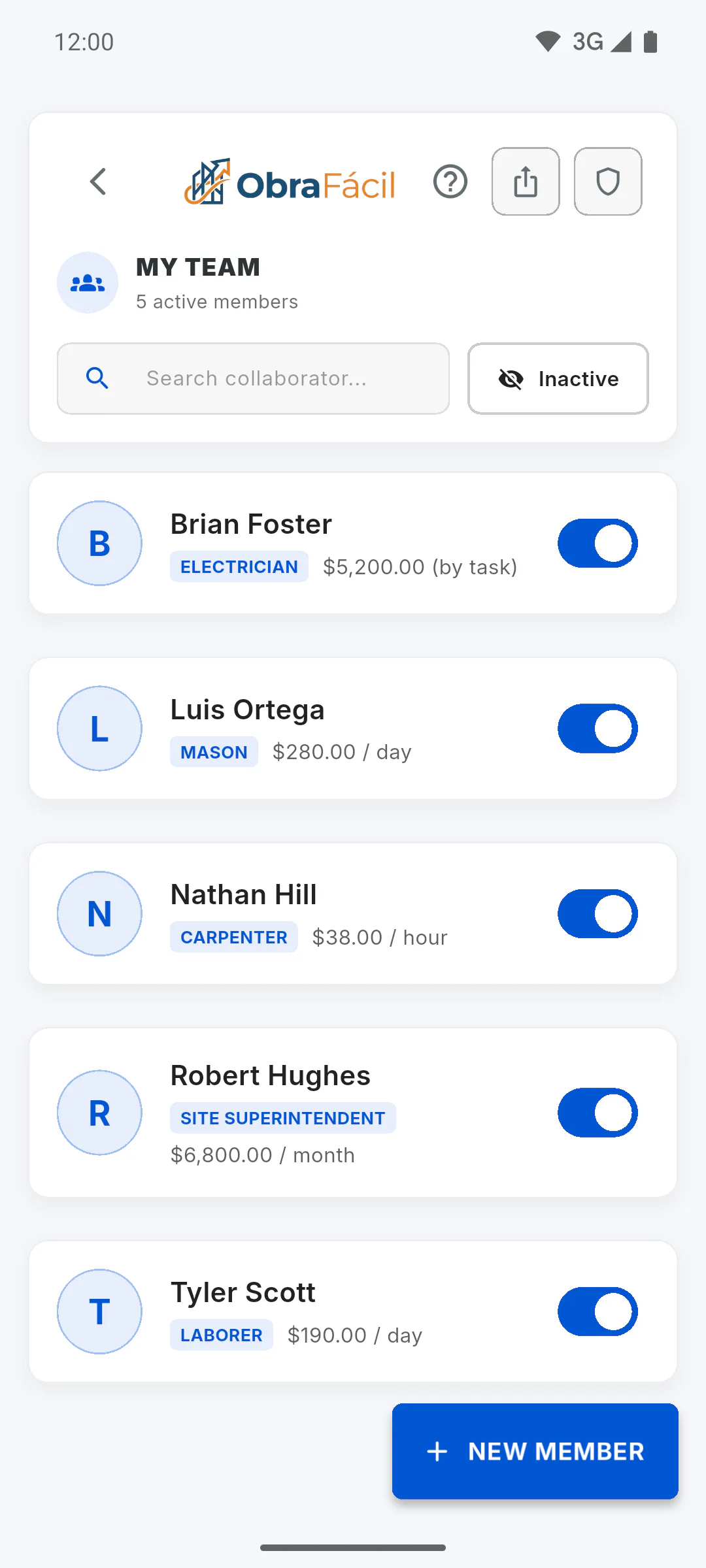
Step 1: Open the permissions
In the side menu, tap My Team, then the shield icon at the top (Guest Permissions). Only you, the team owner, see the shield.
Step 2: Turn on the switch
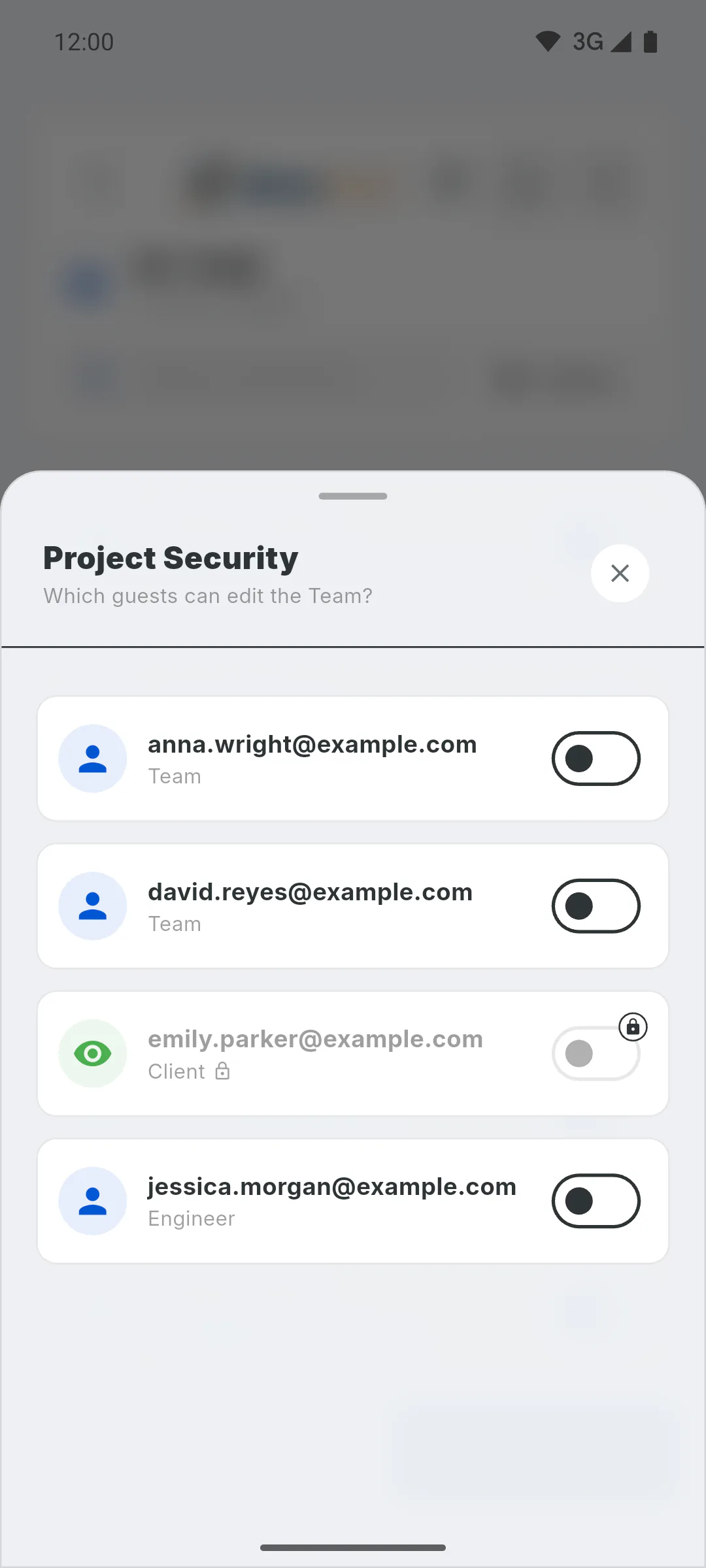
In Project Security, you see the guests from all your projects, with their email and role. Turn on the switch (Allow editing team) for the people who can manage your team. The client can't be authorized: their switch is grayed out with a lock icon, and tapping it opens a window explaining why. If there are no guests, you see No guests found: How to invite someone to your project
Step 3: It covers your whole team
The permission isn't per project: it covers your whole team, on all your projects. The authorized person can also see every team member's ID document and payment info: Who can see team members' ID and payment info
Step 4: What the guest can do
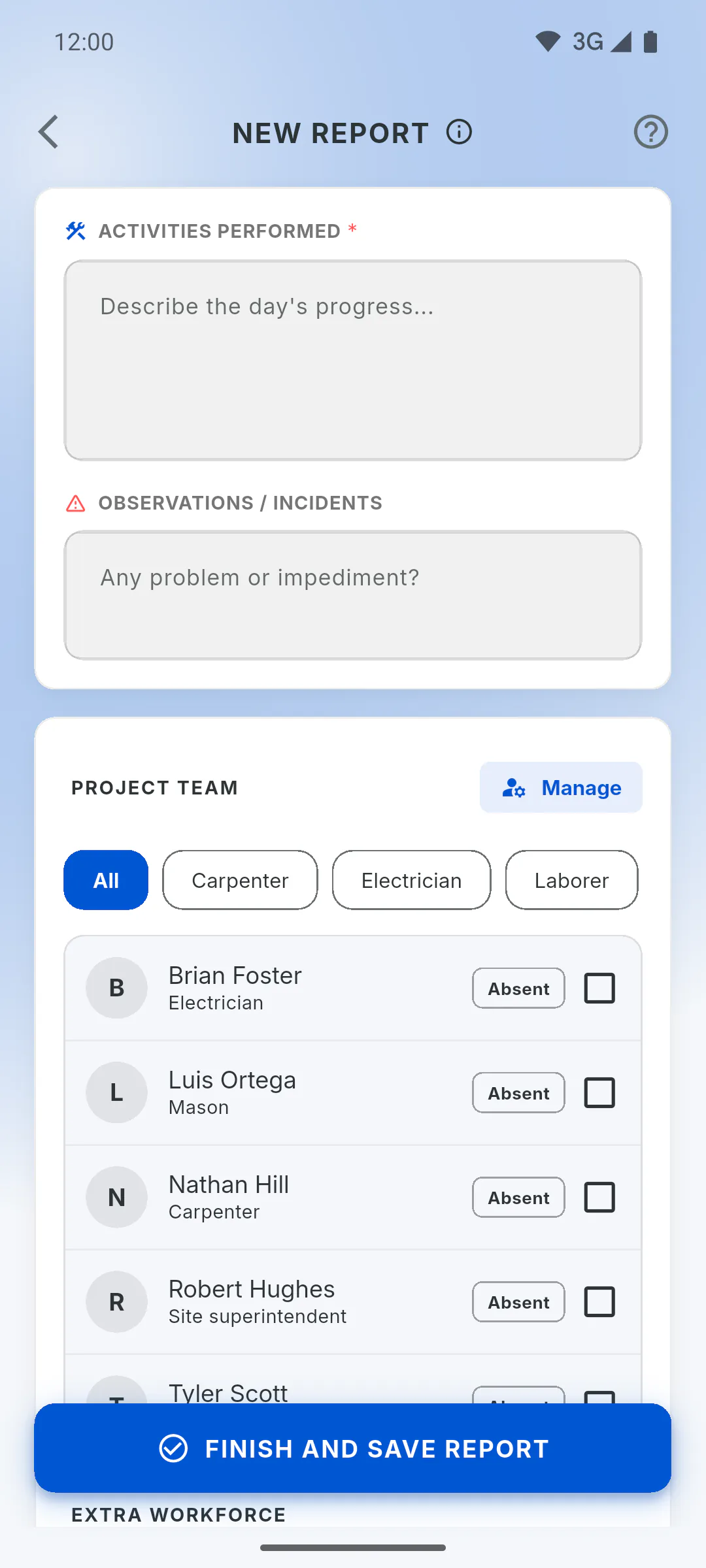
While filling in the project's daily report, the guest taps Manage, next to Project Team, to open your team. If authorized, they can add (New Member), edit and deactivate team members. Deleting and changing the salary split across projects stay with you. Without permission, they see the list, but New Member (or Register Now, when the list is empty) is grayed out with a lock icon. Tapping it or a team member opens a window explaining that you grant editing access in Guest Permissions.
Step 5: Take the permission away
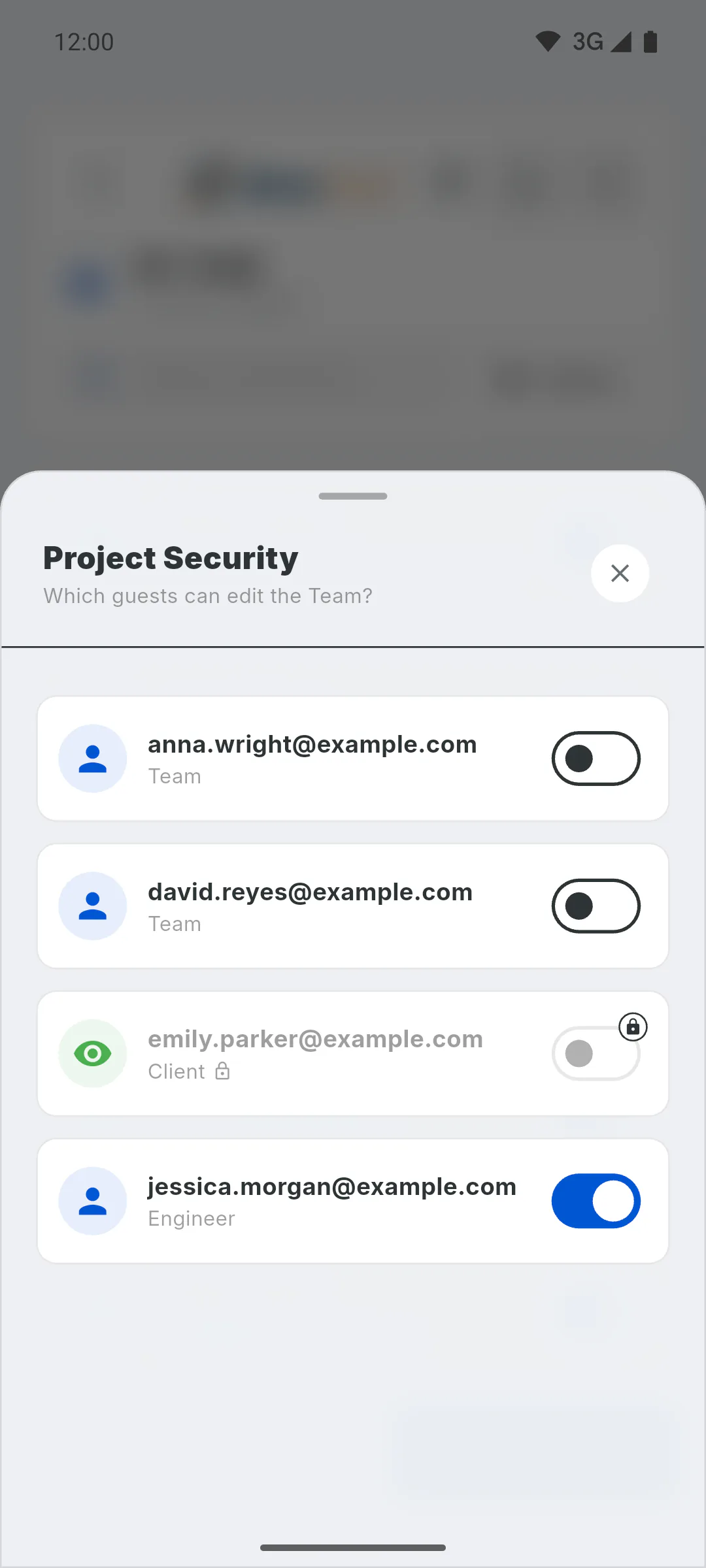
Turn off the person's switch. If they leave all your projects, the permission ends on its own and they disappear from this list; if they're invited again, the switch starts off.
How to let a guest edit your team
Allow an engineer or crew member invited to your projects to add and edit team members, including from the daily report.
For managers5 steps
Didn't find what you were looking for?
Chat with support on WhatsApp or open a ticket right in the app.