
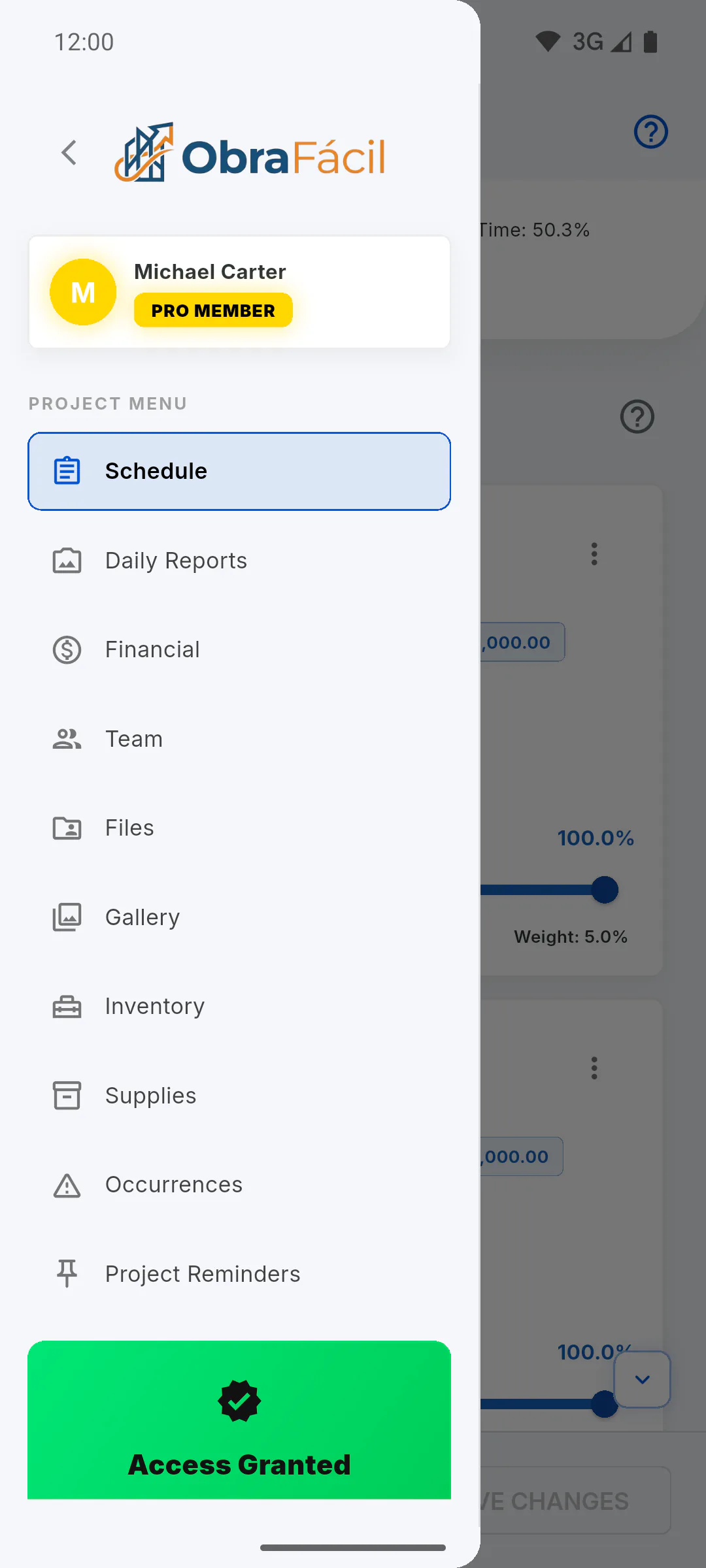
Step 1: Open the project's Team
Open the project and, in the project menu, tap Team. Only the project owner can remove members.
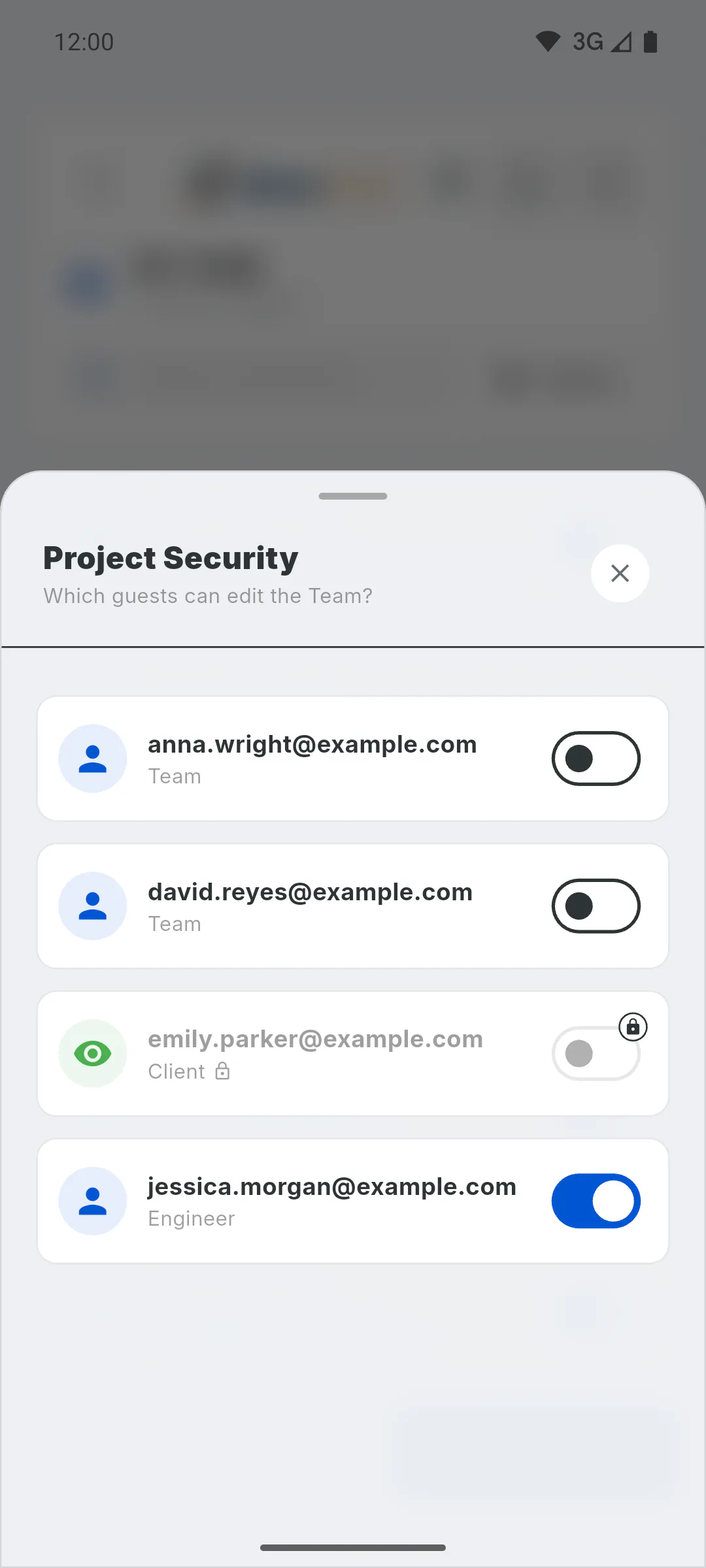
Step 2: The team editing permission
If the person has Allow editing team and you remove them from all your projects, the permission ends on its own. While they're still on any of your projects, it stays: to take it away, turn it off in My Team.
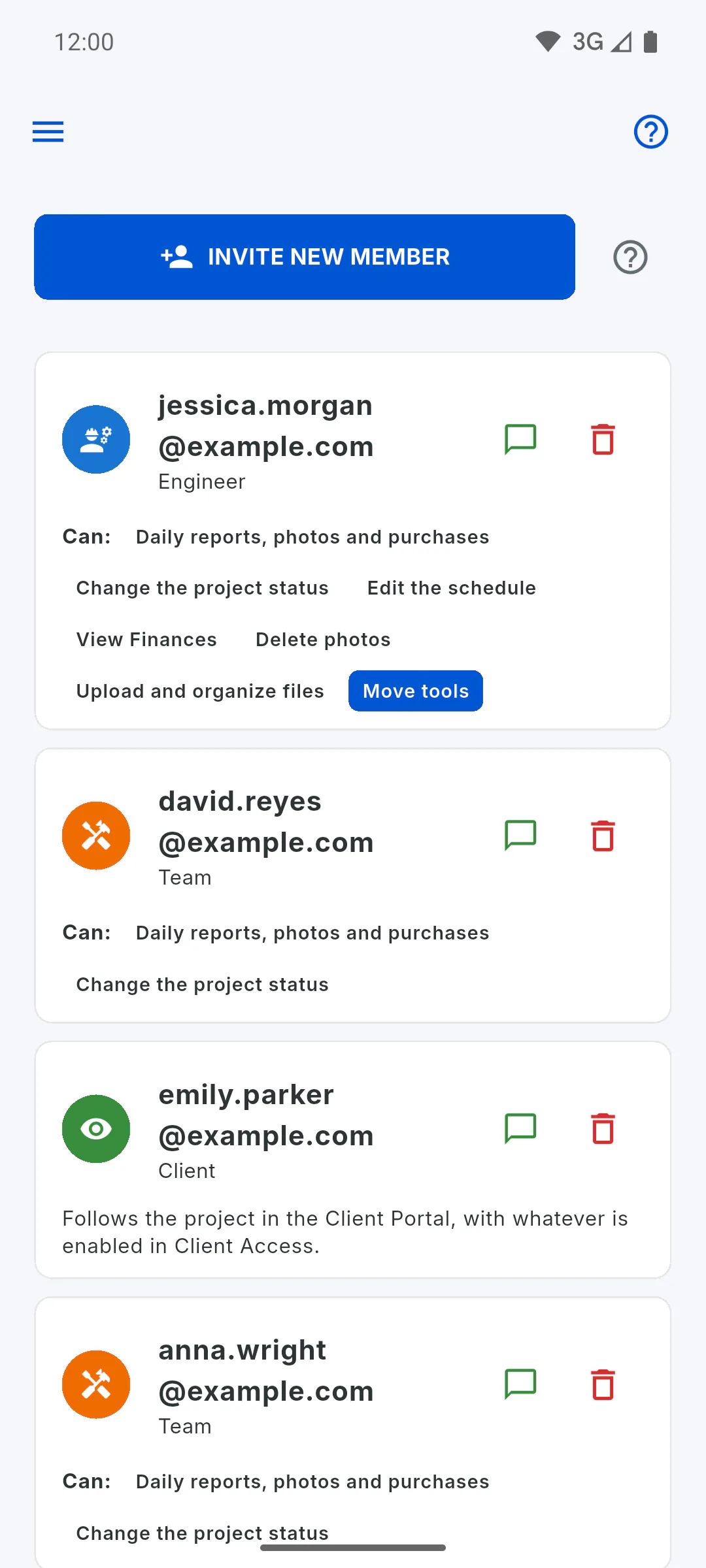
Step 3: Tap the trash icon
Next to the person's email, tap the trash icon (Remove Member).
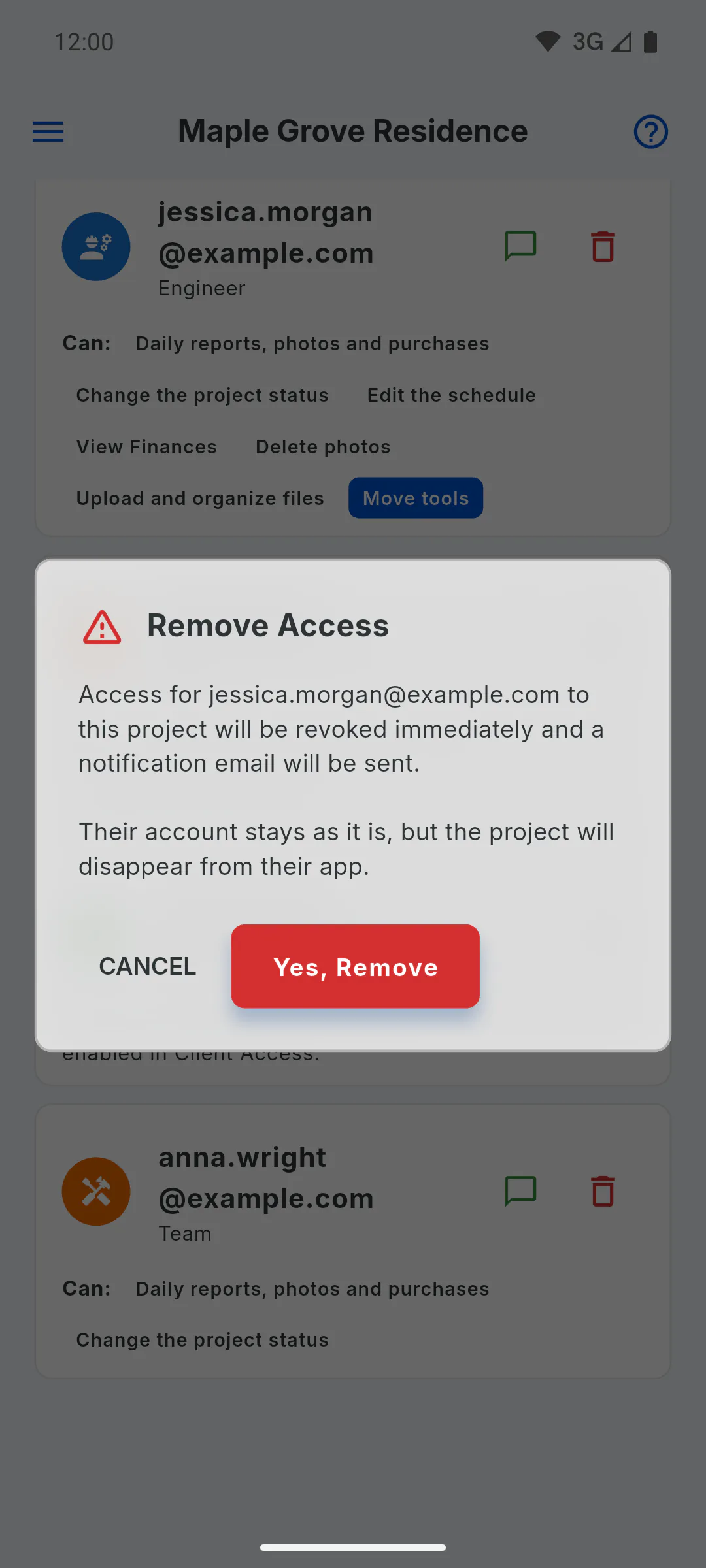
Step 4: Confirm
For engineers and crew, and for the client when the project is below 70%, Remove Access appears, warning that access ends right away and the person gets an email. Tap Yes, Remove to confirm or Cancel to go back. When it's done, you see Access revoked. E-mail sent.
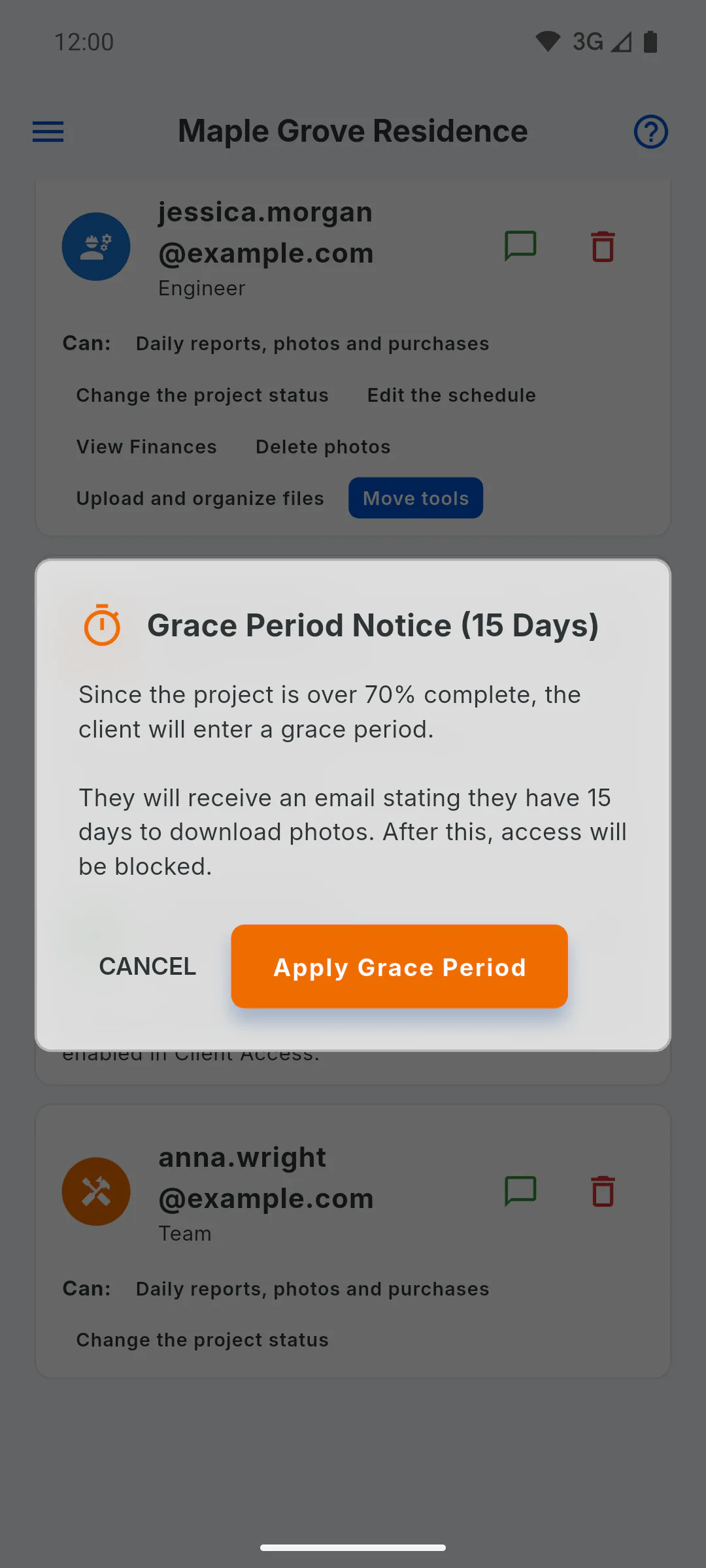
Step 5: Client on a project at 70% or more
In this case, Grace Period Notice (15 Days) appears: the client can keep access for 15 more days to download the photos.
Step 6: After removal
The project disappears from the person's app, but their account still exists. On the free plan, that role's slot opens up again. To give access back, invite them again: How to invite someone to your project
How to remove a member's access
Take away an engineer's, crew member's or client's access to the project. They get a notice by email and the project disappears from their app.
For managers6 steps
Didn't find what you were looking for?
Chat with support on WhatsApp or open a ticket right in the app.