
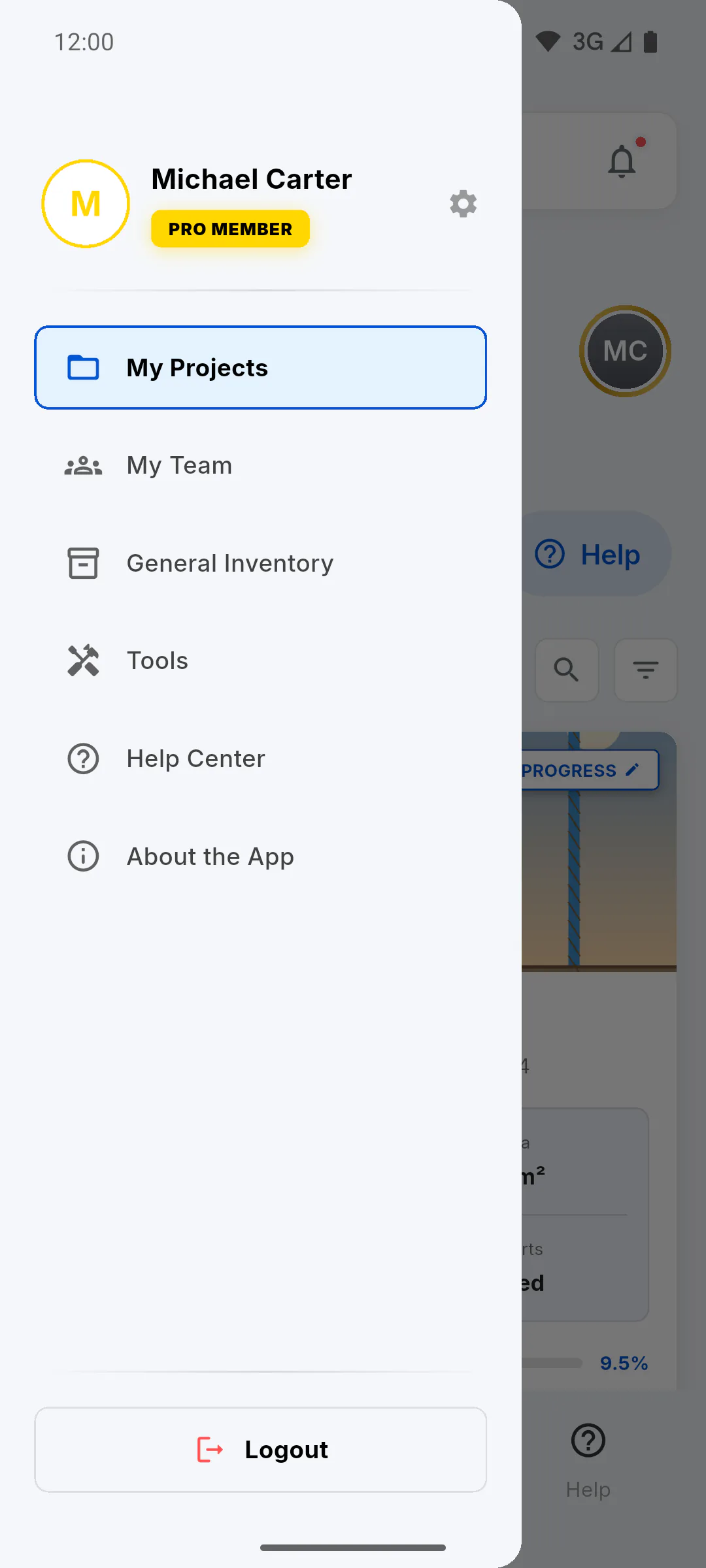
Step 1: Open the team
- Team owner: in the side menu, tap My Team
- project guest: in the daily report, tap Manage, next to Project Team
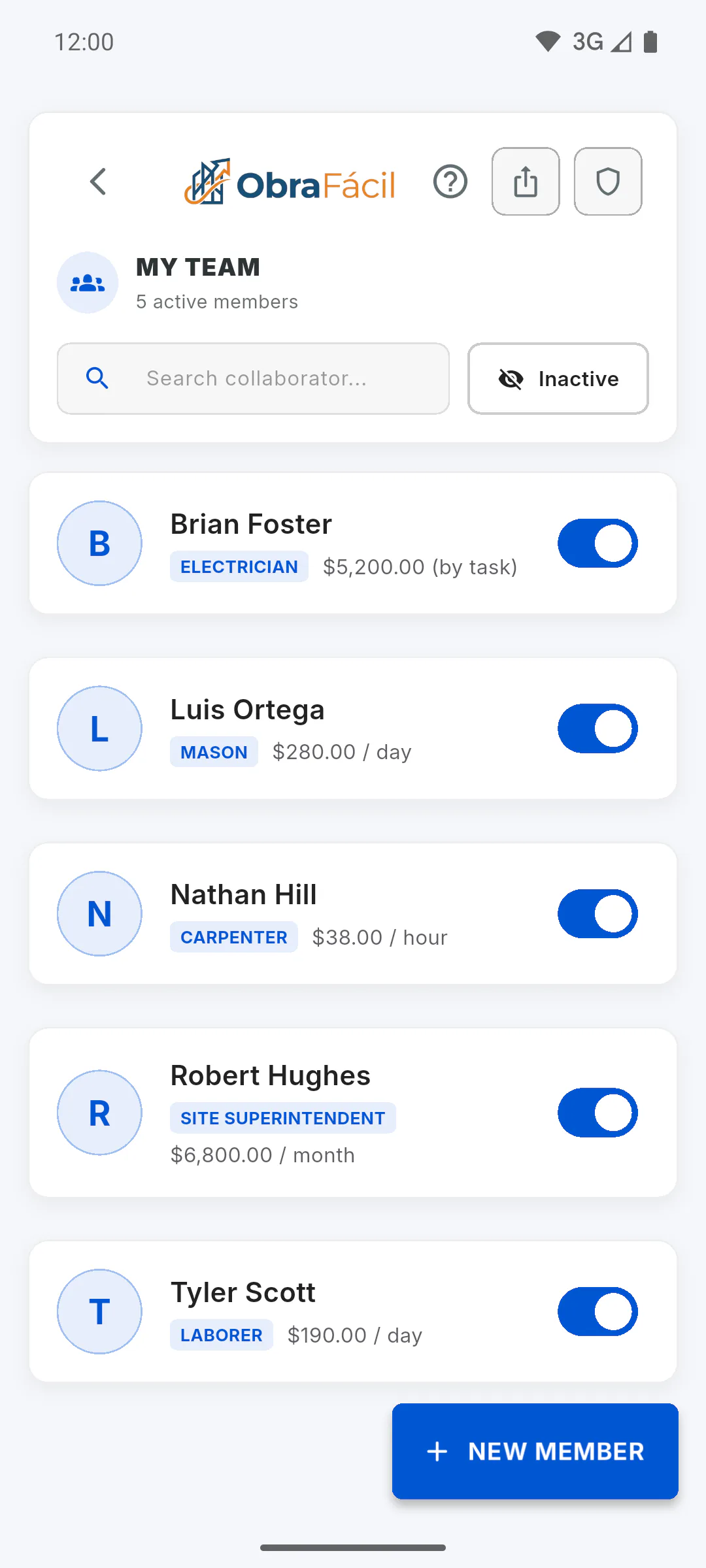
The PDF uses the list as it is on screen: to include inactive people, tap Inactive first; if there's text in the search box, only the matches are included.
Step 2: Tap export
At the top, tap the share icon (Export Report). It only appears when there's at least one team member on the list. The Team Report window opens.
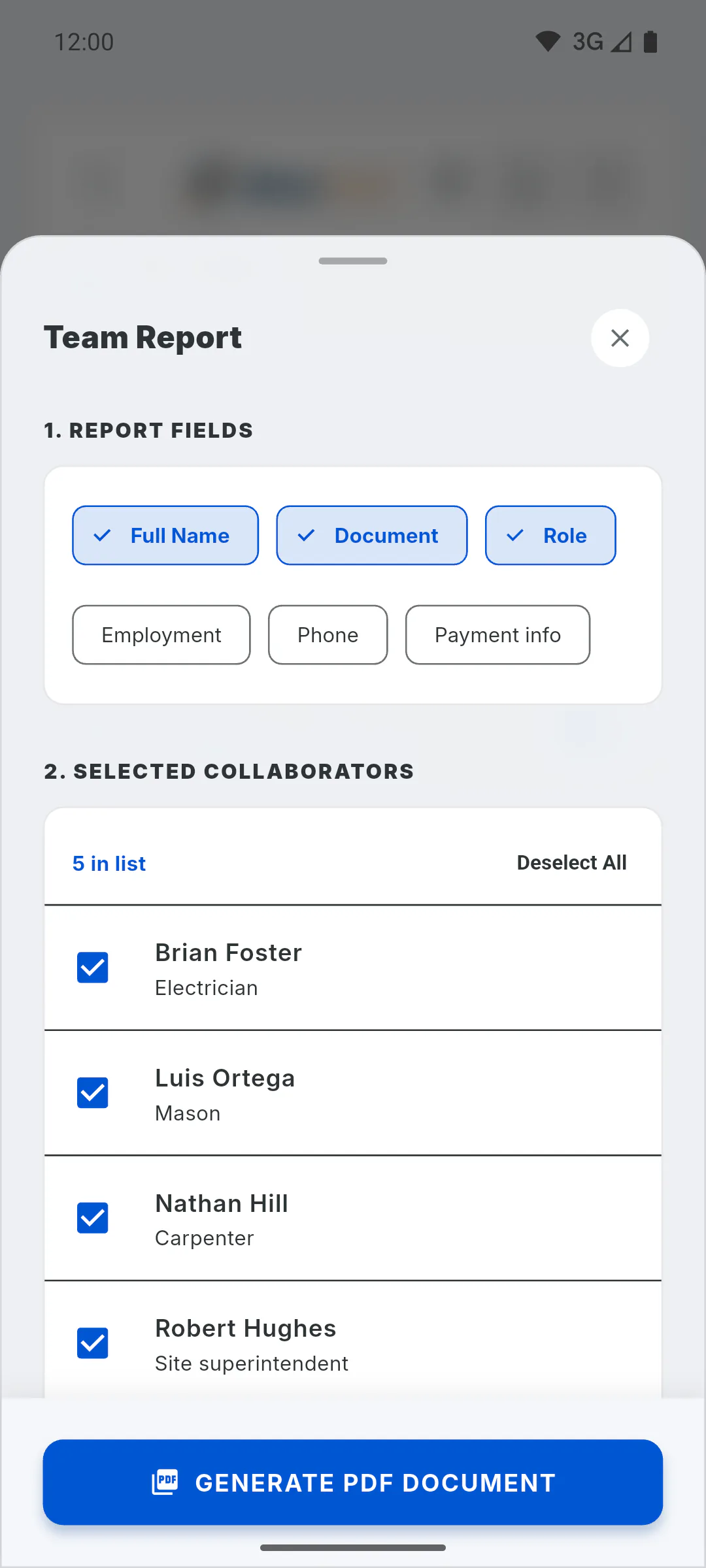
Step 3: Pick the columns
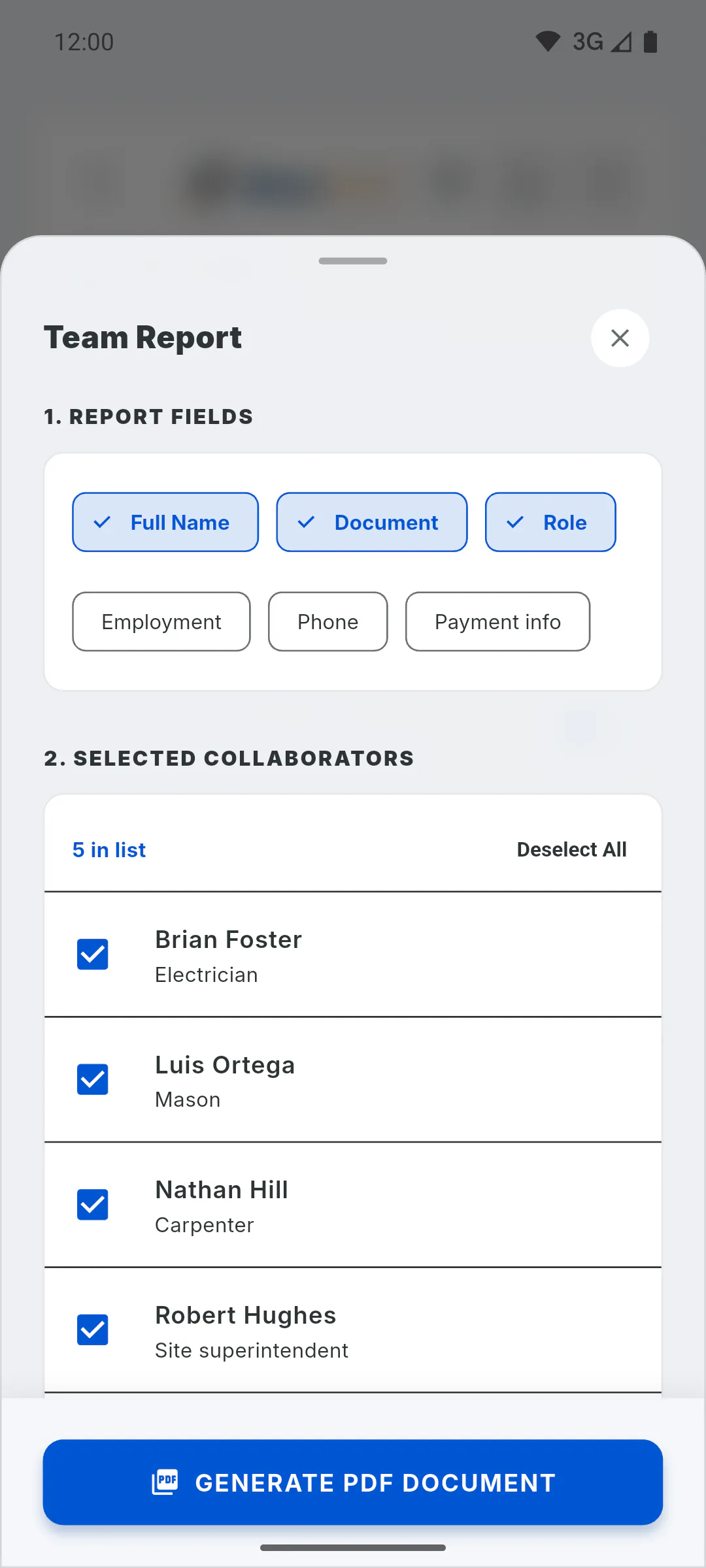
Under 1. Report Fields, tap to select or clear each one. Full Name, Document and Role are selected by default; Employment, Phone and Payment info are optional. ID documents and payment info are only filled in for people allowed to see them; for everyone else, they show a dash: Who can see team members' ID and payment info
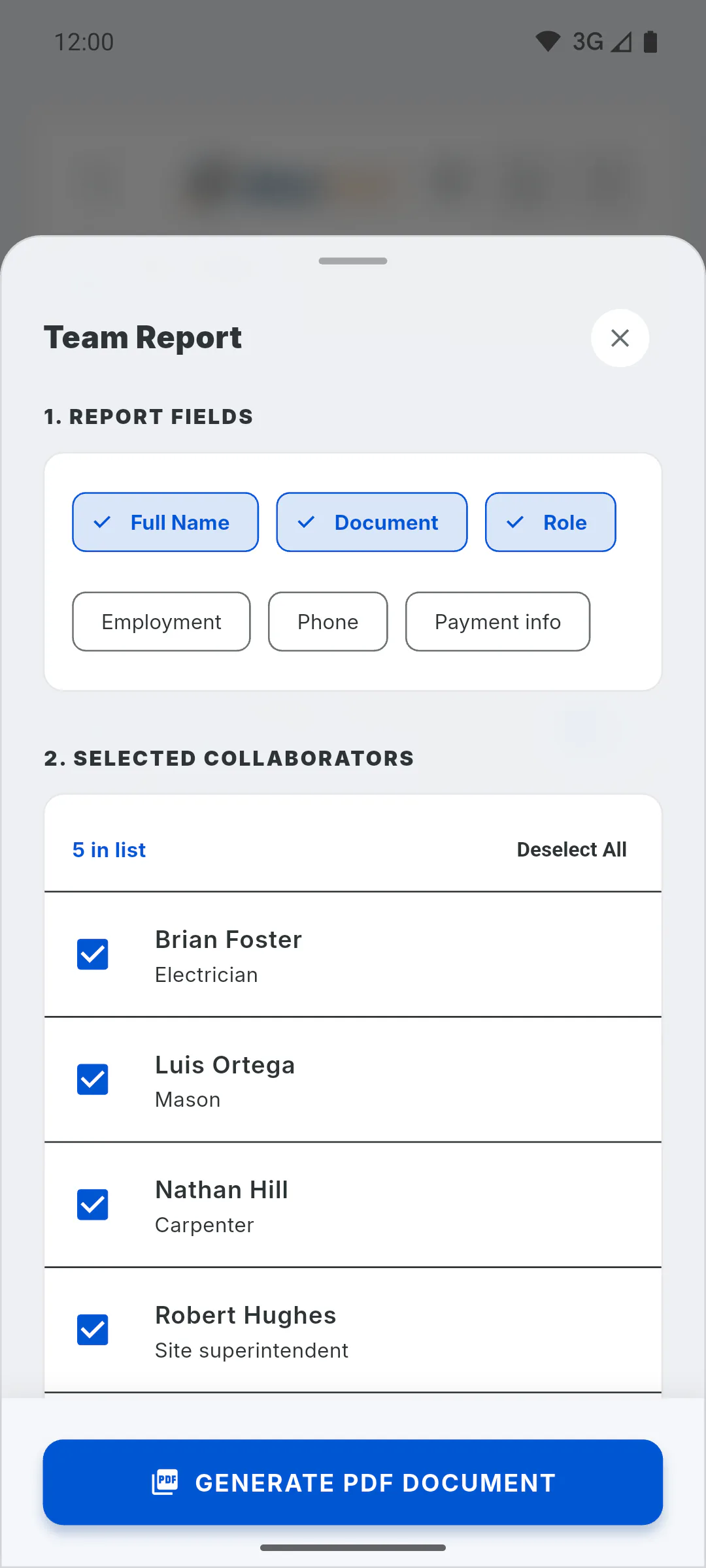
Step 4: Pick who's included
Under 2. Selected Collaborators, active team members are already checked, and the in list count shows how many go into the PDF. Check or uncheck each one, or use Select All and Deselect All. Inactive people have an Inactive tag.
Step 5: Create the PDF
Tap Generate PDF Document. If nobody is checked, you see Select at least one collaborator. On Android, iPhone and the web, the share sheet opens; on Windows, choose where to save and the PDF opens right after. On PRO, the PDF carries your logo. It counts toward the free plan report limit of whoever creates it: PDF report limit and watermark on the free plan
How to export your team list as a PDF
Create a PDF of your team list, choosing the columns and who's included, to print or share.
For managers and team members5 steps
Didn't find what you were looking for?
Chat with support on WhatsApp or open a ticket right in the app.