
Step 1: Create the report
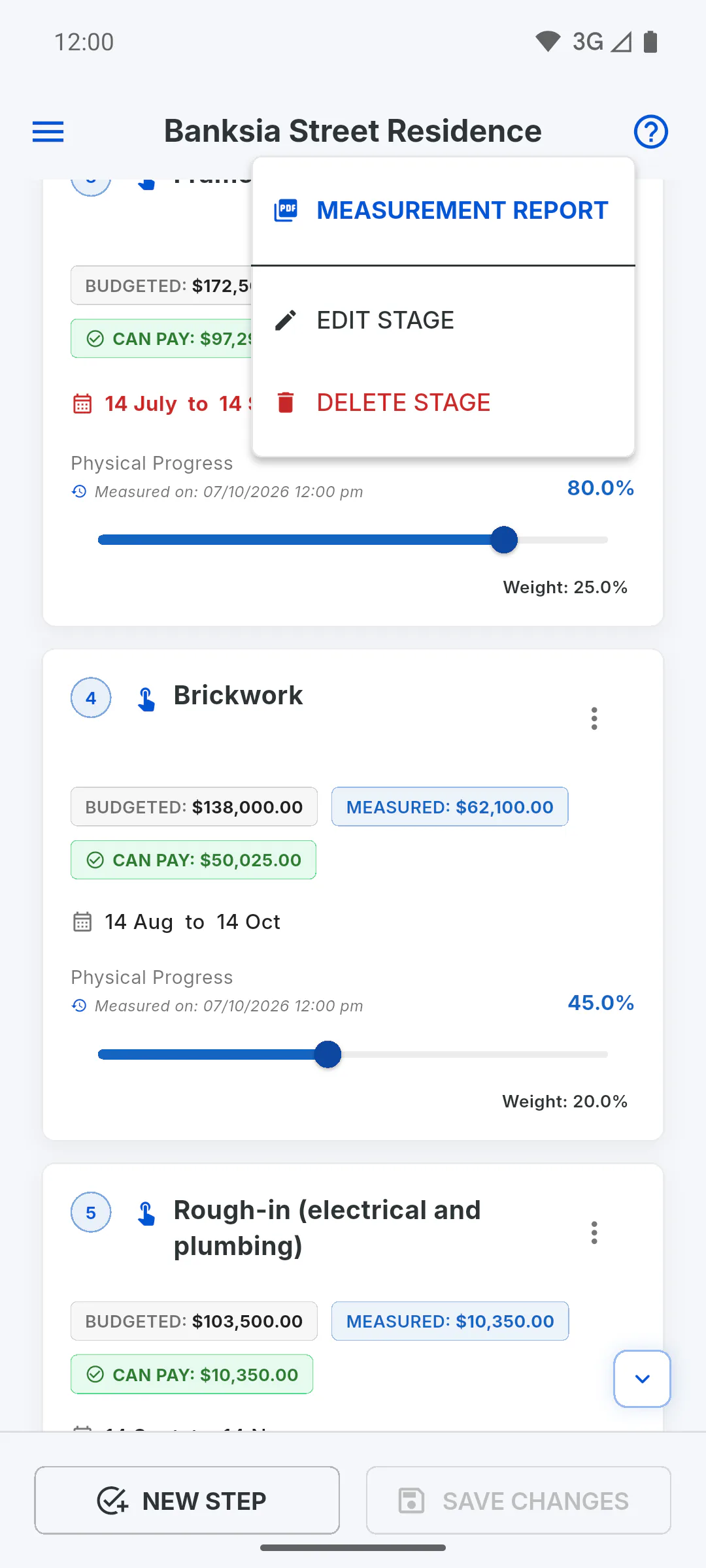
On Schedule, tap the three-dot menu on the stage card, then Measurement Report. On the web, Performance Warning (Web) appears first, because the browser may freeze for a moment: tap Generate Report to continue.
Step 2: Share or save it
On a mobile, your device's share options open so you can share or save the PDF. On Windows, the Save PDF window opens and the file opens right after it's saved. The file name starts with Measurement_ followed by the stage name.
- On Windows, if you're told the file seems to be open in another program, close it and try again.
Step 3: What's in the report
- Performance Analysis, with the stage name, its period and a Delayed tag if it applies
- the chart with Budgeted (Contract), Physical Progress and Financial Paid
- Contract Value (the stage's value), Paid Value (Current) and Balance to Pay (the stage's value minus what's been paid)
- Physical Execution Details, with the weighted sub-stages, if there are any
Step 4: Payments and notes
Payment History in This Phase lists the Financial entries linked to the stage. At the end, a green note shows the amount done but not yet paid, or an orange note warns when payments have gone beyond the work done: What the stage labels mean
Step 5: Save the schedule first
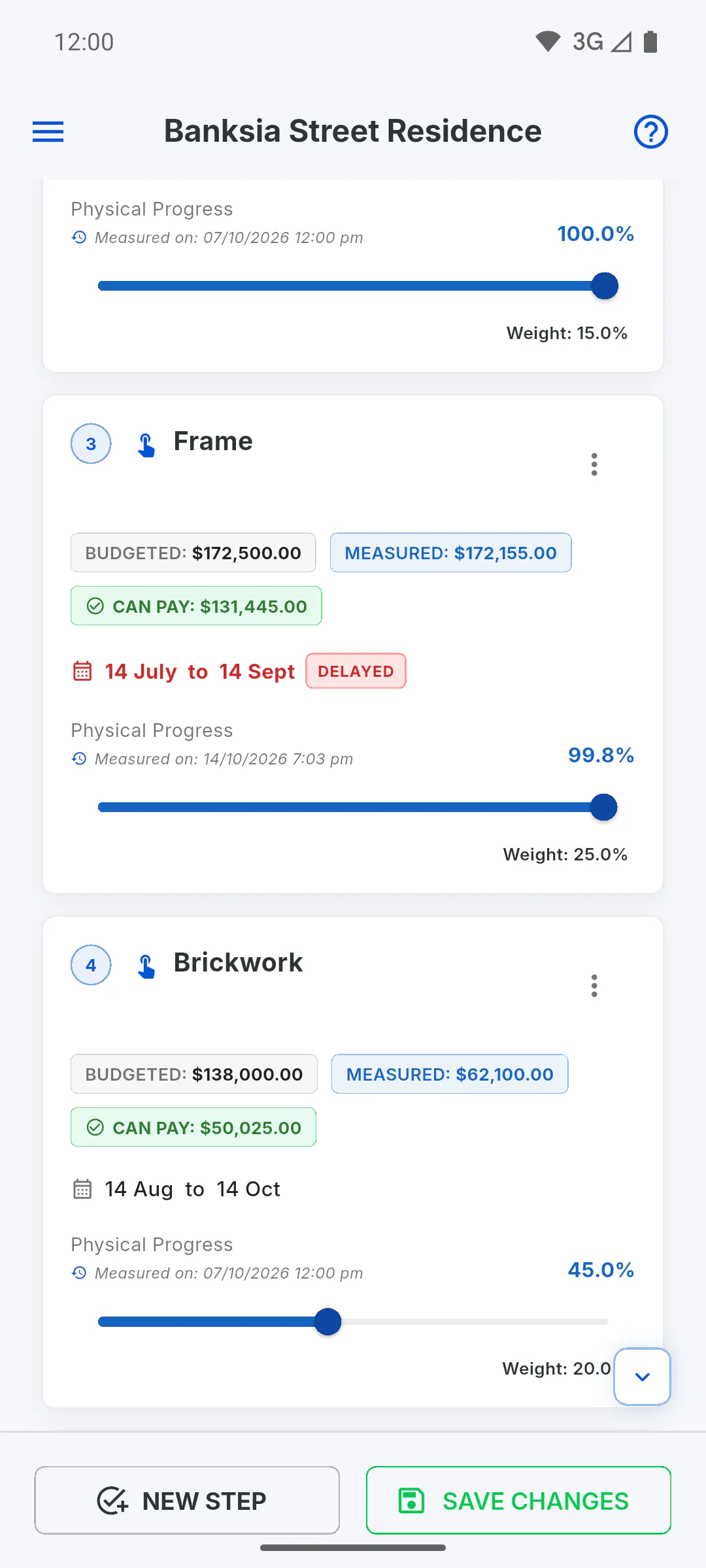
The report uses the progress on screen, even if you haven't tapped Save Changes yet. Save the schedule before you create it, so the PDF shows what's on record.
Step 6: On the free plan
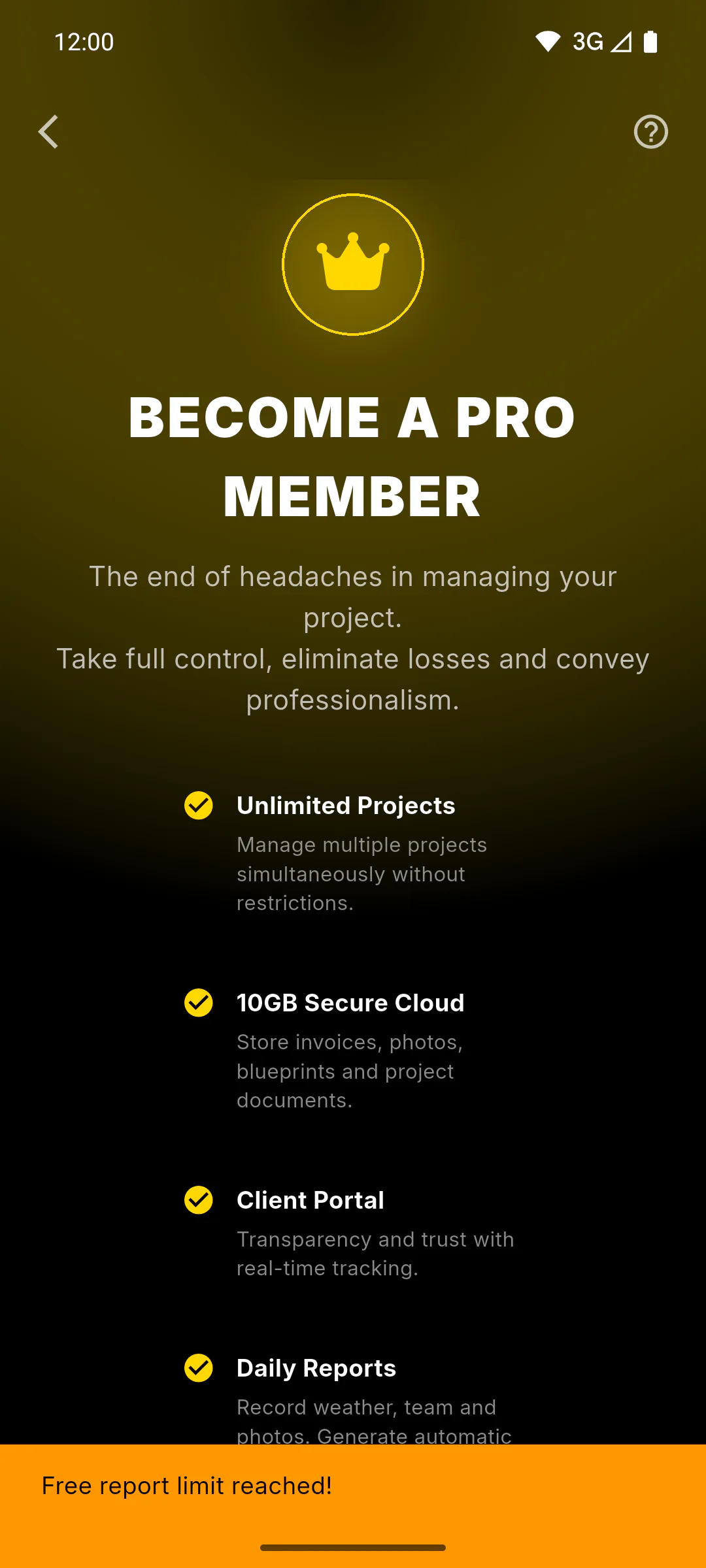
On the free plan, every report you create counts towards the app's monthly PDF report limit. Once you hit the limit, the plans screen opens with You've reached this month's free report limit.: PDF report limit on the free plan
How to create a stage's Measurement Report
Create a PDF for a stage with budgeted, measured and paid amounts, its sub-stages and payment history, to share or keep.
For managers6 steps
Didn't find what you were looking for?
Chat with support on WhatsApp or raise a ticket in the app.