
Step 1: A PRO feature
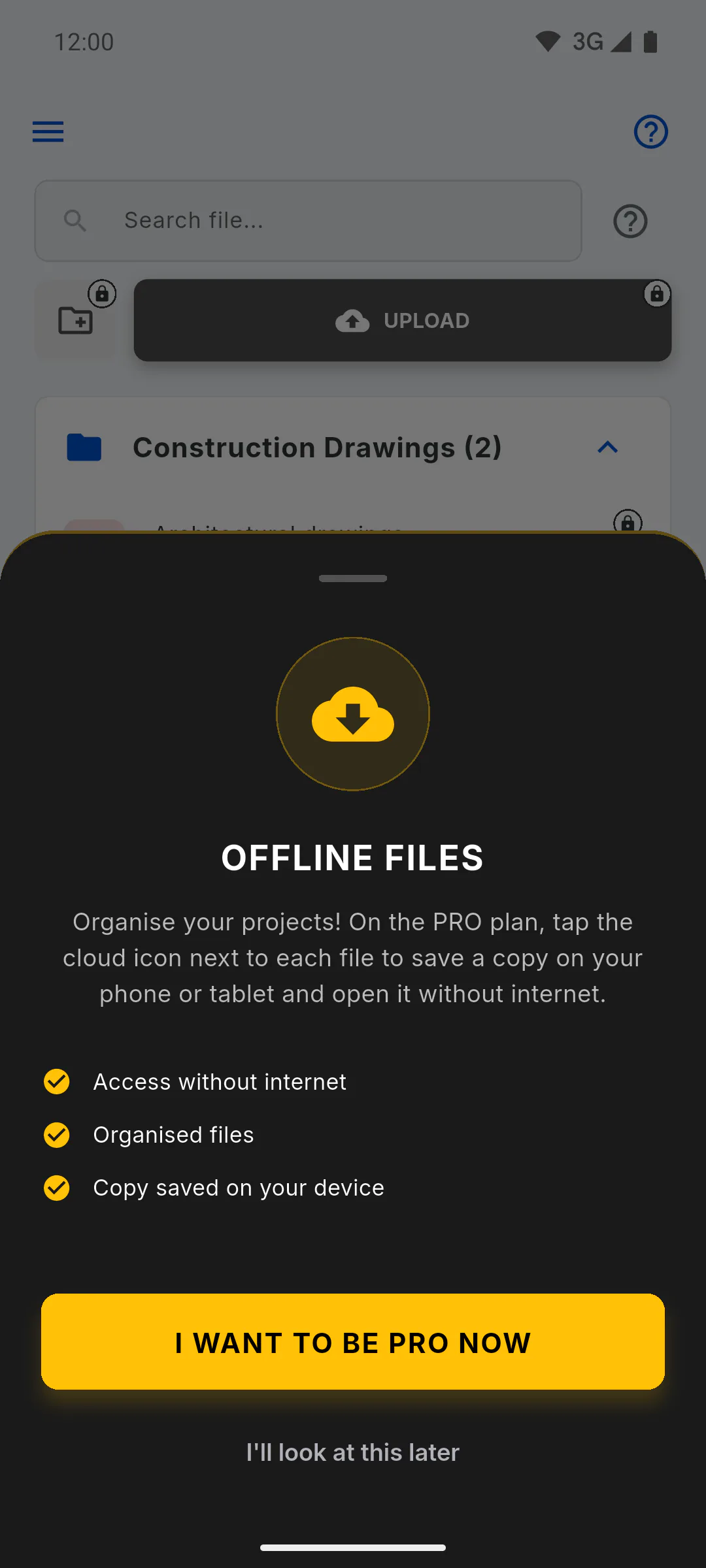
Saving files to your device is a PRO feature and depends on the plan of the person using the app: even on a project whose owner is PRO, an invited user needs their own PRO. On the free plan, the cloud icon shows crossed out and, when tapped, opens Offline Files with the I Want to Be PRO Now button.
Step 2: Download while online
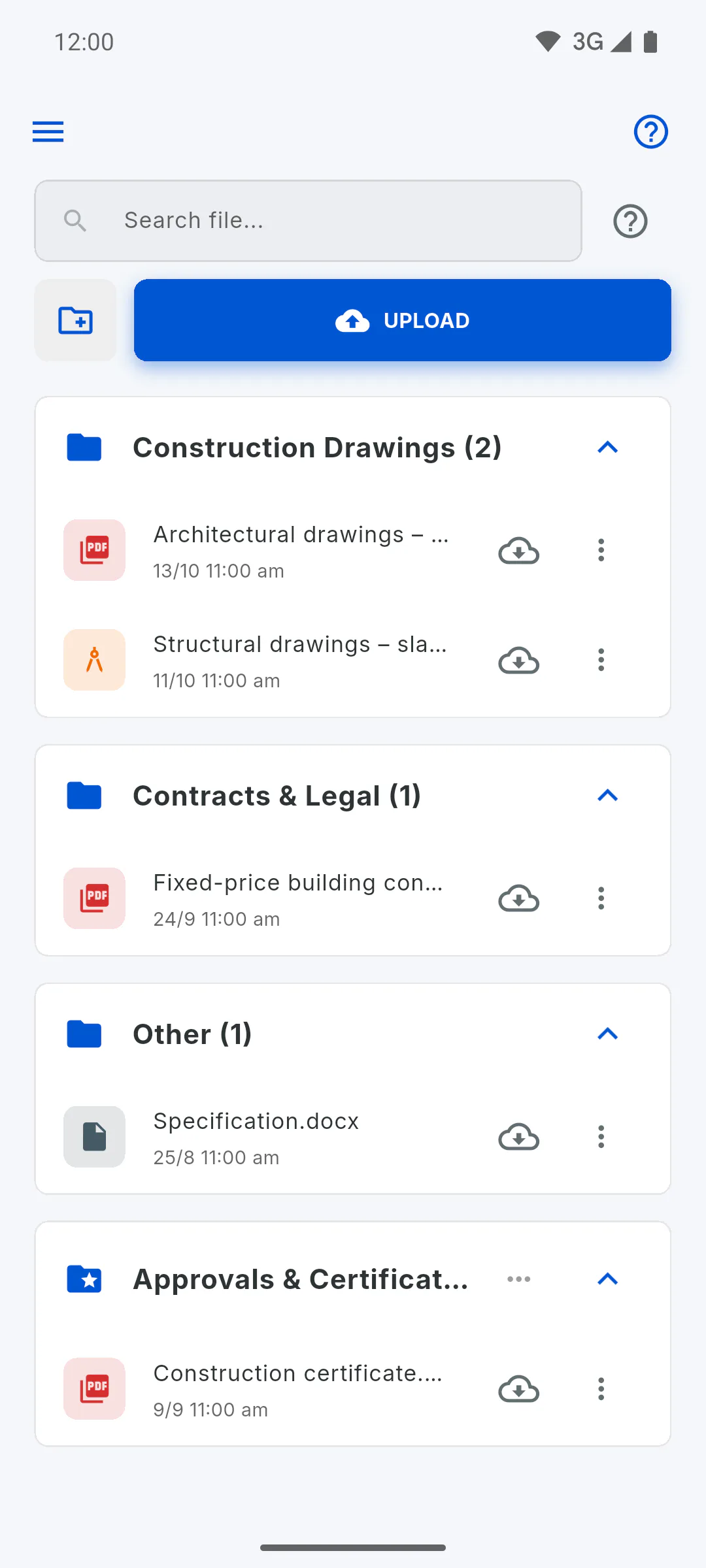
While online, open Files and tap the cloud icon to the right of the file (Make Offline). Downloading file... appears, then File saved and available Offline!. Repeat for every file you'll need.
Step 3: See what's saved
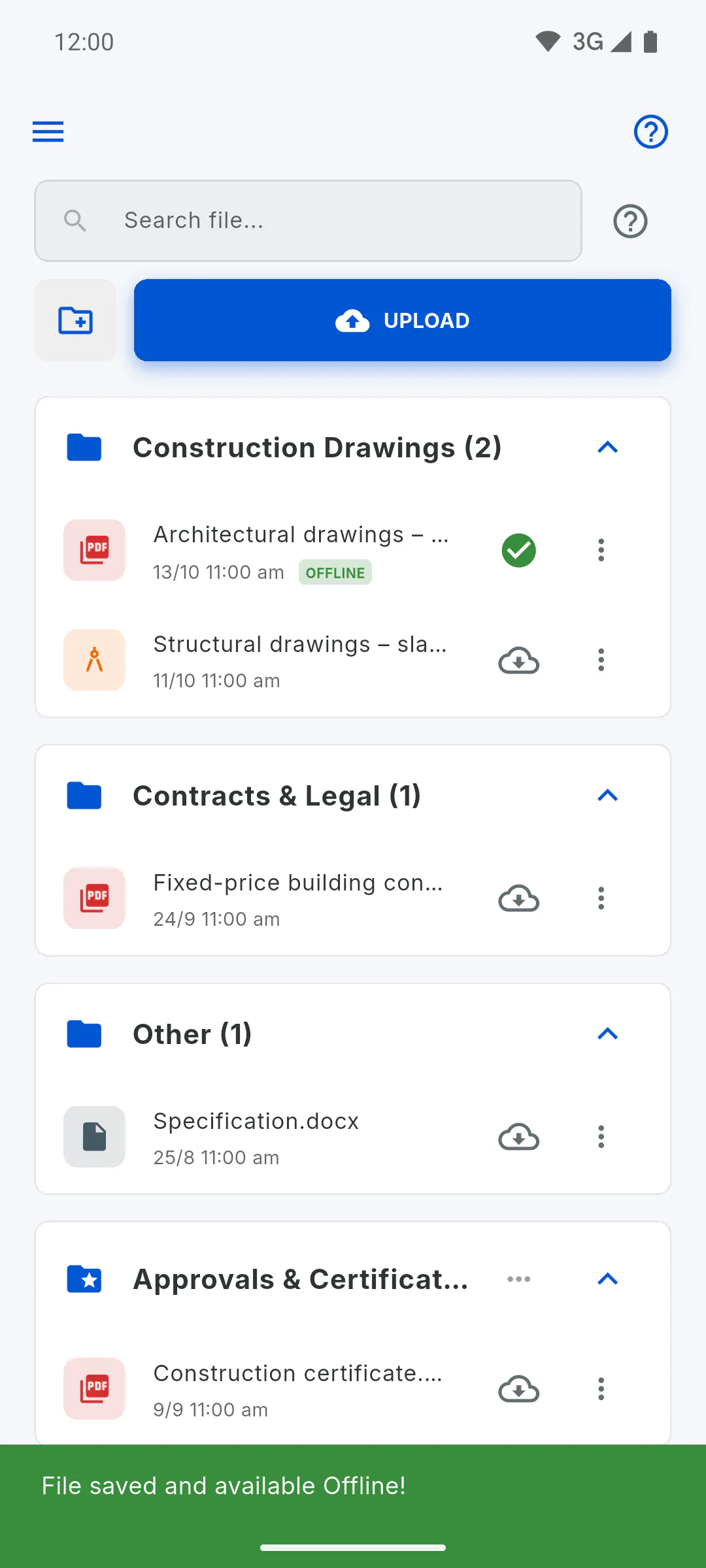
A saved file gets the Offline tag and the cloud turns into a green tick (Already downloaded (Update)).
Step 4: Open without internet
Tap the file: one tagged Offline opens in the app on your device that reads that type of file, such as a PDF reader. The others need internet. Before heading to site, open Files while online so the list is loaded on your device. If No app installed to open this type of file. appears, install an app that opens that format.
Step 5: Download again
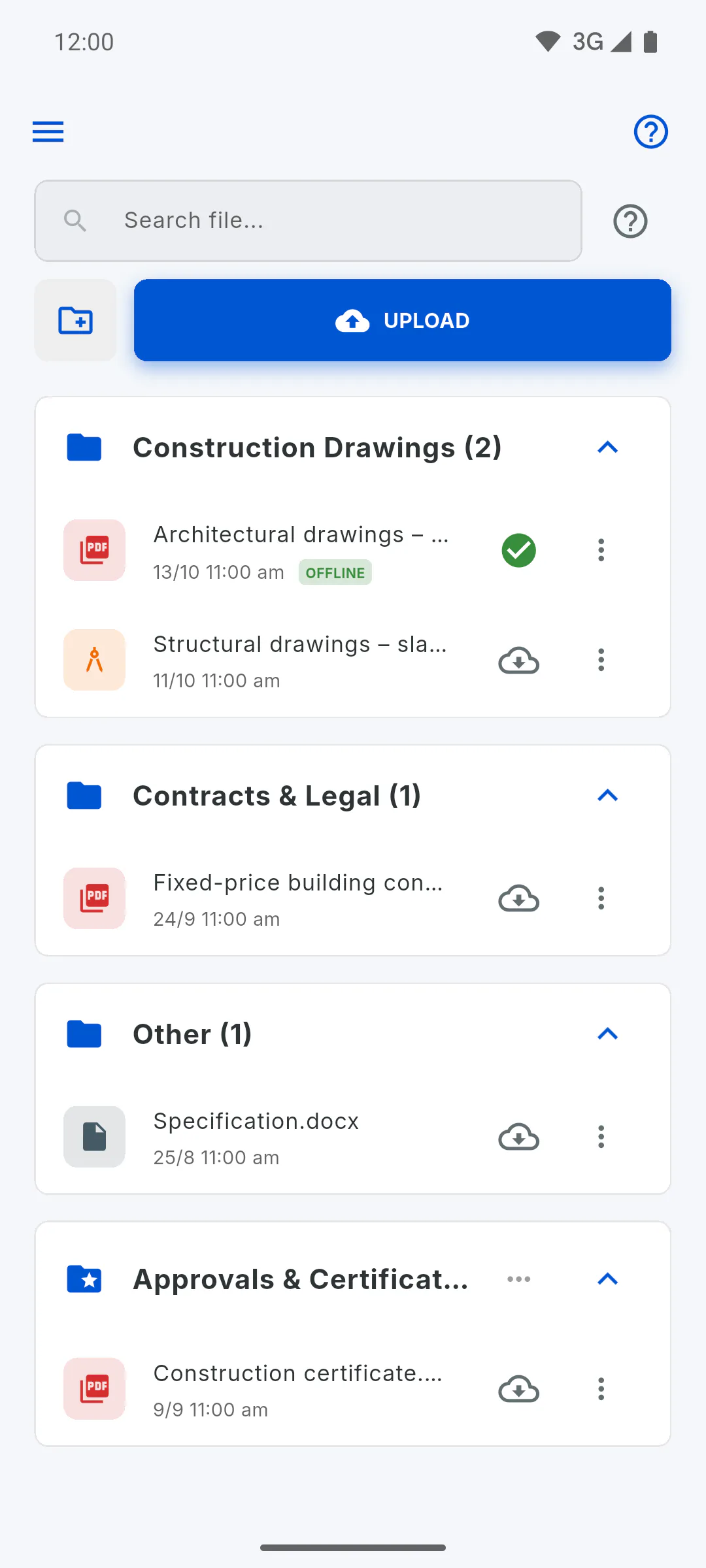
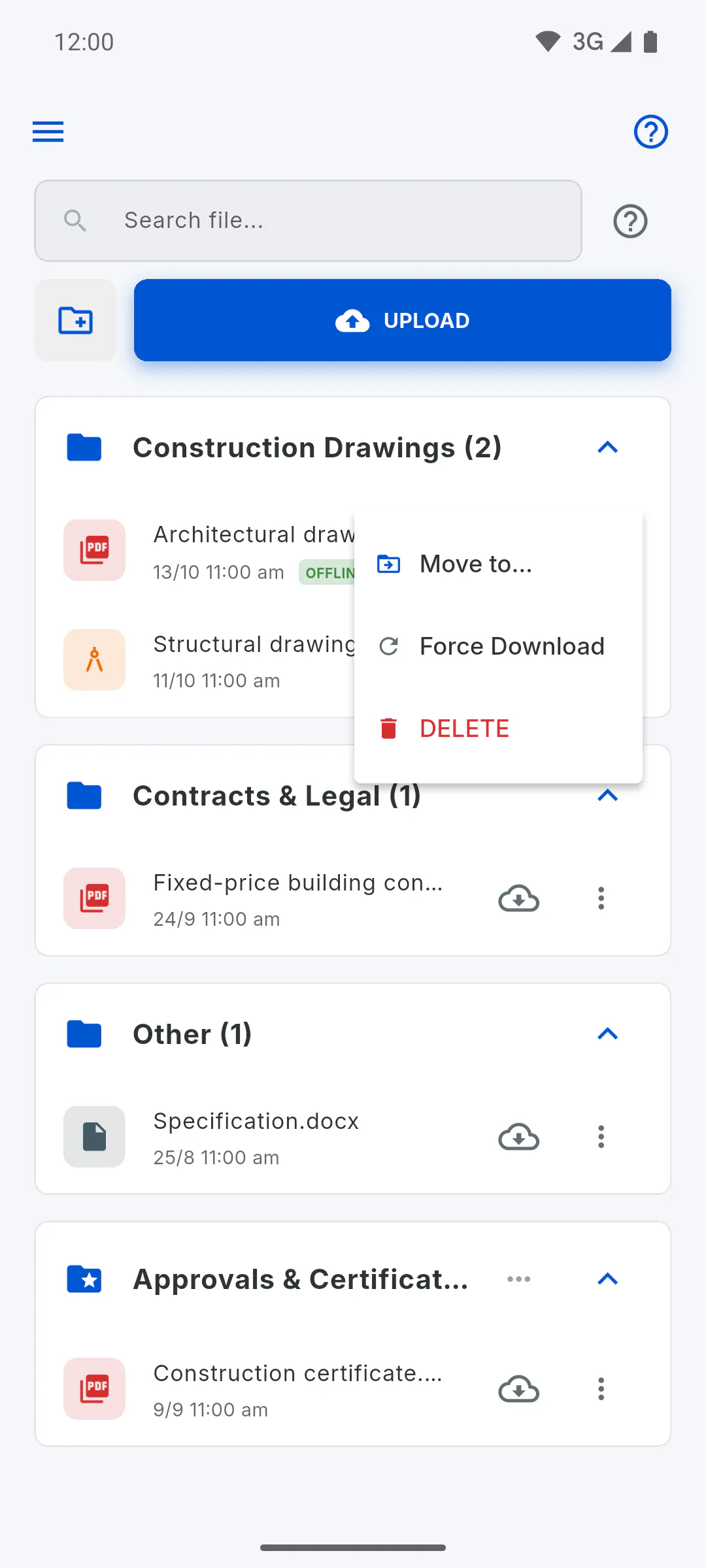
To download a saved file again, tap the green tick. People who manage the project also have Force Download in the file's three dots menu.
Step 6: Where files are kept
- On a mobile, the copy is kept inside the app and is deleted if you uninstall the app
- In the Windows app, it goes in your Documents folder, inside GestorObras, in a folder named after the project
- Each device keeps its own copy: download on every device you'll use
- Deleting the file from the project also deletes the copy on this device
Step 7: Not available in a browser
In a web browser, the cloud icon opens the Native App notice: the feature is only available in the Windows, Android and iOS apps. Tap Understood to close it.
How to use files offline on a mobile and on a computer
On PRO, save project files to your mobile or computer so you can open them even with no signal. Here is how to download, open and refresh them, and where they are kept.
For managers and team members7 steps
Didn't find what you were looking for?
Chat with support on WhatsApp or raise a ticket in the app.