
Step 1: Open Files
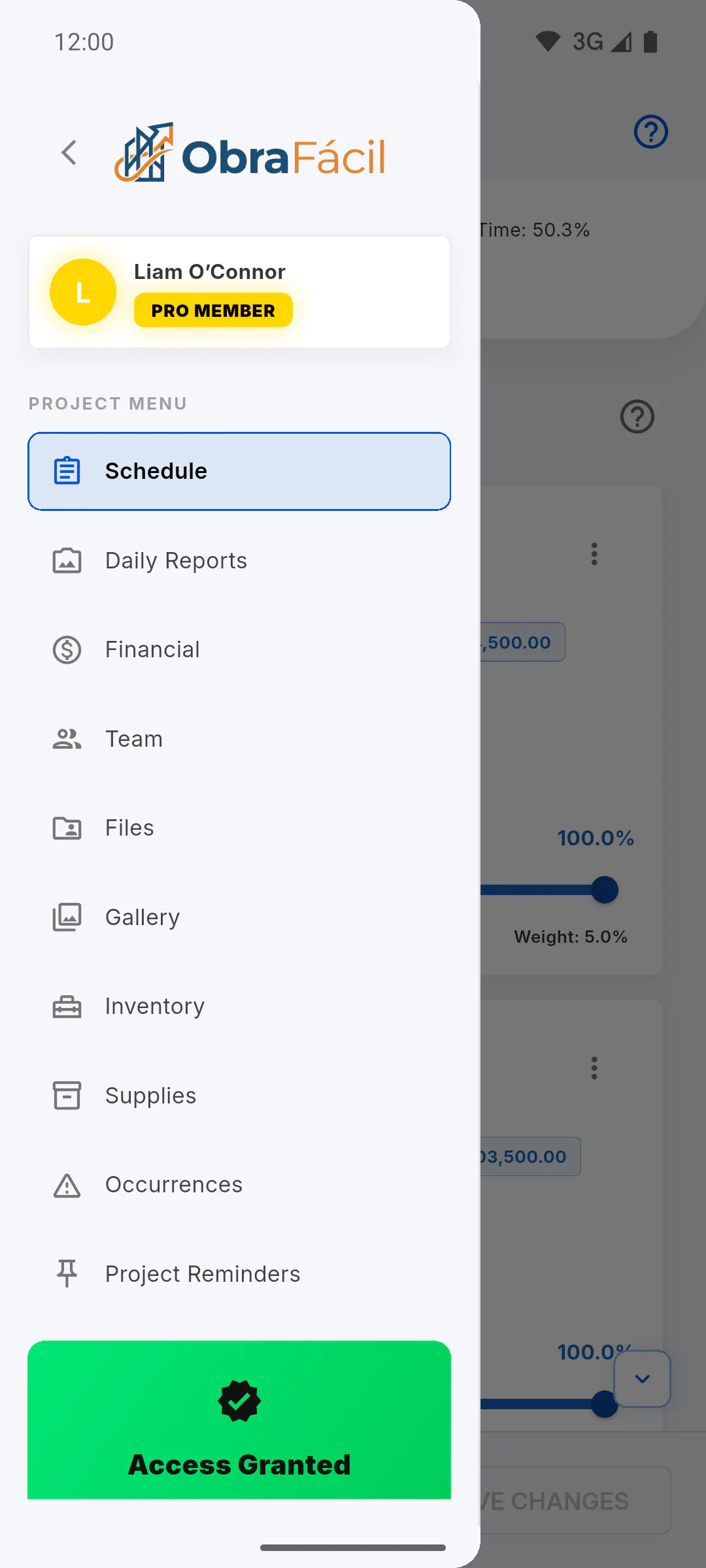
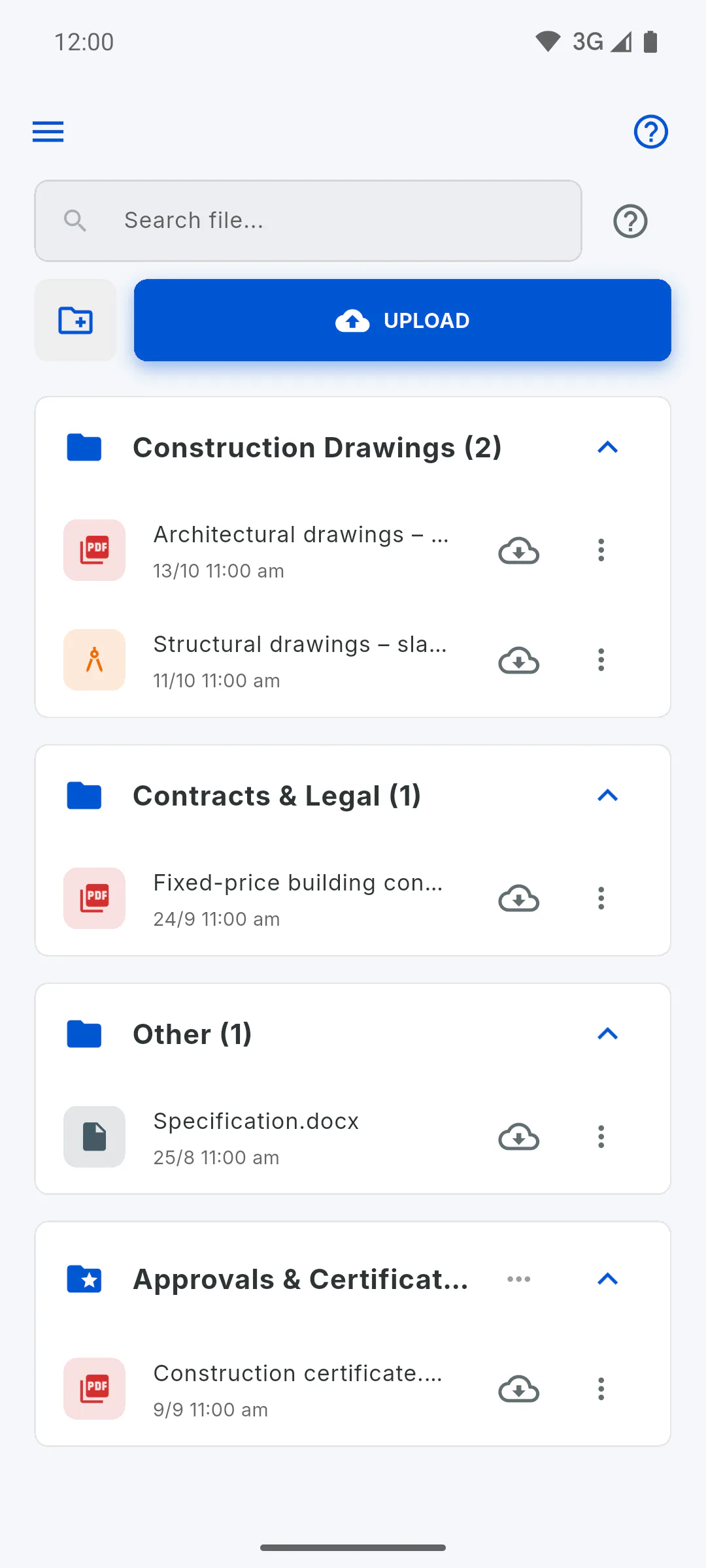
Open the project and, in the Project Menu, tap Files. Files are kept in folders. Three come ready-made: Construction Drawings, Contracts & Legal and Other. You can create more.
Step 2: Pick your files
Tap Upload, next to the search box. If the project has no files yet, the screen shows Empty DMS: use Upload Files. Pick one or more files. Accepted types: PDF, Word (doc, docx), Excel (xls, xlsx), images (jpg, jpeg, png) and DWG. Each file can be up to 50 MB.
Step 3: Choose the folder
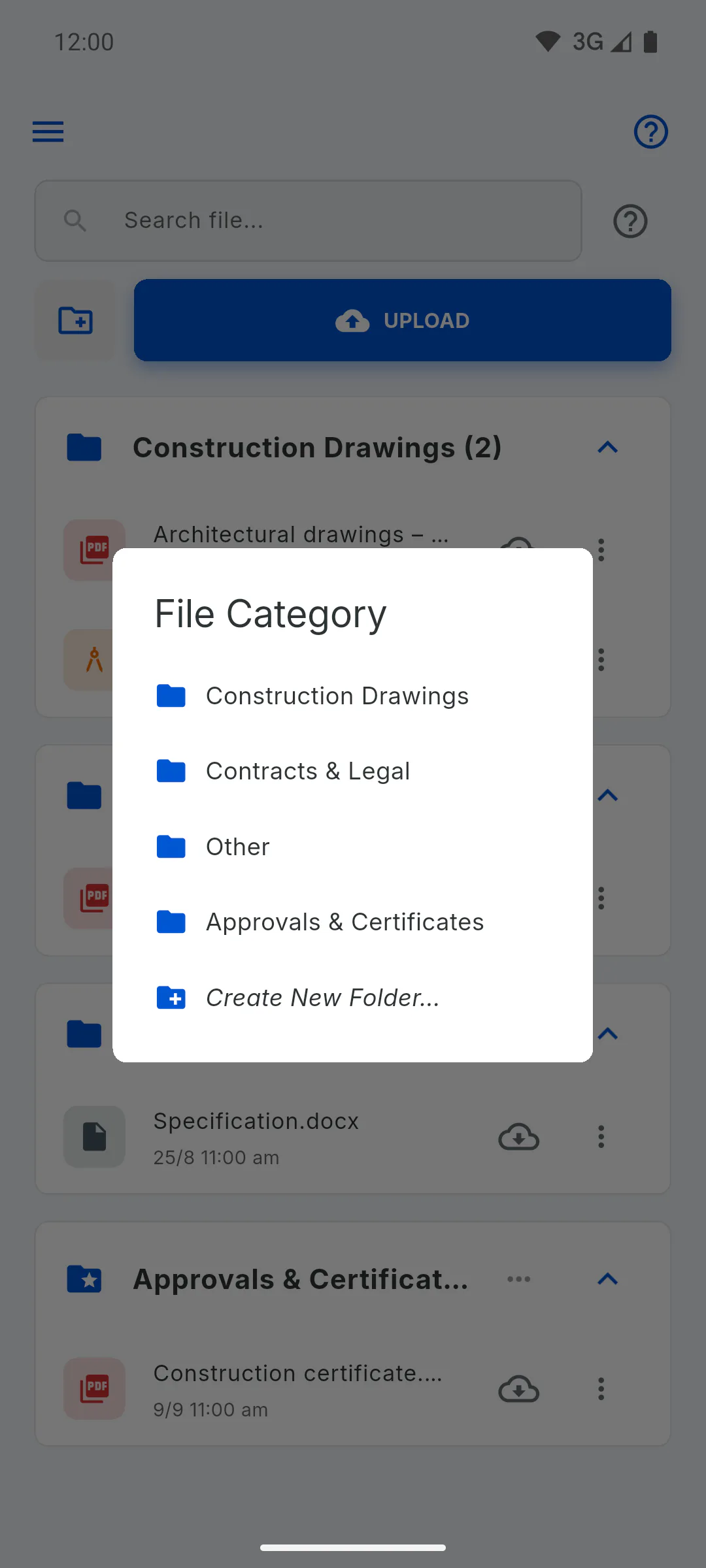
In the File Category window, tap the folder the files should go into. All the files you picked go into the same folder.
Step 4: New folder while uploading
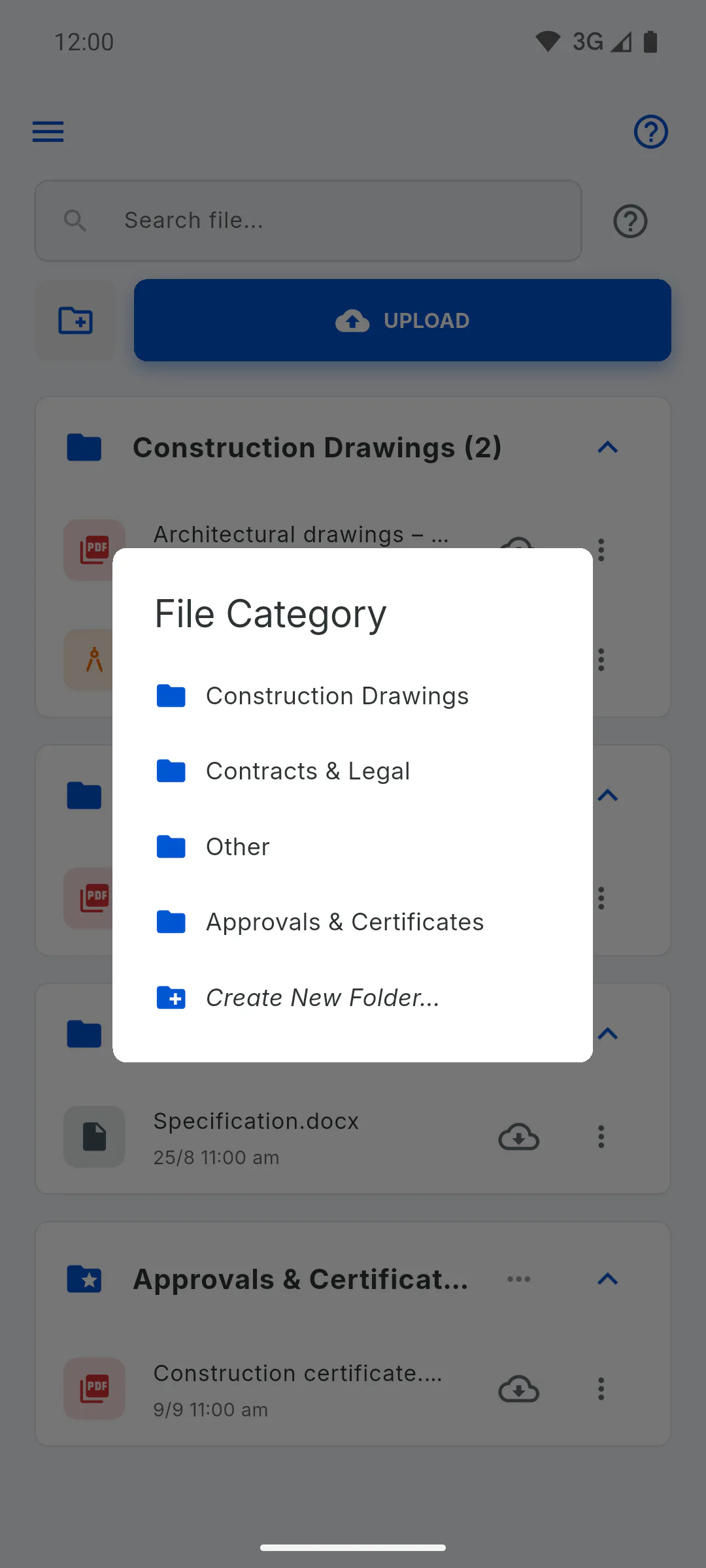
With Create New Folder..., the project owner creates the folder, but this cancels the upload: after creating it, tap Upload again and pick the files again. For an engineer, this option shows a padlock: tapping it opens a window explaining who can create folders, and after closing it you're back to choosing a folder, with the upload still going.
Step 5: Follow the upload
The button shows Sending 1 of 3... and a progress bar appears. Stay on this screen until Upload completed! appears: if you leave earlier, the remaining files aren't sent. If something goes wrong, Upload error: appears with the reason.
Step 6: Search and open
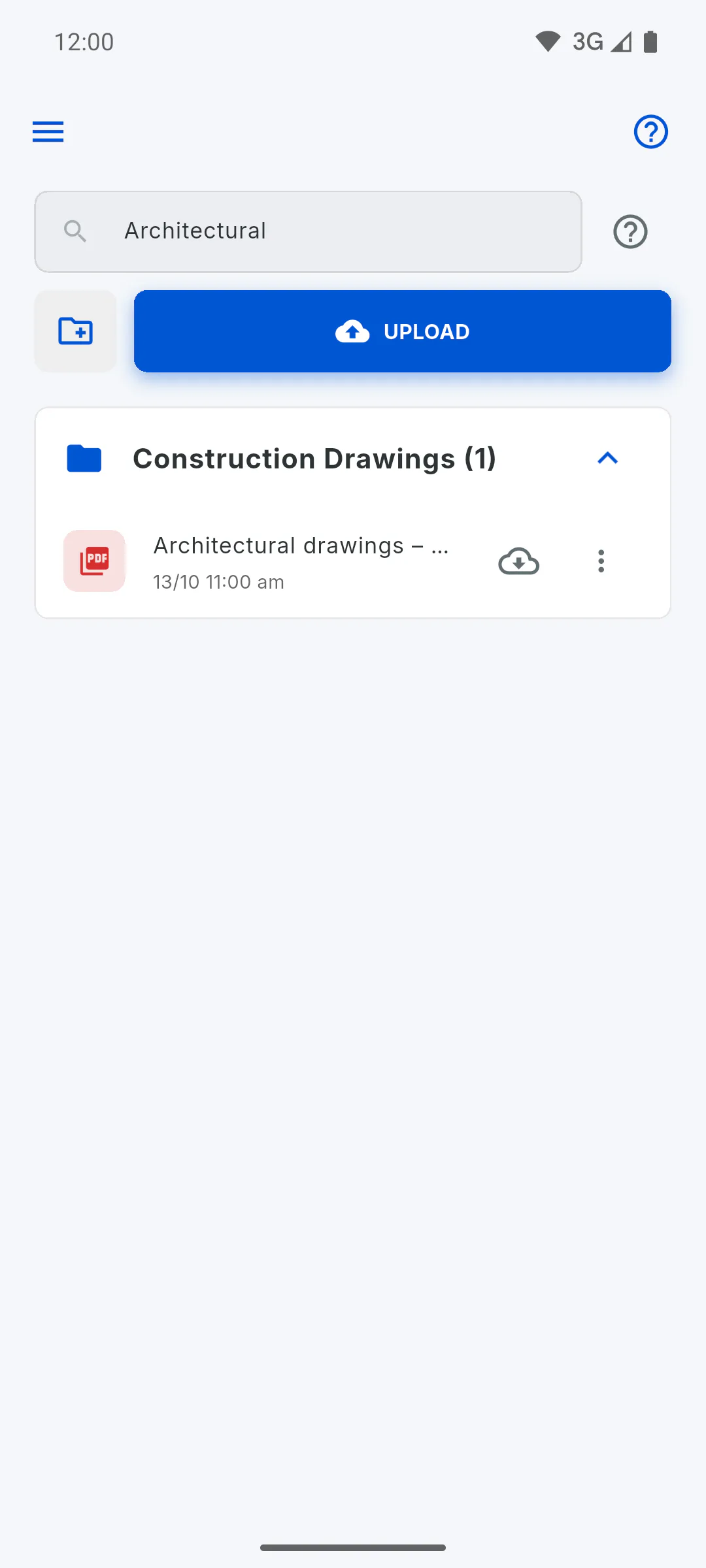
Use Search file... to find a file by its name or its folder's name. Tap a file to open it: it opens in your browser or, if it's saved on the device, in the app on your device that opens that type of file.
Step 7: Who can upload
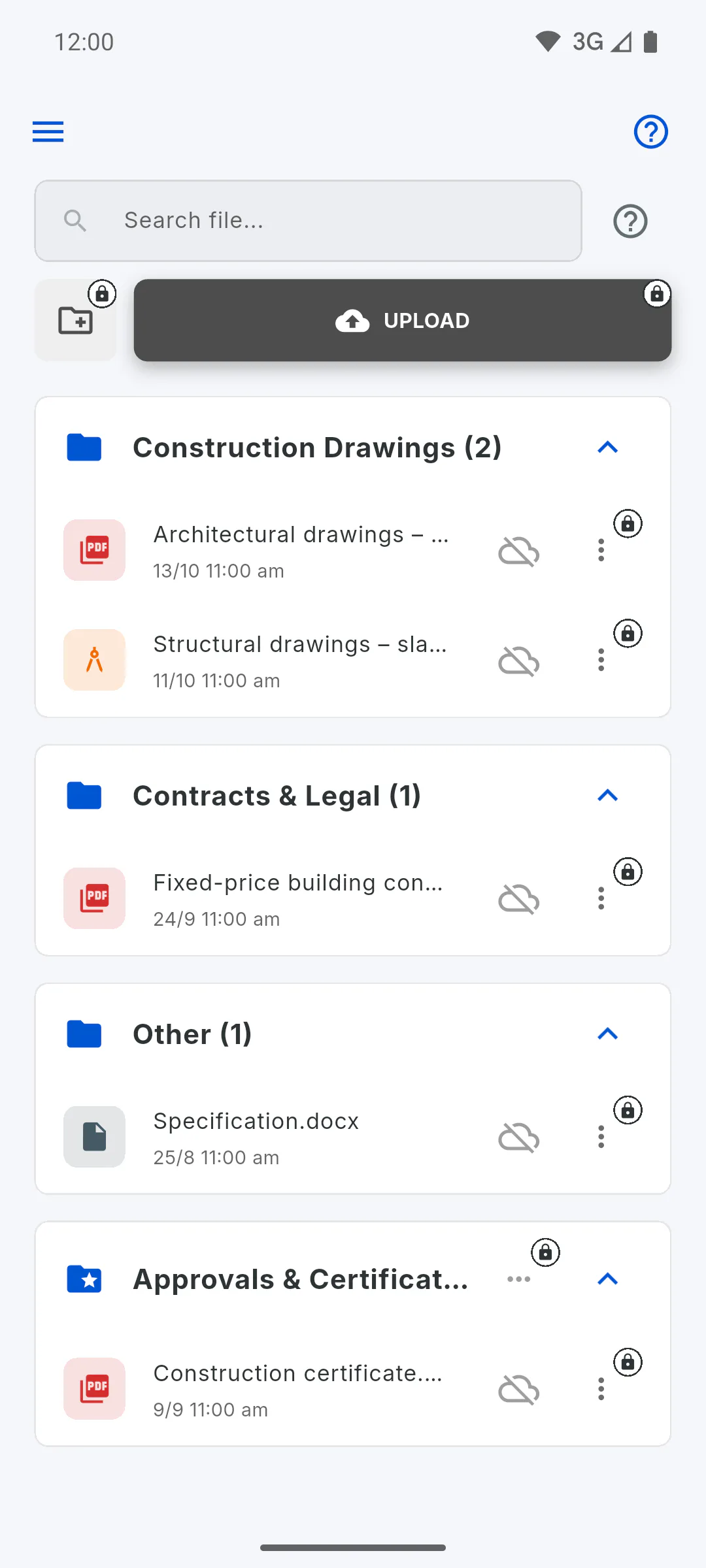
The project owner and an invited engineer can upload files. Team members can see, search and open files, but can't upload or organise them: Upload, Create Folder and the three dots appear greyed out with a padlock, and tapping one opens a window that shows their role on the project and who can use it. Files use the storage of the account that uploads them: How much storage do I have
Step 8: Without internet
To open files on site without internet, save them to your device first: How to use files offline on a phone and on a computer
How to upload and organise project files
Keep the project's drawings, contracts, spreadsheets and plans in folders, all in one place. Here is how to upload, search and open your files.
For managers and team members8 steps
Didn't find what you were looking for?
Chat with support on WhatsApp or raise a ticket in the app.