
Step 1: Sign in once with internet
The app only opens offline if you've already signed in to your account on that device, with internet, and haven't logged out since. Signing in, creating an account and recovering your password need a connection. With your session open, the app opens even in airplane mode, using what's saved on the device; it may take a few seconds.
Step 2: What you can see
Offline, the app shows what the device already loaded before: the projects, reports and other data you opened while online. Anything never opened on that device may not show up. Changes made by other people only arrive once you're back online.
Step 3: Daily reports offline
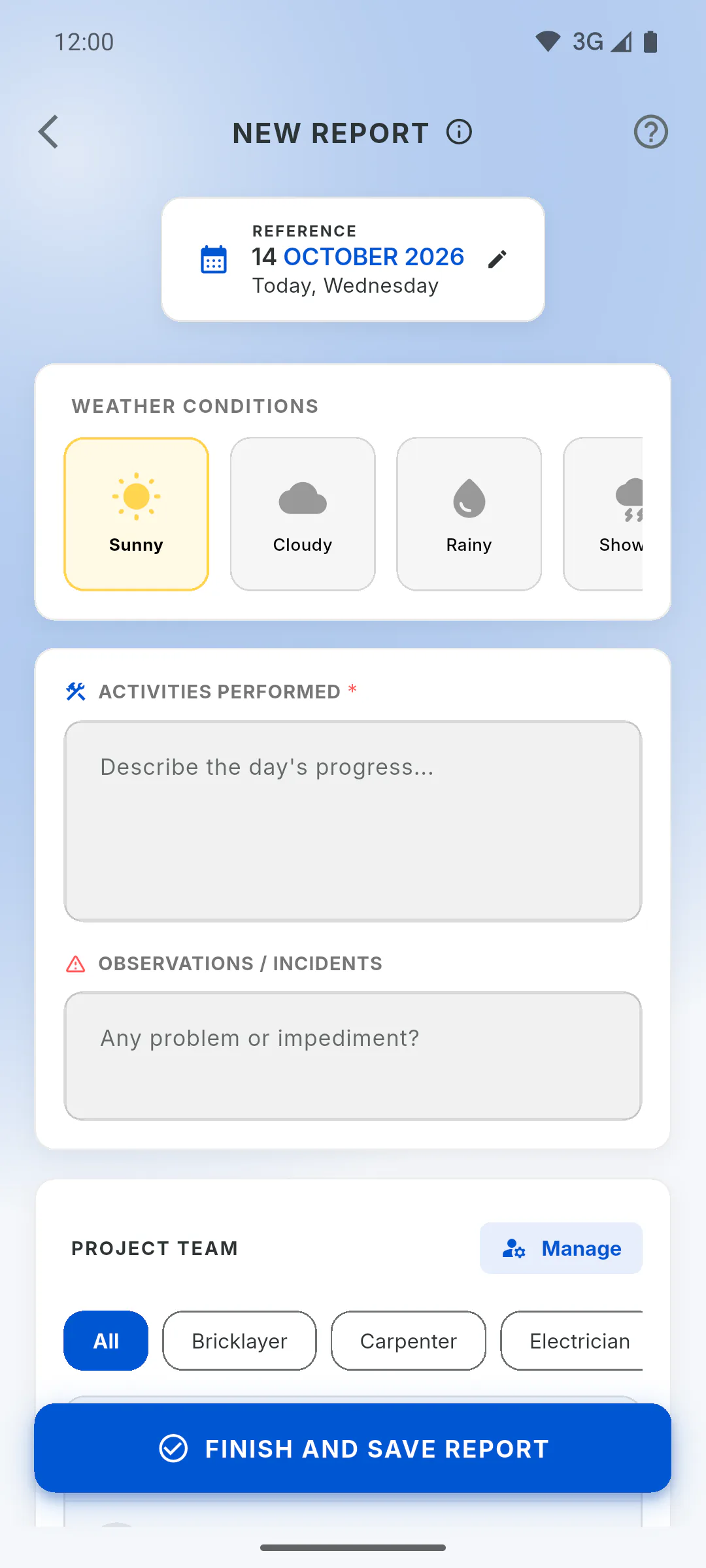
You can create a report without internet. When you save it, No Connection appears with Offline Mode Active... and the report is saved on the device. On a mobile, all three signature options work: the image or drawing is kept and goes up later with the photos. A report saved offline doesn't create the new report notification in the bell. How to create a daily report offline and when the photos upload
Step 4: Inventory tools
On a mobile, anyone who can move tools can also send out, lend and return them without internet, even when several people have permission on the project: Moving tools without internet: what you can and can't do
Step 5: When your work gets sent
What you save offline stays on the device and is sent when the connection comes back, with the app open. On a mobile, photos are sent on their own too: How what you did offline gets sent later
Step 6: What needs internet
- signing in, creating an account, recovering your password and logging out: How to log out (and why you can't do it offline)
- logging an occurrence with photos: My occurrence didn't show up: internet, uploads and storage
- setting a reminder's alarm: Why the reminder alarm didn't go off
- subscribing or buying in the app, deleting your account and creating ZIP files
Step 7: Project files
To open project files without internet, save them to the device first, while online: How to use files offline on a phone and on a computer
Step 8: Use the mobile app
Working offline is designed for the mobile app (Android and iPhone). In a web browser and in the Windows app, photos and signatures aren't kept for a later upload: offline, a report with photos isn't saved. Using ObraFácil on a computer (web and Windows): what's different
Step 9: Weak signal
The app treats itself as online whenever the device is connected to Wi-Fi or mobile data, even if the internet isn't actually working. On a mobile, no photos are lost: whatever doesn't go up is kept and sent later. More in How what you did offline gets sent later
Using the app offline: what works without internet
With your account already signed in on the device, the app opens without internet and lets you create reports. See what works offline, what needs a connection and why the mobile app is the one to use.
For managers and team members9 steps
Didn't find what you were looking for?
Chat with support on WhatsApp or raise a ticket in the app.