
Step 1: Open My Projects
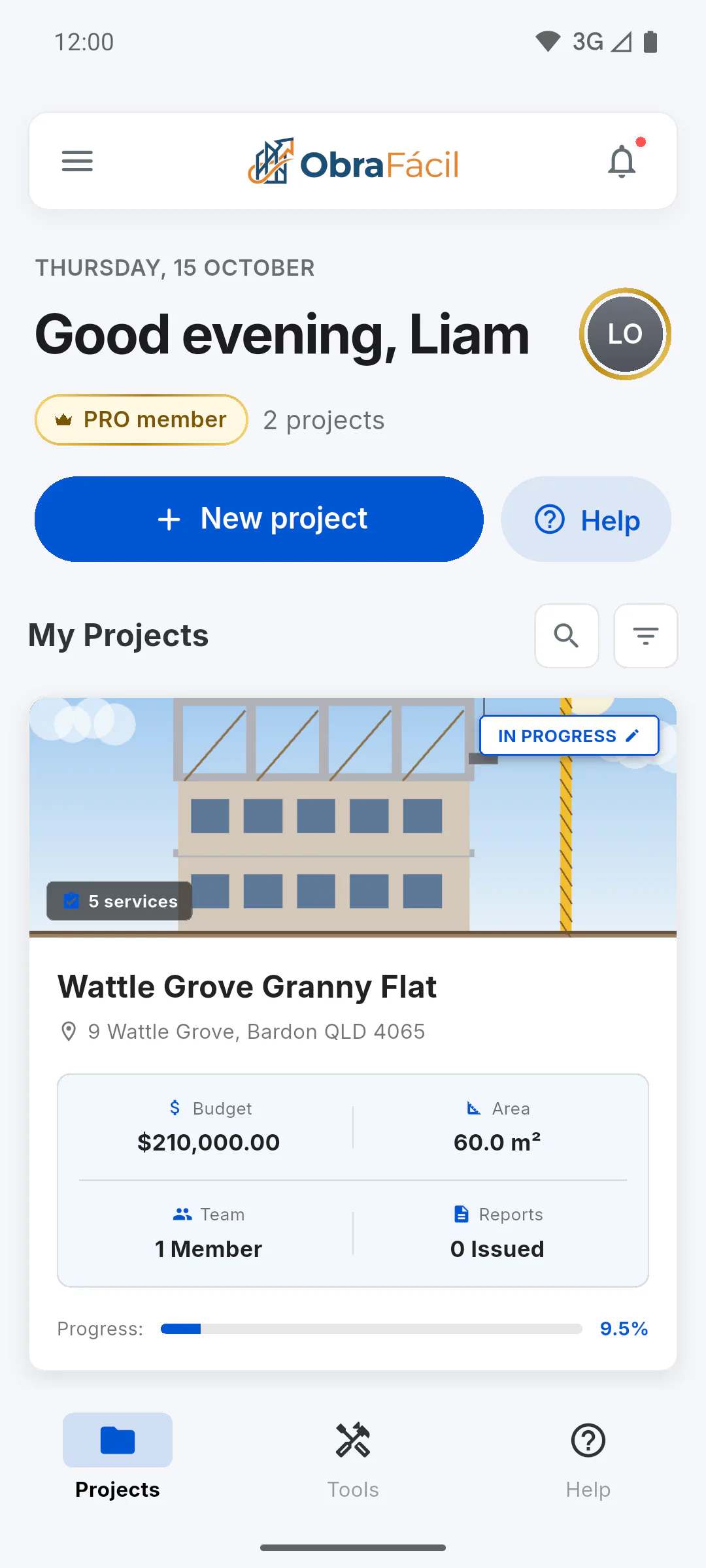
On the dashboard, the My Projects list has two icons to the right of the title: the magnifying glass, to search, and the filter. On a mobile, it's on the Projects tab; on a computer, under Tools and My Projects in the side menu.
Step 2: Search by name
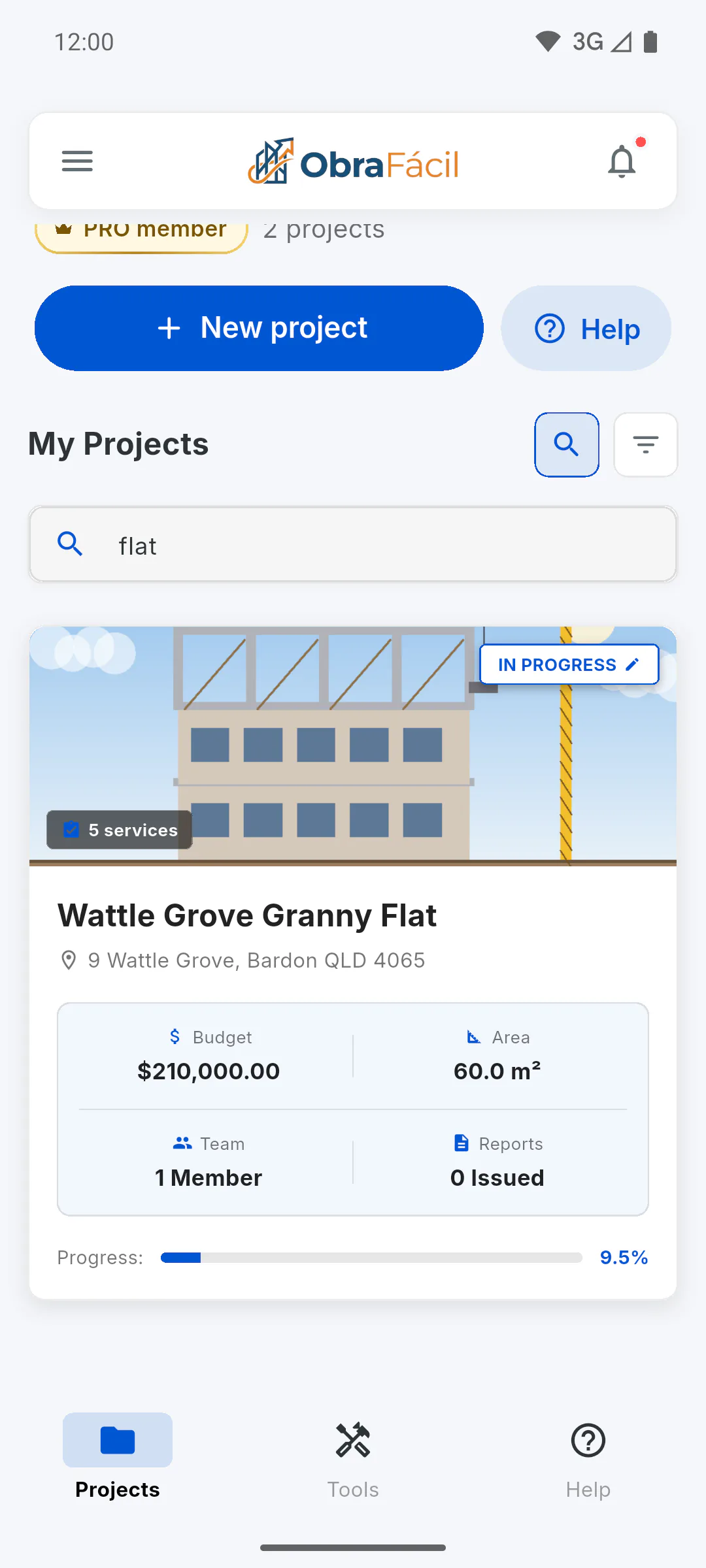
Tap the magnifying glass and type part of the name in Search by project name.... The list filters as you type. The search only looks at the project name and ignores upper and lower case, but not accents: type the name as it's written.
Step 3: Filter by status
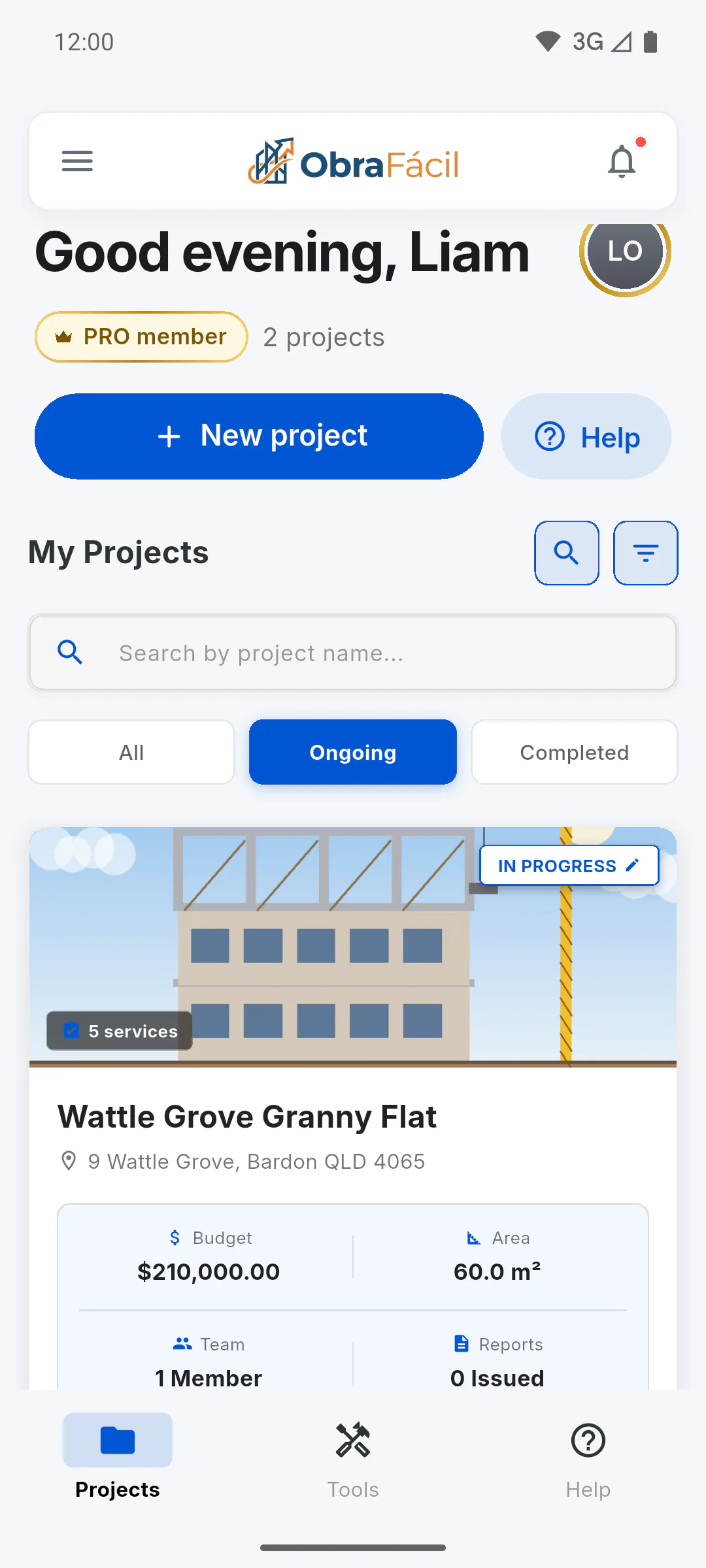
Tap the filter icon and choose All, Ongoing or Completed. On a computer, the buttons are All, In Progress and Completed. To hide the search or the filters, tap the icon again. Even when hidden, the icons stay highlighted while a search or filter is active.
Step 4: How the filter decides
The filter uses the project's progress, not the status on the card:
- Completed: projects at 100% progress
- Ongoing: all the others, including Not Started, On Hold or marked Completed without reaching 100%
To move a project to Completed, update its stage progress: How to update stage progress and save the schedule
Step 5: Order and empty list
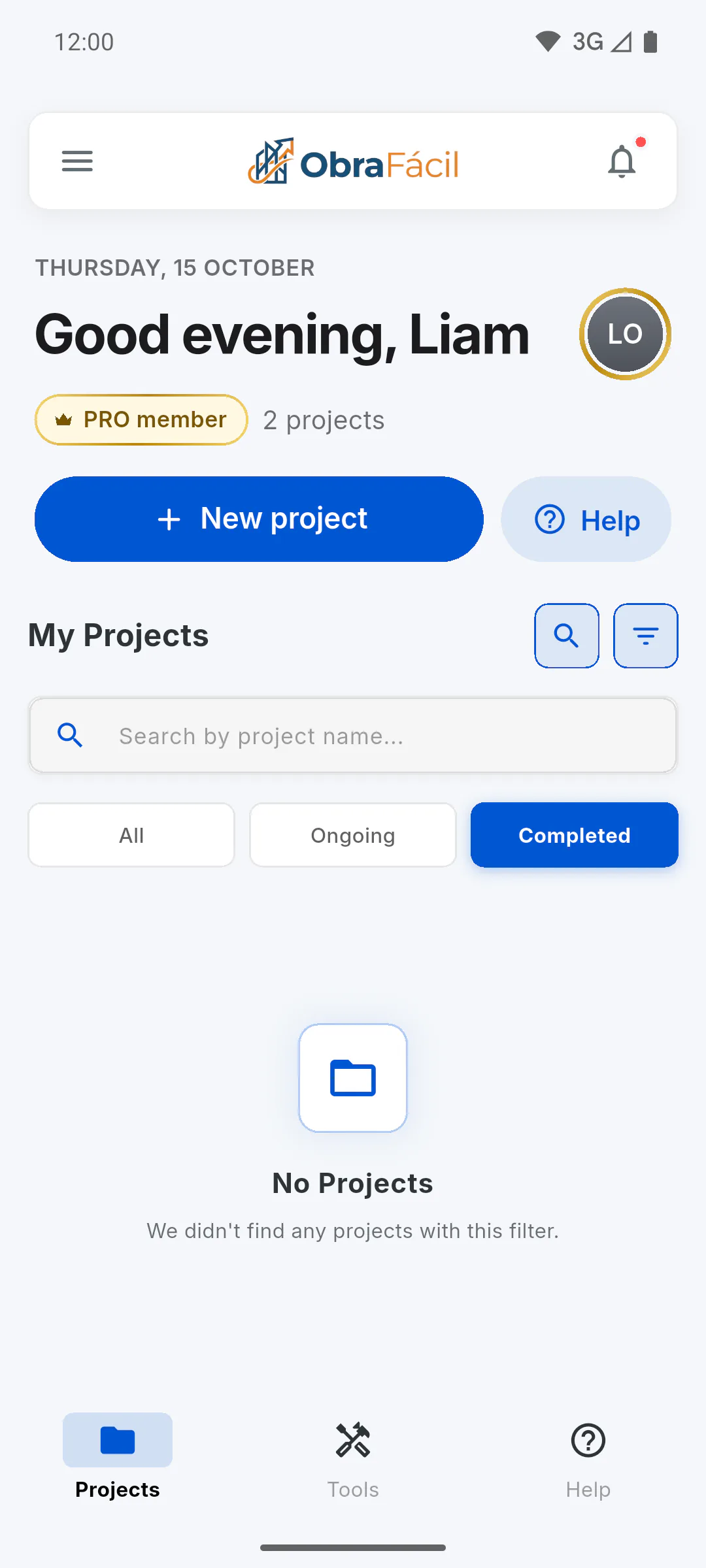
Projects are listed from the most recent start date to the oldest. If you see No Projects with We didn't find any projects with this filter., check the search text and the chosen filter. When you switch tabs or menu options, the search is cleared, but the filter stays.
How to search and filter your projects
Find a project by name and switch between all, ongoing and completed projects on the dashboard. See how the filter decides what counts as completed.
For managers and team members5 steps
Didn't find what you were looking for?
Chat with support on WhatsApp or raise a ticket in the app.