
Step 1: Storage on each plan
- Free plan: 250 MB
- PRO: 10 GB
- PRO with the storage add-on: 20 GB more, for 30 GB in total. The add-on is a separate subscription, for PRO users only: How to add 20 GB of storage
Step 2: What uses storage
Daily report photos, Album photos, files in the Files area, occurrence and inventory photos, and your report logo. On a mobile and in the Windows app, photos are reduced in size before upload so they take up less space; in a web browser they go at full size, like files.
Step 3: It counts for whoever uploads
Storage is counted on the account of the person who uploads. If a team member uploads photos to one of your projects, they use that person's storage, not yours. Likewise, what you upload to projects you've been invited to uses your storage.
Step 4: Where to check
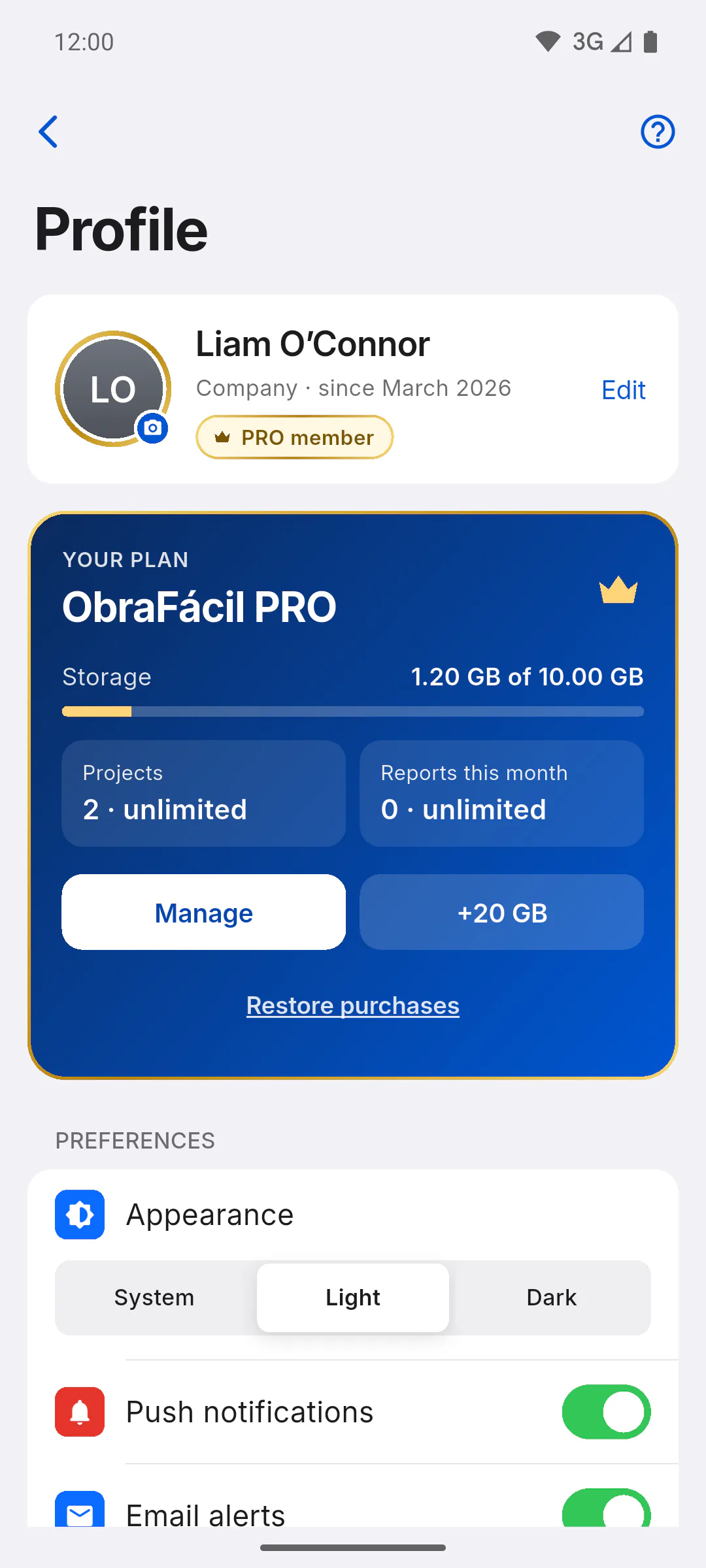
In Profile, the YOUR PLAN card has the Storage bar, with the space used and your plan's total.
Step 5: Dashboard warnings
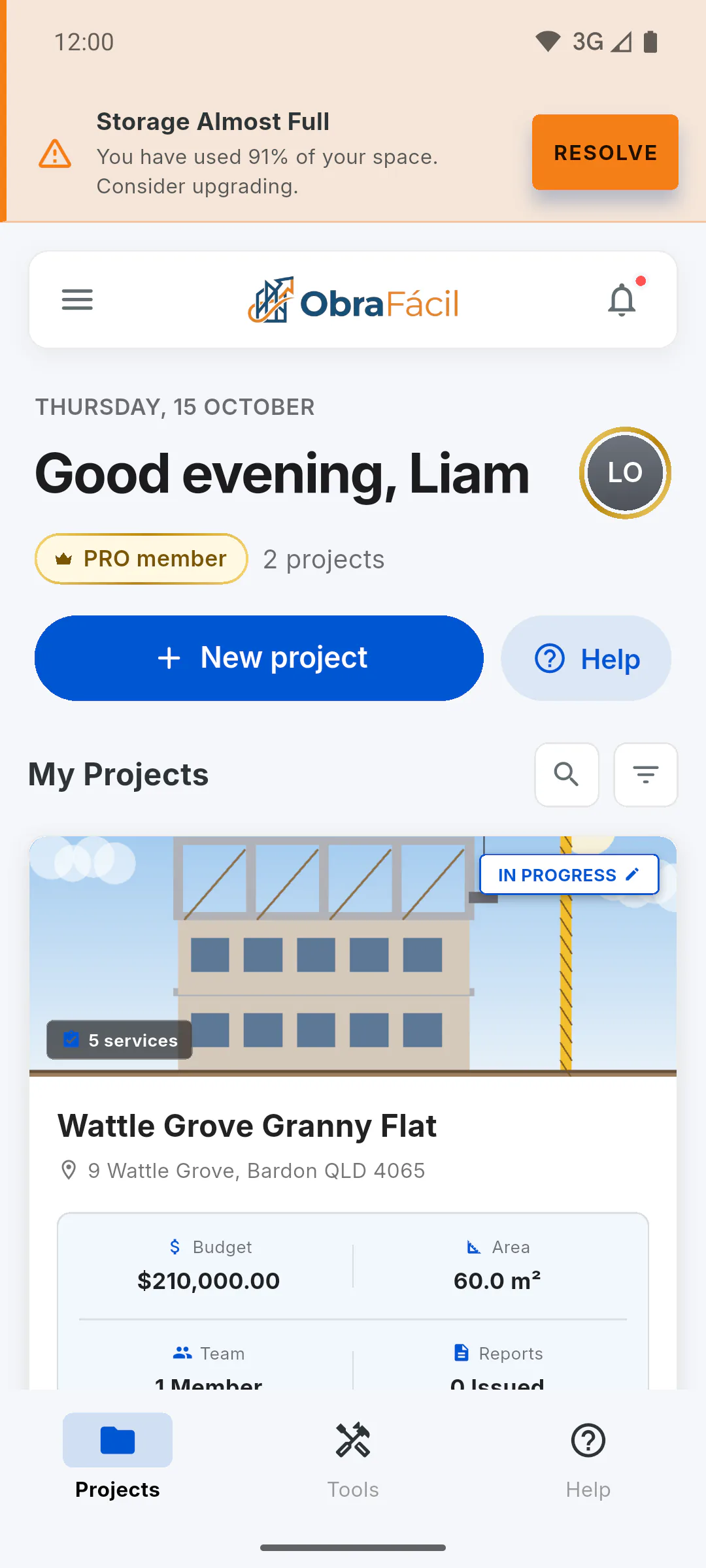
At 85% used, Storage Almost Full appears at the top of the dashboard, with the percentage. At 100%, the warning changes to Storage Blocked. The Resolve button takes you to the PRO plans if you're on free, or to the storage add-on if you're on PRO.
Step 6: When you run out
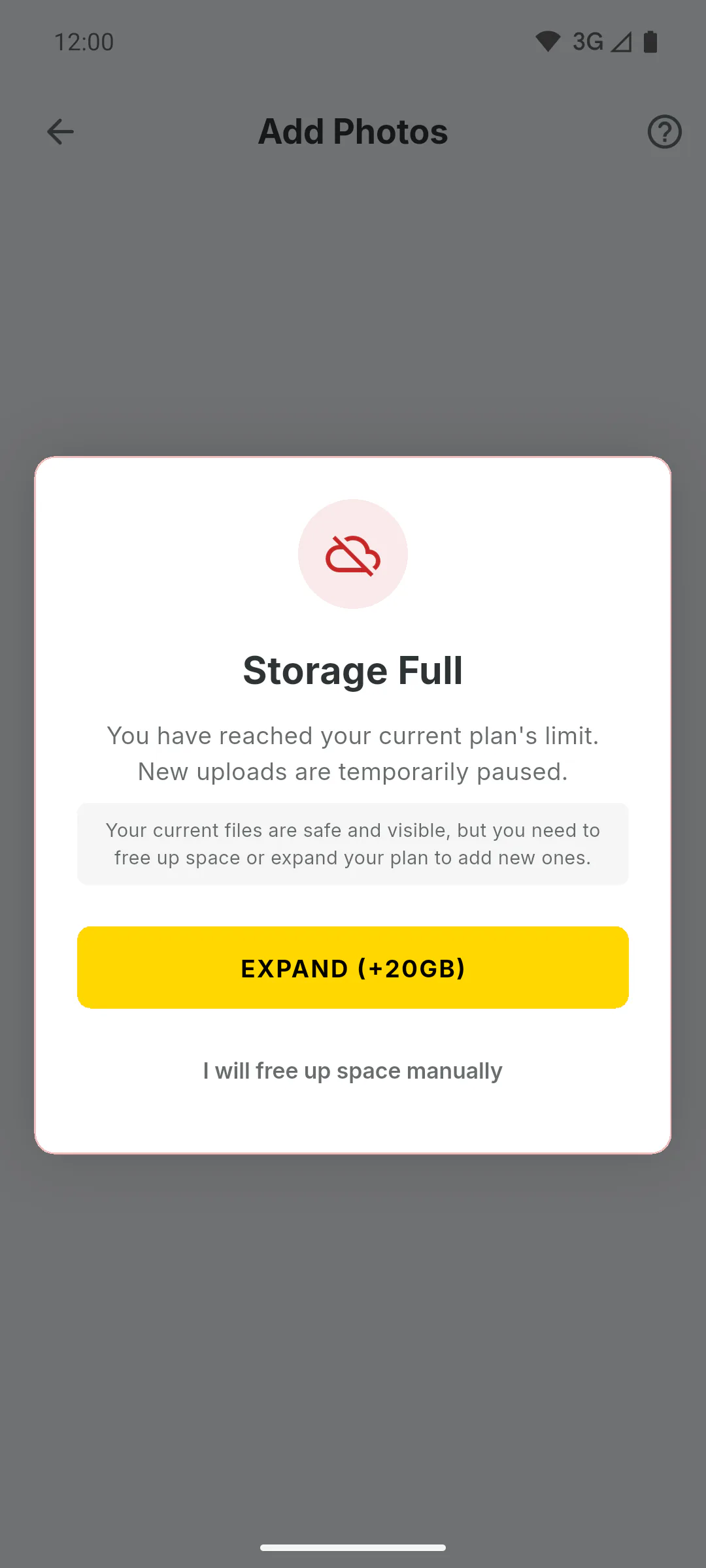
New uploads are blocked: when you try to add a photo or a file, Storage Full appears. Everything already uploaded stays saved and visible, and you can still create daily reports without photos.
How much storage do I have: free and PRO plans
Photos and files use your account's storage: 250 MB on the free plan and 10 GB on PRO, which can get 20 GB more. Here is what counts, where to check and the warnings you'll see.
For managers and team members6 steps
Didn't find what you were looking for?
Chat with support on WhatsApp or raise a ticket in the app.