
Step 1: The warning
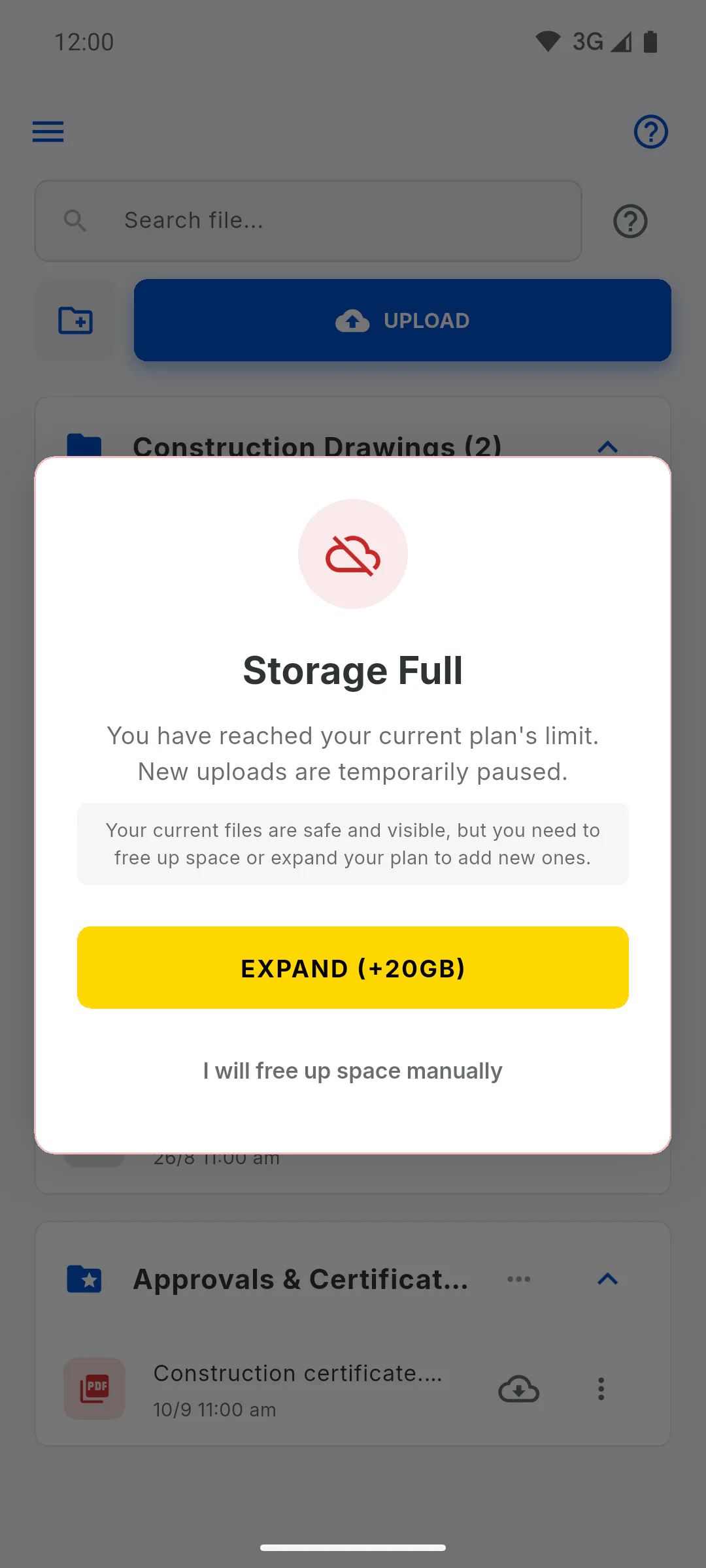
When storage is full and you try to upload a photo or file, the Storage Full window appears, and the top of the dashboard shows Storage Blocked. Everything you've already uploaded stays saved and visible.
Step 2: Choose your route
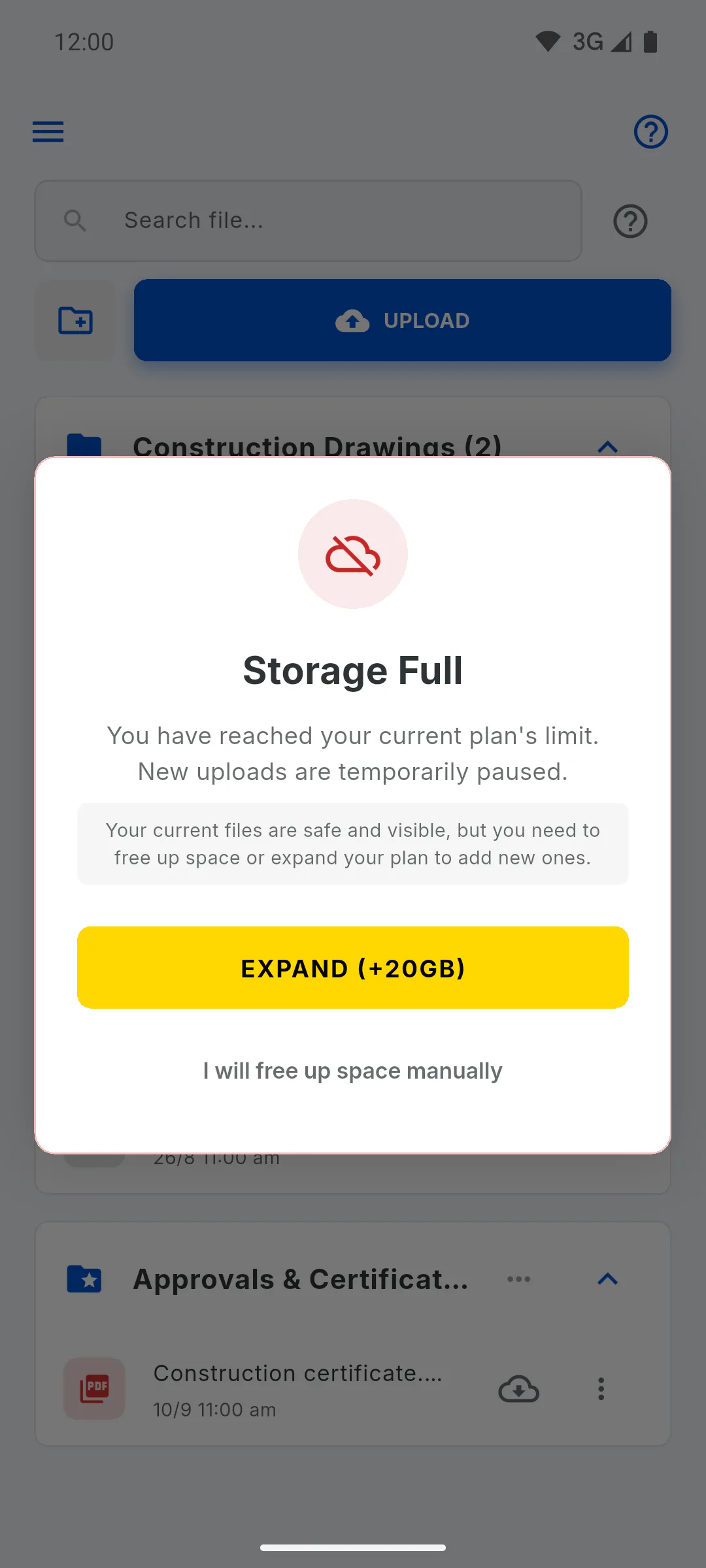
In the window, the yellow button gets you more space: Upgrade to PRO (10GB) on the free plan, or Expand (+20GB) on PRO. To delete things you no longer need, tap I will free up space manually and follow the next steps.
Step 3: Delete Album photos
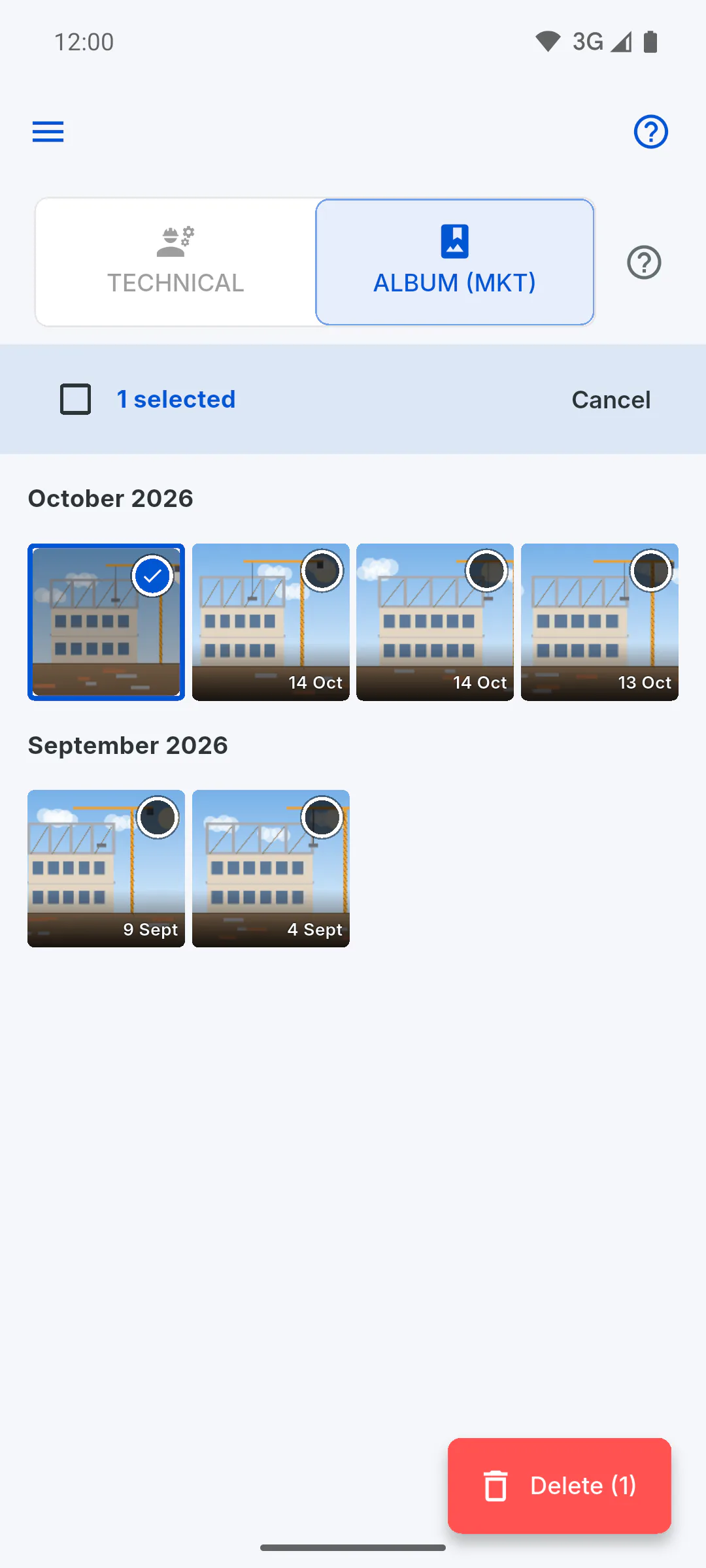
In the Gallery, on the Album (MKT) tab, select the photos you no longer need and delete them in one go: How to select and delete Album photos
Step 4: Delete files
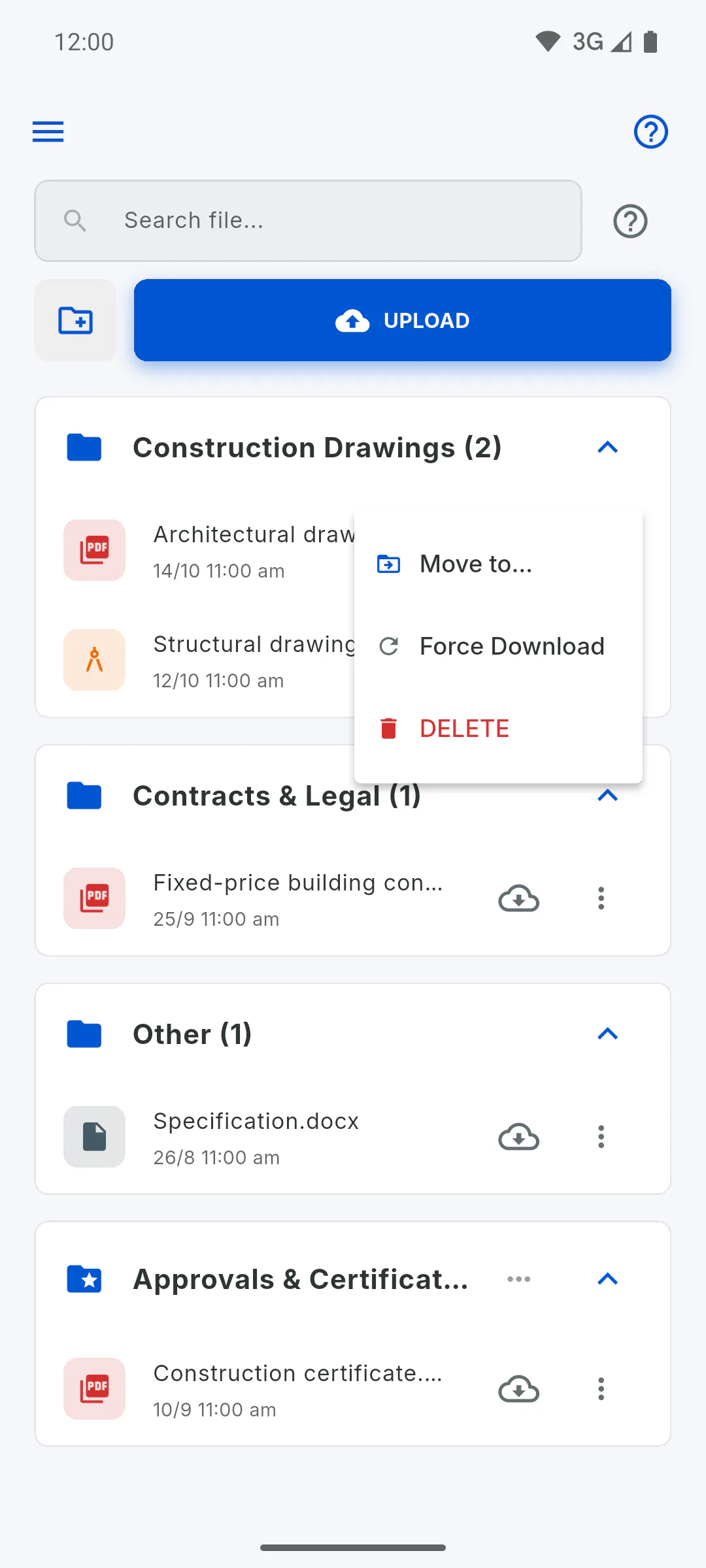
In Files, delete the files you no longer use. When you do, File deleted and space freed! appears: How to move or delete a file
Step 5: Old daily reports
Deleting a daily report also frees the space its photos used. Only the project owner can delete reports. Download the PDF first if you need the record: How to delete a daily report
Step 6: Check your storage
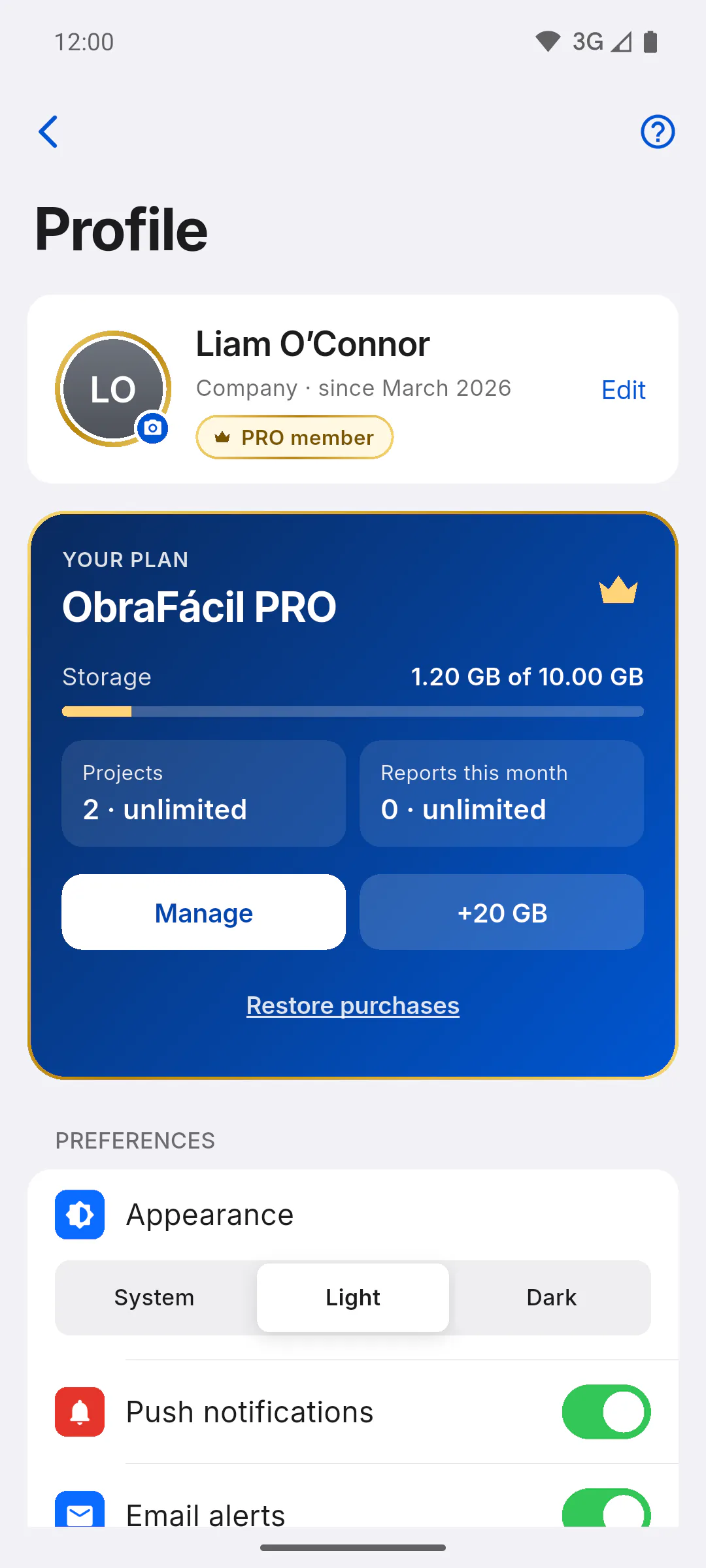
See the space used on the Storage bar, on the YOUR PLAN card in Profile. Once it's below your plan's limit, uploads work again.
Step 7: Need more space
- On the free plan, PRO gives you 10 GB: How to subscribe to PRO on your mobile or computer
- On PRO, the add-on gives you 20 GB more: How to add 20 GB of storage
- If the add-on is already active, buying it again doesn't add more space: freeing up space is the way to go.
Storage full: how to free up space
When your account runs out of storage, new uploads stop. Here is how to free up space by deleting old photos, files and daily reports, or how to get more space.
For managers7 steps
Didn't find what you were looking for?
Chat with support on WhatsApp or raise a ticket in the app.