
Step 1: Open the plans screen
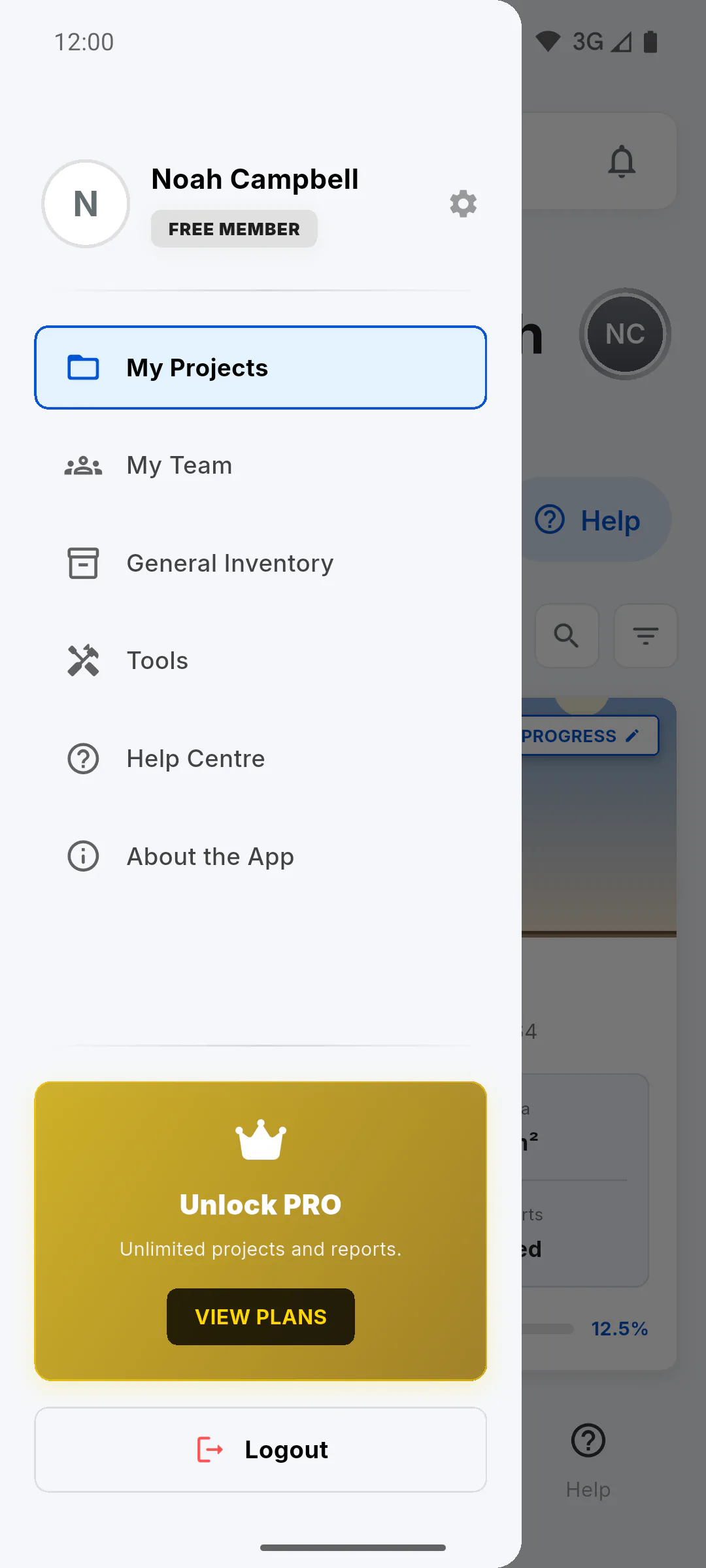
Tap View Plans in the menu or Get PRO on the YOUR PLAN card in Profile. The screen also opens when you hit a free plan limit, from the I Want to Be PRO Now button. Its title is Become a PRO Member. To compare plans: Free vs PRO: what changes.
Step 2: Choose monthly or yearly
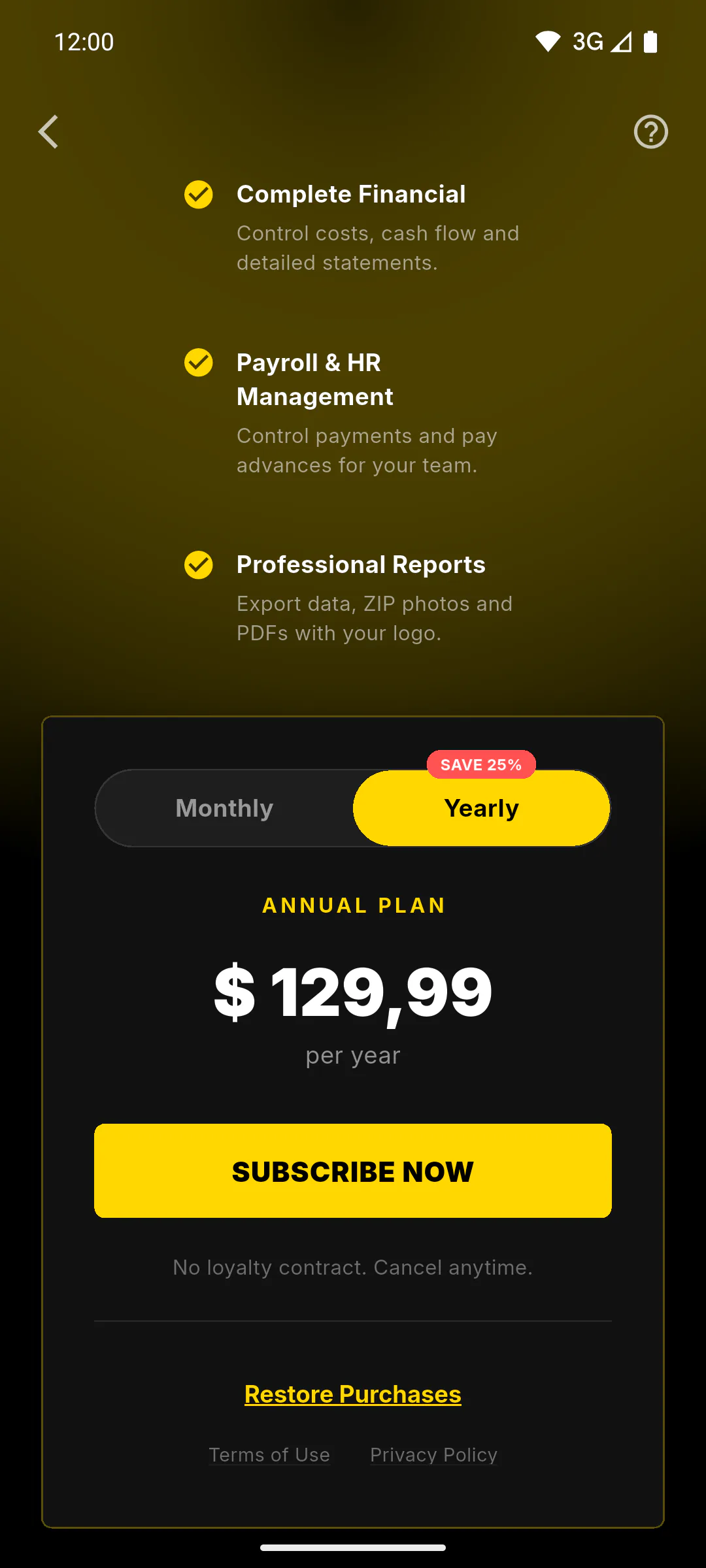
In the price box, pick Monthly or Yearly. Yearly is selected by default and has the Save 25% tag. The price shows right below Monthly Plan or Annual Plan. Your subscription renews automatically every month or year until you cancel, with no lock-in.
Step 3: On a mobile: pay through the store
Tap Subscribe Now. Your device store (Google Play on Android, App Store on iPhone) shows the confirmation with your store account; the price comes from the store itself, in your account's currency. Confirm there. Then Processing release on the server... appears and, once PRO is active, Payment Confirmed!: tap Access PRO Features.
Step 4: On a computer: pay in your browser
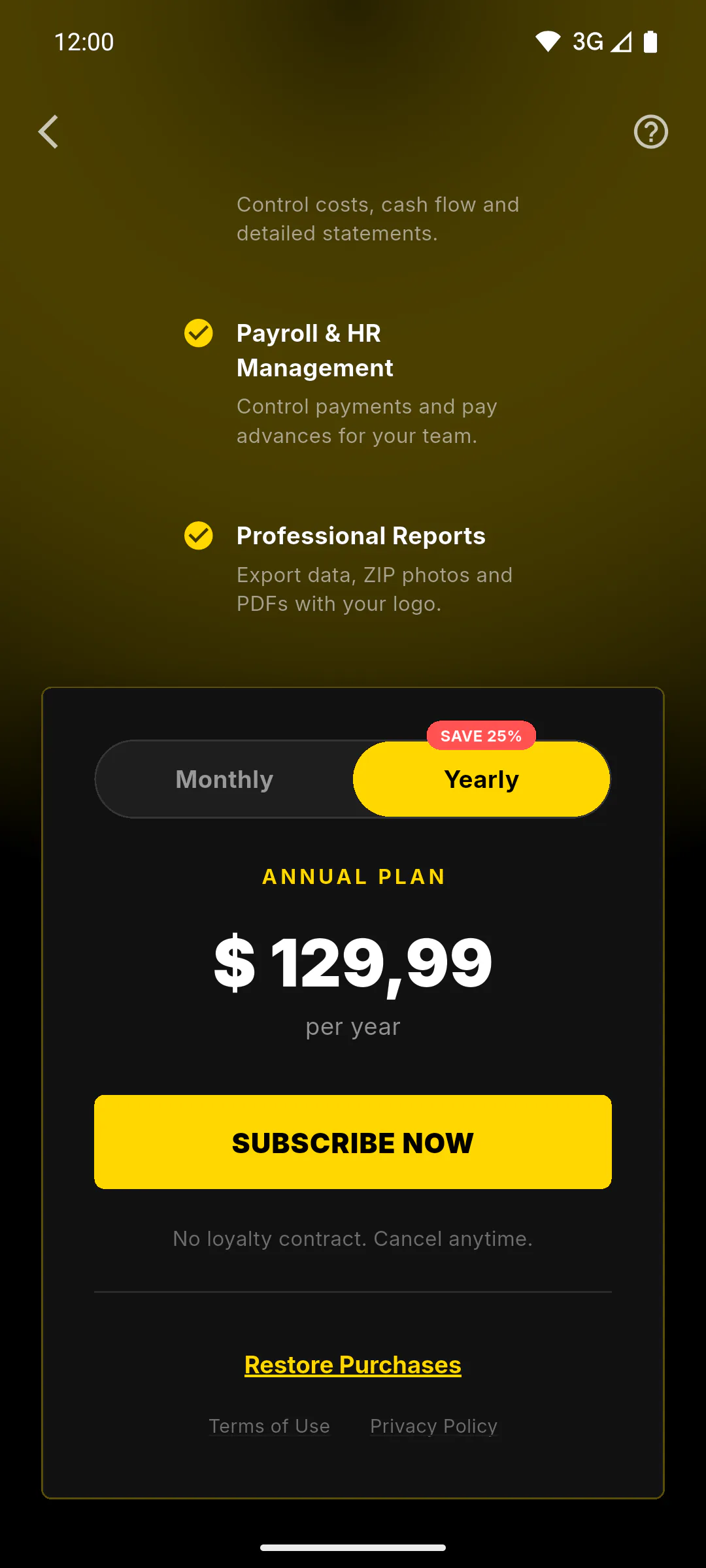
With ObraFácil open in your web browser, tap Subscribe Now. Generating secure payment link... appears and a secure payment page opens in your browser, where you pay by card. The amount on the app screen is only a guide: the exact amount and currency you'll be charged appear on the payment page before you confirm. After paying, go back to the app tab: once the payment is confirmed, Payment Confirmed! appears. This only applies to accounts in Brazil. Outside Brazil, subscriptions and purchases are made in the mobile app, on the App Store or Google Play; in the browser and on Windows you'll see Subscribe and buy in the app.
Step 5: In the Windows app
In the Windows app, buying works the same as in the browser: when you tap Subscribe Now, the payment page opens in your web browser (accounts in Brazil only). Outside Brazil, subscribe in the mobile app with the same account: PRO then works in the Windows app too.
Step 6: If something goes wrong
- Store Error saying we couldn't confirm your account with the store: check your connection and try again; you weren't charged
- Connecting to the store... Try again in a few seconds.: wait a moment and tap again
- You paid but PRO didn't show up: on a mobile, How to restore purchases; on the website, How to activate PRO bought on the website
- To cancel later: How to manage or cancel your subscription
How to subscribe to PRO on your mobile or computer
Subscribe to PRO from the plans screen: on a mobile you pay through your app store, on a computer through your web browser (accounts in Brazil only). See where the price shows and what to do if something goes wrong.
For managers6 steps
Didn't find what you were looking for?
Chat with support on WhatsApp or raise a ticket in the app.