
Step 1: When to use it
Use it when you subscribed to PRO, or the extra 20 GB, through Google Play or the App Store and your account doesn't show what you paid for: for example, after switching mobiles or reinstalling the app. For website purchases, see I bought PRO on the website: how to activate it.
Step 2: Before you start
On your mobile, sign in to ObraFácil with your account and make sure the device store uses the same account you bought with: the same Apple ID or the same Google account. You need an internet connection.
Step 3: Tap Restore purchases
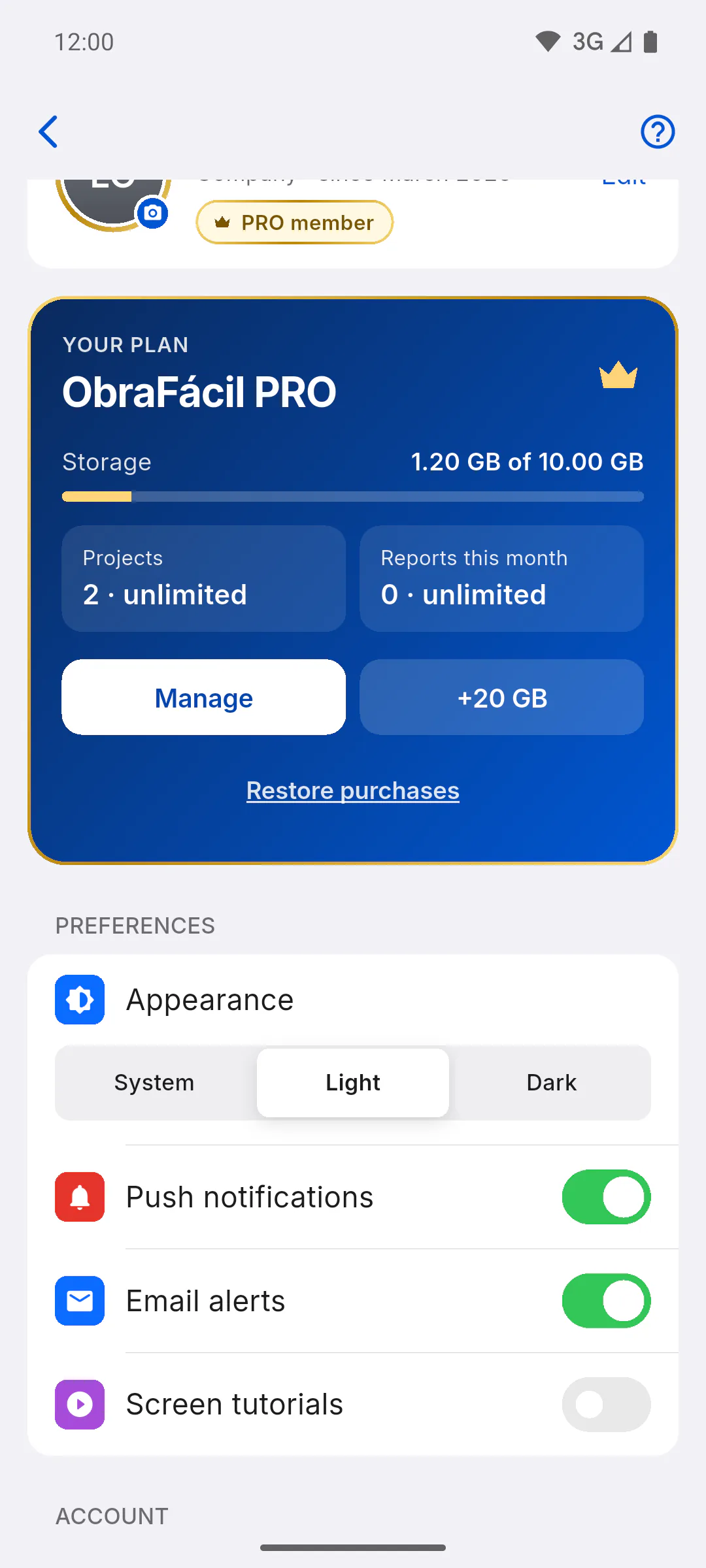
Open Profile and, at the bottom of the YOUR PLAN card, tap Restore purchases. The same link is on the plans screen, at the bottom of the price box, called Restore Purchases. It doesn't show in a web browser, and courtesy accounts don't have it.
Step 4: Check the result
- Purchases restored successfully! Updating your account...: PRO shows up in your profile within moments
- No active purchases found for this device on Apple/Google.: the store found no active subscription on that account. Check your store account and whether the subscription is still active in the store's subscriptions area. This message also shows when the connection fails: try again on a good connection
- Store Error: check your connection and try again
Step 5: On Windows, and if nothing works
In the Windows app, the link shows up but doesn't work: use the mobile you bought on. If restoring doesn't fix it, contact support: How to open a support ticket.
How to restore purchases on your mobile
Subscribed to PRO or the extra 20 GB through Google Play or the App Store, but your account doesn't show it? Use Restore purchases to fetch the purchase from the store and turn it back on.
For managers5 steps
Didn't find what you were looking for?
Chat with support on WhatsApp or raise a ticket in the app.