
Step 1: Before you delete
Deleting can't be undone. First, save anything you need from the project, such as daily report PDFs: How to download and share a daily report PDF
Step 2: Open the project menu
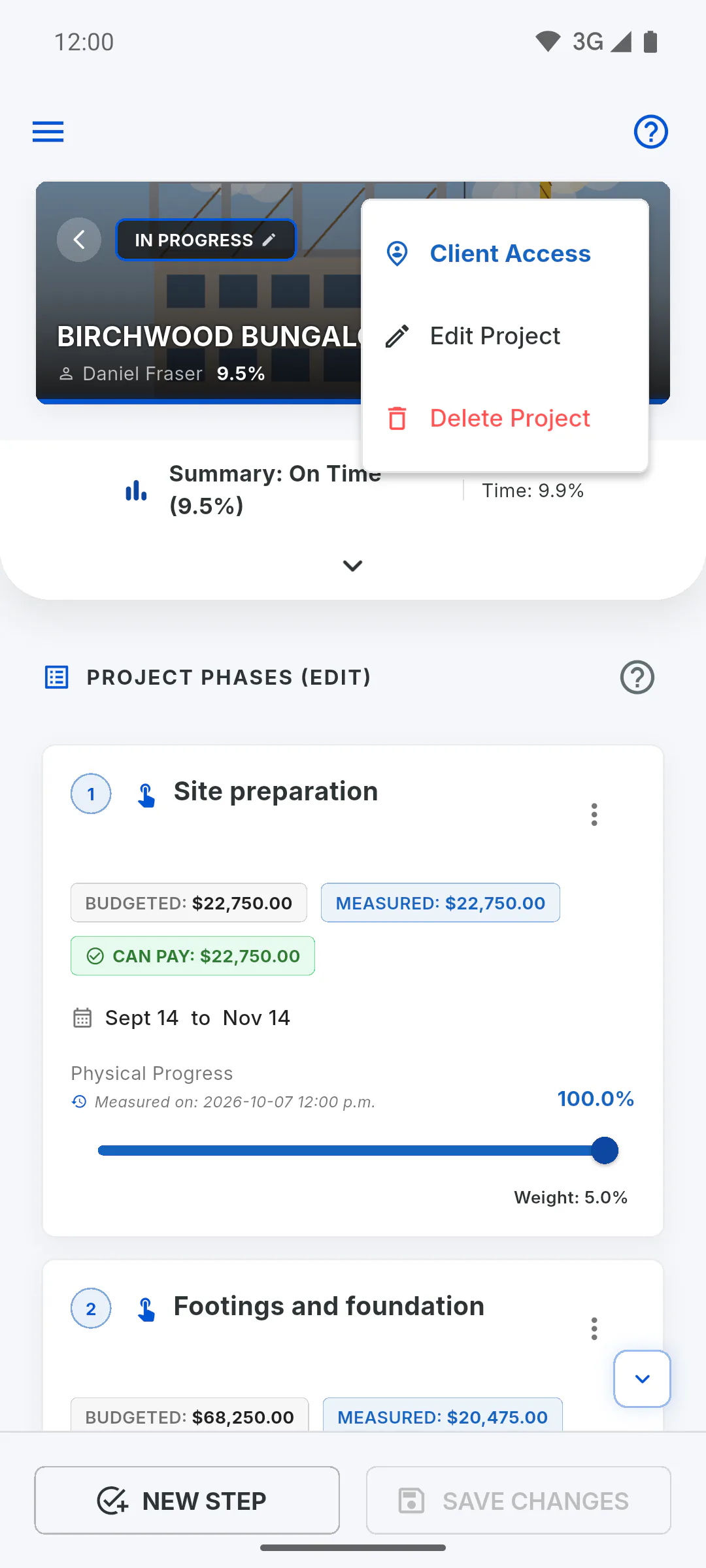
Open the project, go to the Overview tab, tap the three-dot menu, then Delete Project.
- Only the project owner can delete it. For invited members, Delete Project is grayed out with a lock icon; tapping it opens a window showing their role on the project and who can use it.
Step 3: Confirm
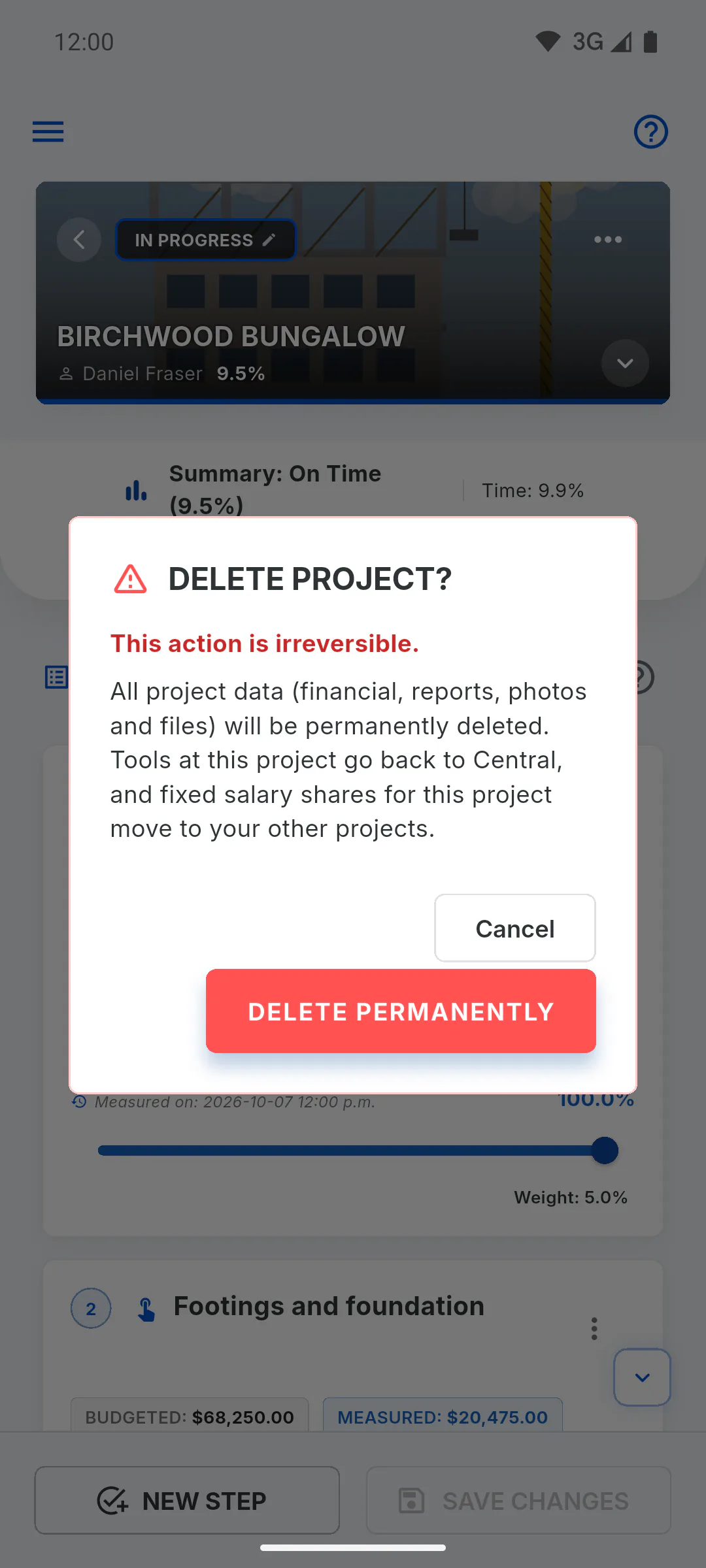
In the Delete Project? window, read the warning and tap Delete Permanently. To back out, tap Cancel. You'll see Processing deletion..., then Project deleted successfully., and you're taken back to the dashboard.
Step 4: What changes afterwards
The project disappears from your dashboard and from the dashboard of everyone invited to it. Its daily reports, financials, purchases, photos, files and exported ZIPs are deleted.
- Tools that were on the project go back to Central in the General Inventory on their own.
- If a monthly worker had a fixed salary share on this project, that share moves to the other projects in the split, in the same proportion.
- On the free plan, the slot is freed up and you can create another project with New project.
- Setting the status to Completed doesn't free up the slot: only deleting does. How many projects can I have on the free plan
How to delete a project (and free up your free-plan slot)
Deleting a project is permanent and it's the only way to free up the free-plan slot. See who can delete and what to do first.
For managers4 steps
Didn't find what you were looking for?
Chat with support on WhatsApp or raise a ticket in the app.