
Step 1: Open the general closing
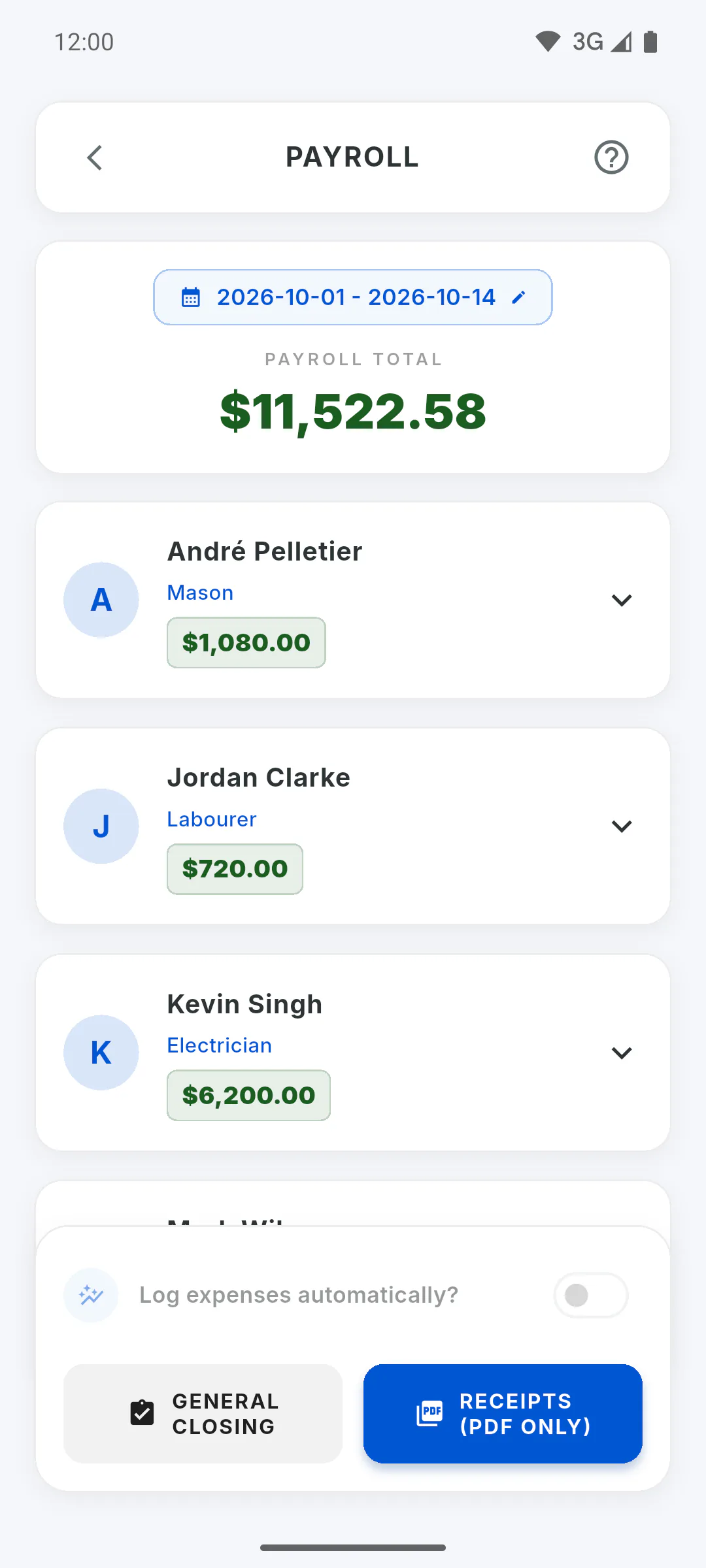
On a project's payroll, tap General Closing on the bottom bar. General Projects Report opens. The button only appears when the open payroll has at least one team member in the period: How to open a project payroll
Step 2: Pick the period
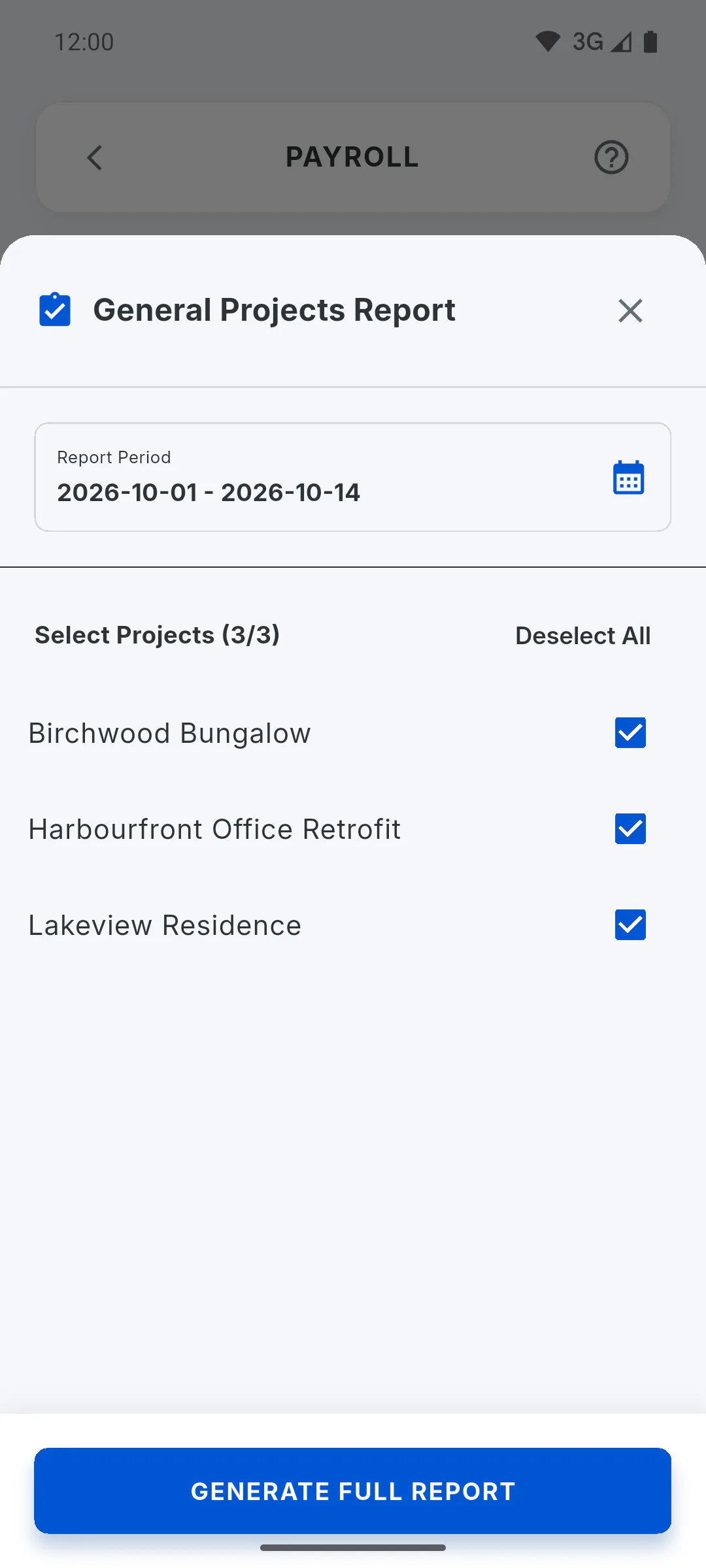
Under Report Period, the dates run from the 1st of the month to today. Tap to pick others on the calendar. This period only applies to the report: the project payroll doesn't change.
Step 3: Pick the projects
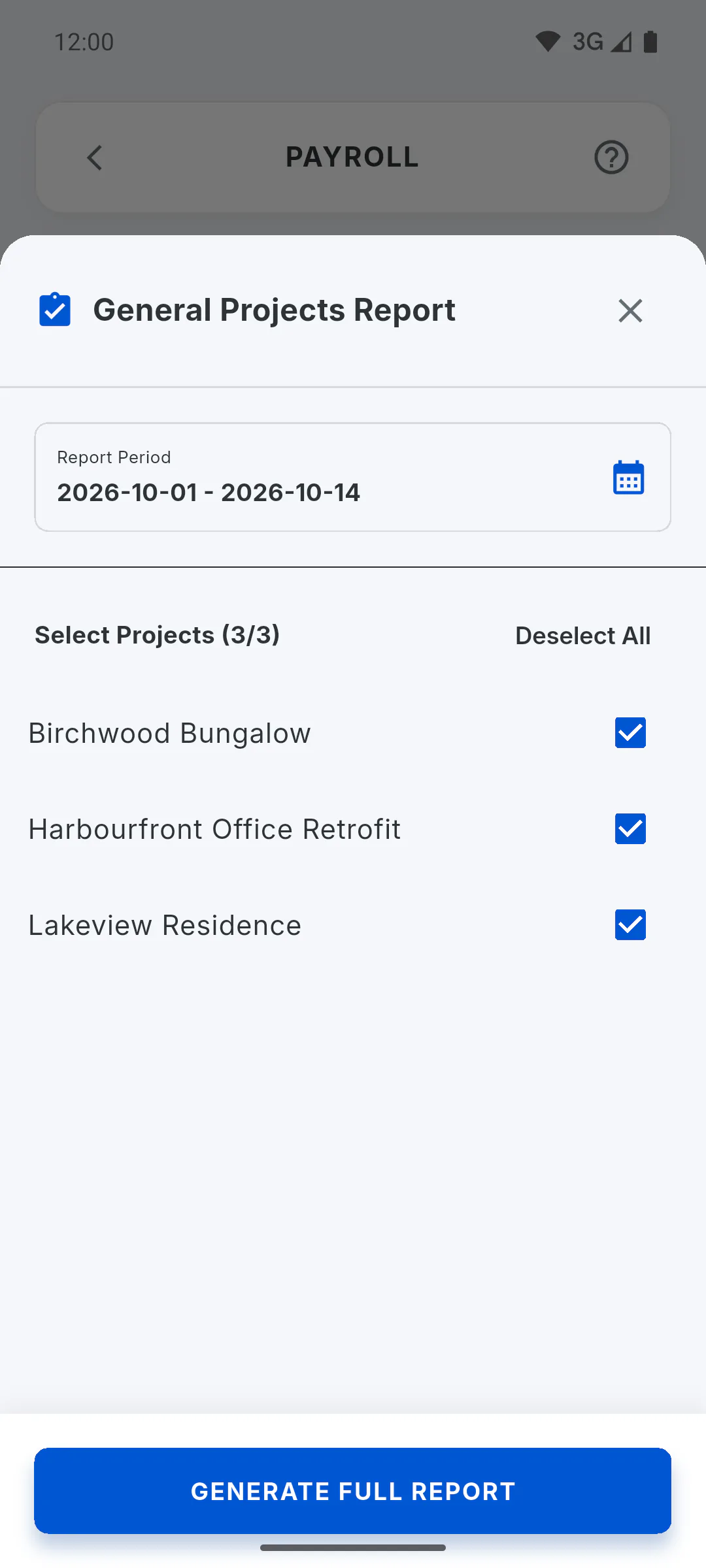
Under Select Projects you'll see your projects and the projects you've been invited to, all already checked, including completed ones. Uncheck the ones you don't want, or use Deselect All and Select All. With no project checked, the generate button is disabled.
Step 4: Generate the report
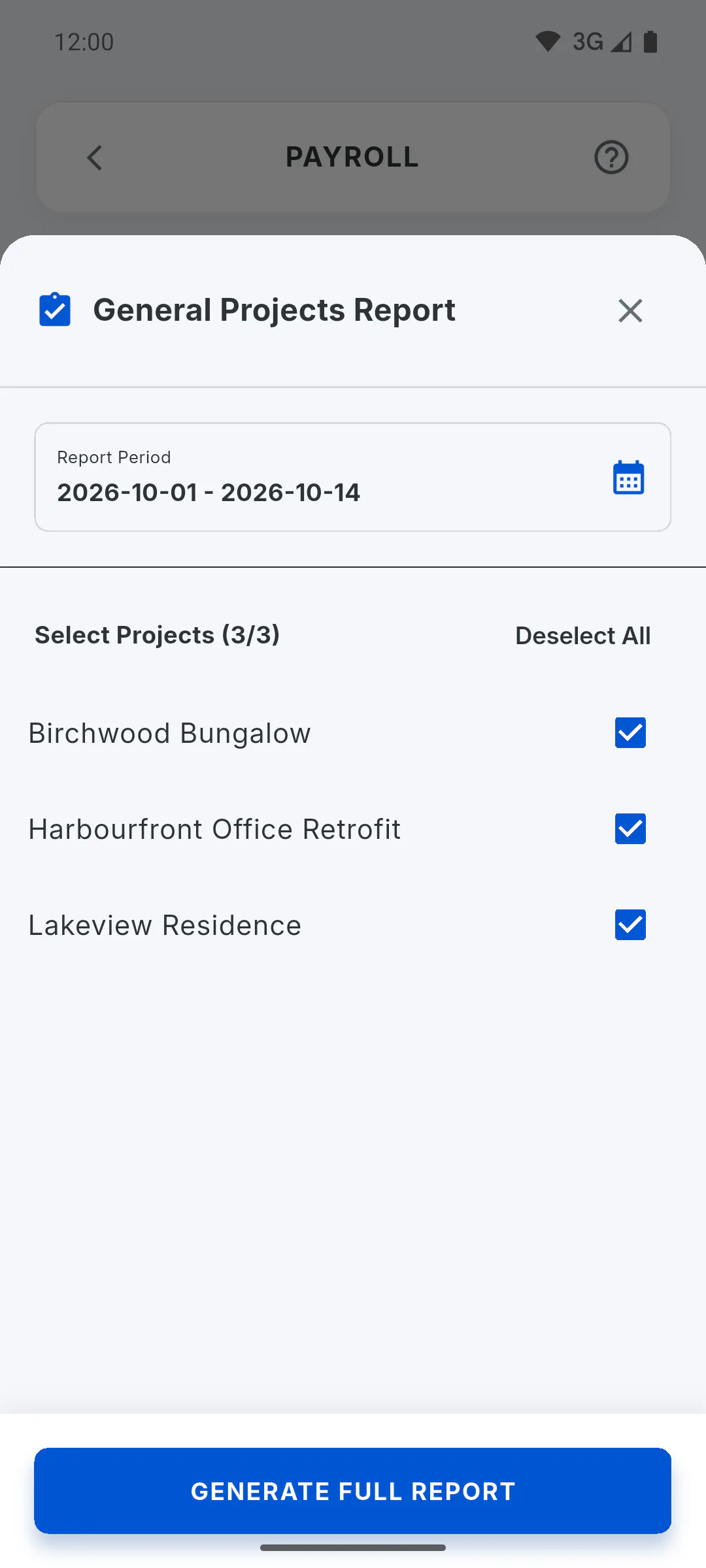
Tap Generate Full Report. The landscape PDF shows Detailed Closing (HR) with one table per project: team member, role, unit rate, days, hours, absences, the week-by-week daily details and the total, with Project Total after each project and General Payment Total at the end. Projects with no one in the period are left out. If it fails, you'll see Error generating report. Please try again.
Step 5: How it differs from payroll
The closing recalculates each project with advances always deducted and without the bonuses you set on the payroll screen. Each project is calculated in its own currency; with projects in different currencies, the overall total is shown per currency. Anyone whose rate is in a currency other than the project's is listed in a note below the table, outside the total. It doesn't count toward the report limit, but on the free plan it carries a watermark.
How to generate the general closing for several projects
Generate a single PDF with the payroll of several projects for the same period, with each project total and the overall payment total.
For managers5 steps
Didn't find what you were looking for?
Chat with support on WhatsApp or raise a ticket in the app.