
Step 1: What the link is
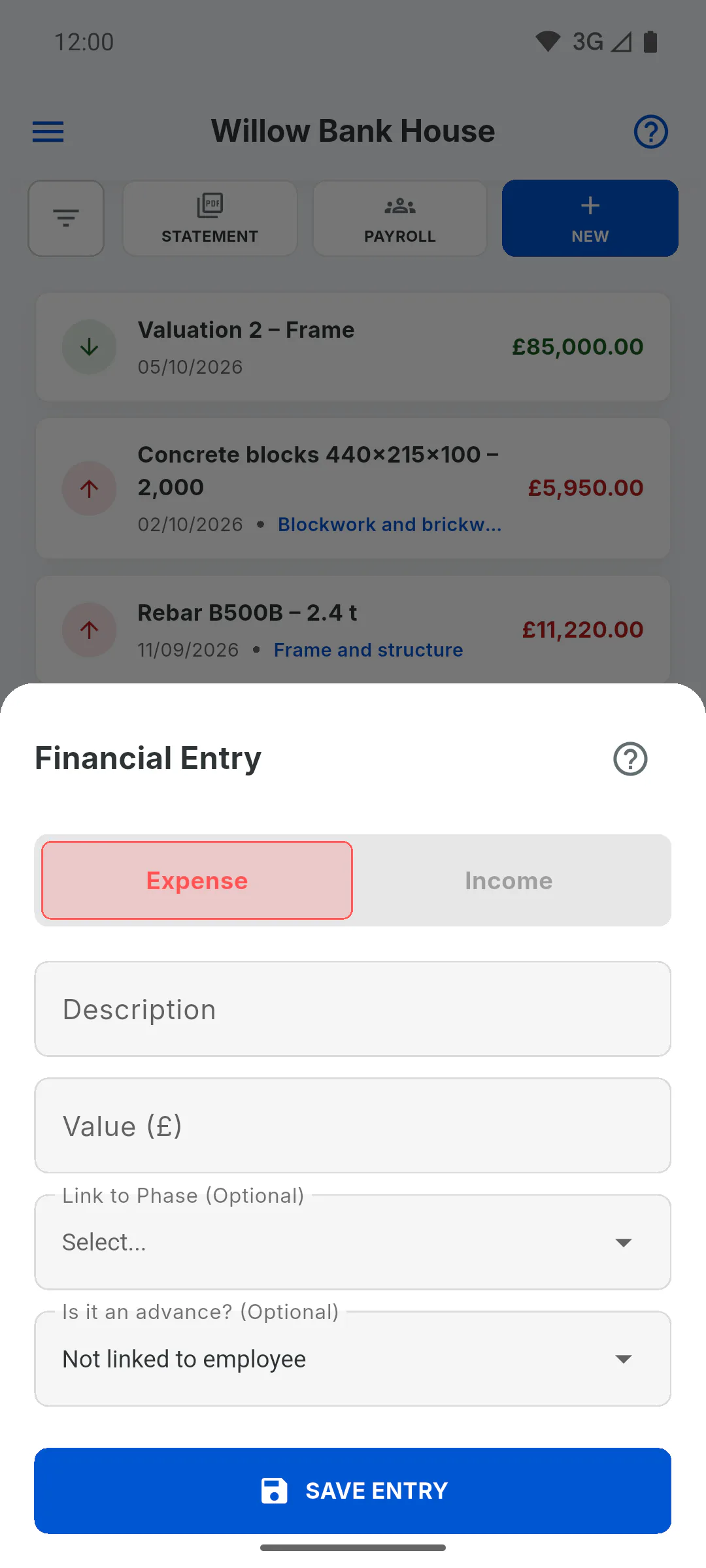
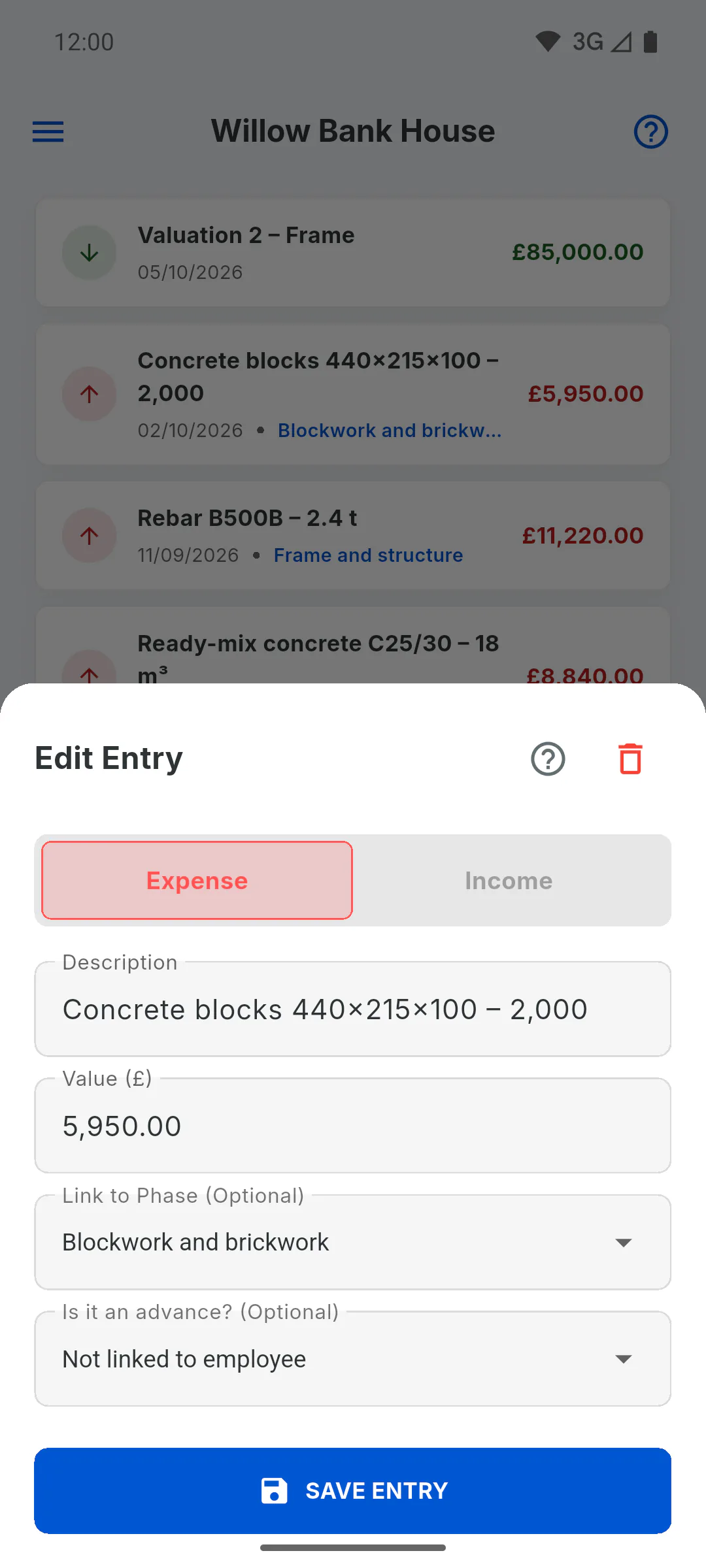
When you log an expense, the Link to Phase (Optional) field ties the cost to a schedule stage. The list shows the project's stages; with no stages, it's empty.
Step 2: What the link feeds
- in the Schedule, the amount paid on each stage, used for Can Pay and Overpaid: What the stage labels mean
- in the Financial dashboard, Financial (Project) on the Efficiency tab and the paid amount on the Bars tab
- the stage filter on the list and the stage column in the statement
Step 3: Expenses with no stage
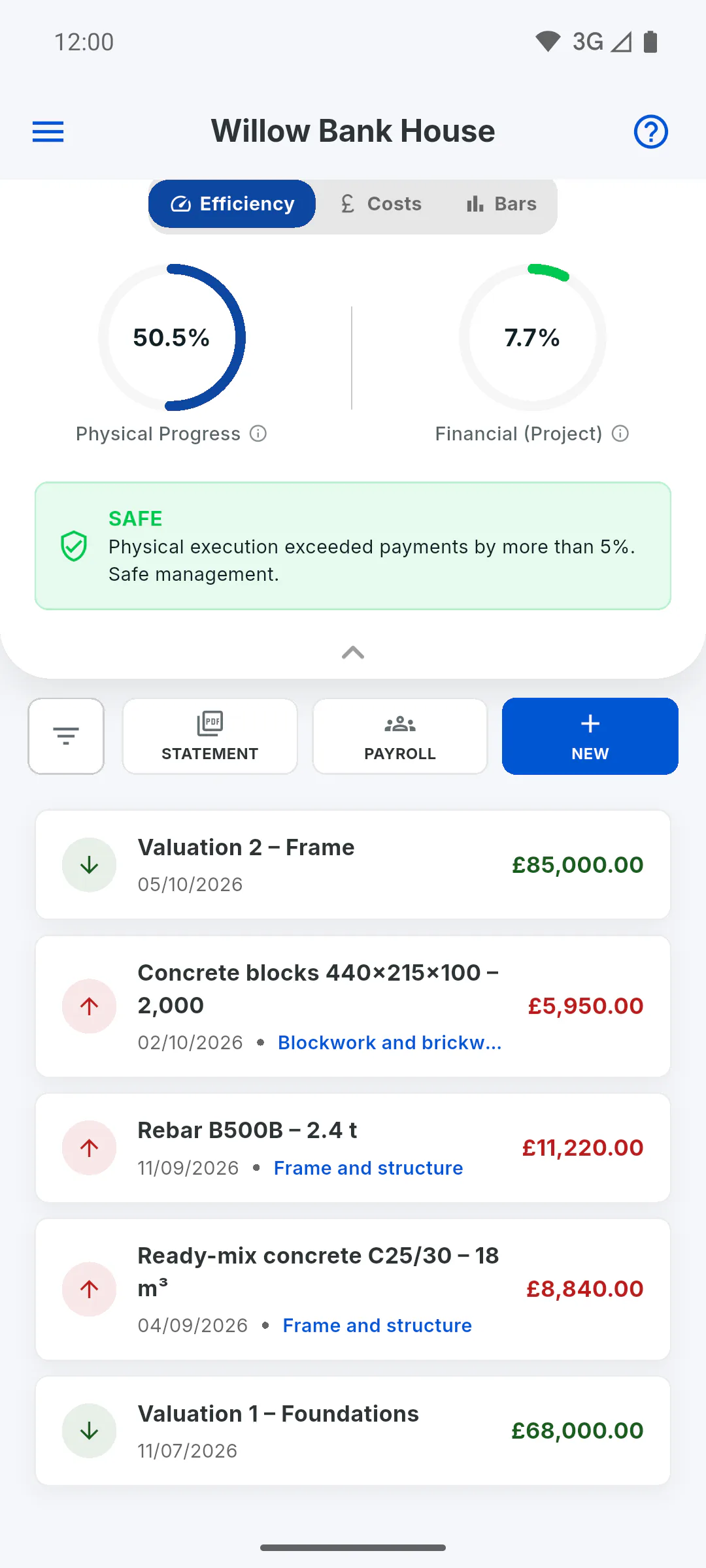
They go to Admin Costs (Not linked), in the Costs tab: they count in Expenses and Cost per m², but not in the comparison with physical progress. Use this for costs that don't belong to a stage, like fees, equipment rental or overhead. Supplies purchases logged in Financial also come in with no stage.
Step 4: Income
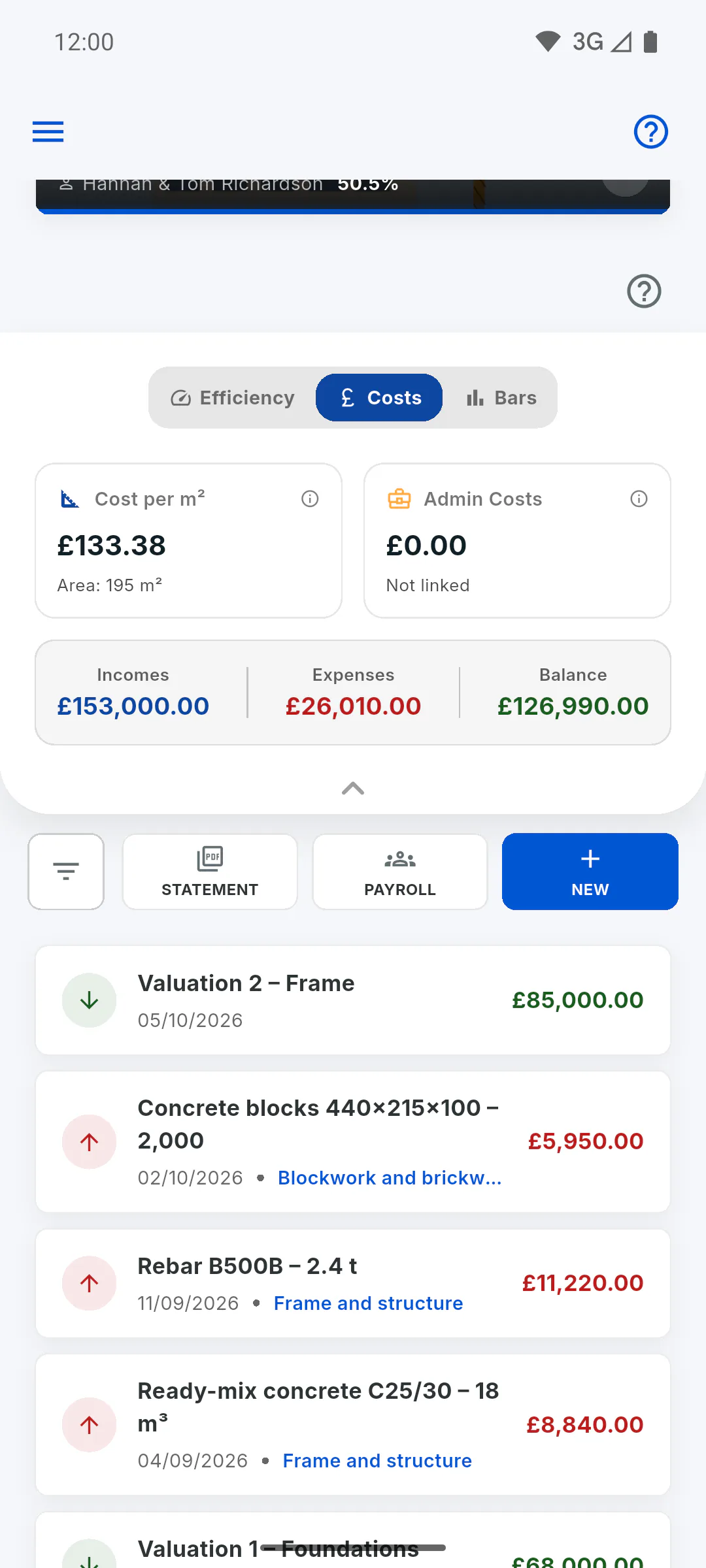
Income can have a stage too, but only expenses count as paid on the stage.
Step 5: The link uses the name
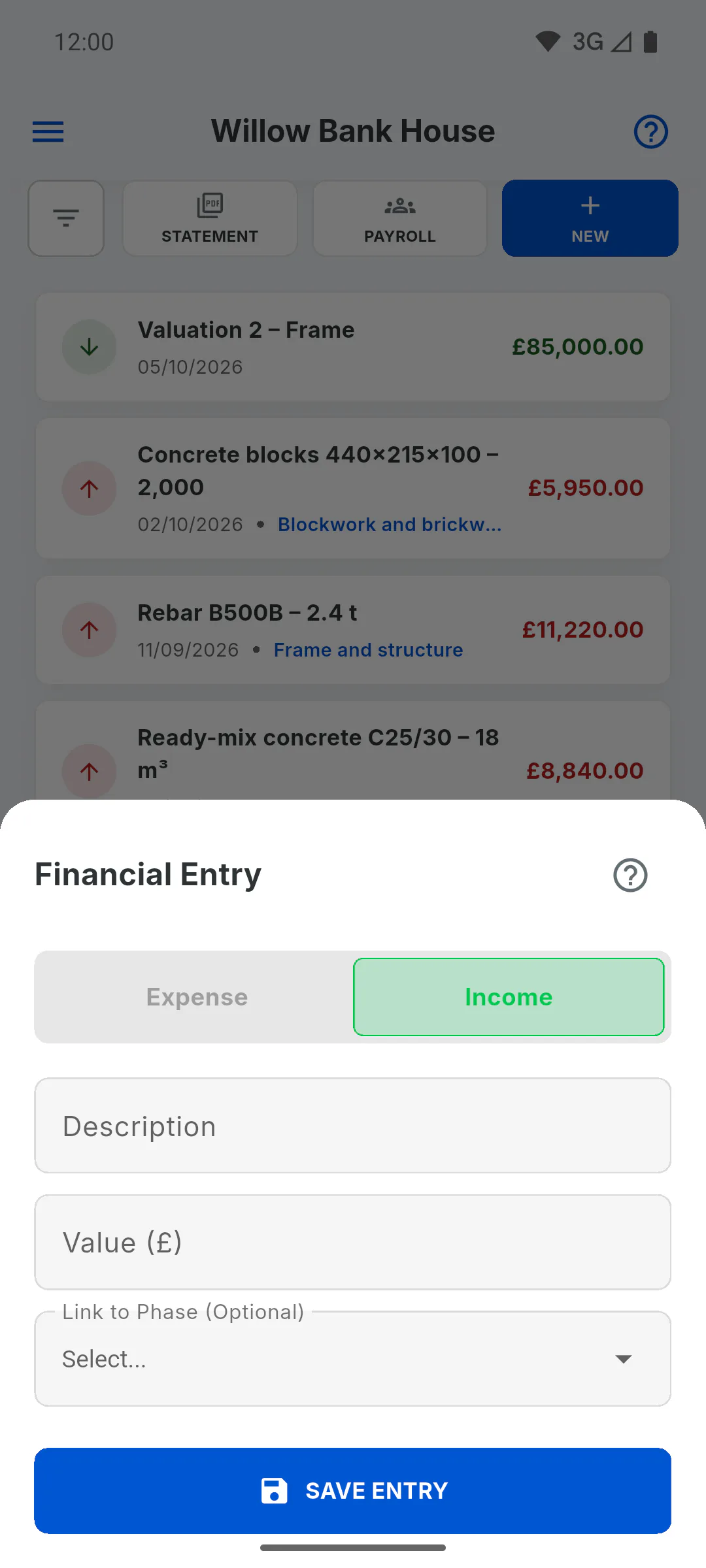
The app links an expense by the stage name. If you rename the stage, expenses already logged keep the old name and stop counting as paid on that stage in the Schedule and on the Bars tab. When you edit one, the stage field is empty: pick the stage again and save. If you save with it empty, it becomes an Admin Costs expense.
Why link expenses to schedule stages
See what changes when each expense is linked to a schedule stage, what happens to expenses with no stage, and why the stage name matters.
For managers5 steps
Didn't find what you were looking for?
Chat with support on WhatsApp or raise a ticket in the app.