
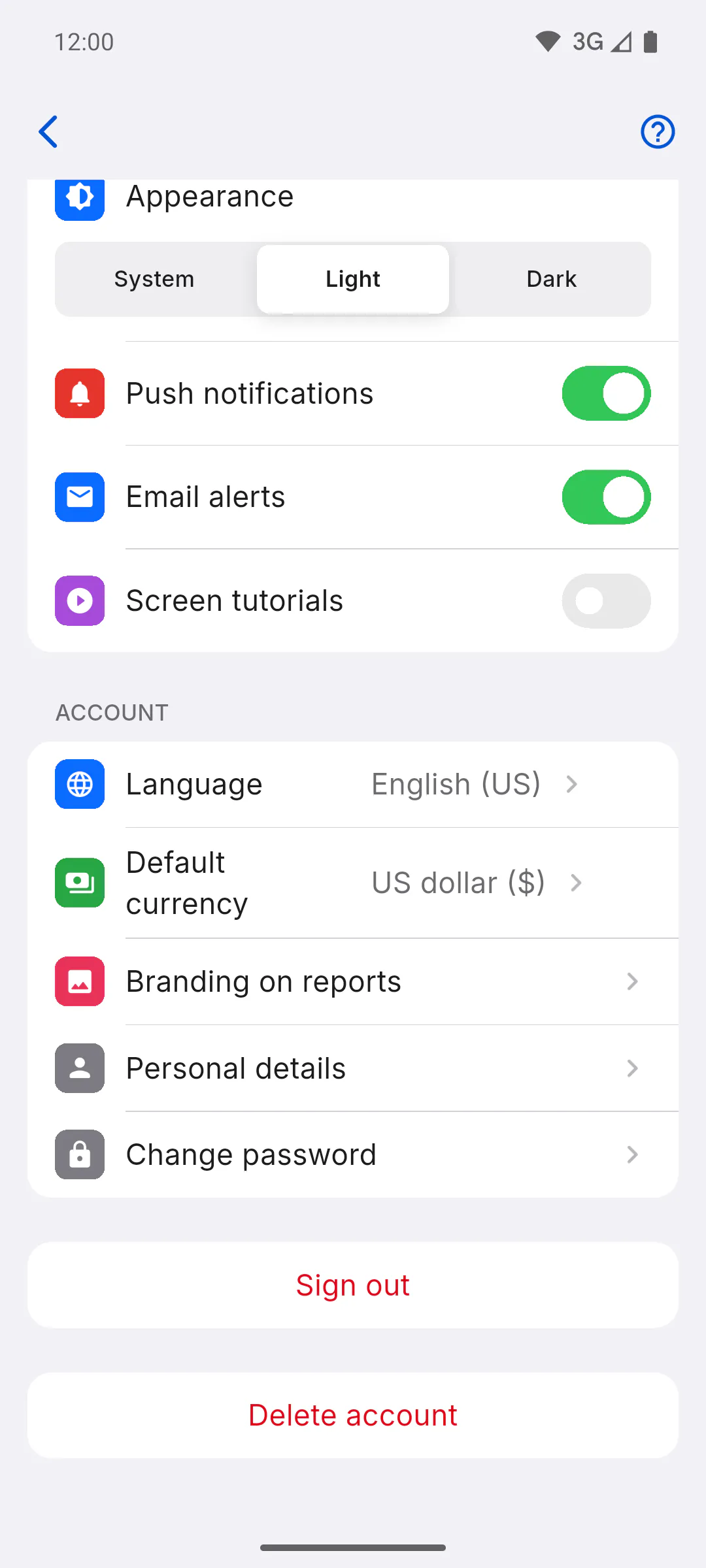
Step 1: Where to find it (managers and team)
Open Profile and, in the Account section, tap Change password: How to open and use your profile. If you sign in with Google, this row doesn't show up: your password is your Google account's.
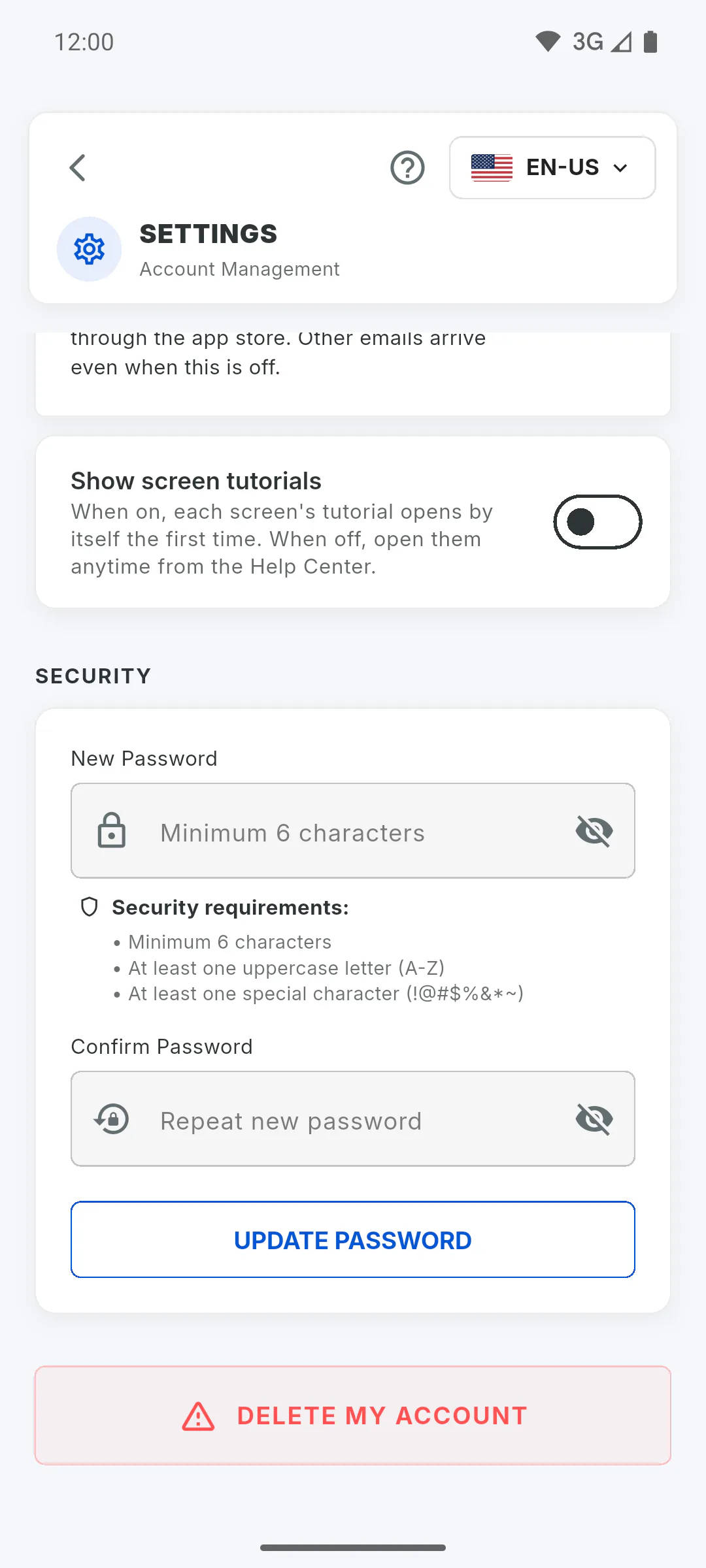
Step 2: Where to find it (Client Portal)
In the Client Portal, open the menu, tap Settings and scroll down to Security. The fields and button are the same as on the manager's Change password screen.
Step 3: Type the new password
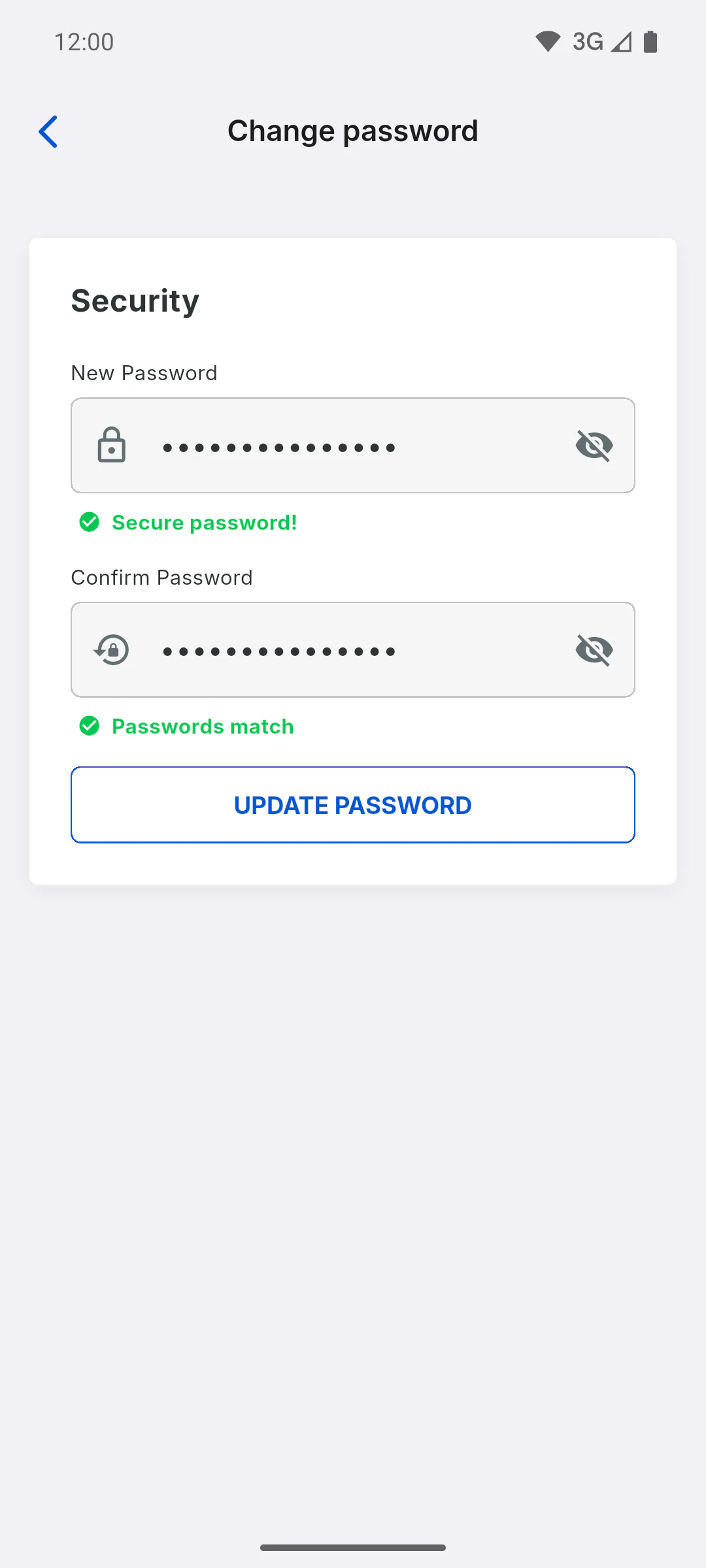
Under New Password, type your new password and repeat it under Confirm Password. You don't need your current password. The password must have:
- at least 6 characters
- one uppercase letter (A-Z)
- one of these special characters: ! @ # $ % & * ~
It also can't start or end with a space. When it meets the rules, Secure password! appears. If the two don't match, Passwords do not match appears.
Step 4: Save the password
Tap Update Password while online. Password changed! Please login again. appears: the app signs you out and goes back to the sign-in screen. Sign in with the new password. On the Change password screen, if the password starts or ends with a space, The password can't start or end with a space. appears and nothing changes.
Step 5: If you get an error
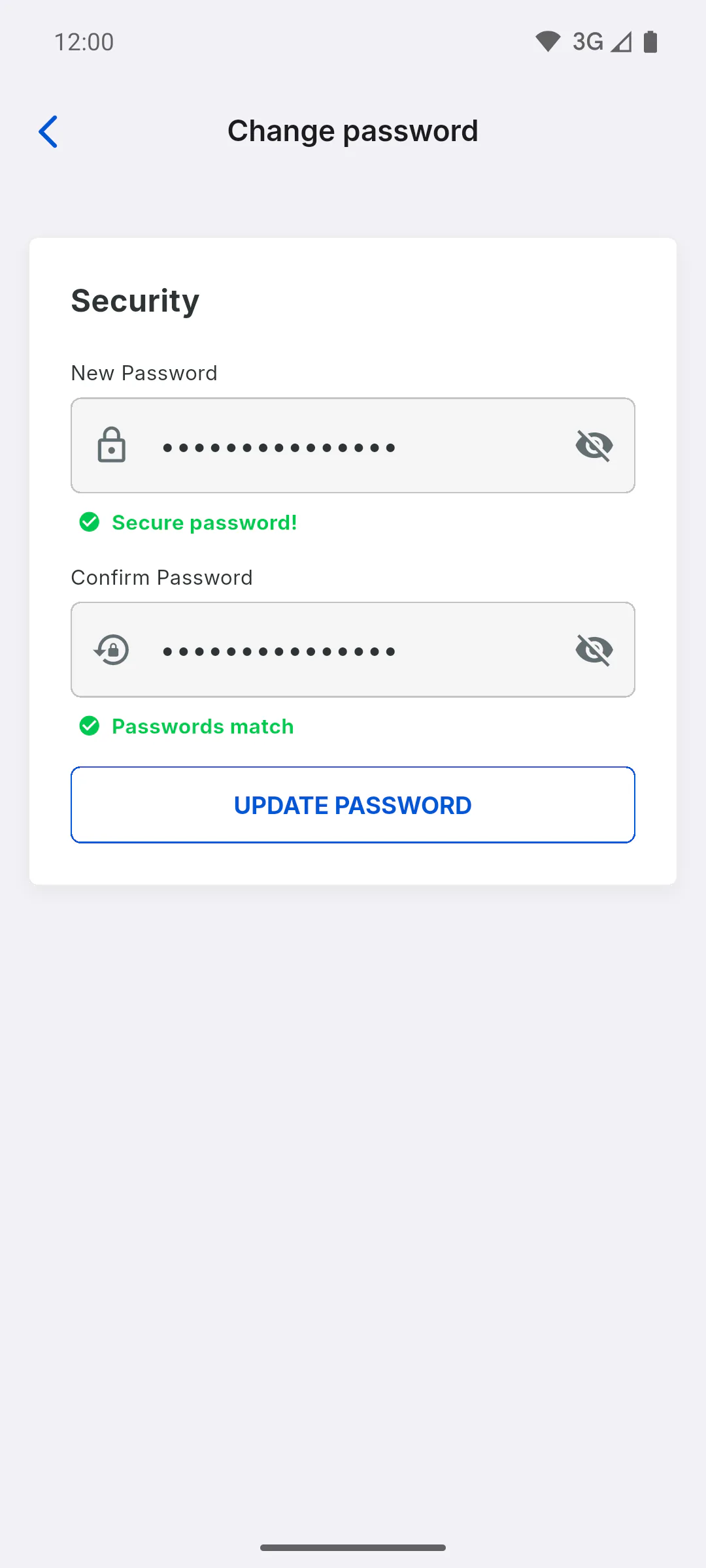
If For security, sign in to your account again and then change your password. appears, it's a security measure: the change is only accepted shortly after you sign in. The app signs you out by itself: sign back in with your current password and try again. If Couldn't change the password. Check your internet connection and try again. appears, check your connection and try again. Forgot your current password? How to recover your password
How to change your password
Change your sign-in password in the app, under Change password in your Profile or, if you're a client, in the Client Portal Settings. See the password rules and what to do if you get an error.
For managers, team members and clients5 steps
Didn't find what you were looking for?
Chat with support on WhatsApp or open a ticket right in the app.