
Step 1: Type your email
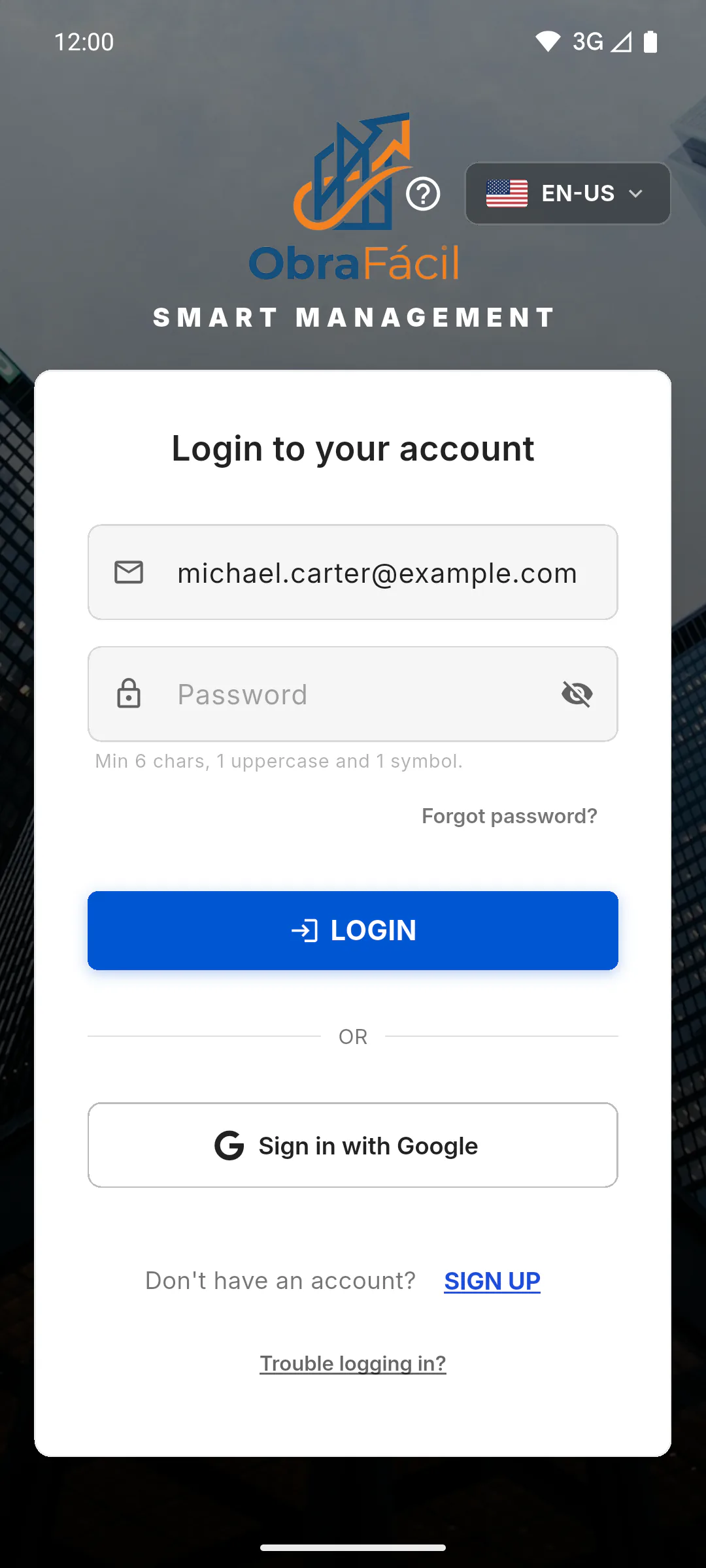
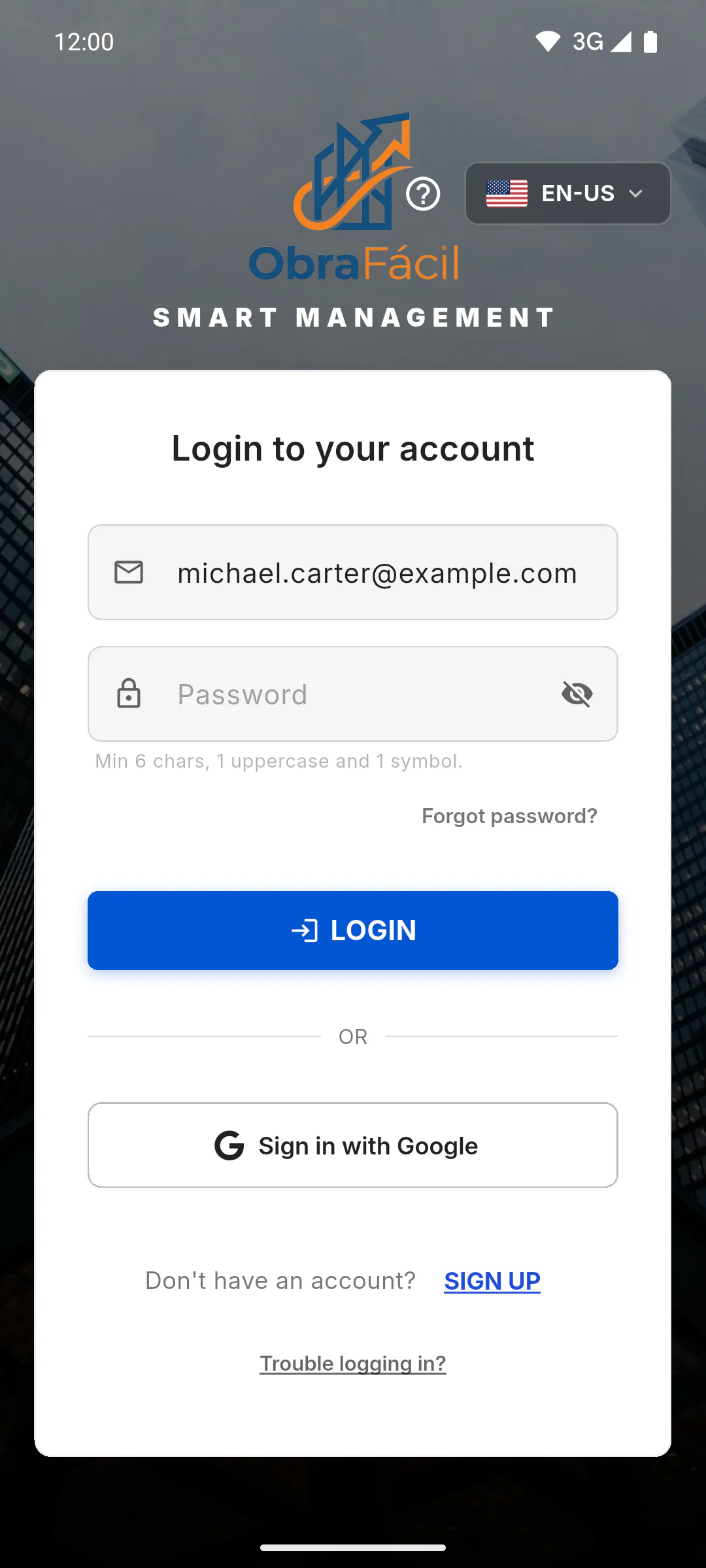
On the Login to your account screen, type your account address in the E-mail field. You don't need to fill in the password.
Step 2: Request the link
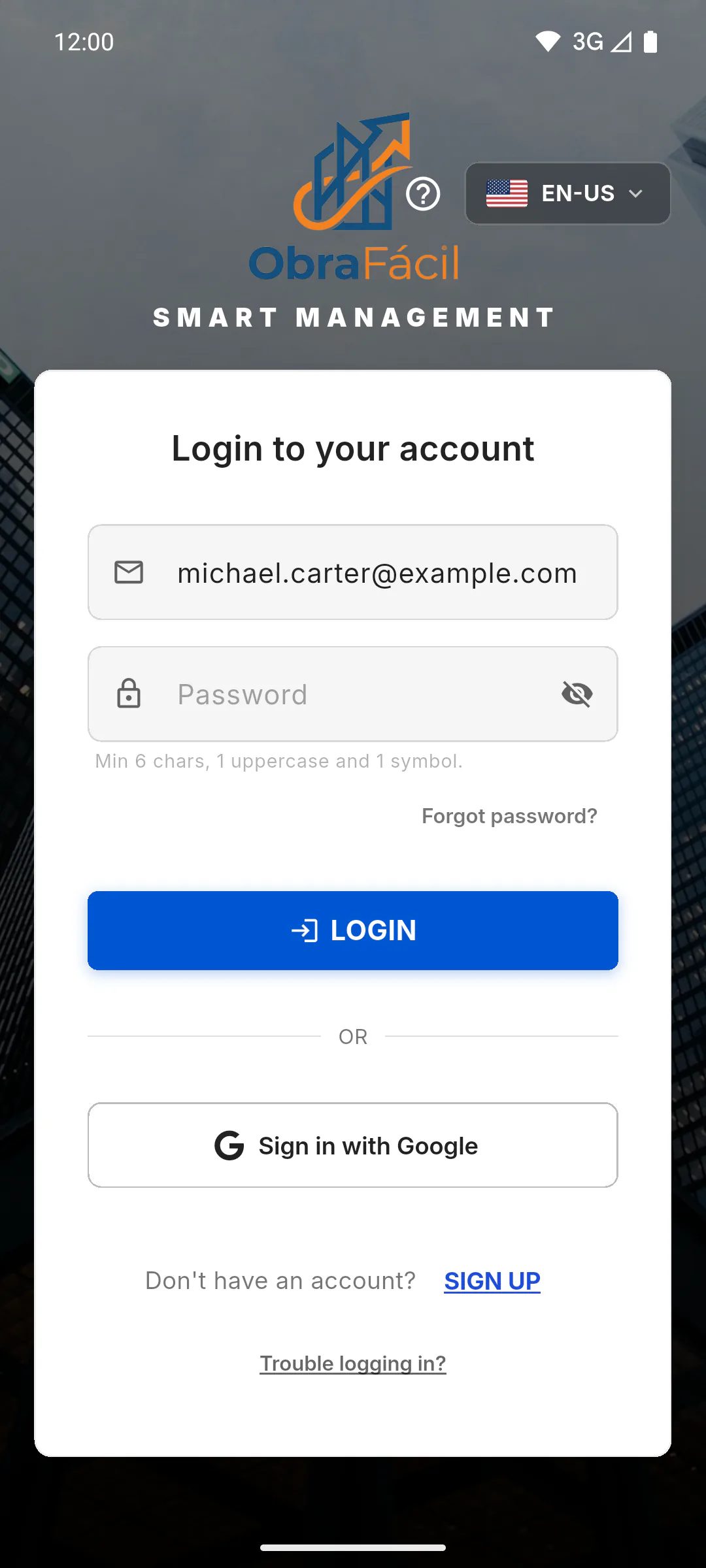
Tap Forgot password?, just below the Password field. If the email field is empty, you'll see Type your email in the field above to recover your password.
Step 3: Check the message
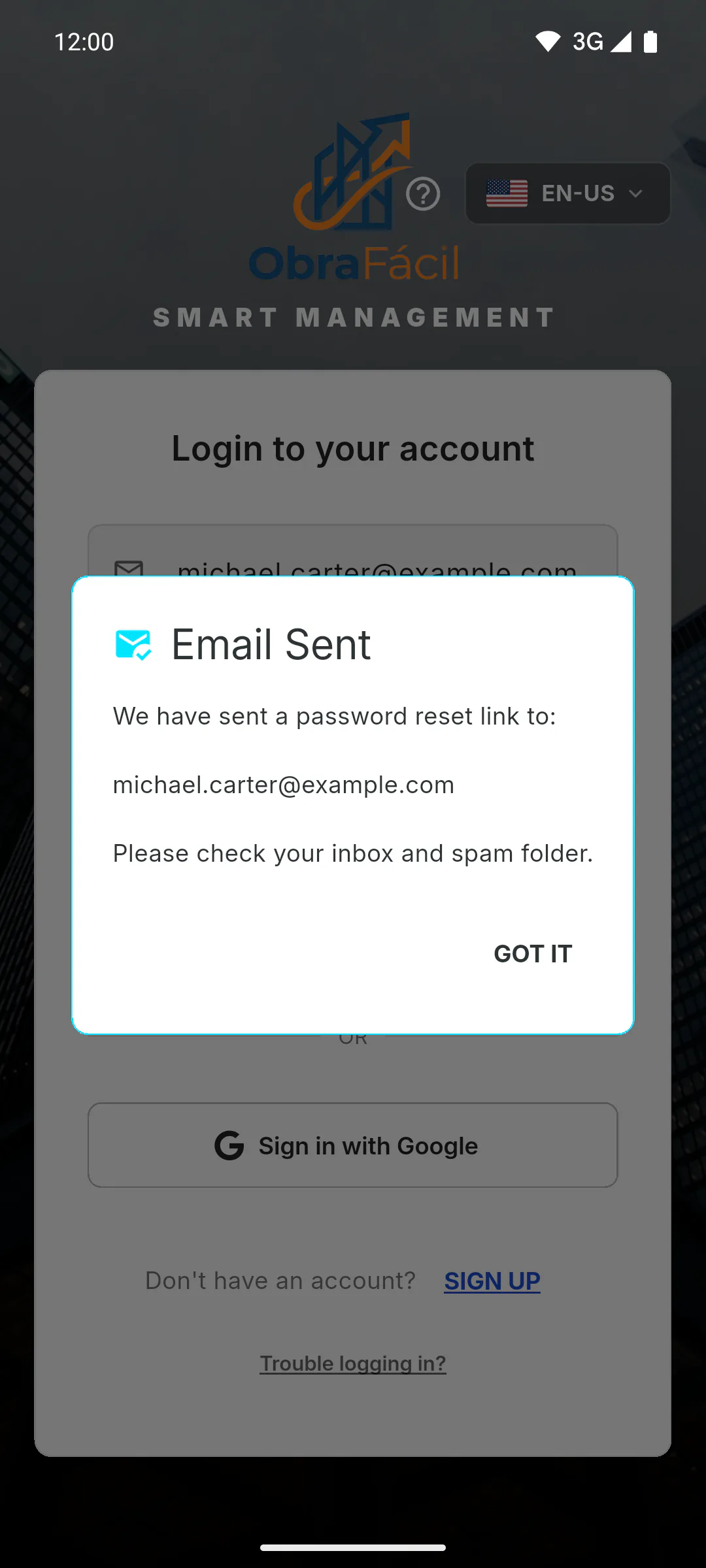
The Email Sent window appears with the address you typed. Tap Got It. For security, this message appears even if there's no account with that email, so make sure the address is right. If it isn't a valid address, you'll see Error sending email. Check the address.
Step 4: Set the new password
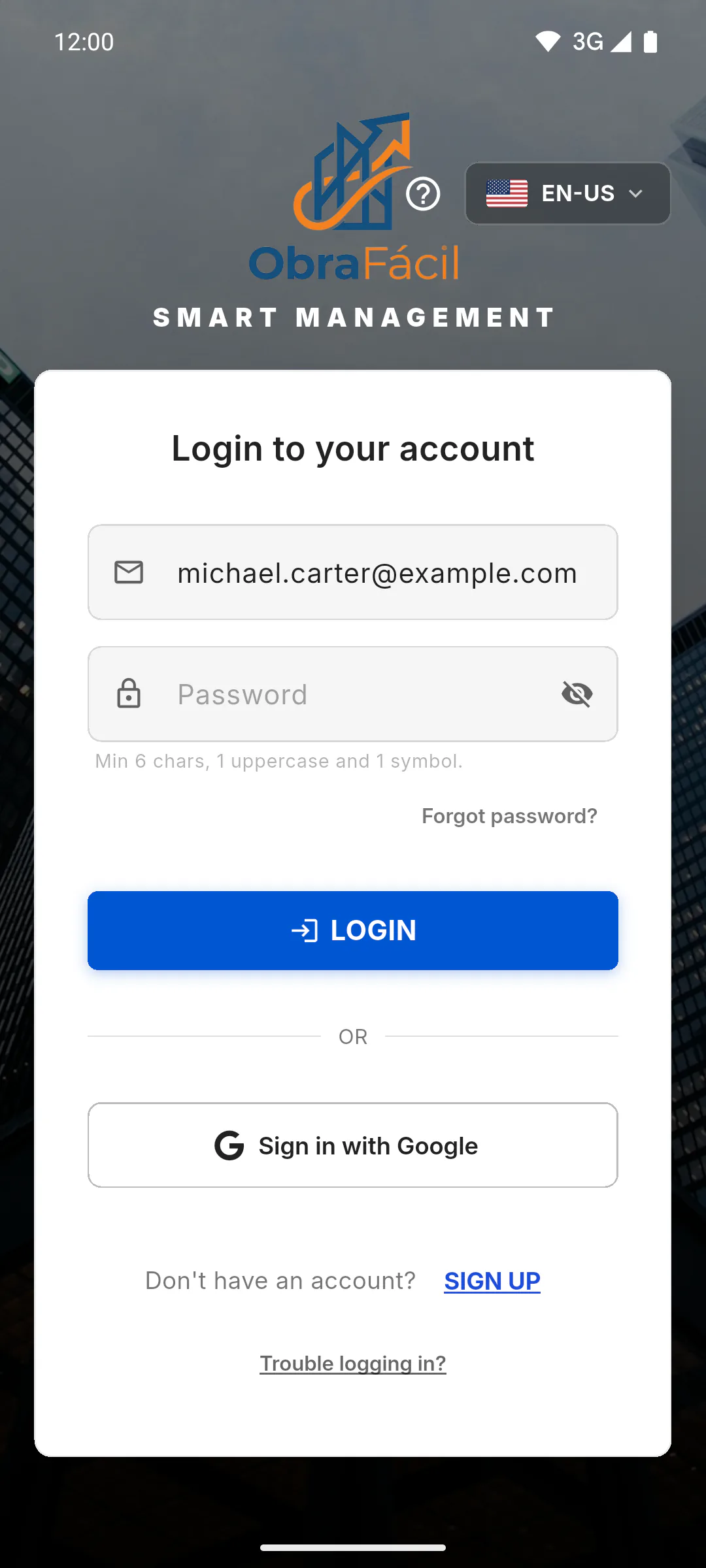
Open the Password Reset - ObraFácil email and tap Create a new password. On the page that opens, type the new password and confirm. Follow the rule shown under the Password field in the app: Min 6 chars, 1 uppercase and 1 symbol. The symbol must be one of these: ! @ # $ % & * ~. Don't start or end the password with a space: the app removes spaces at the ends when you sign in, so that password wouldn't work.
Step 5: If the email doesn't arrive
It can take up to 2 minutes. Check your Spam and Promotions folders too. To ask again, wait at least 1 minute; there's a maximum of 5 requests a day. Requests made too soon or over the limit still show the message, but no email is sent.
Step 6: Sign in with the new password
Go back to the app and sign in with your email and the new password. If you sign in with Google, there's no ObraFácil password to recover: use Sign in with Google; your Google password is recovered through Google. How to sign in with Google or Apple
- Already signed in and just want to change it? How to change your password
How to recover your password
Forgot your password? Request a link from the login screen, set a new password from the email and sign in again. See also what to do if the email doesn't arrive.
For managers, team members and clients6 steps
Didn't find what you were looking for?
Chat with support on WhatsApp or open a ticket right in the app.