
Step 1: Open your team
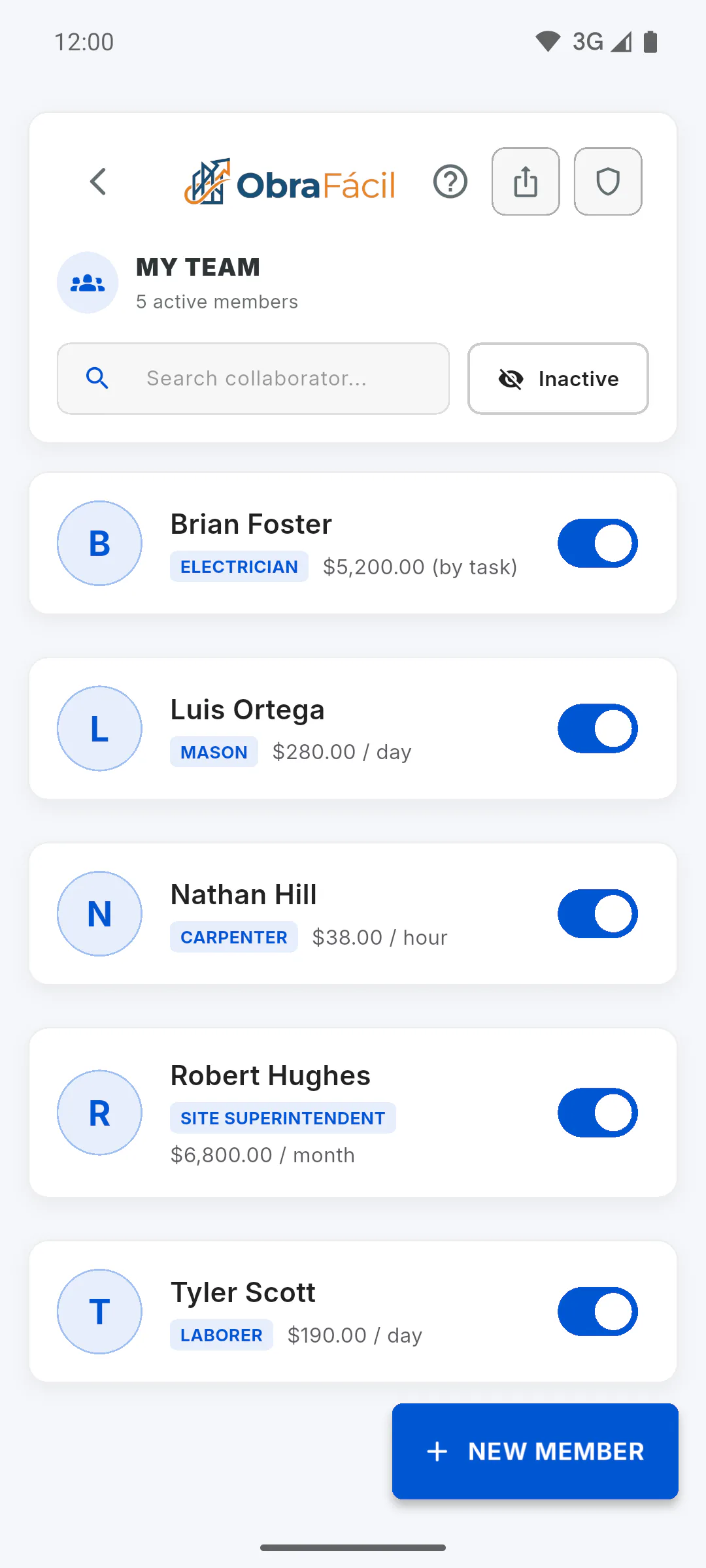
In the side menu, tap My Team. The list shows your active team members with their role and rate. To find someone, type in Search collaborator...: it searches the name, nickname and role.
Step 2: Edit the details
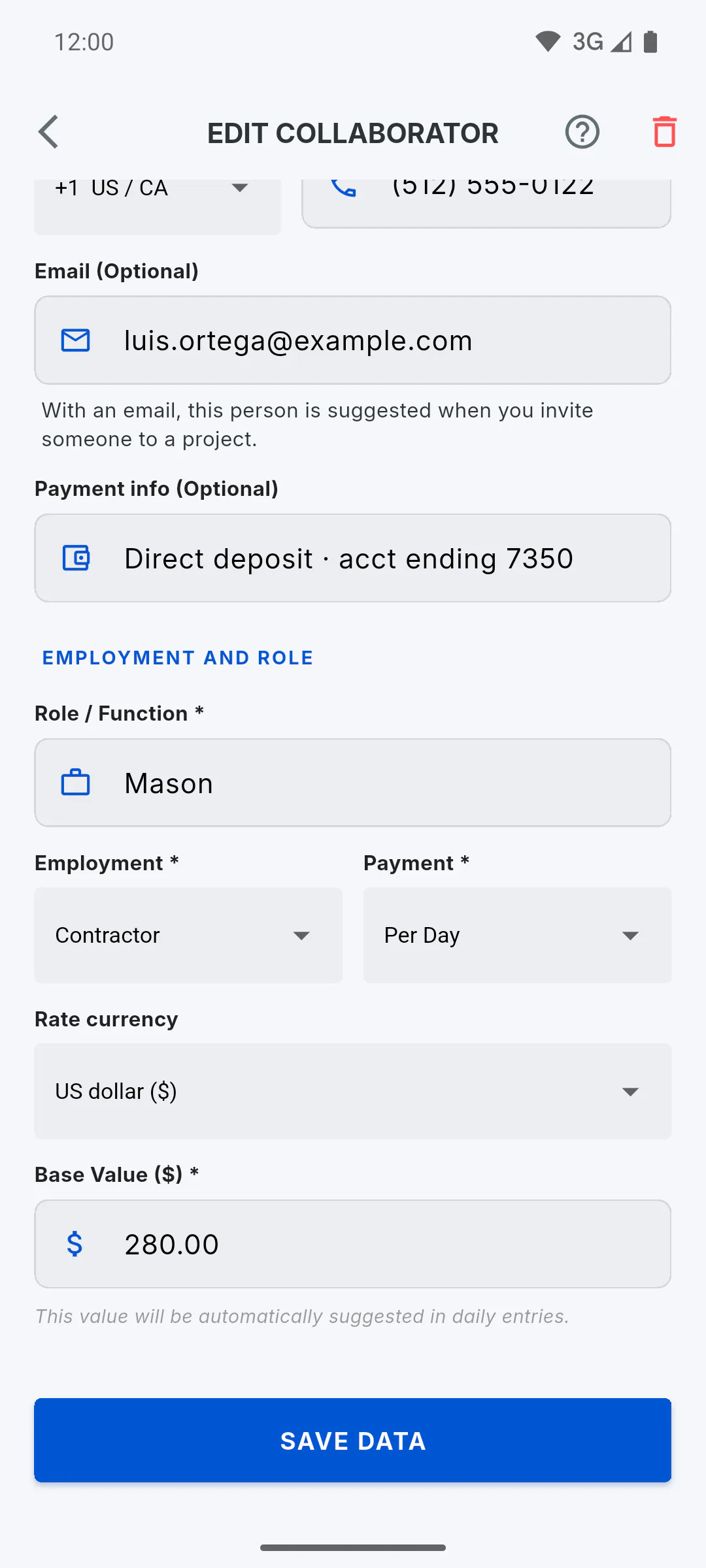
Tap the team member's card to open Edit Collaborator. Change what you need and tap Save Data. If you change the Base Value for someone paid Per Day or Per Hour, daily reports already saved keep the old rate; the new one applies to future reports.
Step 3: Deactivate people who stopped working
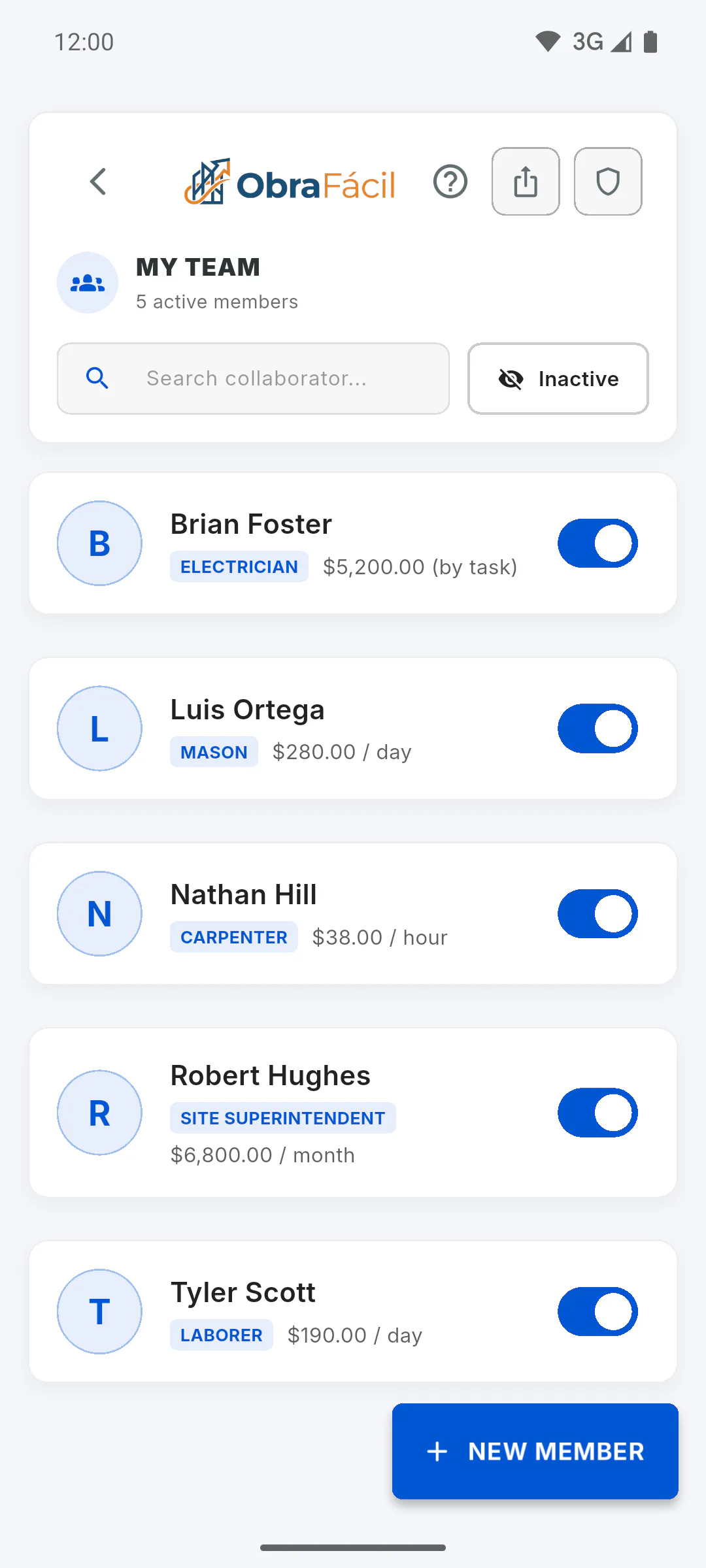
Turn off the switch on the right of the card. The person leaves the list and no longer shows up in the daily report for attendance, but the profile is kept and attendance already recorded still counts in payroll. To see inactive people, tap Inactive: their names are crossed out. To reactivate someone, turn the switch back on.
Step 4: Delete the profile
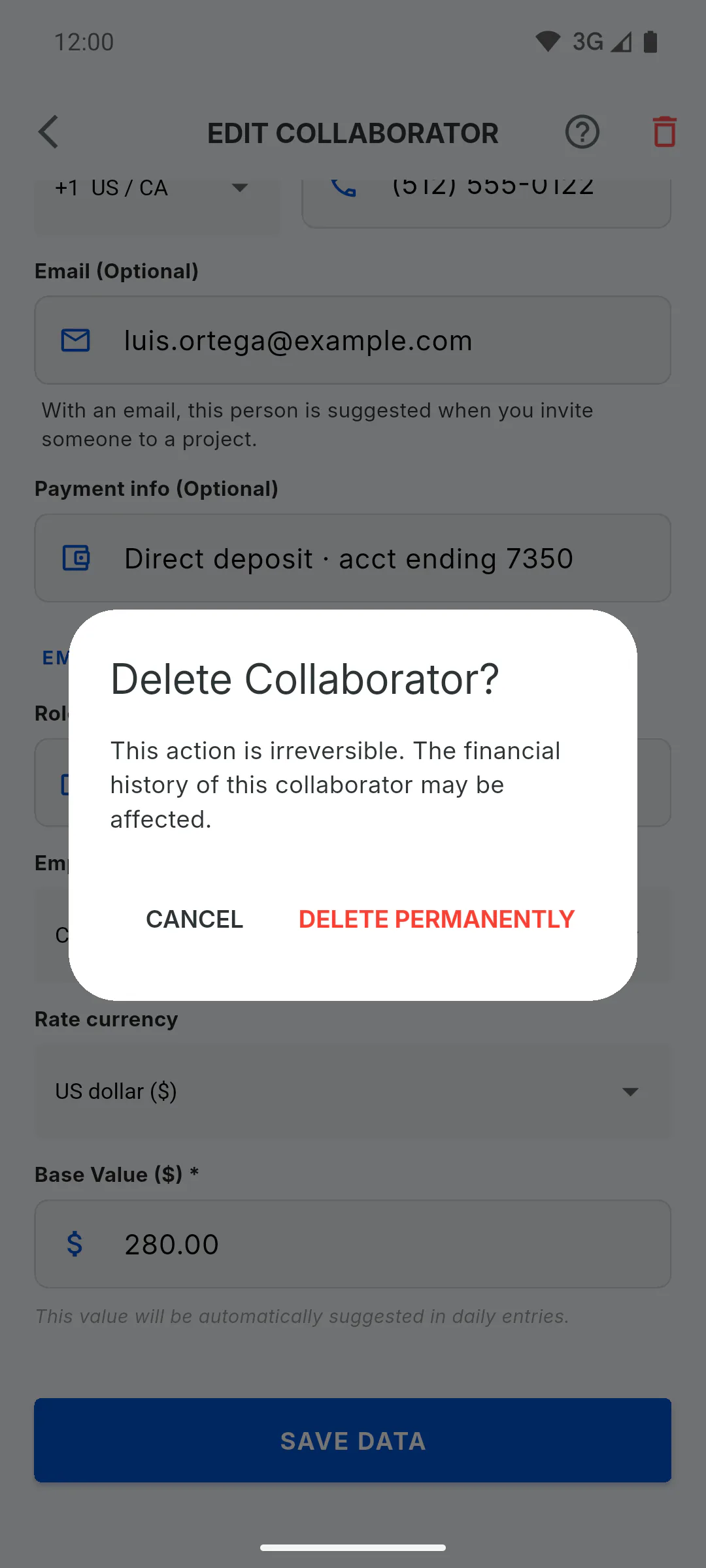
In Edit Collaborator, tap the trash icon at the top (Delete collaborator). Delete Collaborator? appears, warning that this can't be undone and may affect the financial history. Tap Delete Permanently to confirm or Cancel to go back. If the person just stopped working with you, deactivate them instead.
Step 5: Who can change the team
As the team owner, you can do everything. A project guest you've authorized can add, edit and deactivate team members; only you can delete. Without permission, a guest sees the list, but New Member is grayed out with a lock icon. Tapping it or a team member opens a window explaining that you grant editing access in Guest Permissions.
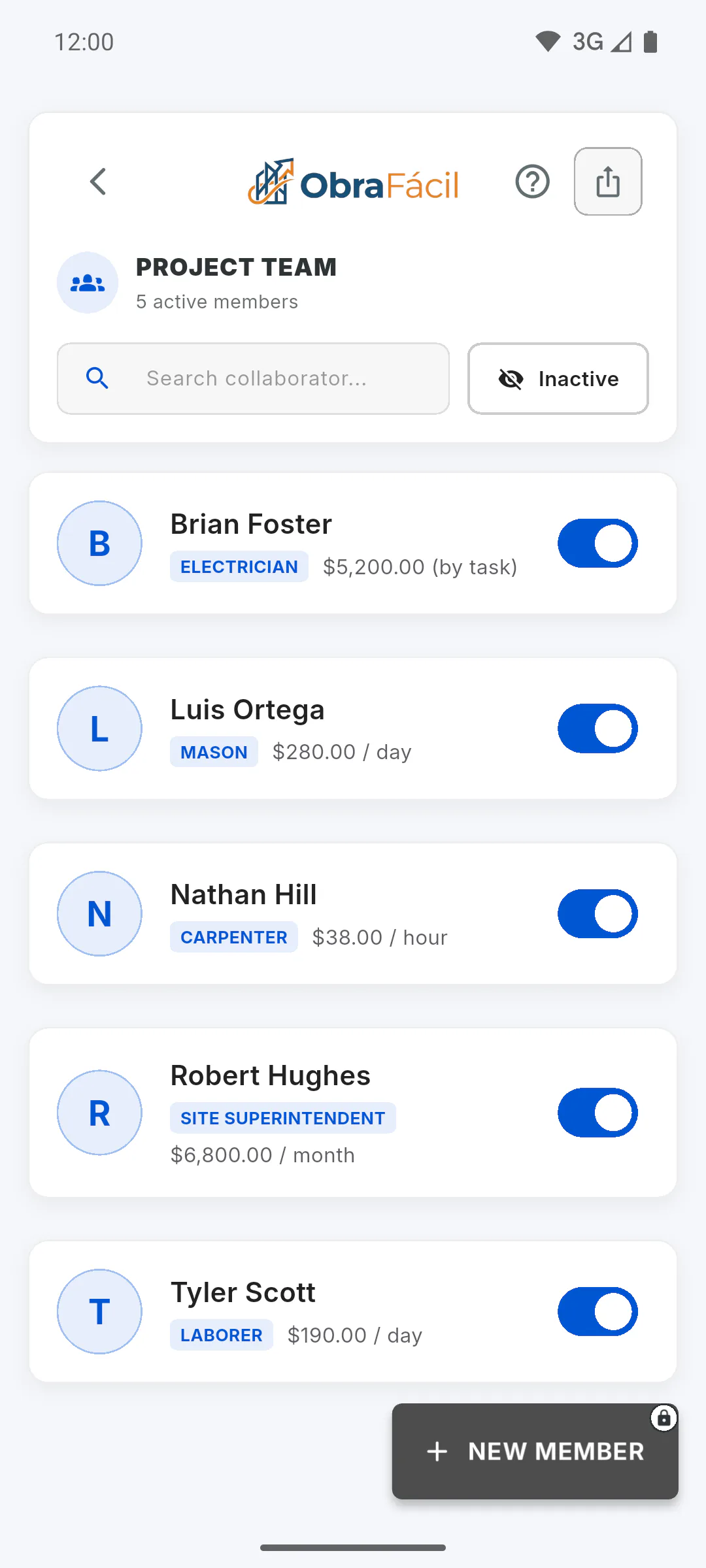
How to edit, deactivate or delete a team member
Change a team member's details, take people who stopped working off the list without losing their history, or delete a profile for good.
For managers5 steps
Didn't find what you were looking for?
Chat with support on WhatsApp or open a ticket right in the app.