
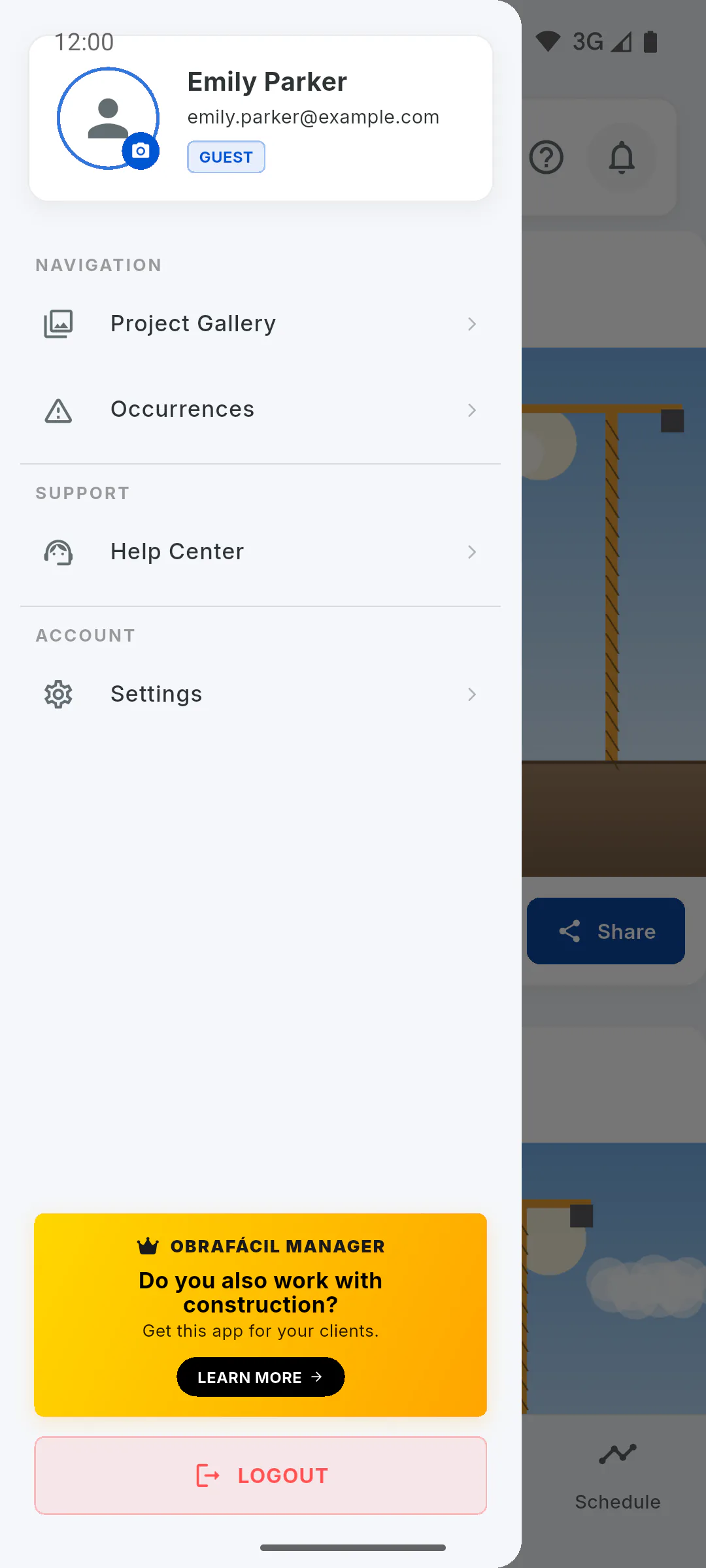
Step 1: Open Occurrences
In the Portal, tap the menu button, then Occurrences. The Tracking screen lists the occurrences you logged and the ones the manager has shared with you. If there are none, you'll see All good!.
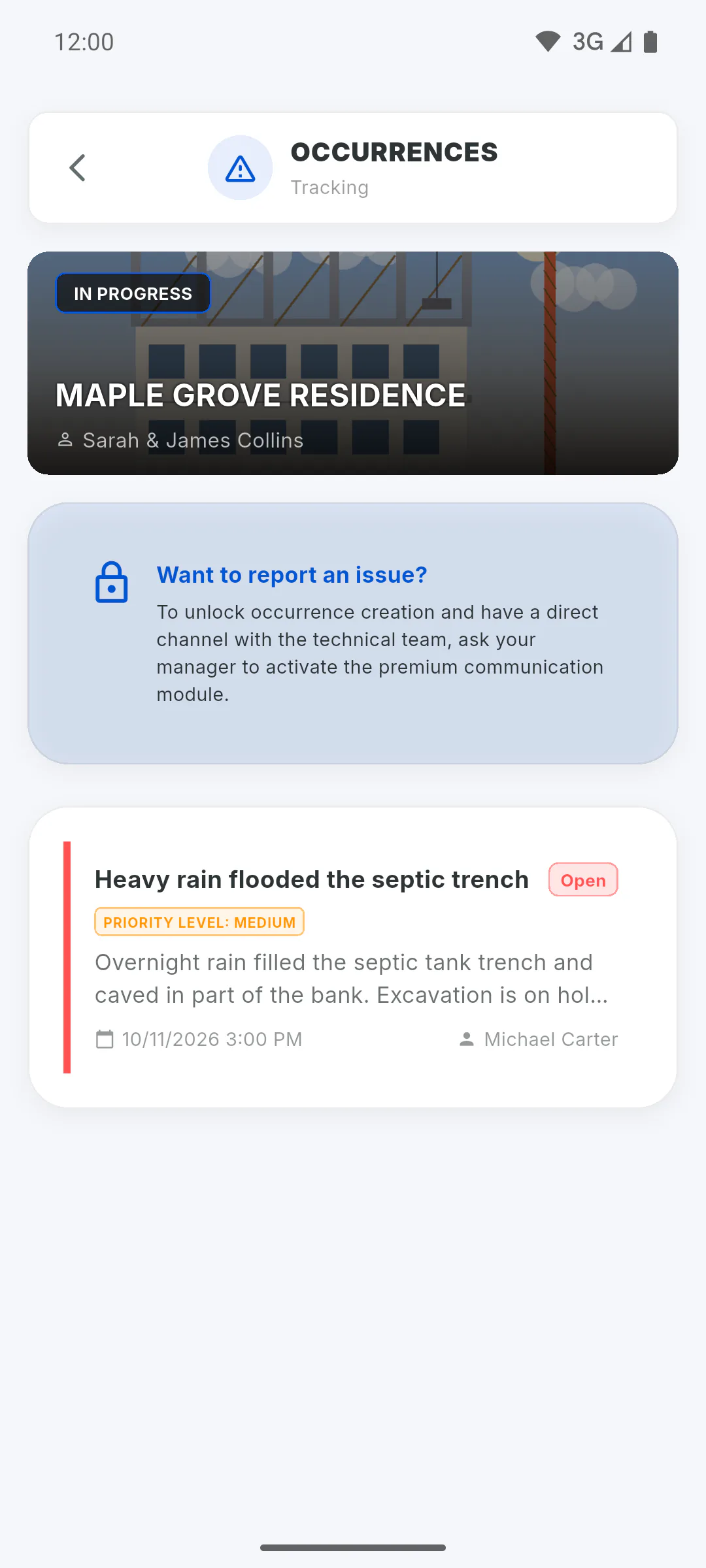
Step 2: If the button isn't there
If you see Want to report an issue? instead of the New Occurrence button, the manager hasn't allowed you to log occurrences yet. Ask them to turn it on. In the meantime, you can still see the occurrences they share with you.
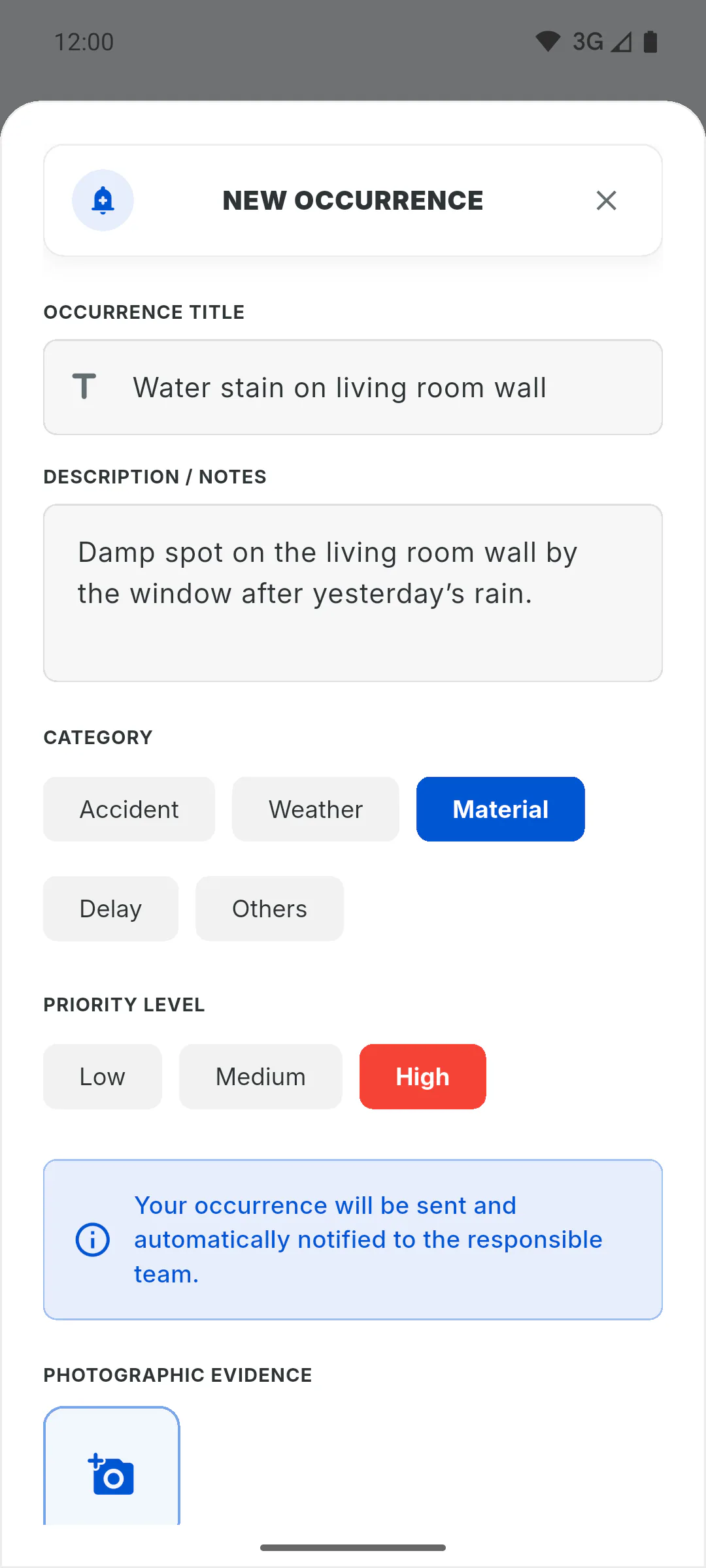
Step 3: Describe the problem
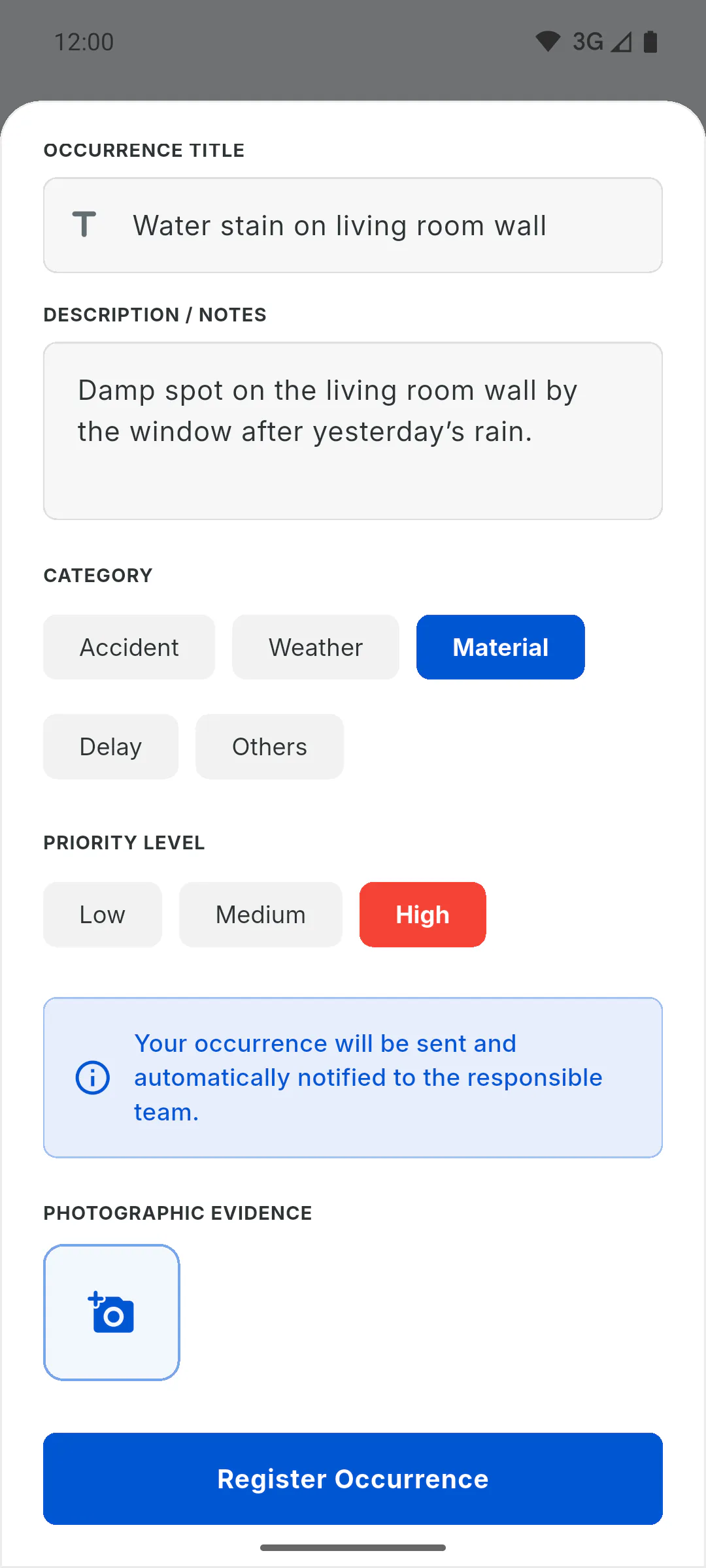
Tap New Occurrence. Fill in Occurrence Title and Description / Notes; both are required.
- Under Category, choose Accident, Weather, Material, Delay or Others.
- Under Priority Level, choose Low, Medium or High.
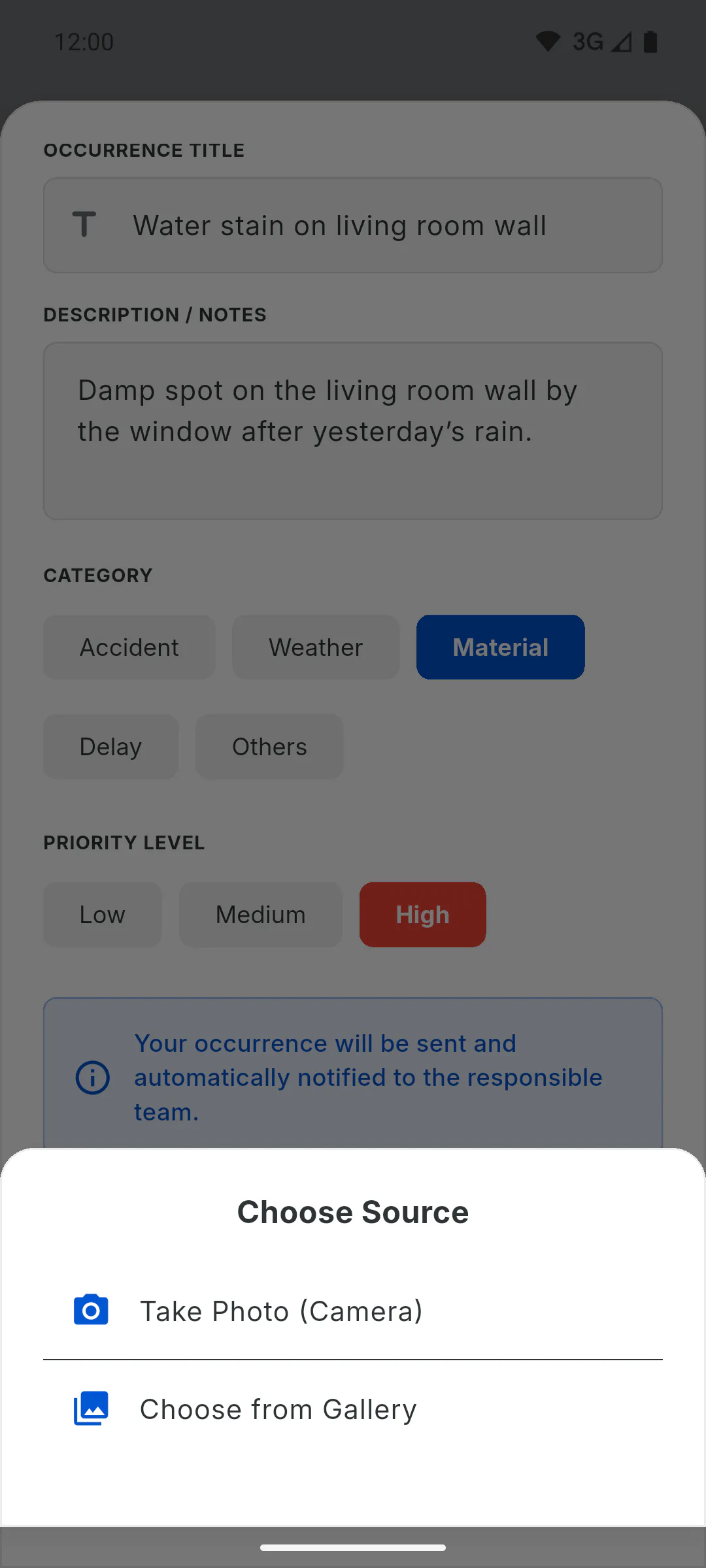
Step 4: Add photos
Under Photographic Evidence, tap the square with the camera and choose Take Photo (Camera) or Choose from Gallery. Tap the red X to remove a photo. Photos are optional.
Step 5: Submit it
You don't need to choose who to notify: the form shows Your occurrence will be sent and automatically notified to the responsible team. Tap Register Occurrence. Photos upload in the background, and the occurrence only shows up in the list once they've all been sent: keep the app open and online until it appears.
Step 6: Follow the resolution
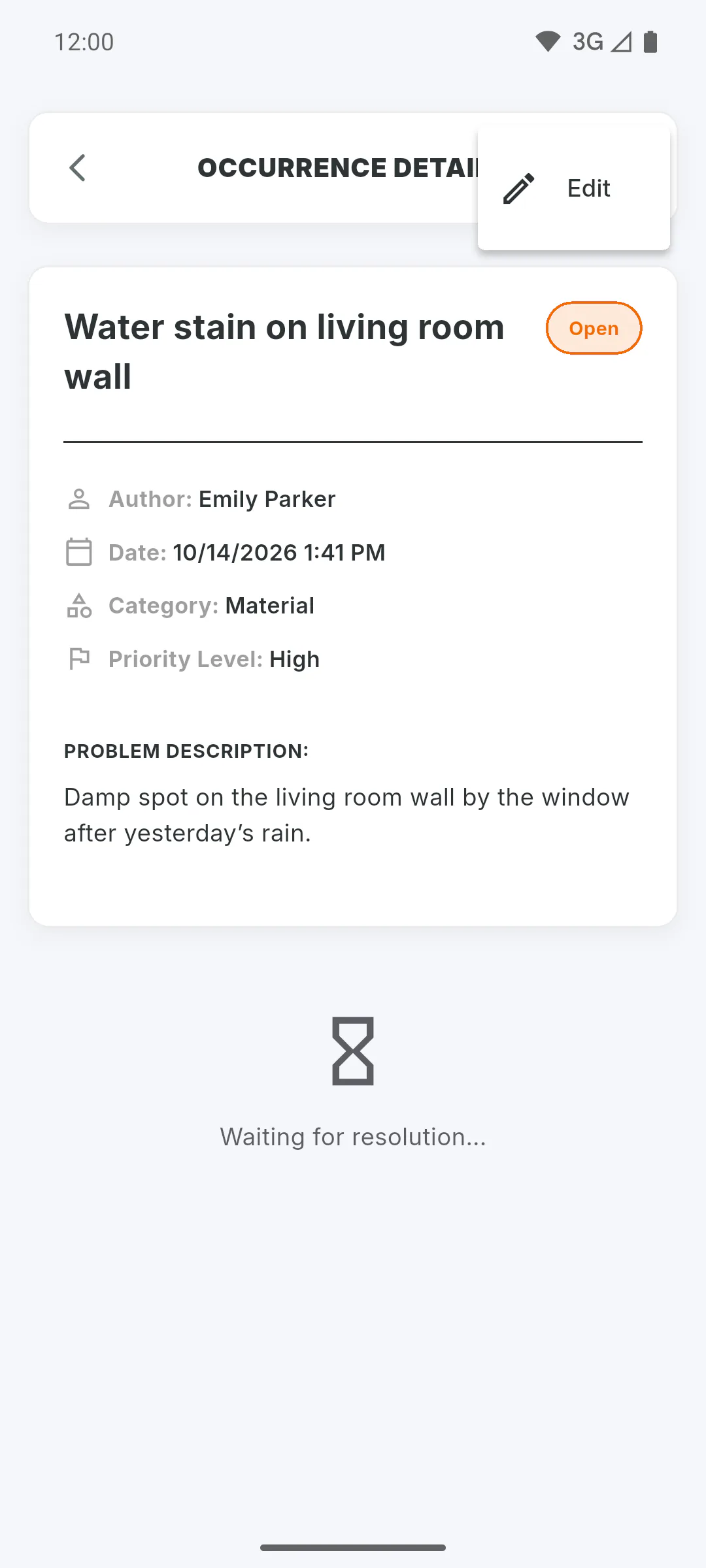
Tap the occurrence to see its details. While it's open, you'll see Waiting for resolution..., and you can correct one you logged from the three-dot menu, under Edit. When the team resolves it, you get a notification in the bell and can see the solution in the details.
How to log an occurrence in the Portal
Tell the project team about a problem from the Client Portal: describe it, pick a category and priority, add photos and follow it until it's resolved.
For clients6 steps
Didn't find what you were looking for?
Chat with support on WhatsApp or open a ticket right in the app.