
Step 1: Pick an option
On the Login to your account screen, below Or, tap Sign in with Google. On iPhone, iPad and Mac you'll also see Sign in with Apple; that button doesn't show up on Android, Windows or in a web browser.
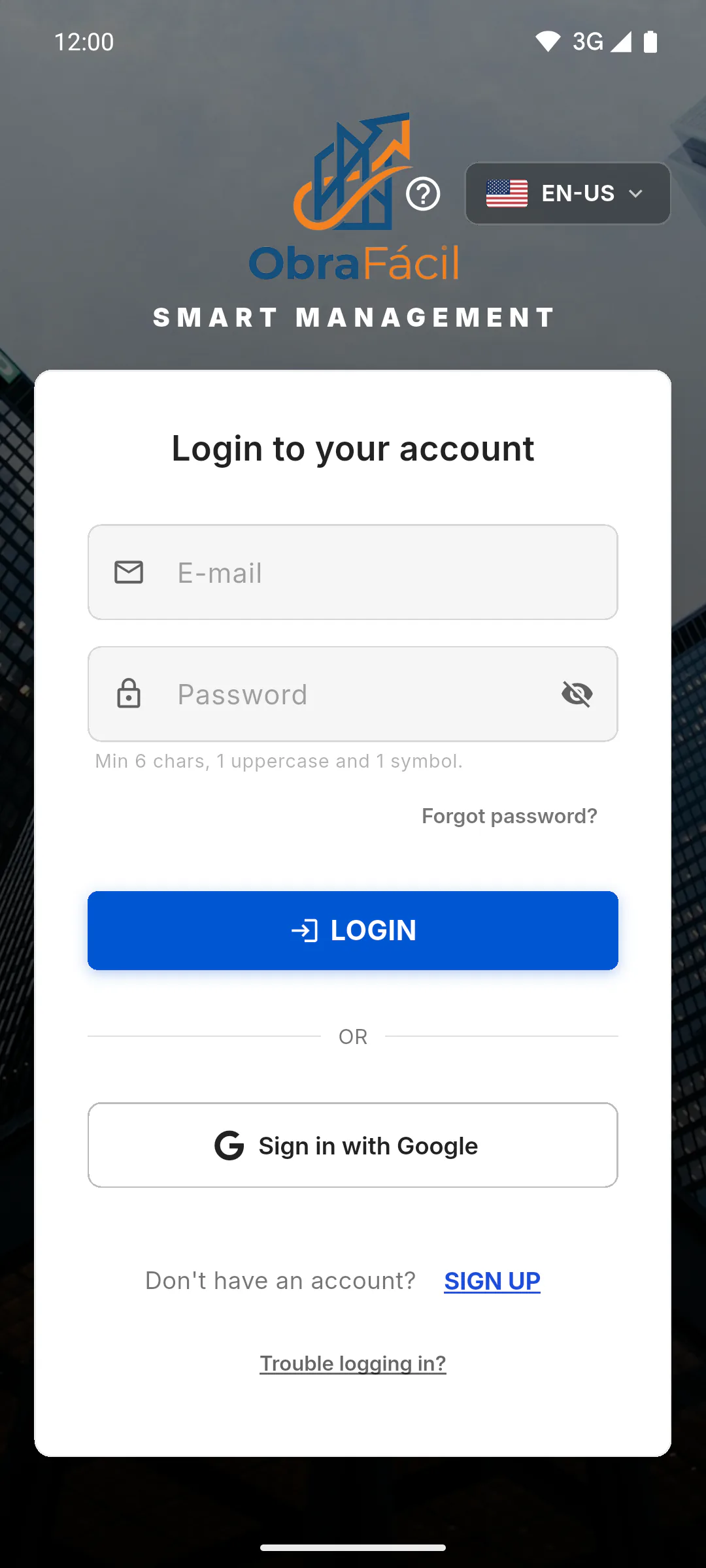
Step 2: Choose your account
Choose the account in the Google window or confirm with your Apple ID. Meanwhile, Waiting... appears with a 40-second countdown and a Cancel button. If time runs out, tap the button again to retry.
Step 3: The first time, finish signing up
The first time, the Almost there! screen opens with your email already filled in (and your name, when the account provides it). The email is locked and there are no password fields. Fill in the account type, country, ID and WhatsApp / Mobile, check the terms box and tap Finish Registration.
- The fields are the same as in the email sign-up: How to create your ObraFácil account
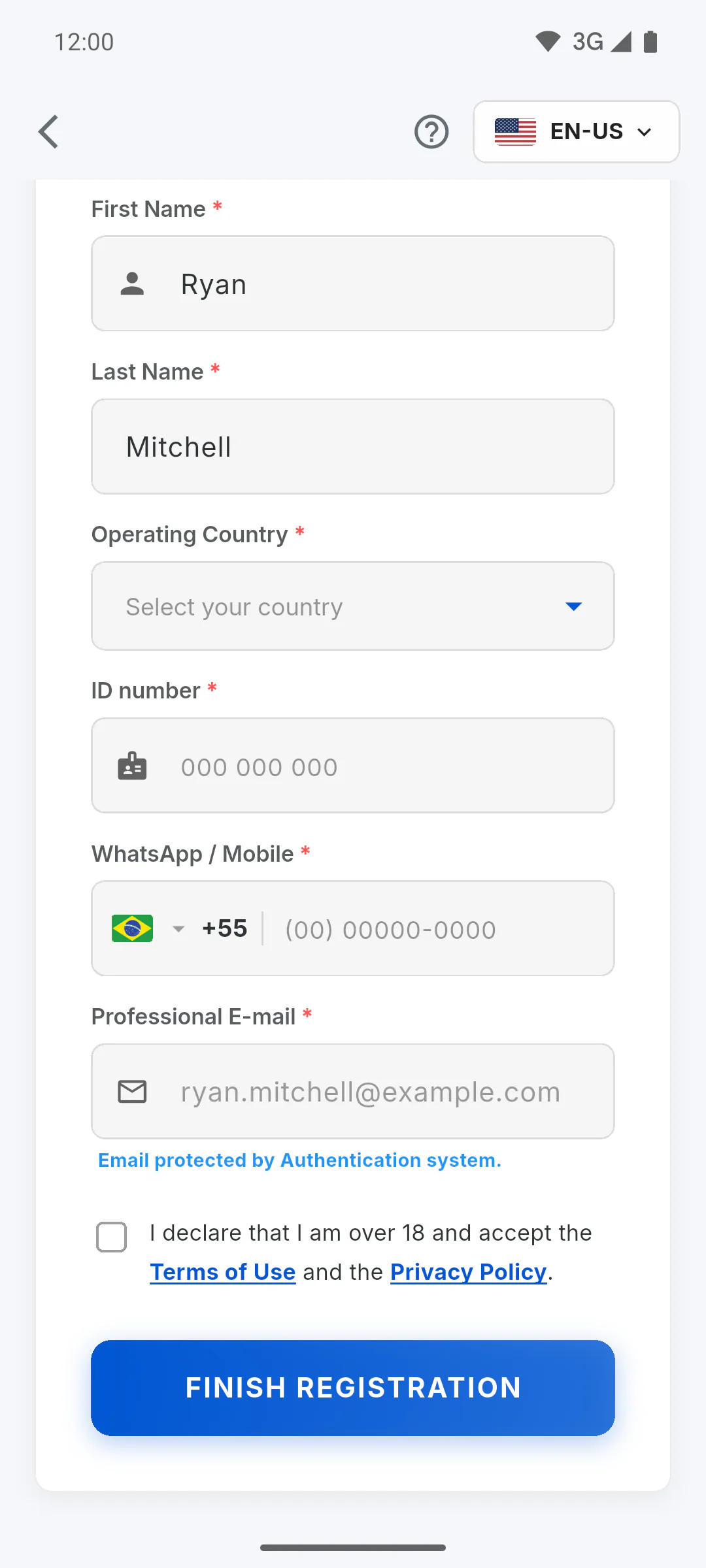
Step 4: If you change your mind
In the app, the back arrow at the top of the Almost there! screen cancels the sign-up and takes you back to the login screen.
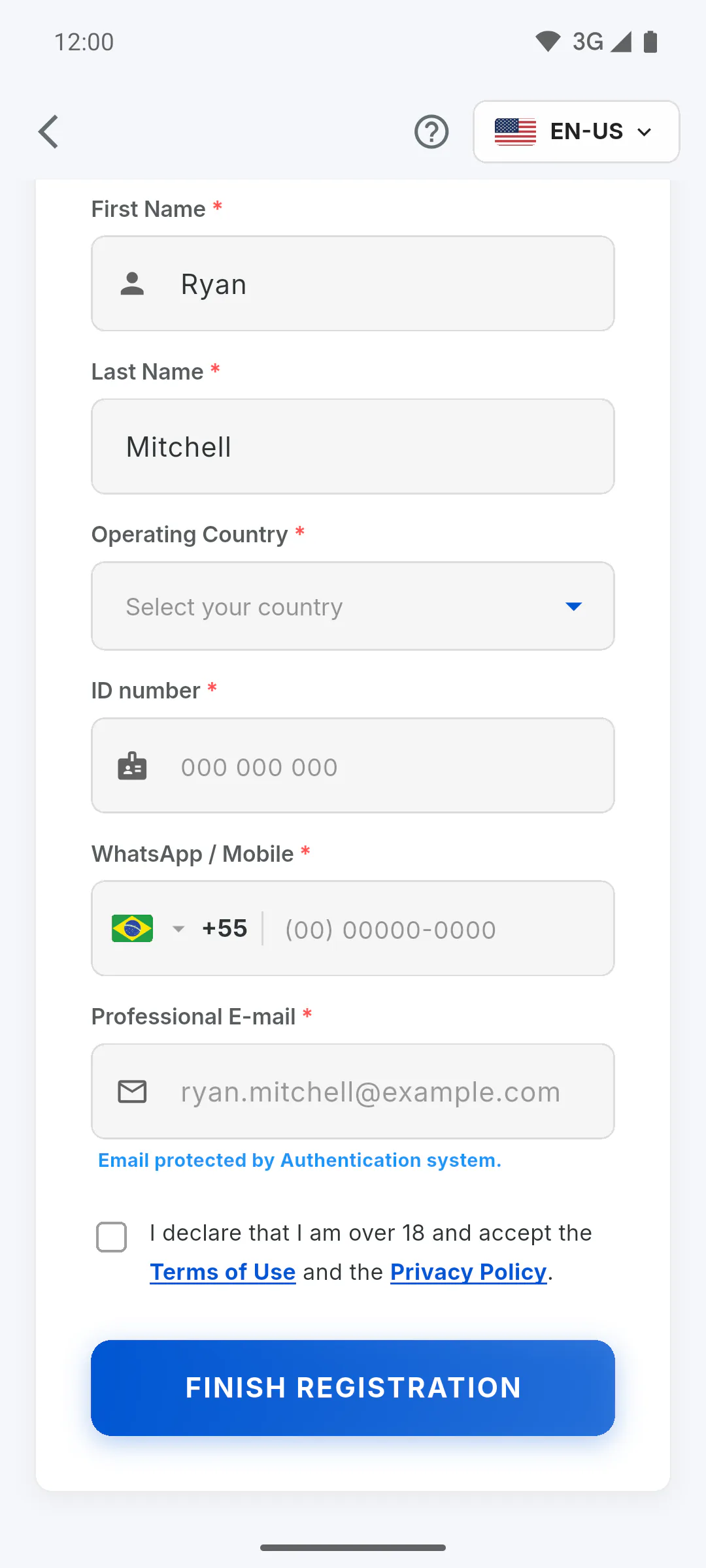
Step 5: Next time
Tap the same button and pick the same account: the app goes straight to your home screen. Which screen the app opens for each profile when you sign in
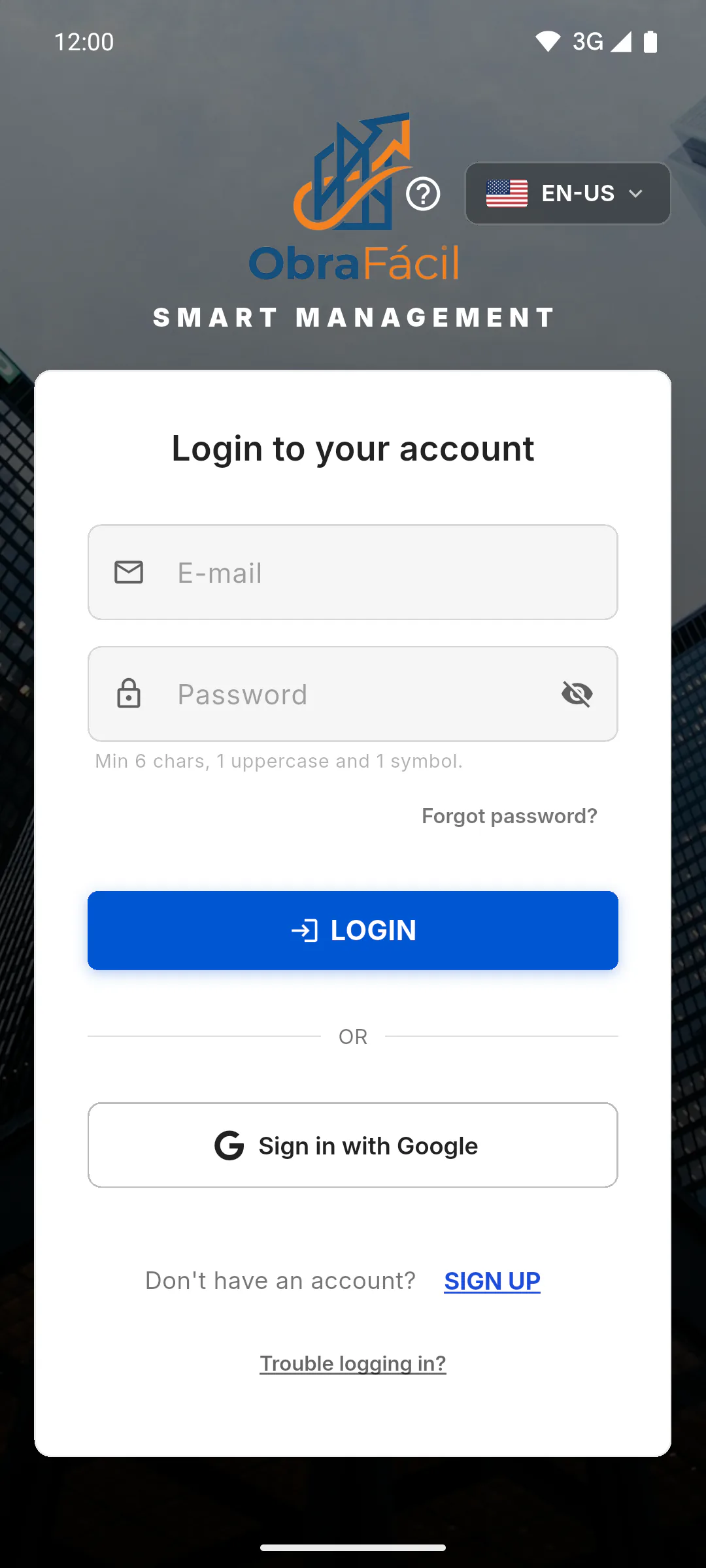
Step 6: What about the password?
If you sign in with Google, you don't have an ObraFácil password: access uses your Google account. That's why the Change password row doesn't show up in Profile. How to change your password
How to sign in with Google or Apple
Use your Google account, or your Apple ID on iPhone, iPad and Mac, to sign in without creating an ObraFácil password. The first time, the app asks for a few details to finish your registration.
For managers, team members and clients6 steps
Didn't find what you were looking for?
Chat with support on WhatsApp or open a ticket right in the app.