
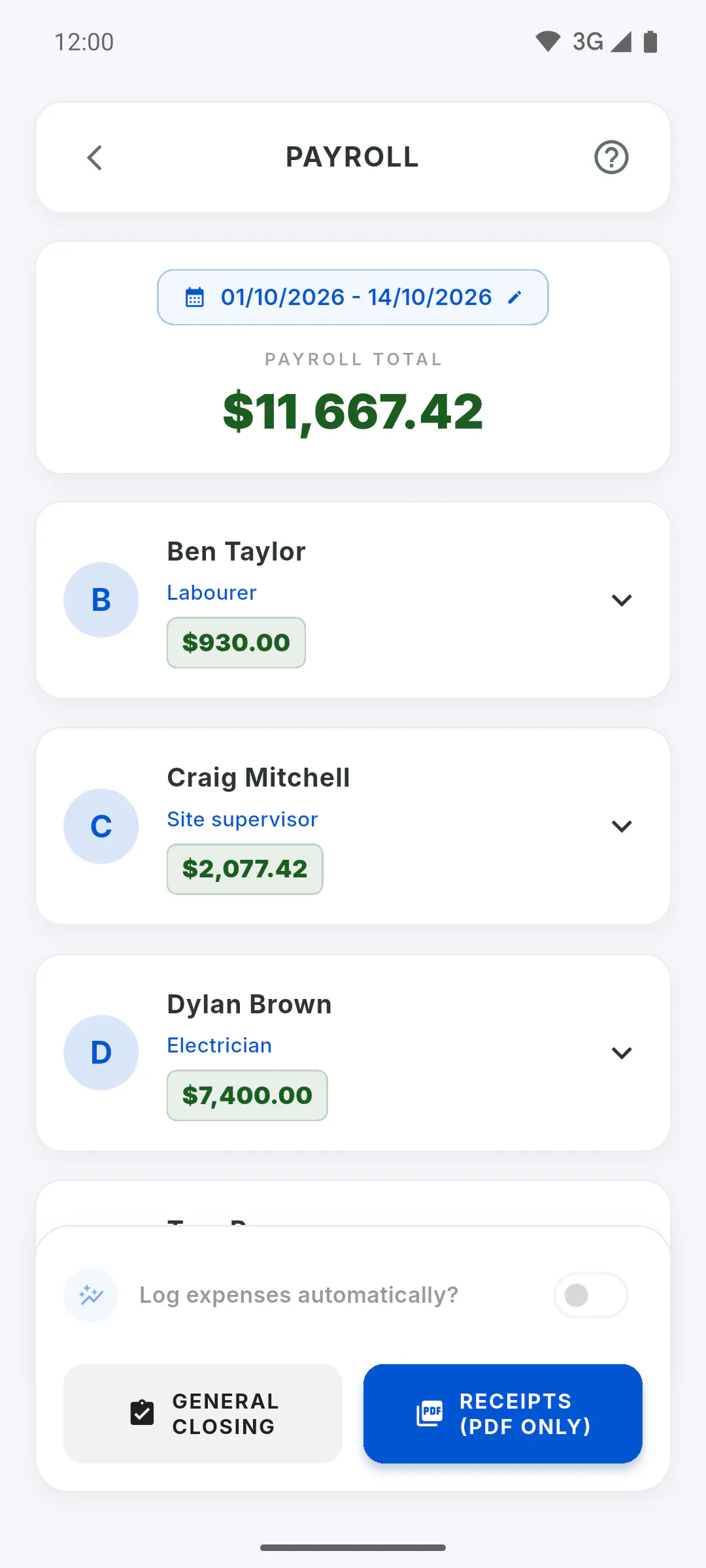
Step 1: Open the print options
On the payroll's bottom bar, tap Receipts (PDF Only). Print Settings opens. You get one pay slip per team member whose rate is in the project currency; anyone in another currency is left out. If nobody is in the project currency, a warning appears and nothing is generated.
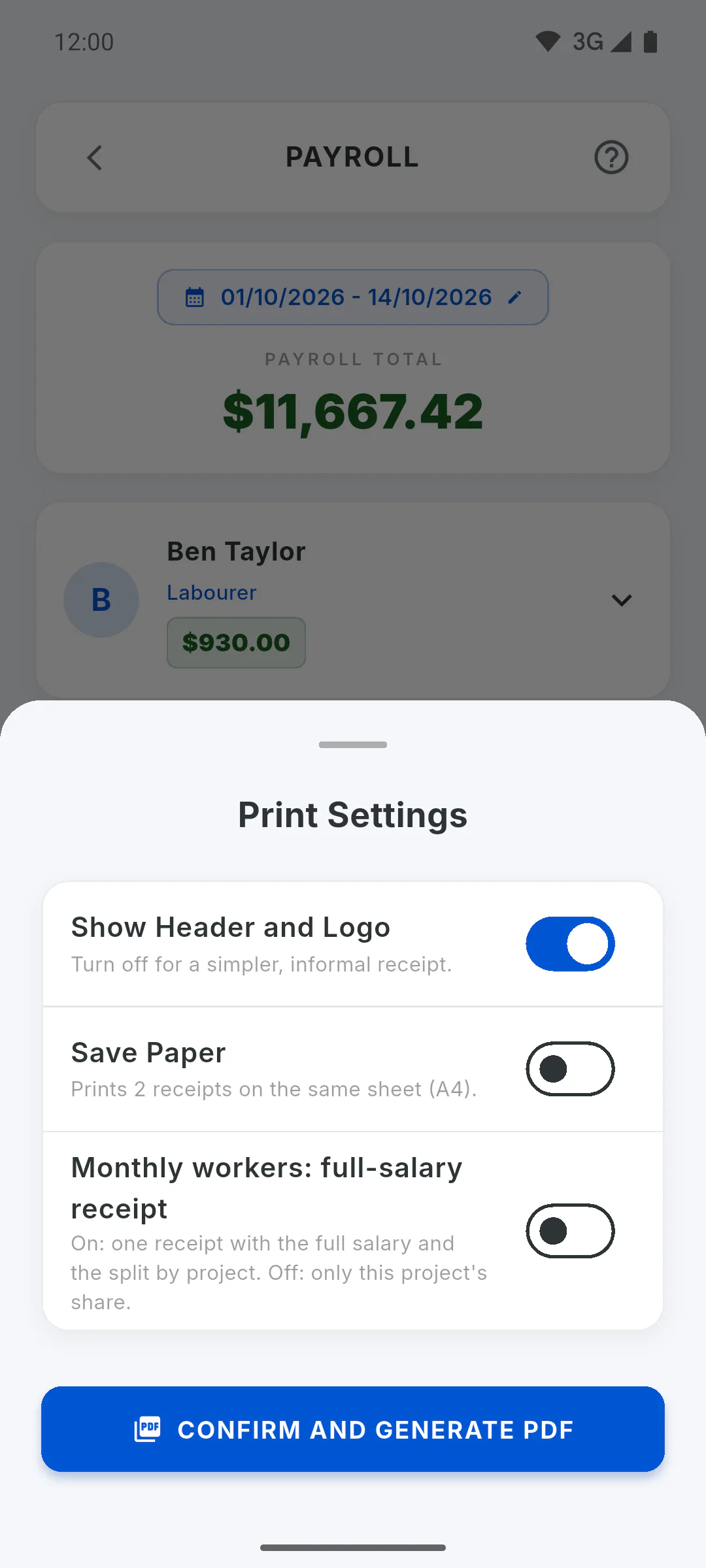
Step 2: Choose the layout
- Show Header and Logo: turn it off for a simpler slip, with no header or footer
- Save Paper: two slips per sheet (A4, or Letter for accounts in the US, Canada, Mexico, Chile and Colombia), split by a cut line
- Monthly workers: full-salary receipt: only appears when a monthly worker's salary is split across projects. On, the slip shows the full salary and the split by project; off, only this project's share
Step 3: Generate the PDF
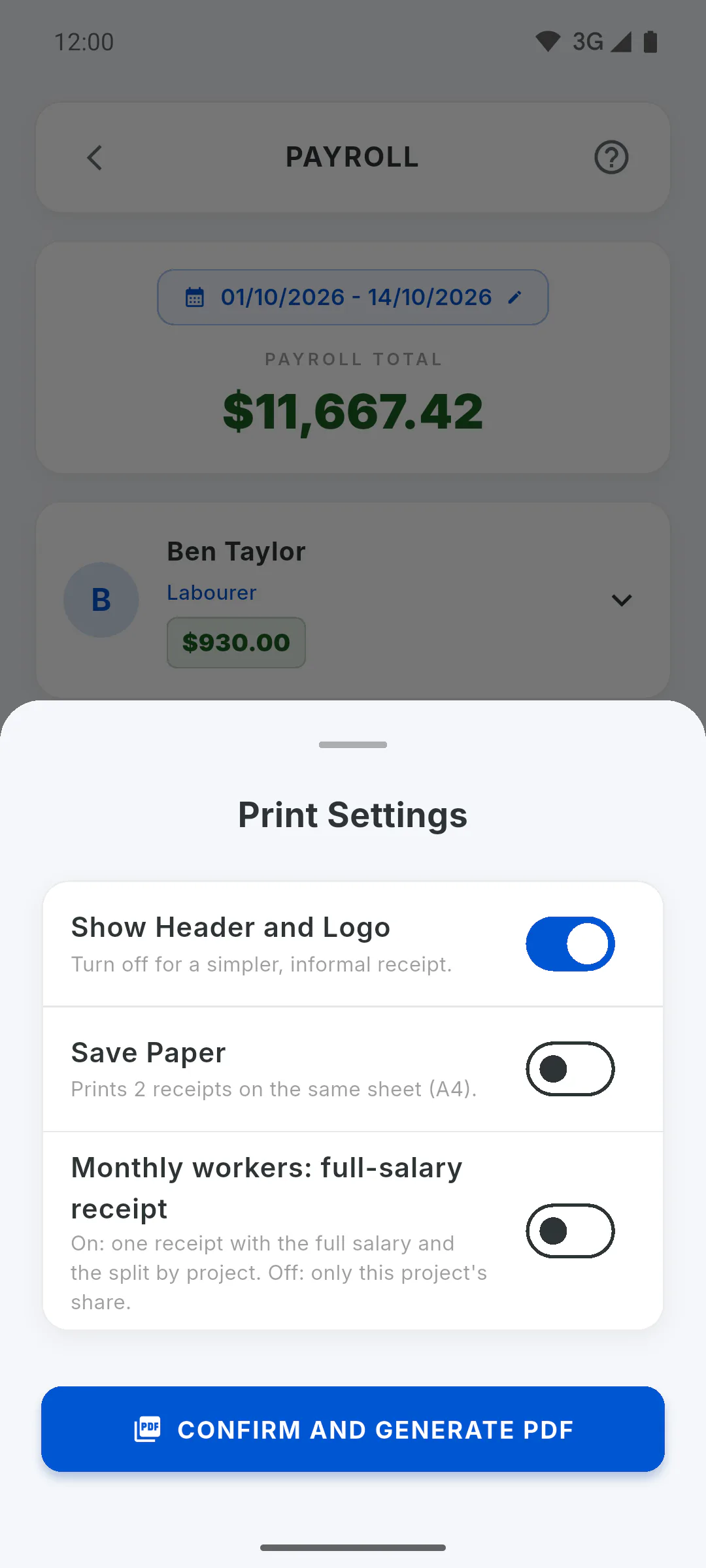
Tap Confirm and Generate PDF. On a mobile and on the web, the app opens the options to save or share the file; on a computer, choose where to save it and the PDF opens next. Pay slips don't count towards the free plan's report limit, but they do carry a watermark: PDF report limit and watermark on the free plan
Step 4: What's on the pay slip
Each slip has Payment Receipt, the period, name and role, days or hours, the unit rate, the base total and the day-by-day breakdown. Below are advances and the bonus, with up to 10 dated payments (4 with Save Paper; older ones are added up on one line), the Net to Receive (for by-task work, Balance Due), the receipt statement, a note that the receipt doesn't replace a payslip or any other payment document required by law, and signature lines. The project name shows on the slip and in the file name.
Step 5: Log bonuses as expenses
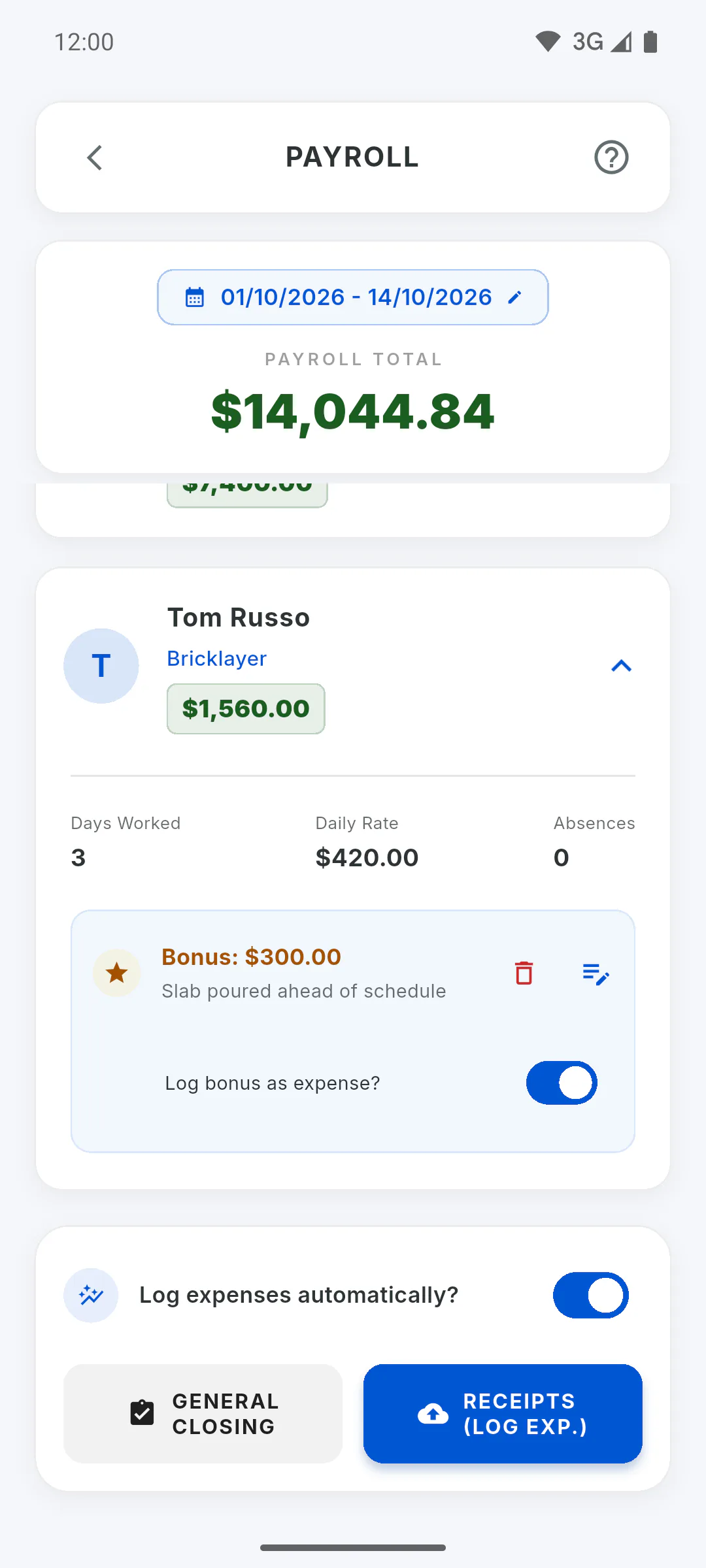
If any bonus has Log bonus as expense? on, the Log expenses automatically? switch on the bottom bar becomes active. Turn it on: the button changes to Receipts (Log Exp.). When you generate, each marked bonus becomes an expense in Financial, dated today, with no phase and the description Bonus/Extra (reason) - name. Day rates, salaries and balances are never logged automatically. Only the project owner can log entries in Financial: for an invited engineer, both switches are greyed out with a padlock, and tapping them opens a window showing their role on the project and who can use them.
Step 6: Duplicate warning
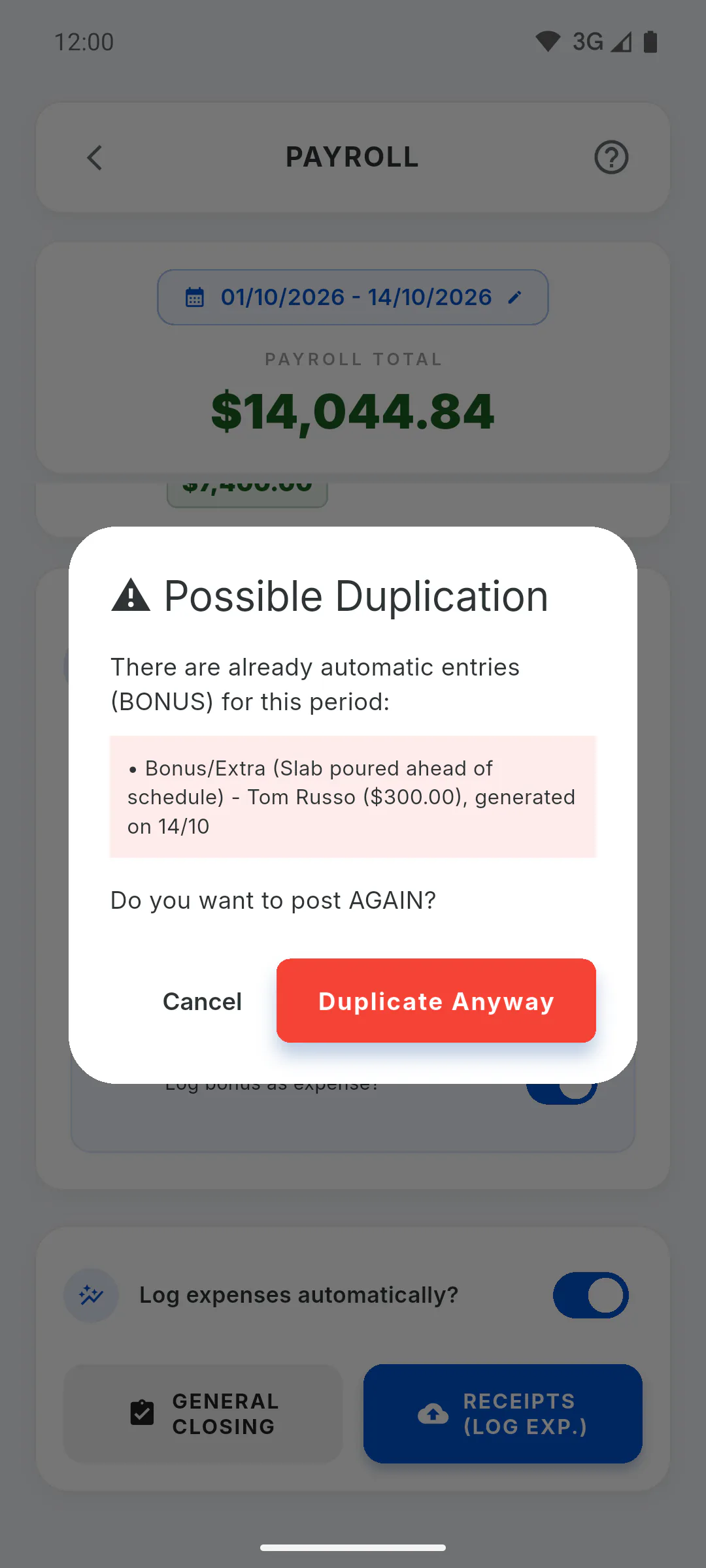
If payroll already logged bonuses for the same period, Possible Duplication appears with a list of what was logged. Tap Cancel to log nothing and skip the pay slips, or Duplicate Anyway to log again and generate the PDF. To just print again, turn off Log expenses automatically? first.
How to generate pay slips and log them as expenses
Generate a PDF pay slip for each team member on payroll, choose the print layout and, if you like, log bonuses as expenses in Financial.
For managers6 steps
Didn't find what you were looking for?
Chat with support on WhatsApp or raise a ticket in the app.