
Step 1: The card icons
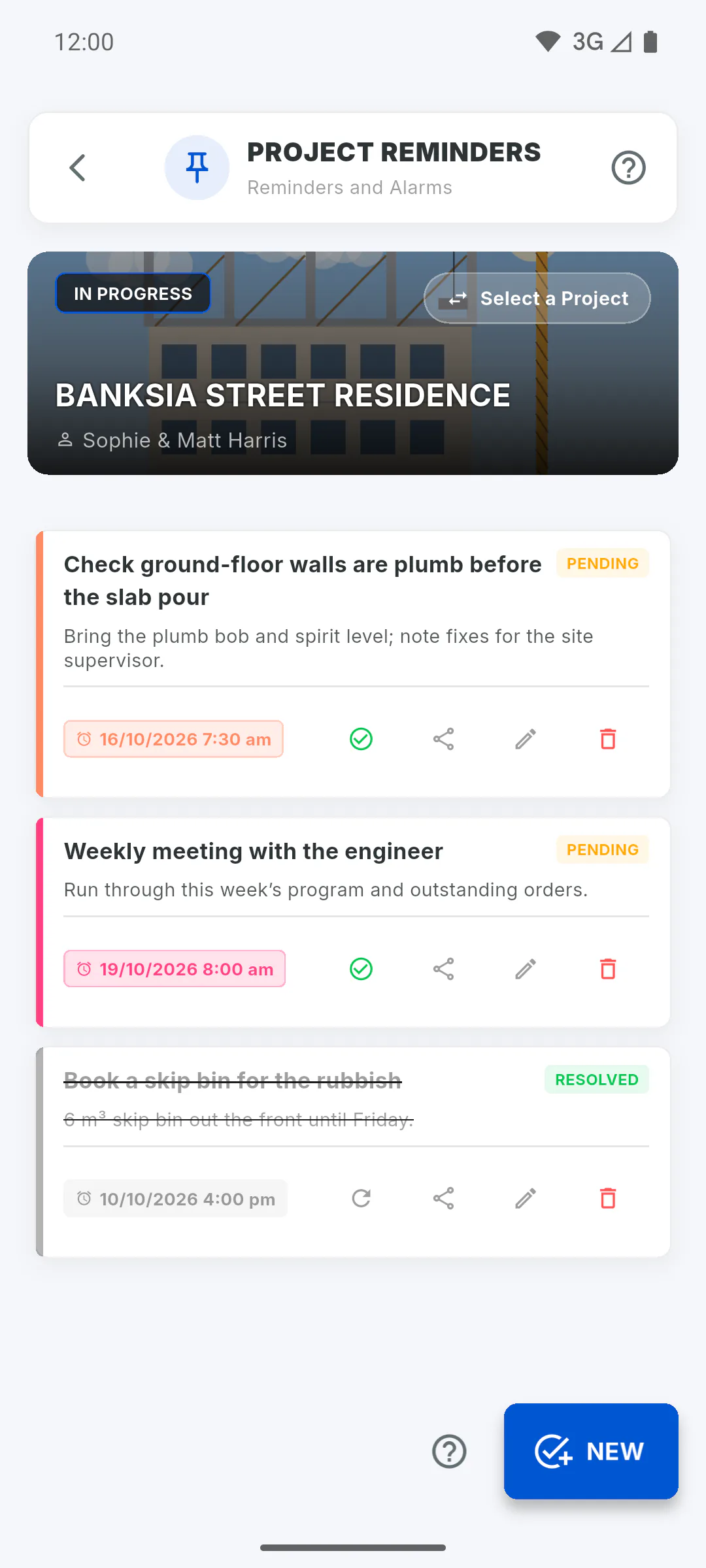
In Project Reminders, each card has icons along the bottom right. Press and hold an icon (or hover over it with the mouse) to see its name: Resolve or Reopen, Share, Edit and Delete. Pending reminders come first; pull the list down to refresh.
Step 2: Resolve and reopen
Tap the check mark icon (Resolve): the reminder is crossed out, gets the Resolved label, and its alarm is cancelled on this device. To undo it, tap the circular arrow icon (Reopen): the alarm is set again on this device if it repeats or its date hasn't passed yet.
Step 3: Share
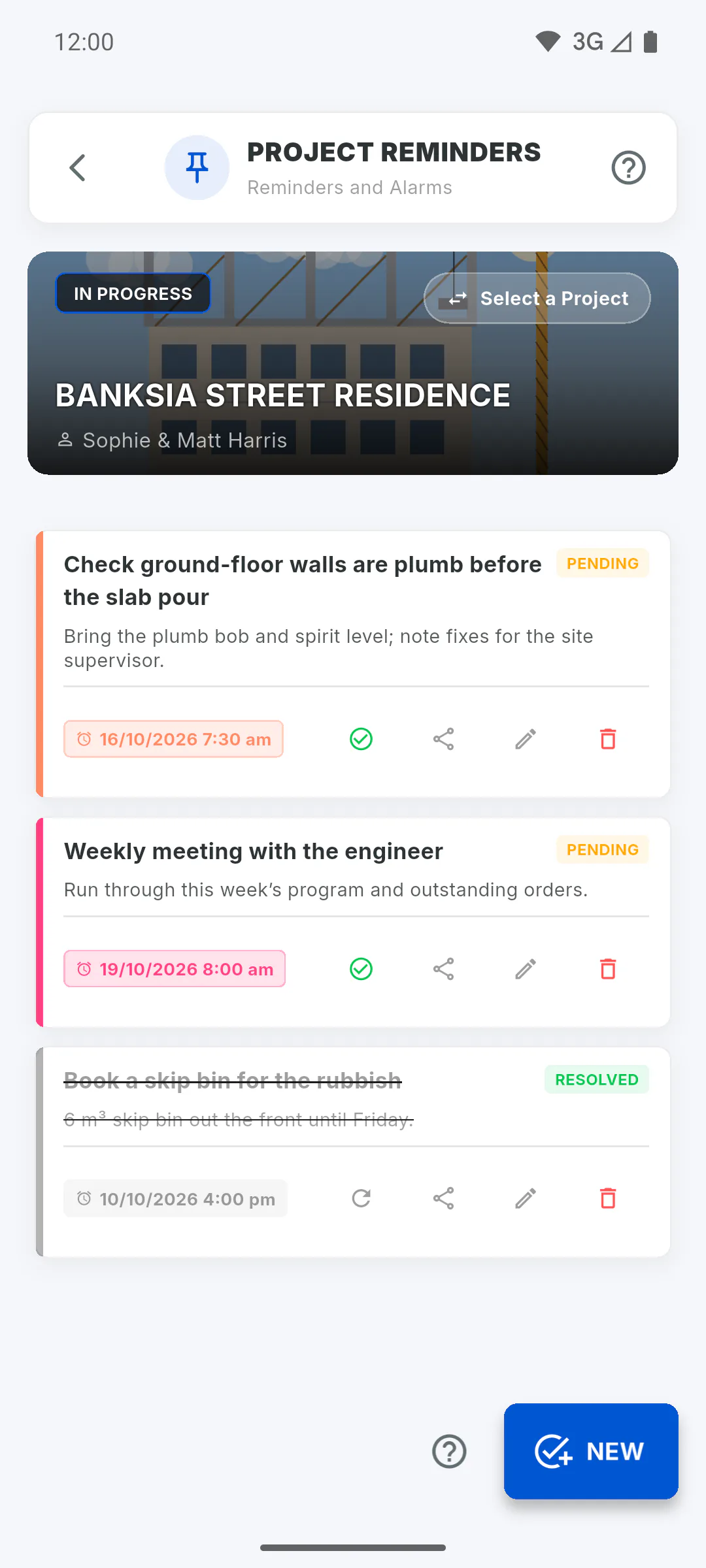
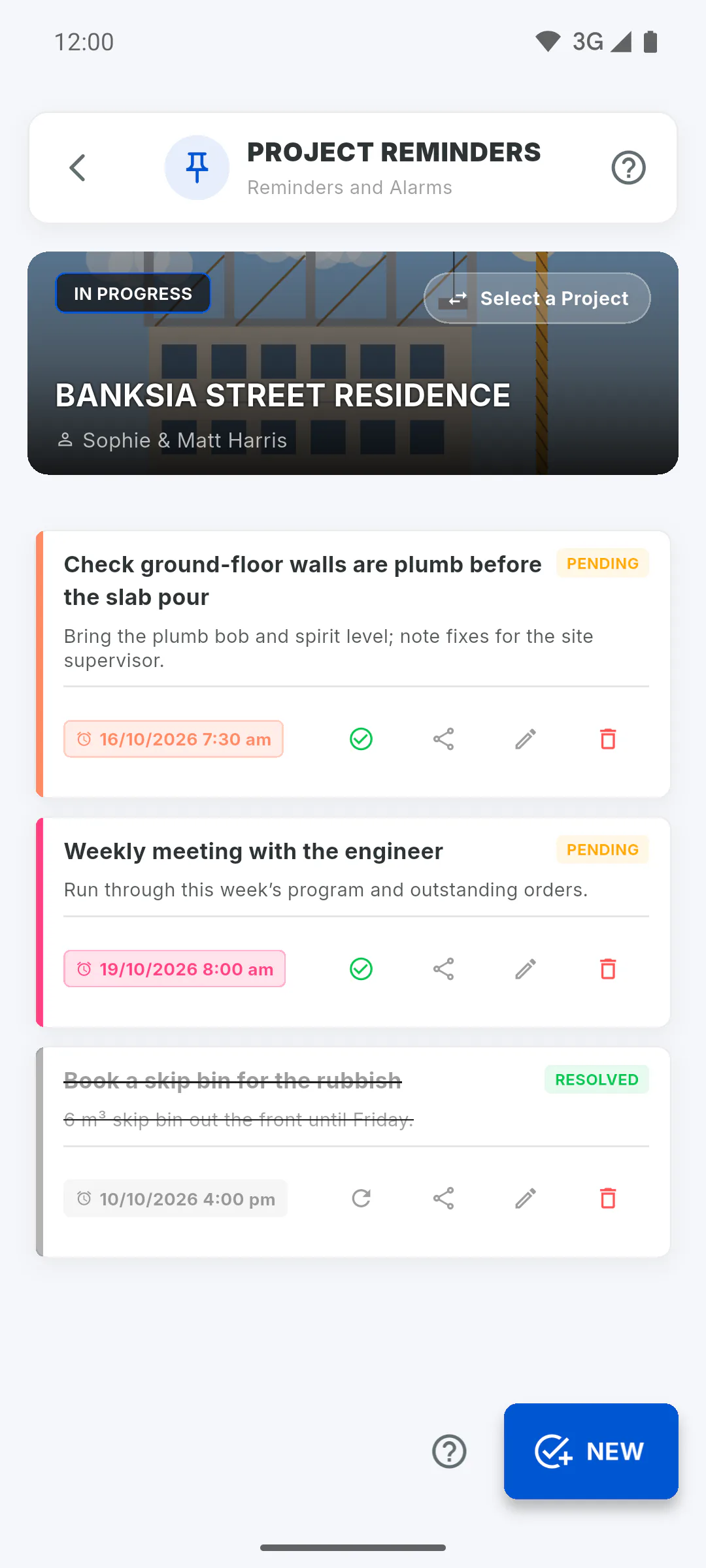
Tap Share to send the title and description by WhatsApp, email or another app on your device. The message starts with Check out this reminder for Project and the project name.
Step 4: Edit
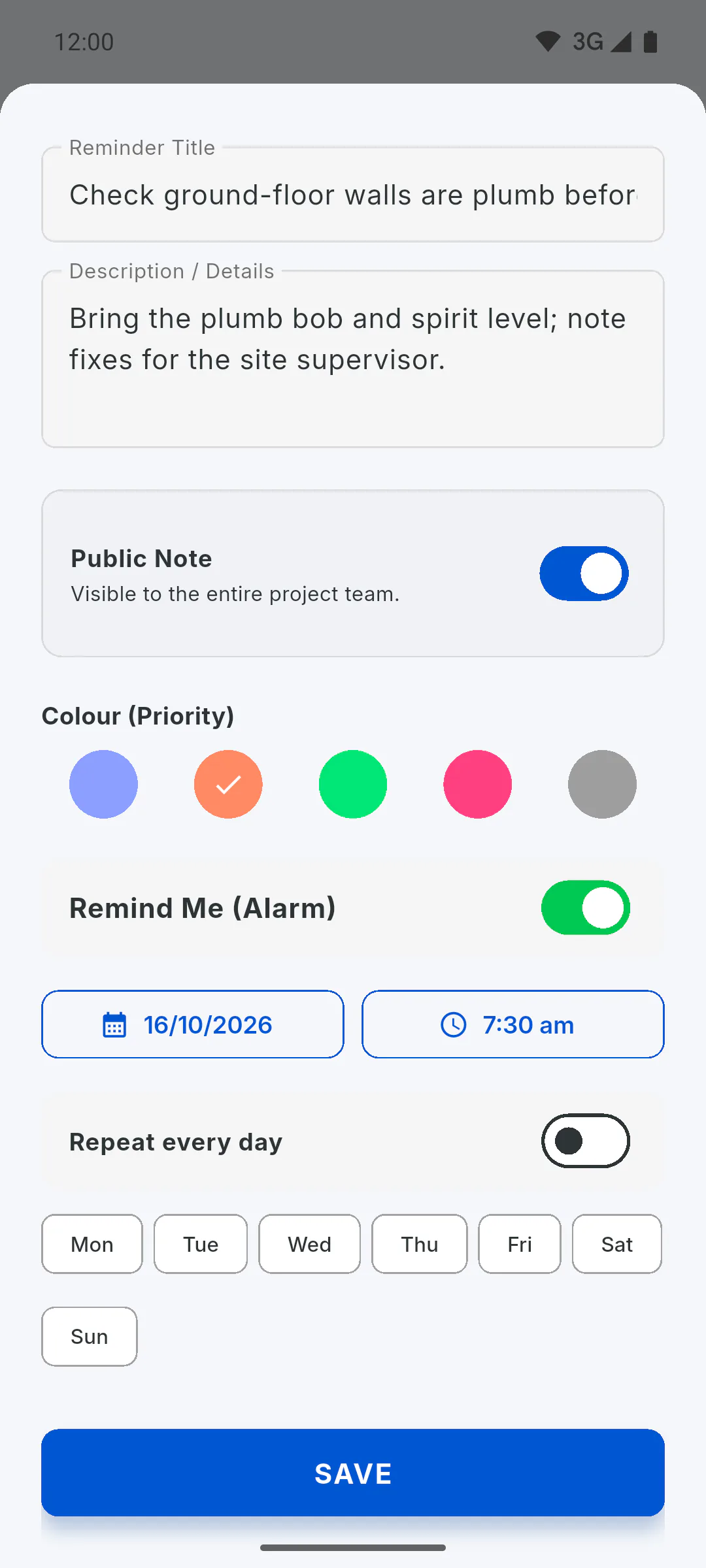
Tap Edit to change the text, colour, who can see it and the alarm, then tap Save. If the reminder has an alarm, saving also sets it on this device. On a resolved reminder, editing shows the alarm as it was: it's kept without going off and is set again when you reopen the reminder, if it repeats or its date hasn't passed yet.
Step 5: Delete
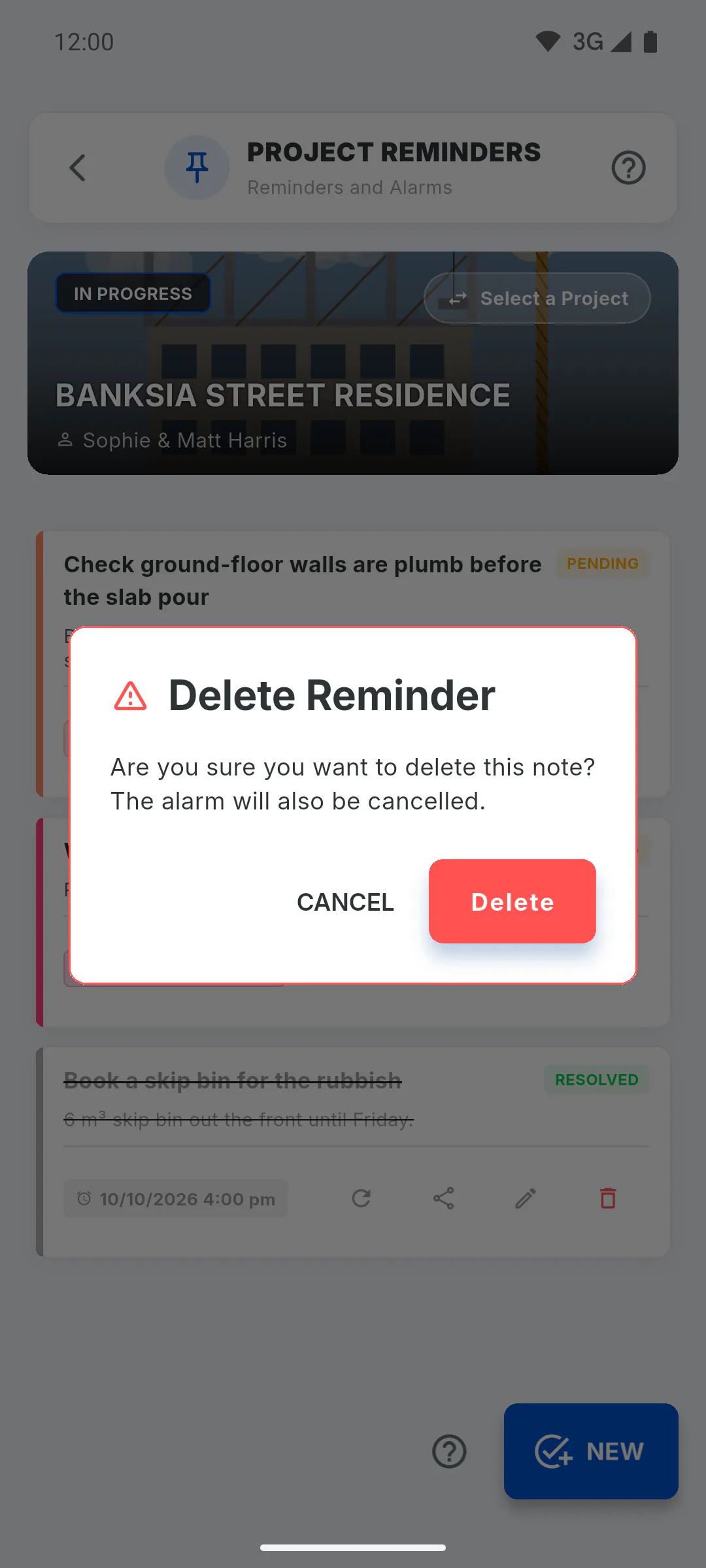
Only the person who wrote the reminder and the project owner can delete it; for everyone else, the Delete icon appears greyed out with a padlock, and tapping it opens a window that explains who can delete it. Confirm with Delete in the Delete Reminder window. The reminder disappears for everyone and its alarm is cancelled on this device.
How to resolve, reopen, share or delete a reminder
Use the icons on each card to complete, reopen, send by message, edit or delete a project reminder.
For managers and team members5 steps
Didn't find what you were looking for?
Chat with support on WhatsApp or raise a ticket in the app.