
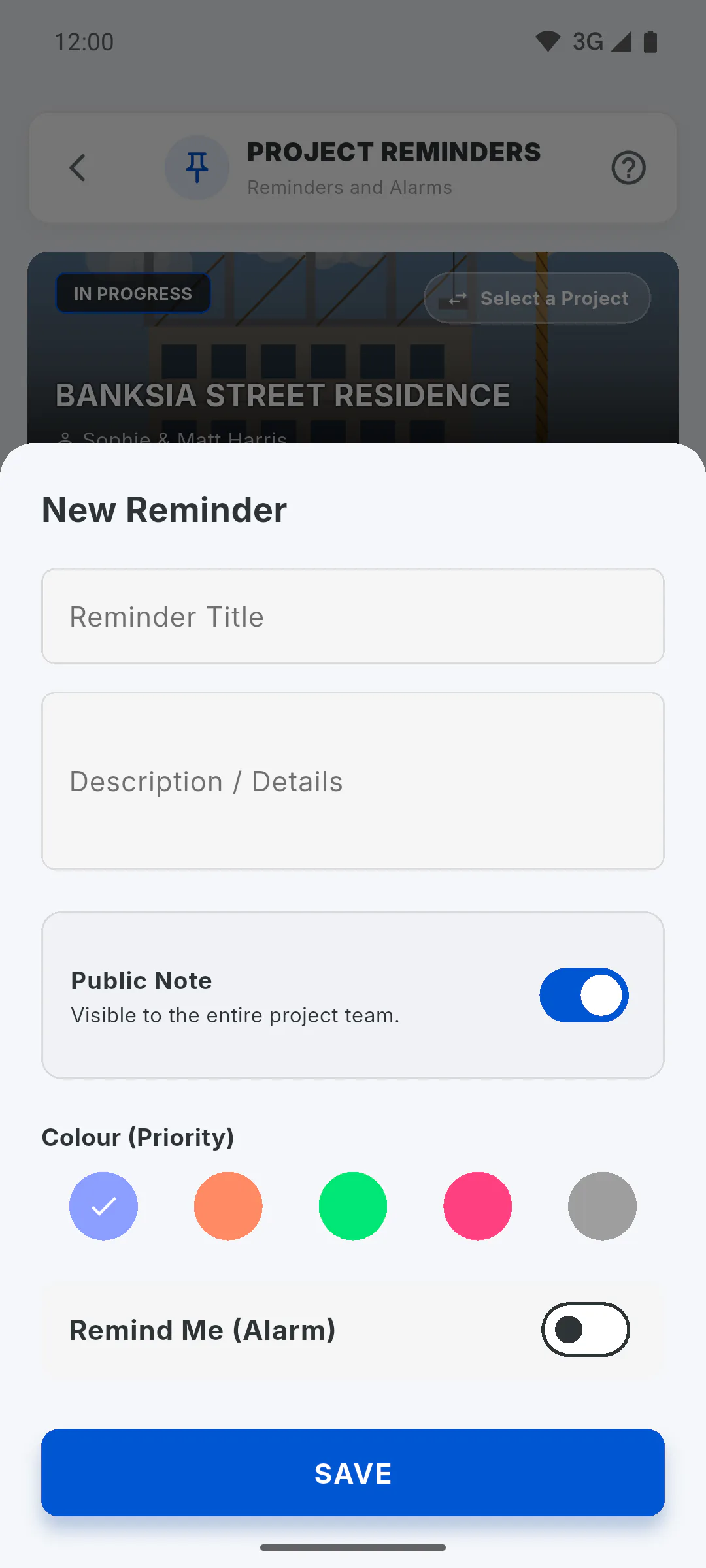
Step 1: Public note
With Public Note on, which is the default, the reminder shows up for everyone working on the project: the owner and the invited engineer and team members.
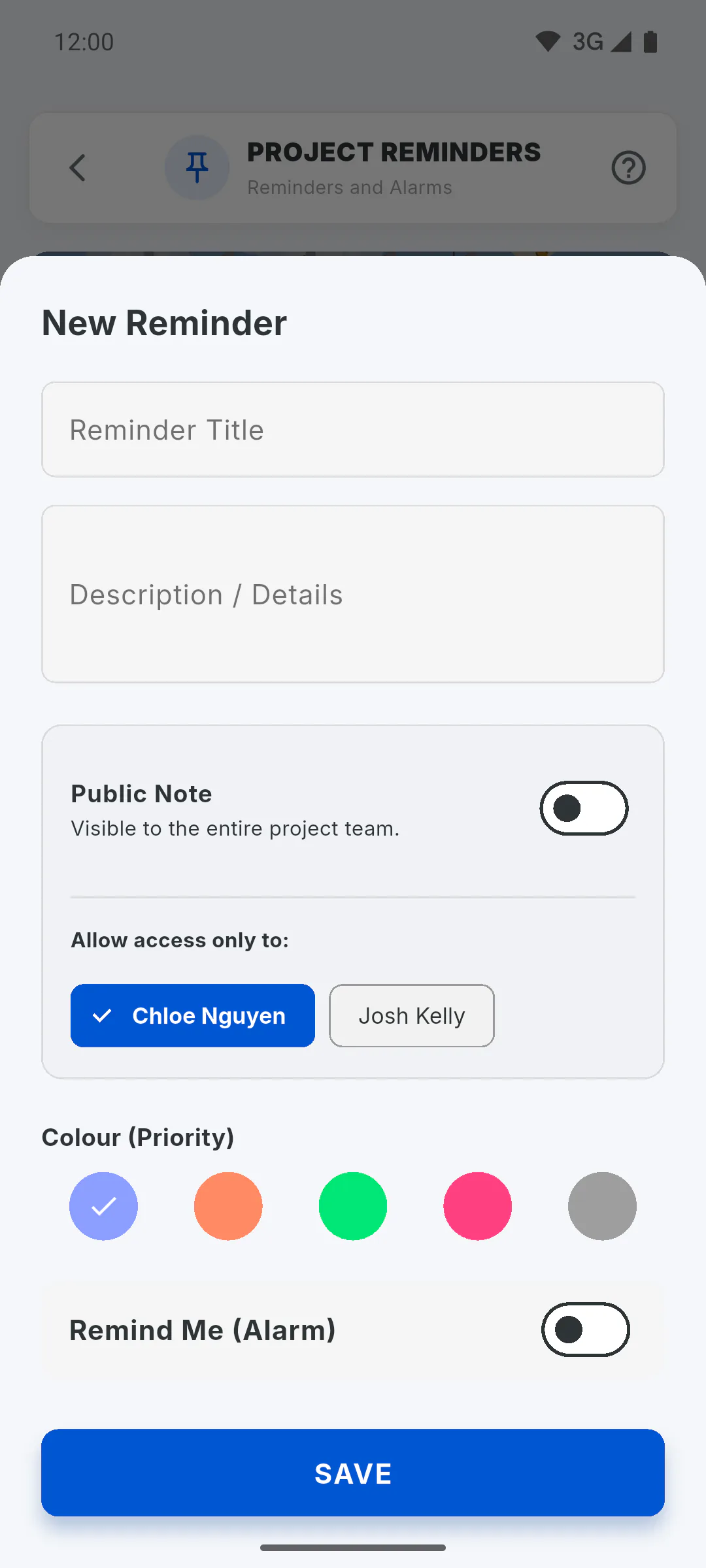
Step 2: Restricted note
Turn off Public Note and, under Allow access only to:, leave ticked only the people who can see it. On a new reminder, everyone is ticked to start with: untick anyone who shouldn't see it. Whoever wrote it can always see it, and the project owner sees every reminder, public or restricted. If nobody is left ticked, you'll see Choose at least one person or make the note public.
Step 3: Clients don't see reminders
Reminders are for the team: the client doesn't see any of them, not even public ones, and isn't listed under Allow access only to:.
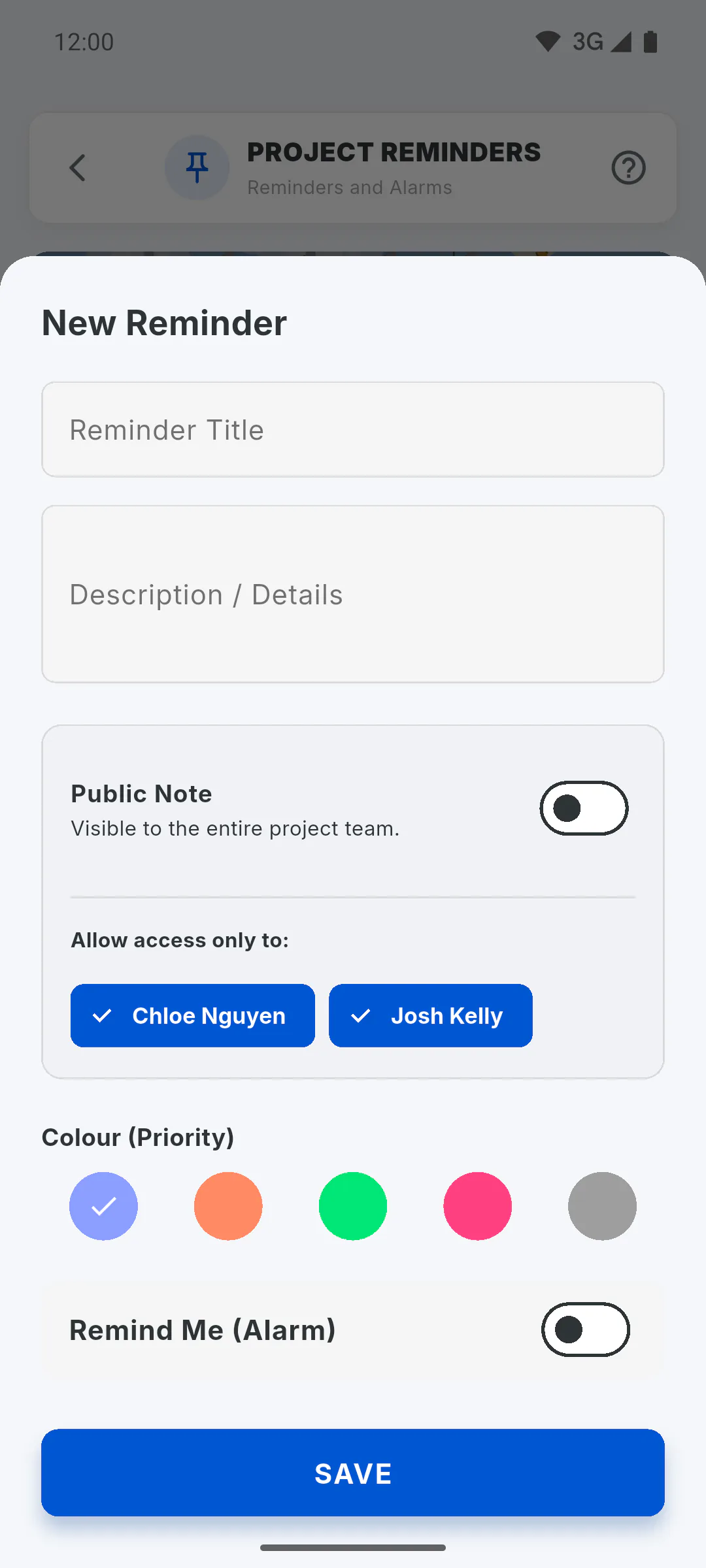
Step 4: Ticking someone doesn't notify them
Ticking someone only lets them read it: they don't get a notification or an alarm. The alarm only goes off on the mobile of whoever saved the reminder: Why the reminder alarm didn't go off.
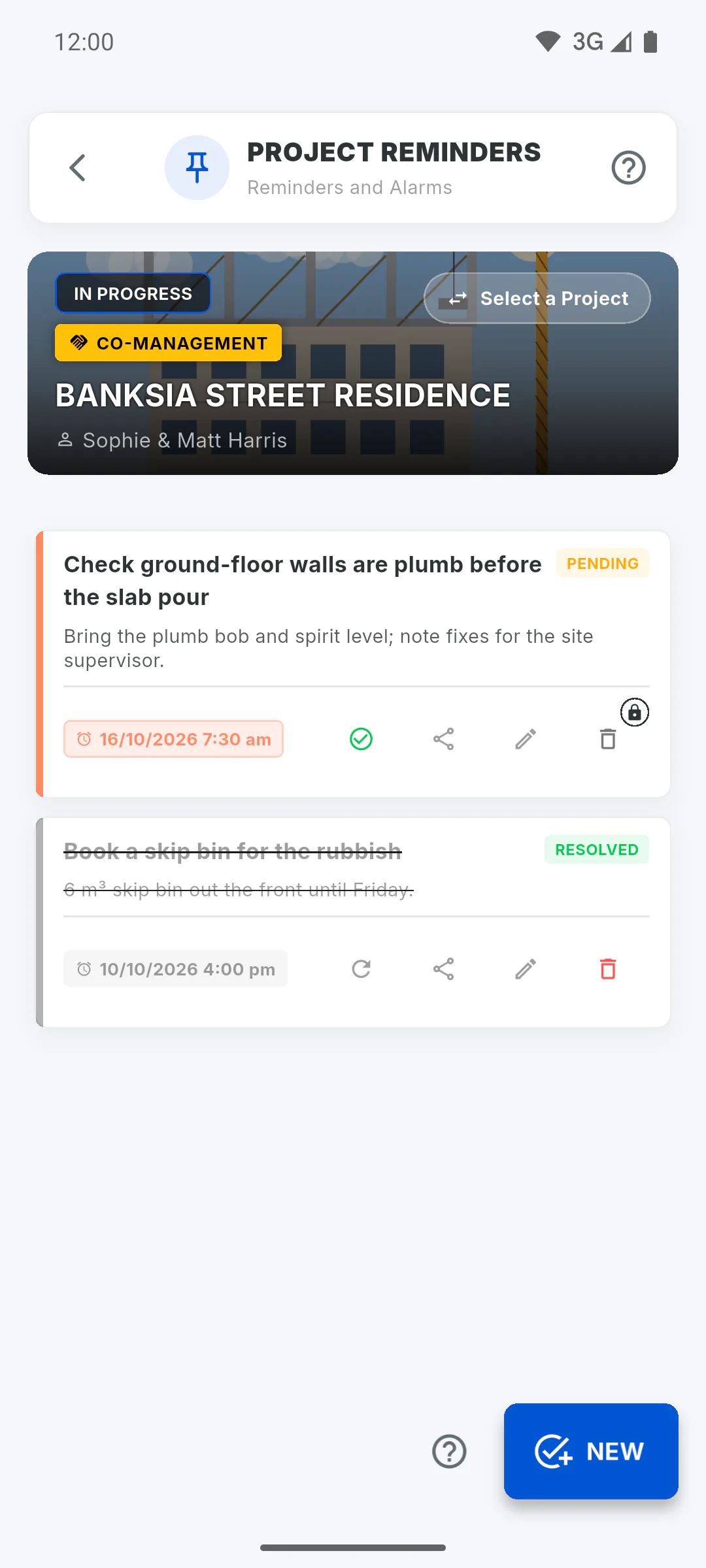
Step 5: Who can edit and who can delete
Anyone who can see a reminder can edit it, including changing who has access. Only the person who wrote it and the project owner can delete it; for everyone else, the Delete icon appears greyed out with a padlock, and tapping it opens a window that explains who can delete it: How to resolve, reopen, share or delete a reminder.
Public or restricted reminder: who sees each note
A reminder can be seen by the whole project team or by just a few people. Learn who sees it, who can edit it and who can delete it.
For managers and team members5 steps
Didn't find what you were looking for?
Chat with support on WhatsApp or raise a ticket in the app.