
Step 1: What's protected
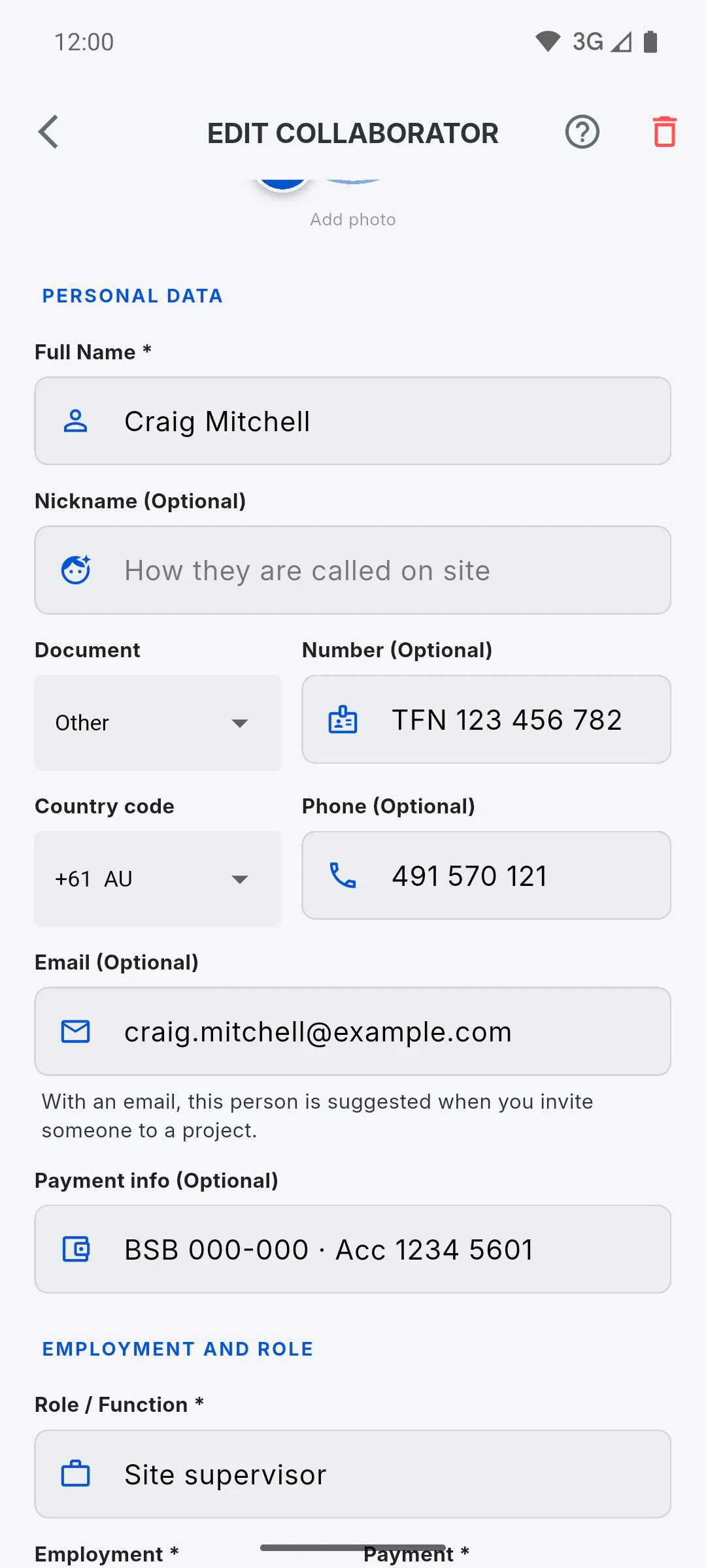
On a team member's profile, the ID document, the Email (Optional) field and the Payment info (Optional) field are stored separately from the rest of the profile.
Step 2: Who can see them
- You, the team owner
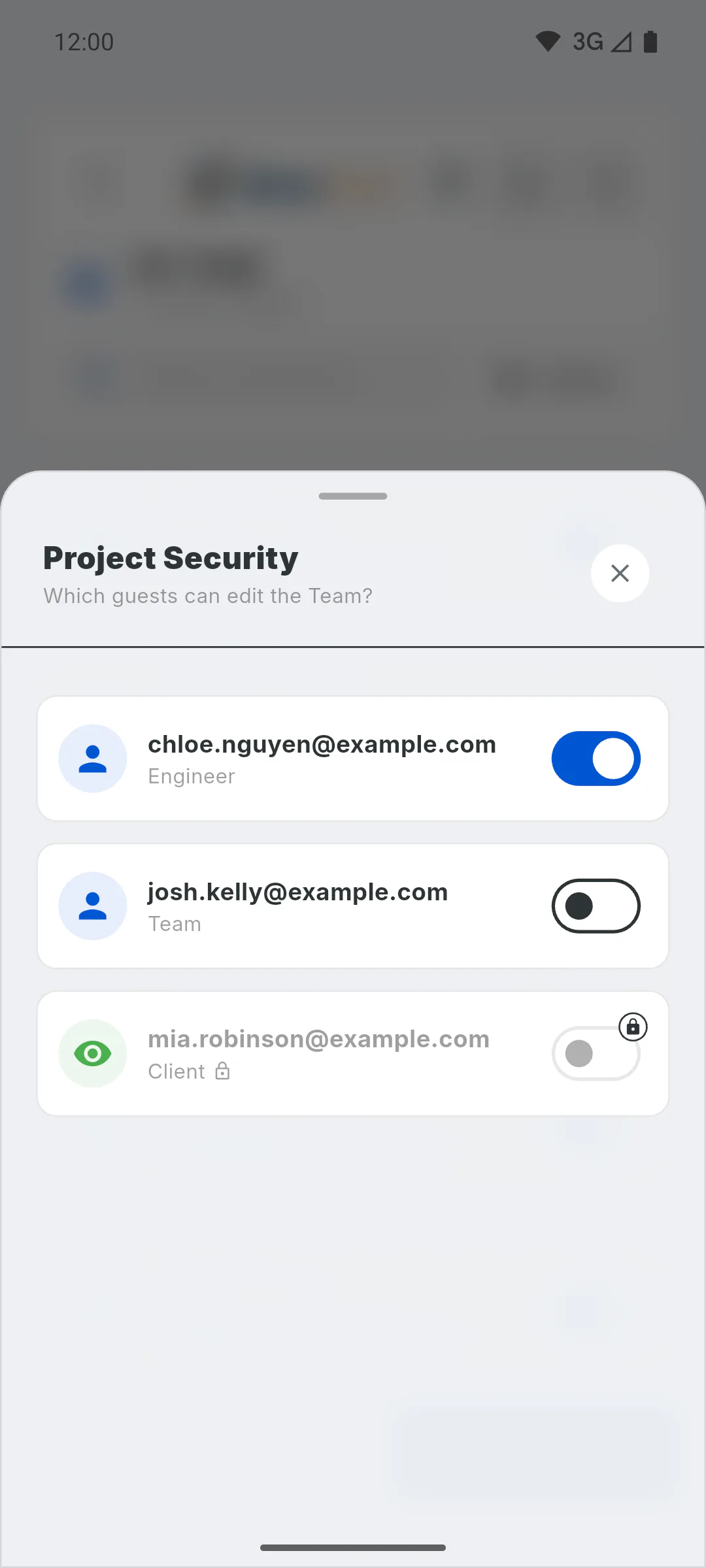
- guests on your projects you've given Allow editing team: they open profiles and see the ID, email and payment info of your whole team
- How to let a guest edit your team
Step 3: Who can't
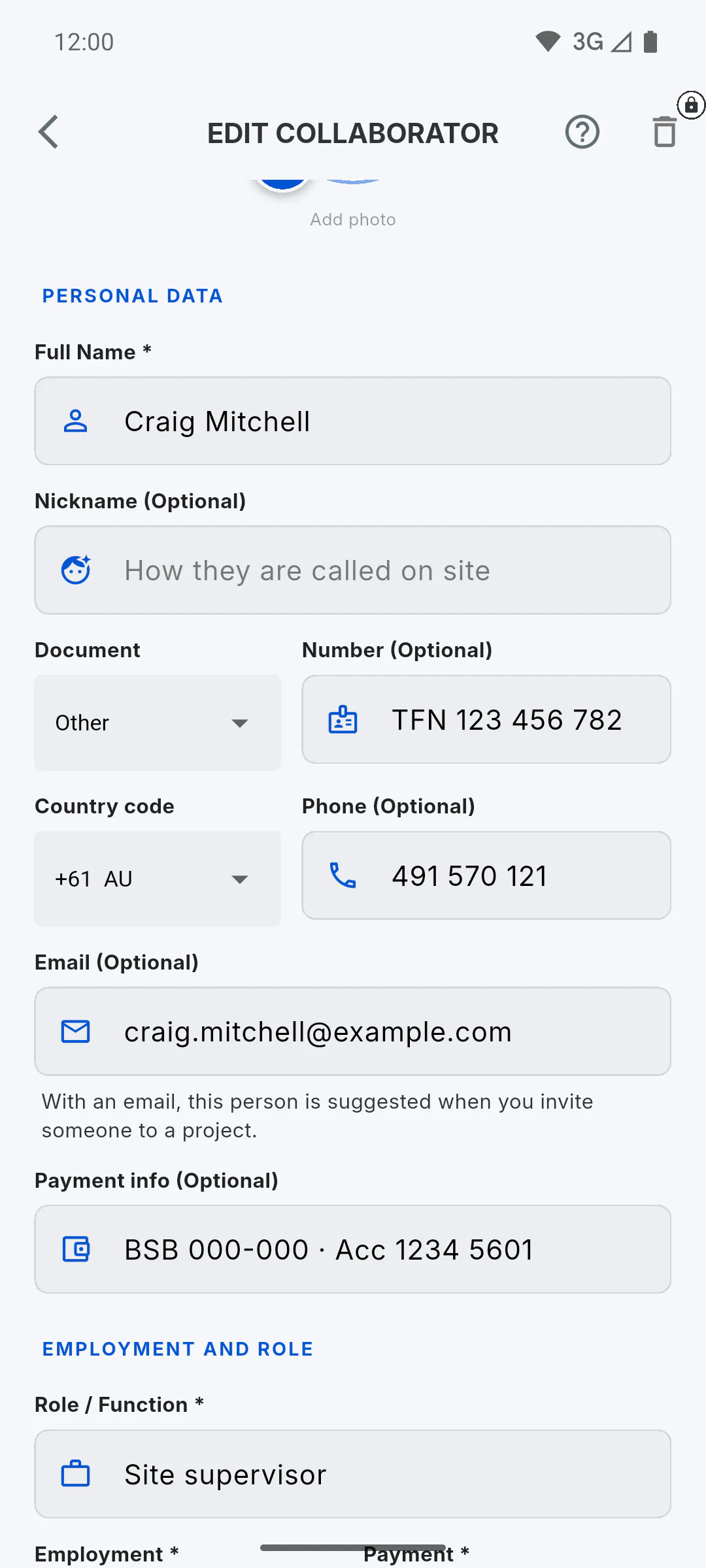
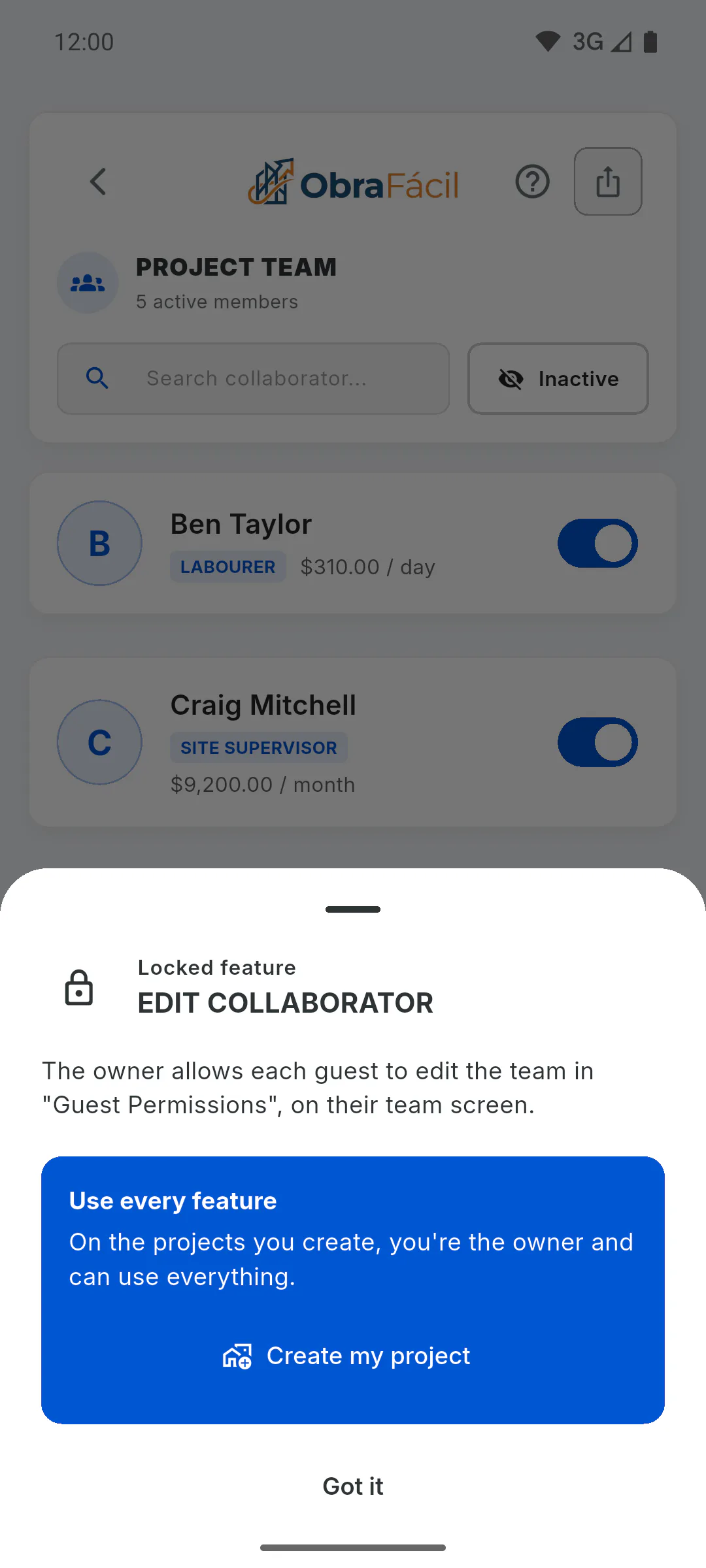
Other guests, such as the engineer and the project team, open the team list from the daily report but can't open anyone's profile: tapping a team member opens a window explaining that the owner grants editing access in Guest Permissions. In a team PDF they generate, the Document and Payment info columns show a dash. The project's client doesn't open the team.
Step 4: What isn't protected
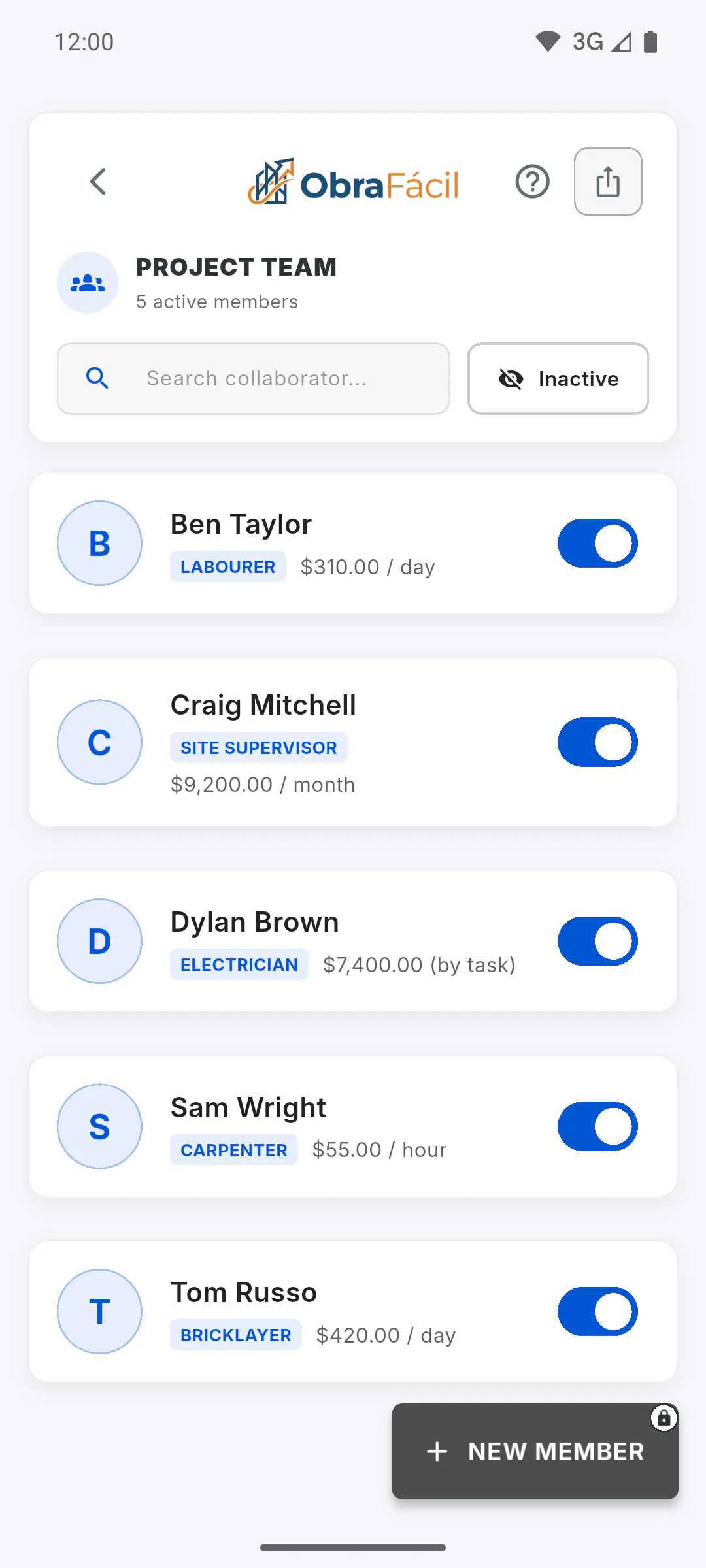
Name, nickname, role, phone number, photo, pay type and Base Value are part of the regular profile. People who work on your projects see each team member's role and rate in the team list, and can include phone numbers in the team PDF. Don't put sensitive details in the nickname or role.
Step 5: Taking the permission away
Turn off Allow editing team and the guest no longer sees ID documents, emails or payment info. If you remove the person from all your projects, the permission ends on its own; if they're invited again, the switch starts off.
Who can see team members' ID, email and payment info
Each team member's ID document, email and payment info are stored separately: only you and the people you allow to manage your team can see them.
For managers5 steps
Didn't find what you were looking for?
Chat with support on WhatsApp or raise a ticket in the app.