
Step 1: Open the team member's profile
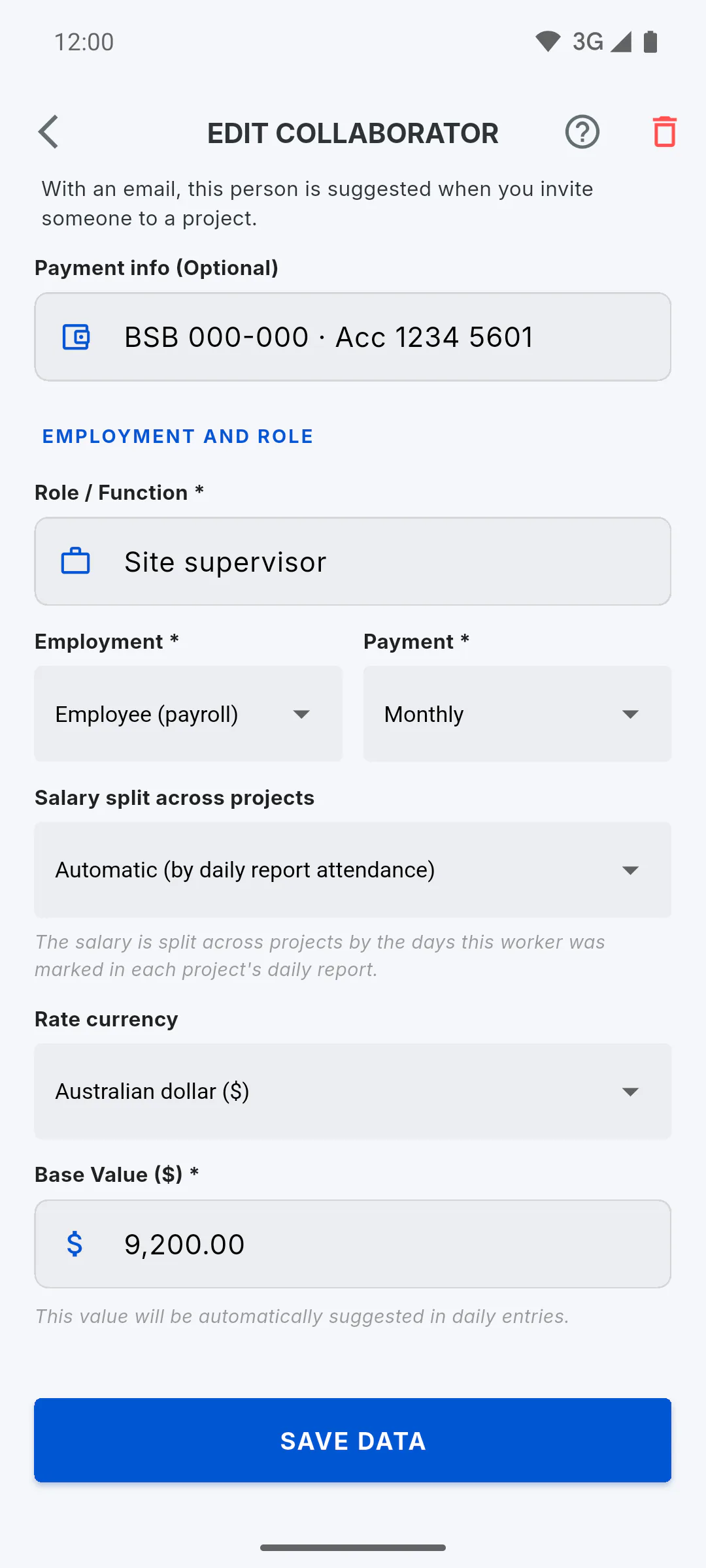
In the side menu, tap My Team, then the team member's card. With Payment set to Monthly, Salary split across projects appears. Only you, the team owner, see this field: an authorised guest editing the profile doesn't see it, and the split you set stays in place, as long as Payment stays Monthly.
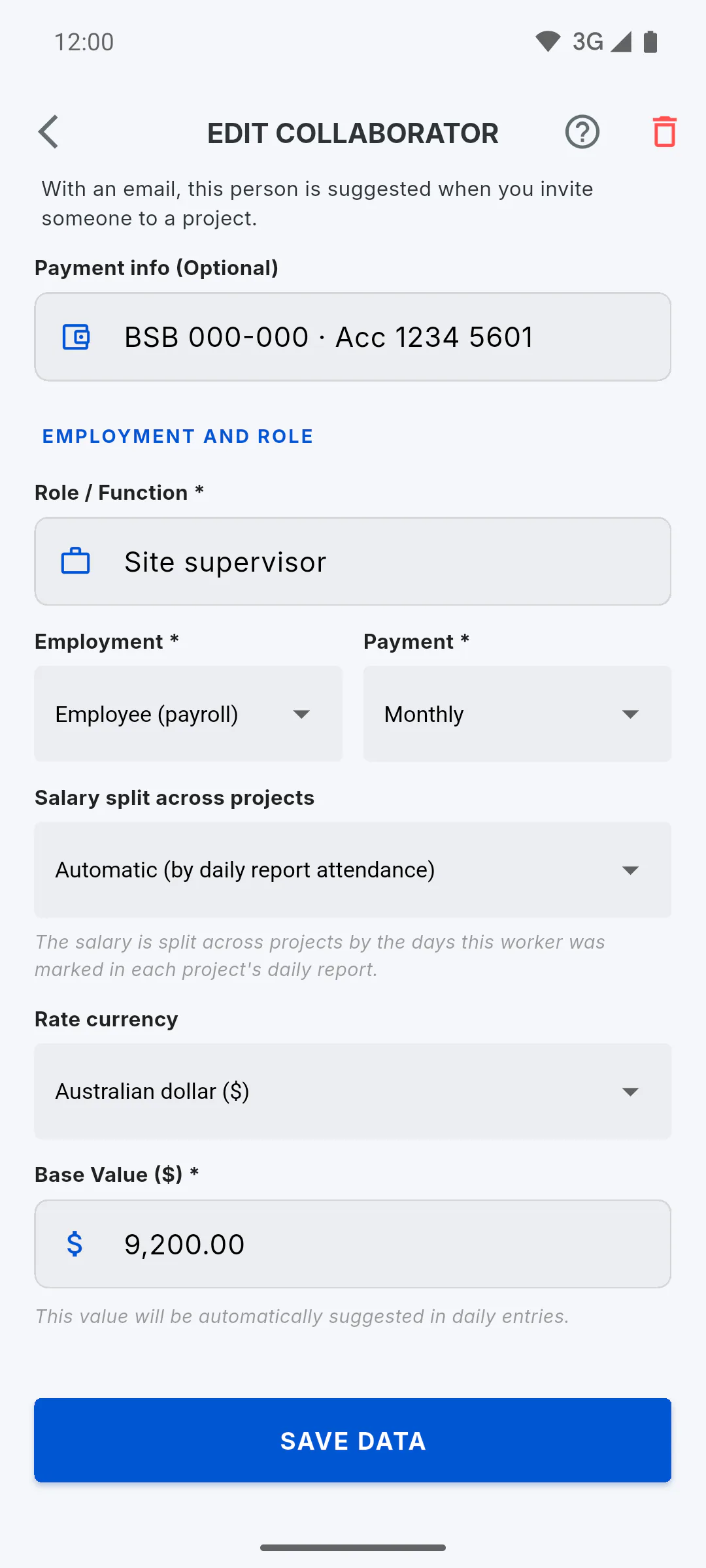
Step 2: Automatic split
With Automatic (by daily report attendance), the salary for the period is split across your projects by the days this person was ticked in each project's daily report. This option is selected by default.
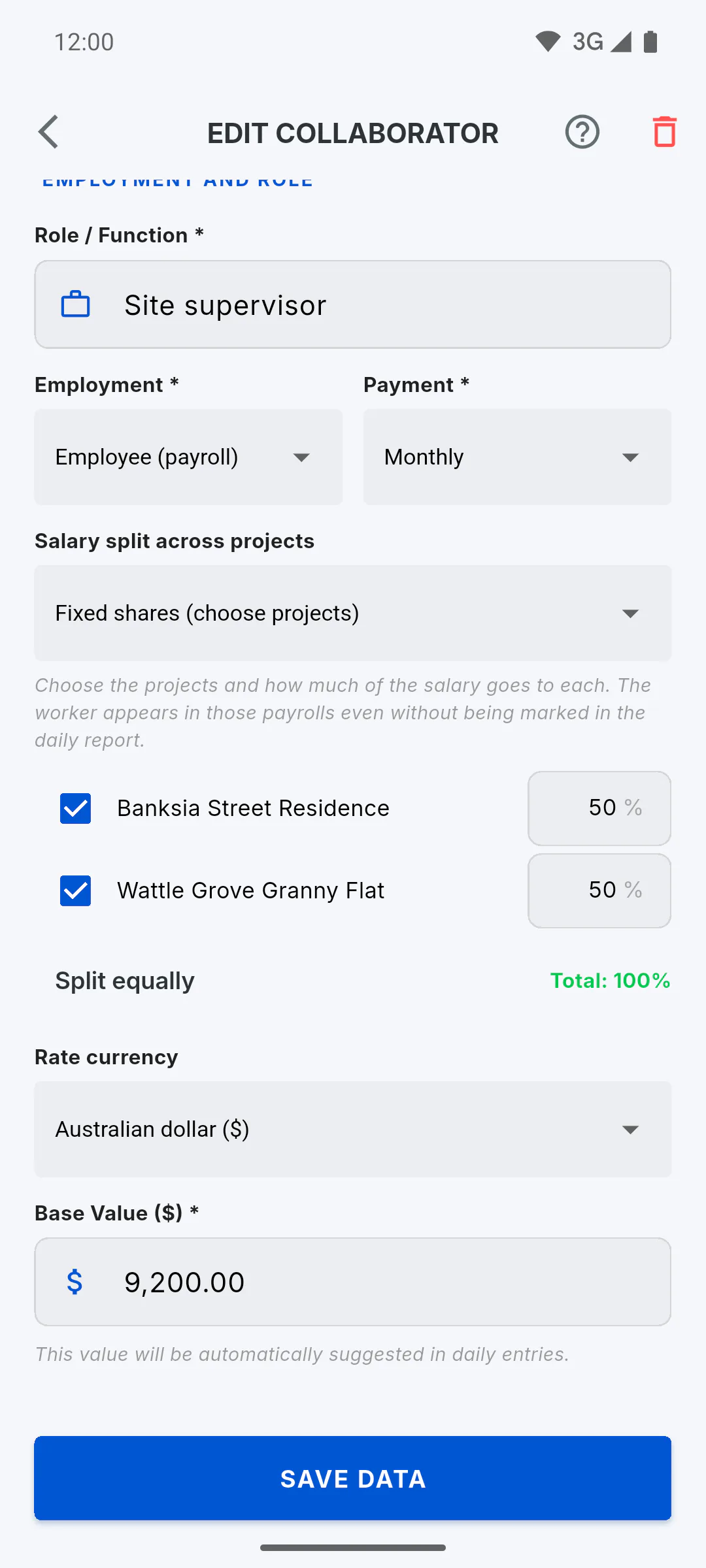
Step 3: Fixed shares
Choose Fixed shares (choose projects). The projects you created are listed: tick the projects and type each one's percentage. Split equally divides 100% among the ticked projects. Total turns green when it adds up to 100%. With no projects, you see You have no projects yet. If a ticked project is deleted, its share is spread over the other ticked projects in the same proportion; if none is left, the split goes back to automatic.
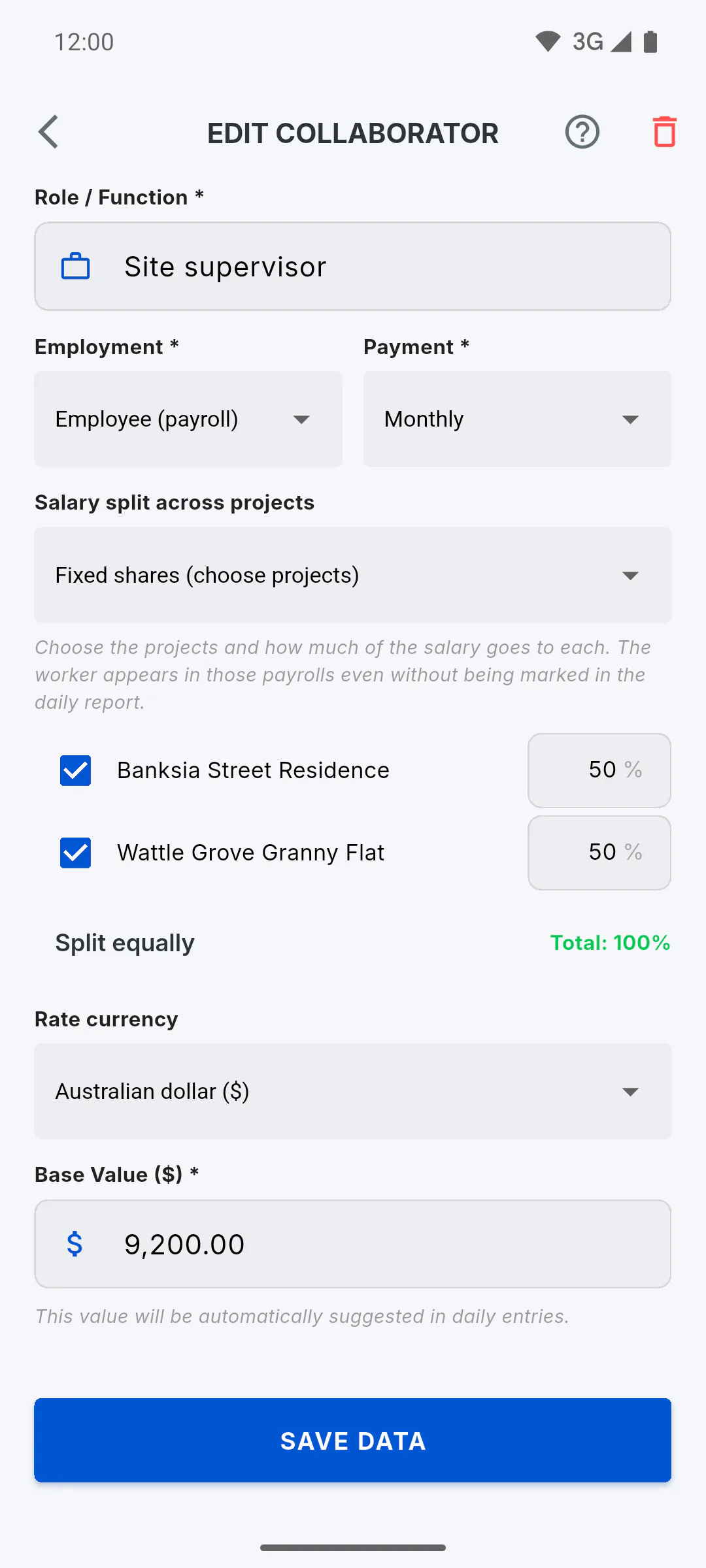
Step 4: Save
Tap Save Data. If no project is ticked, one has no percentage, or the total isn't 100%, you see Tick at least one project and make the percentages add up to 100%. and nothing is saved.
Step 5: How it shows in payroll
There's one salary for the period, and each project pays its share. With fixed shares, the person appears in those projects' payroll even without being ticked in a daily report. Each absence marked in the daily report of a project in the split takes 1/30 of the salary off that project's payroll, and a Half Day takes off half a day. If they're ticked in a report for a project outside the split, they appear in that project's payroll with zero.
How to split a monthly salary across projects
For someone on a monthly salary who works on more than one project: let attendance in daily reports split it automatically, or set a fixed share for each project.
For managers5 steps
Didn't find what you were looking for?
Chat with support on WhatsApp or raise a ticket in the app.