
Step 1: Find the list
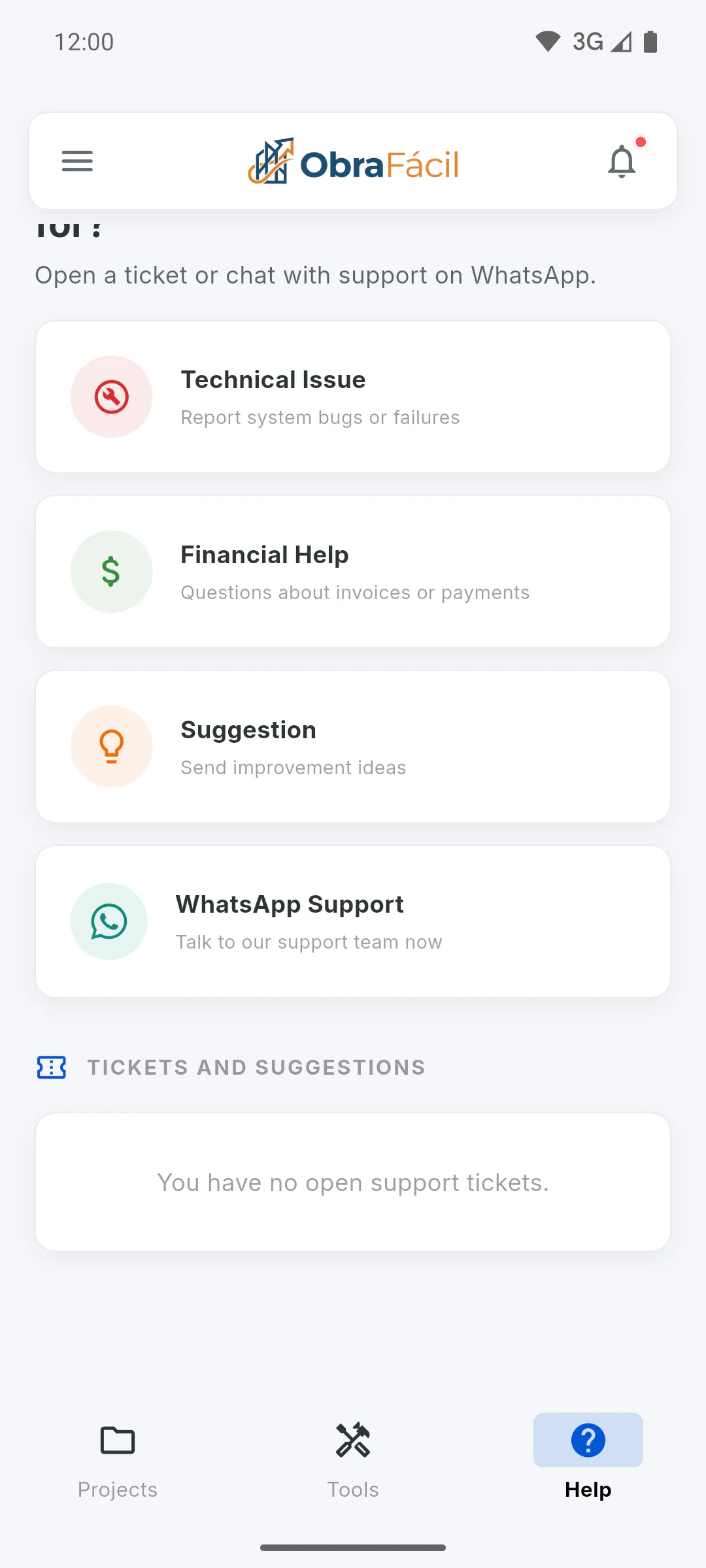
Open the Help Centre and look for Tickets and Suggestions: it's at the end of the screen, below the support buttons. If you haven't sent anything yet, you'll see You have no open support tickets.
Step 2: Read each item
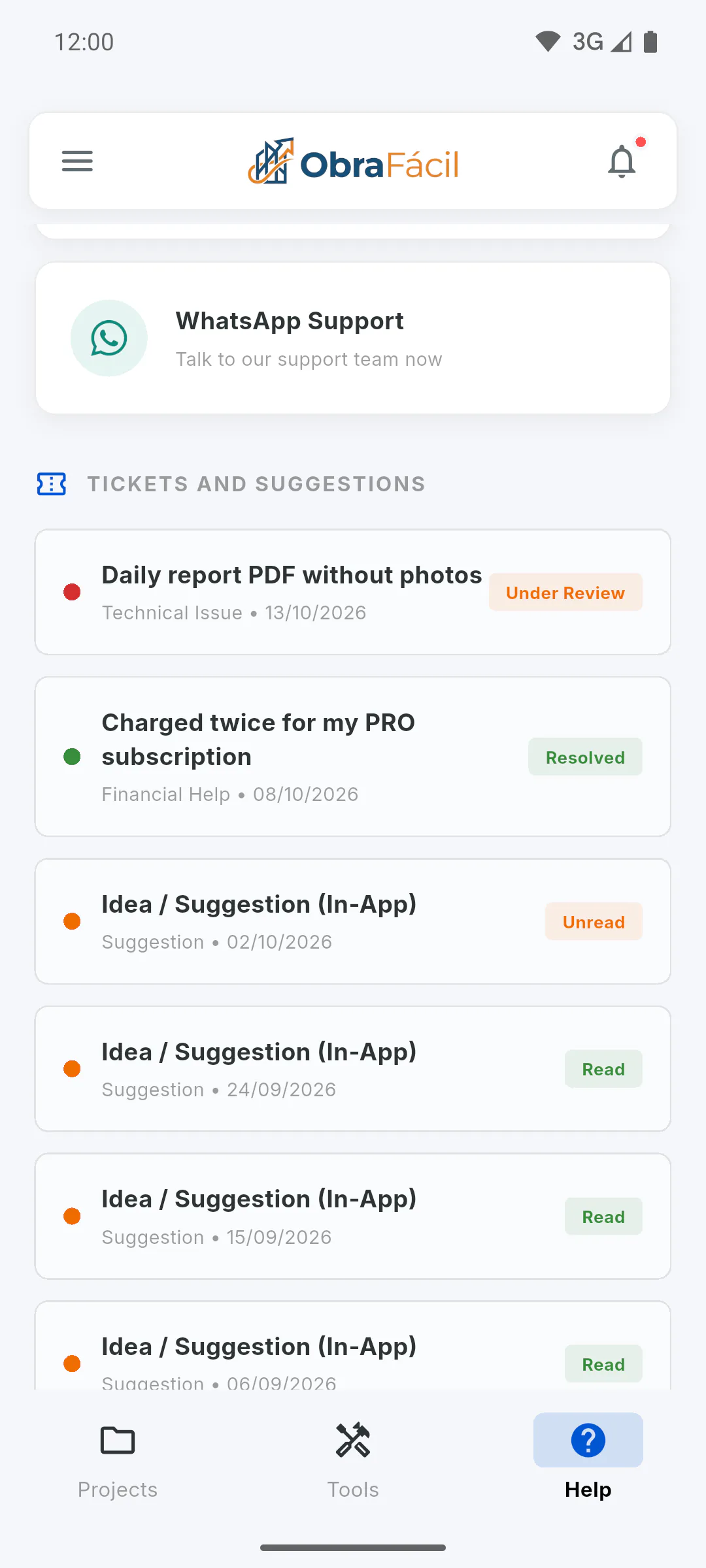
Each item shows the subject, the type (Technical Issue, Financial Help or Suggestion), the date and the status:
- tickets: Under Review or Resolved
- suggestions: Unread or Read
Suggestions show the subject Idea / Suggestion (In-App).
Step 3: See what you sent
Tap an item to open My Ticket or My Suggestion, with the status, type, date and time, subject and the text you wrote. If you attached images, it shows how many, such as 2 images attached. Tap Close to go back.
Step 4: Read the answer
When the ticket is answered, you get a notice in the app and the status changes to Resolved. In My Ticket, the answer appears under Answer, with the label Answered by the virtual agent or Answered by our team. The virtual agent uses artificial intelligence and answers from the Help Centre articles; requests about payments, refunds and your account always go to a person. Suggested articles are listed under Help Centre articles on this topic: tap one to open it.
Step 5: Say whether it solved it
Below the answer, the app asks Did this solve it?:
- Yes, it did: you'll see Thanks! Glad it helped.
- No, continue with the ticket: the ticket goes back to Under Review and you'll see Ticket reopened. A person from our team will answer.
If the ticket reported a problem our team has confirmed, you'll see We confirmed the problem in this ticket and are already fixing it. You'll get a notice when the fix is available. When the fix is out, the ticket asks you to update the app.
Step 6: Older items and new statuses
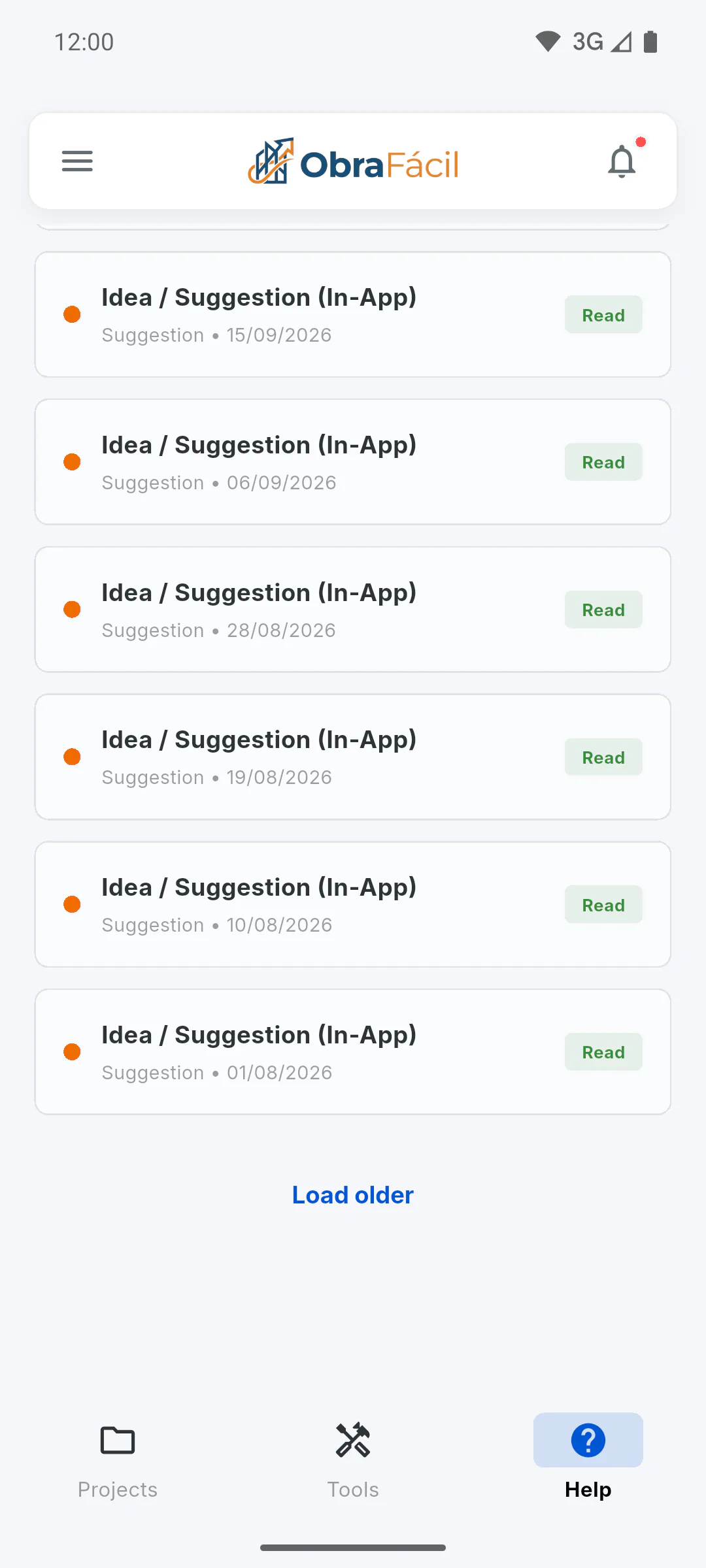
The list shows the 10 most recent items; tap Load older to see earlier ones. It loads once and doesn't refresh by itself: a new answer or status only shows after the list loads again. On a computer, go to another screen and come back; on a mobile, close and reopen the app. After you answer Did this solve it?, the list loads again when you close the ticket.
How to track your tickets and suggestions
Check the status of the tickets and suggestions you've sent in the Help Centre, read the answer inside the app and say whether it solved the problem.
For managers and team members6 steps
Didn't find what you were looking for?
Chat with support on WhatsApp or raise a ticket in the app.