
Step 1: Open Settings
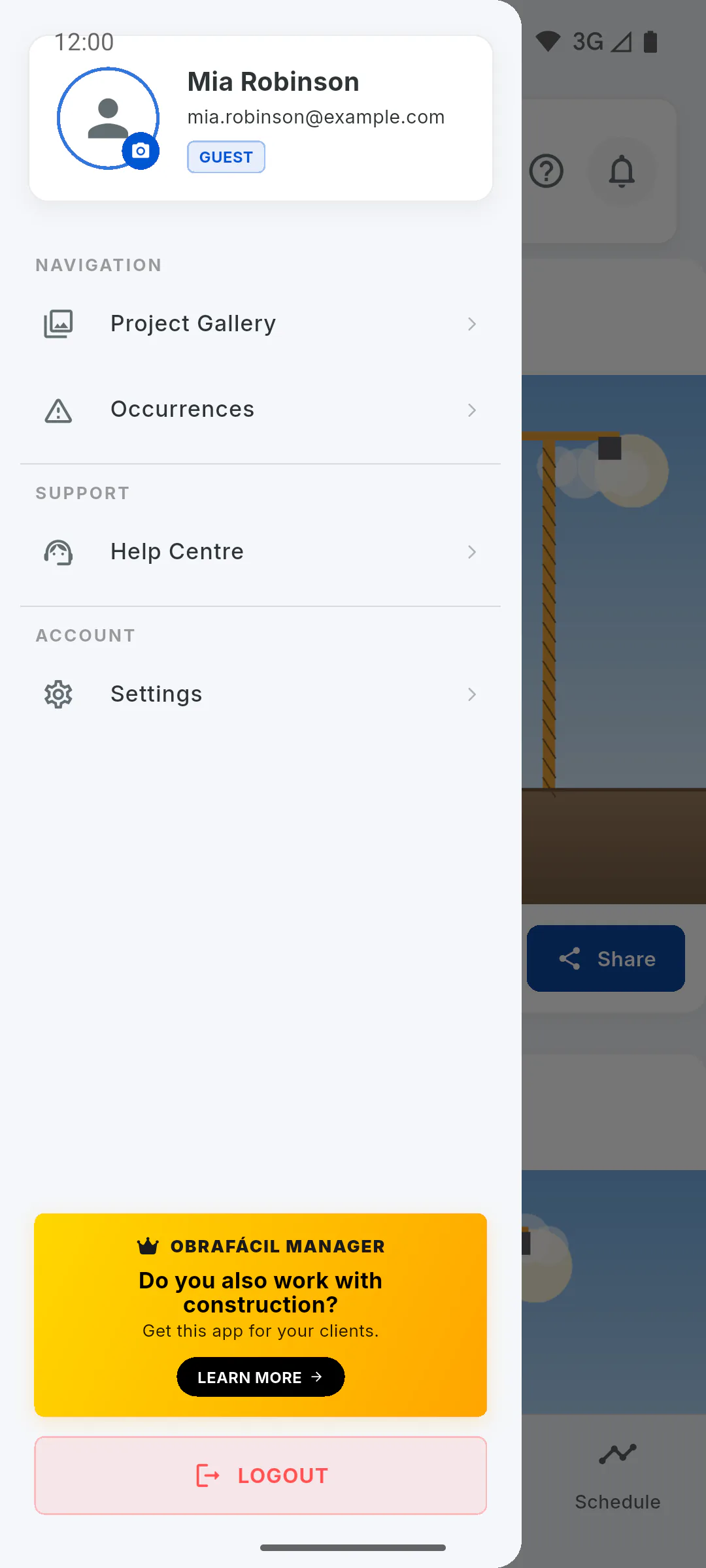
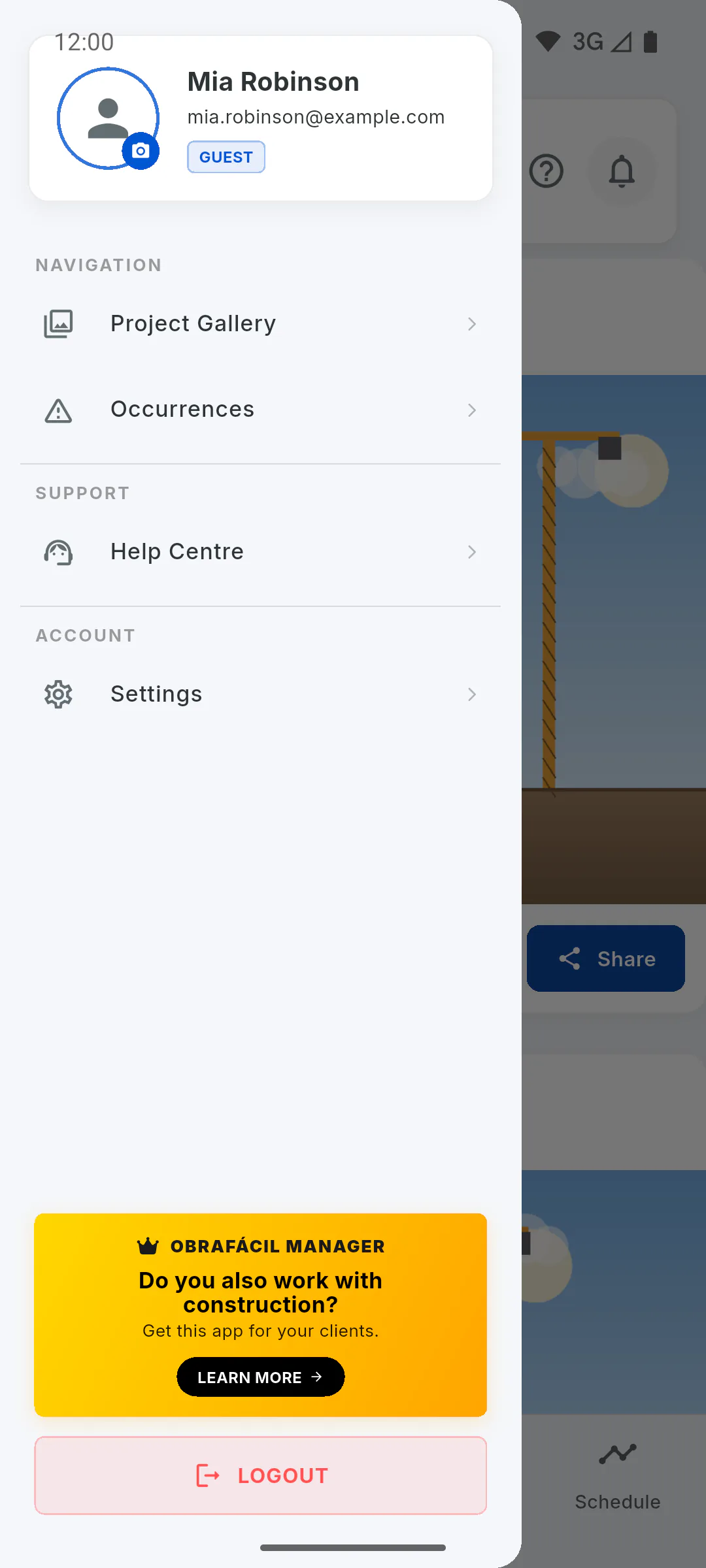
In the Portal, tap the menu button, then Settings. The Settings screen opens, with your profile and account options. The app's language picker is at the top.
Step 2: Change your photo
Tap the camera button on the corner of your photo and choose an image from your device. You'll see Photo updated successfully!. To remove the photo, tap the red bin button on the other corner: it's removed straight away. You can also change the photo by tapping it at the top of the menu.
Step 3: Name and phone
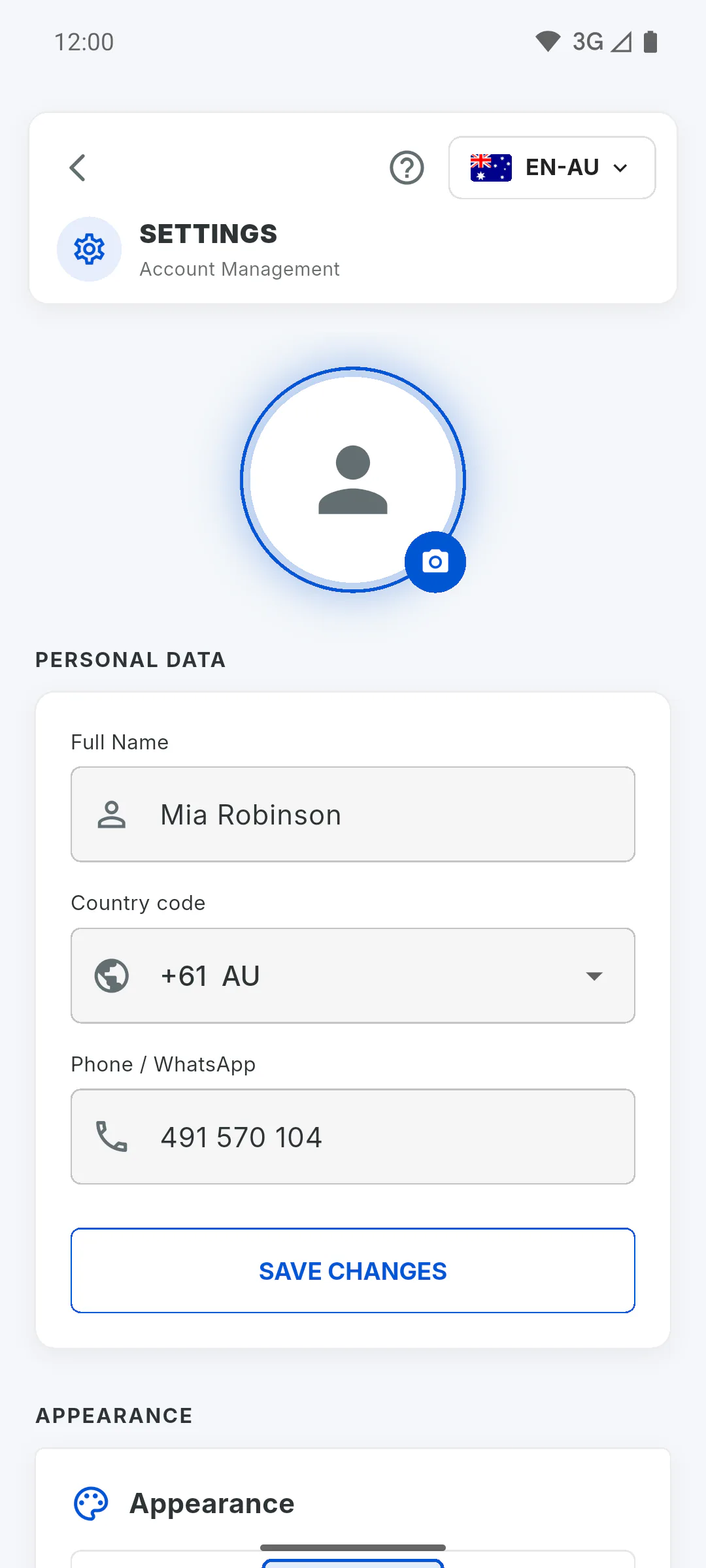
Under Personal Data, edit Full Name, check your number's country under Country code and edit Phone / WhatsApp, then tap Save Changes. You'll see Profile updated!. Name and phone are required. Enter the phone number without the country code, using digits only: the field follows the format of the country you chose (in Australia, 9 digits after the code, like 000 000 000). If your country isn't on the list, choose Other and enter the full number, including the country code. Your sign-in email can't be changed here.
Step 4: Appearance and notifications
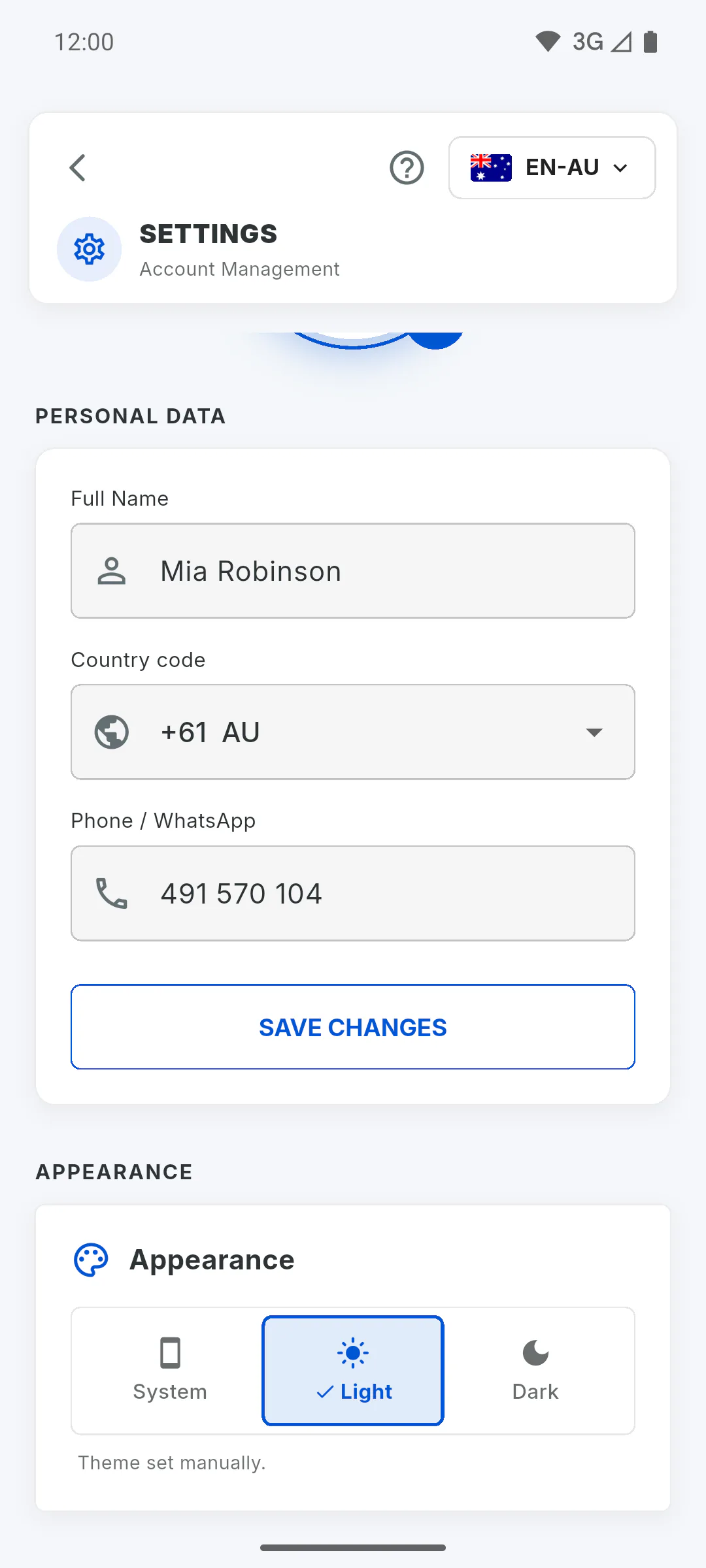
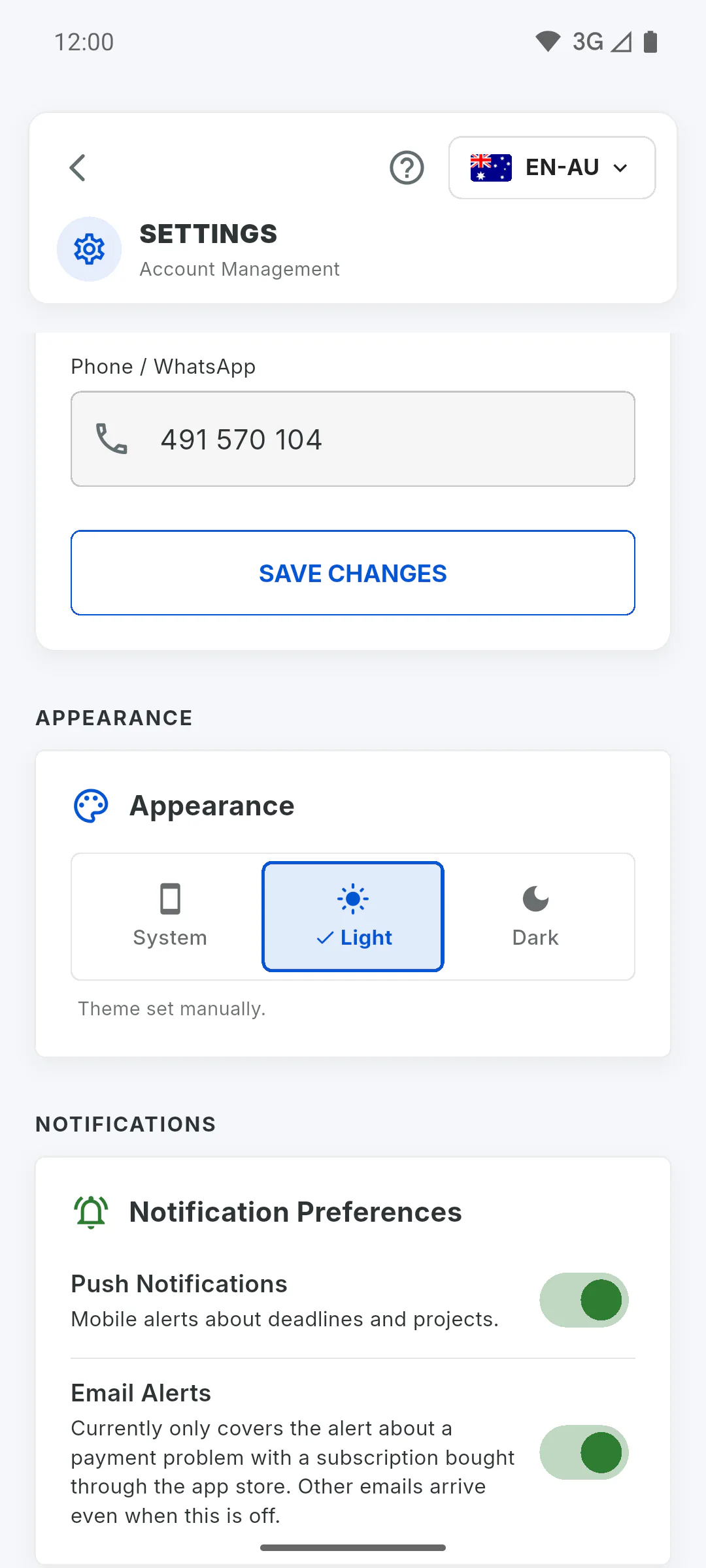
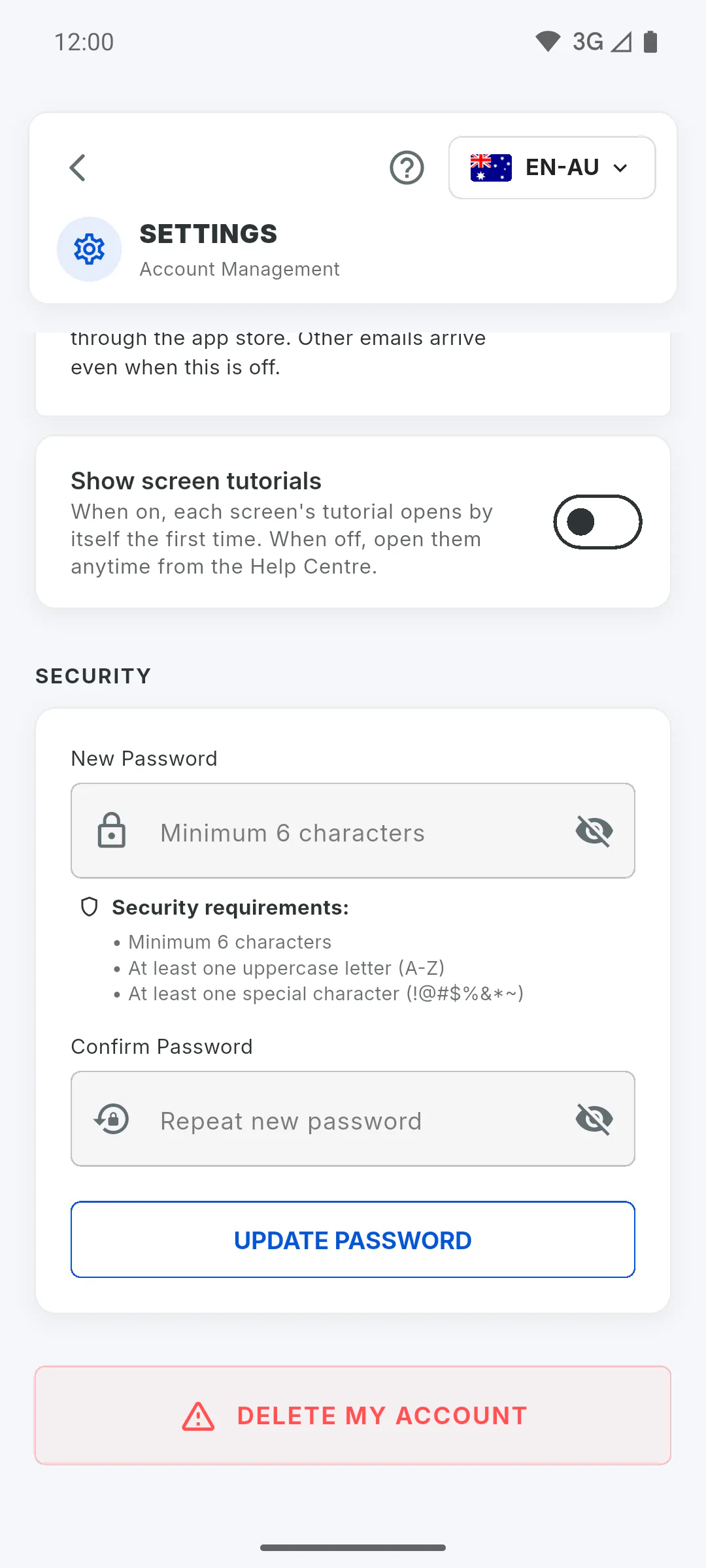
Under Appearance, choose System, Light or Dark. Under Notifications, turn Push Notifications, Email Alerts and News and offers by email on or off. Right below is the Show screen tutorials switch: when on, each screen's tutorial opens by itself the first time; when off, you can open them anytime from the Help Center.
Step 5: Change your password
Under Security, type the New Password and repeat it in Confirm Password. It needs at least 6 characters, one capital letter (A-Z) and one of these special characters: ! @ # $ % & * ~. It also can't start or end with a space. The Update Password button only becomes active once the password meets the rules; if the confirmation is different, you'll see The passwords do not match. When it's changed, you'll see Password changed! Please login again. and the app signs you out: sign back in with the new password.
Step 6: If the password change fails
If you see Error: Please logout and login again to confirm., tap Logout in the menu, sign in again and repeat the change. To delete your account, use Delete My Account at the bottom of the screen.
How to update your details, phone, password and photo in the Portal
Change your photo, name, phone number, theme, notifications and password in the Client Portal.
For clients6 steps
Didn't find what you were looking for?
Chat with support on WhatsApp or raise a ticket in the app.