
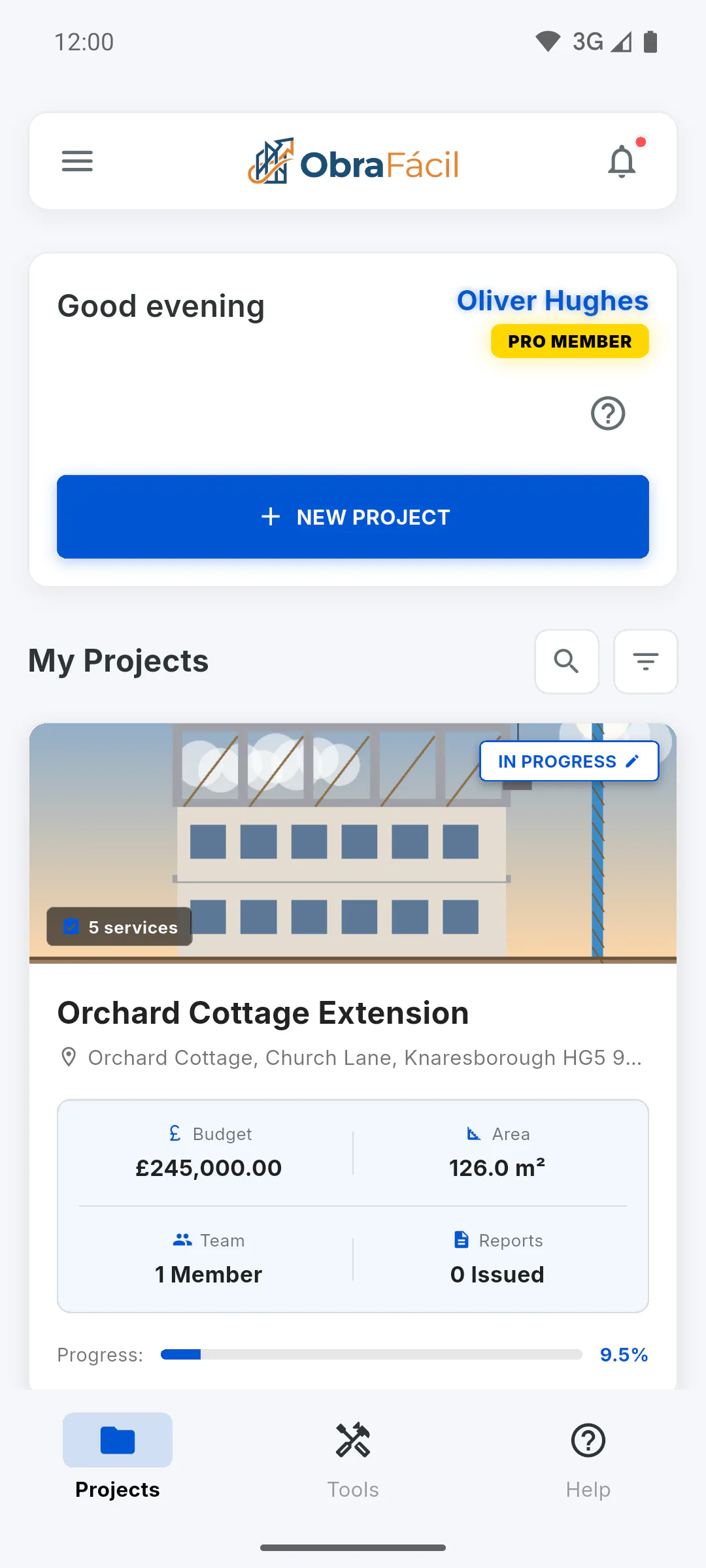
Step 1: Open the Help Centre
On a mobile, tap Help in the bar at the bottom of the dashboard. On a computer, use Help Centre in the side menu. The Suggestion card is at the end of the screen, under Didn't find what you were looking for?.
Step 2: Write your suggestion
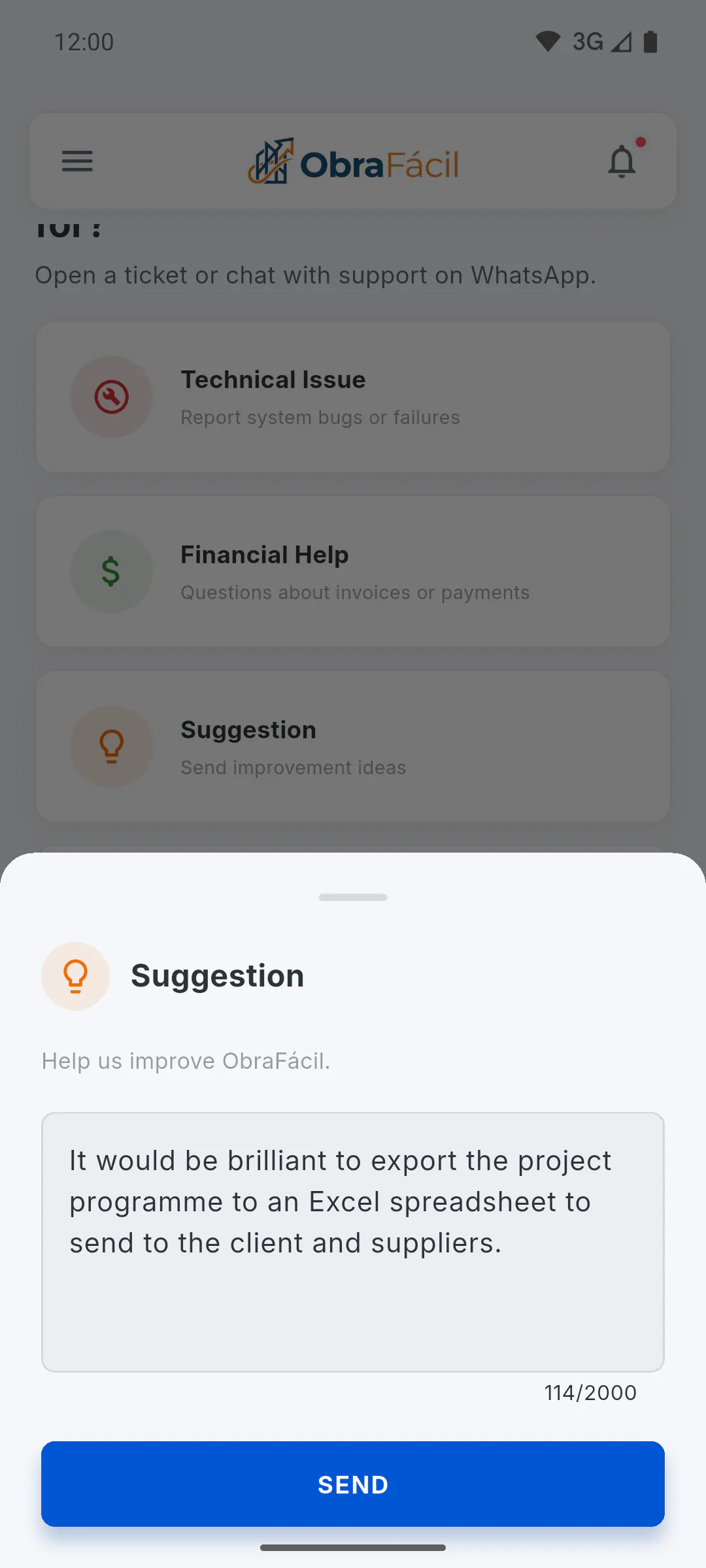
Tap the Suggestion card (Send improvement ideas). In the window, type in the Type your message (max 2000)... field, up to 2000 characters. Say what you'd like to do in the app and how it would help your day-to-day work.
Step 3: Send it
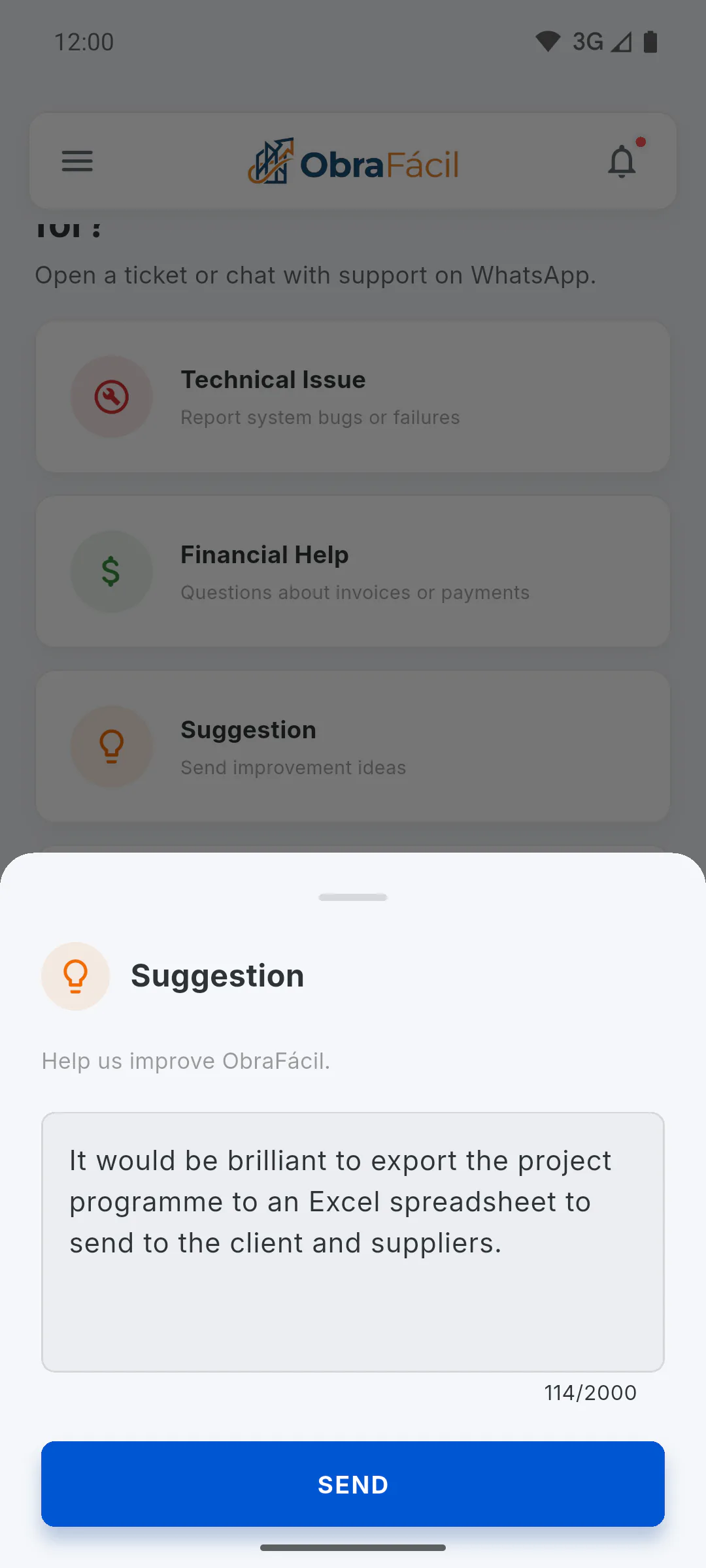
Tap Send while the device is online. If the field is empty, the button does nothing. The app shows Suggestion sent! and the window closes.
Step 4: Follow it up
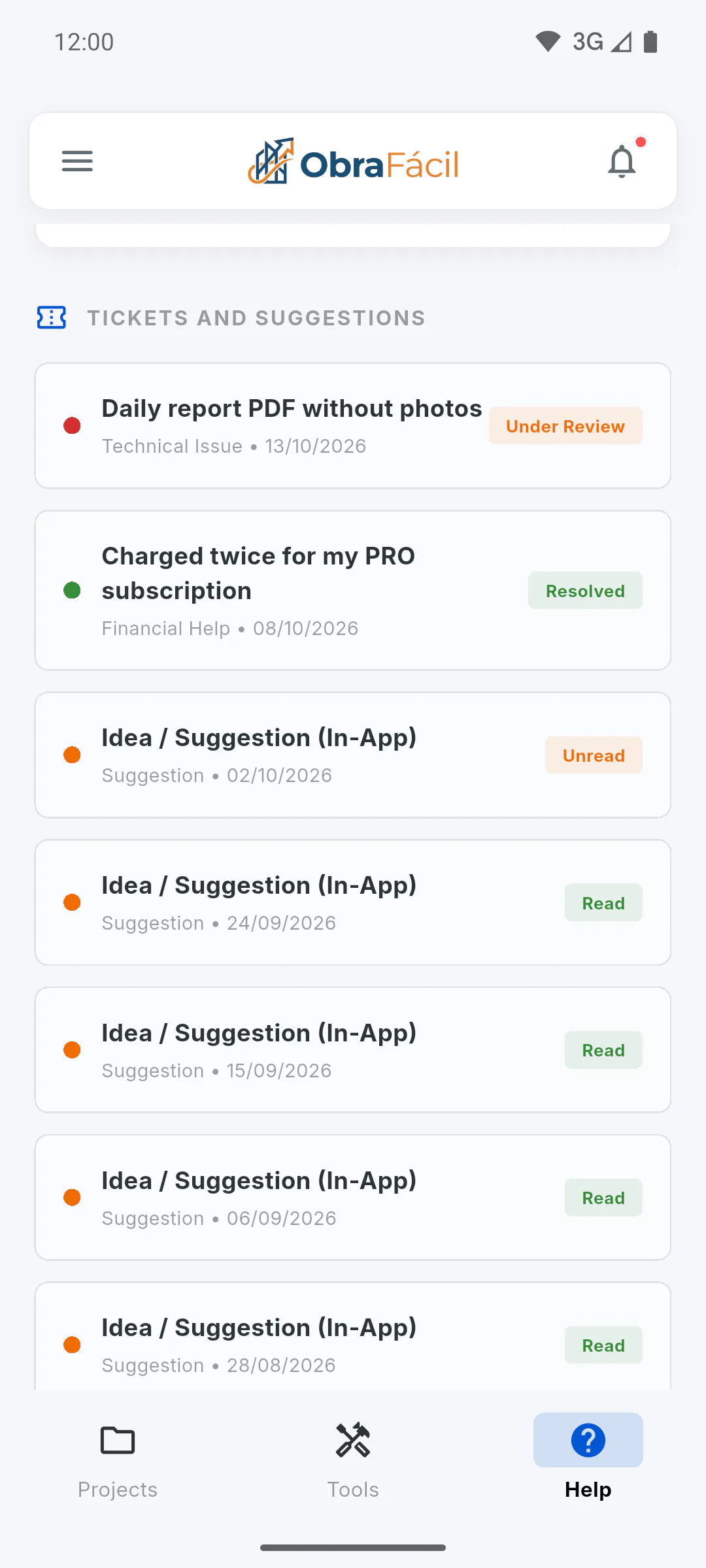
Your suggestion appears in the Tickets and Suggestions list with the subject Idea / Suggestion (In-App) and the status Unread, which changes to Read once the team reads it: How to track your tickets and suggestions. If it's an app error, open a ticket instead: How to open a support ticket.
How to send an improvement suggestion
Send your idea to improve ObraFácil straight from the Help Centre and see when the team has read it.
For managers and team members4 steps
Didn't find what you were looking for?
Chat with support on WhatsApp or raise a ticket in the app.