
Step 1: Open the file menu
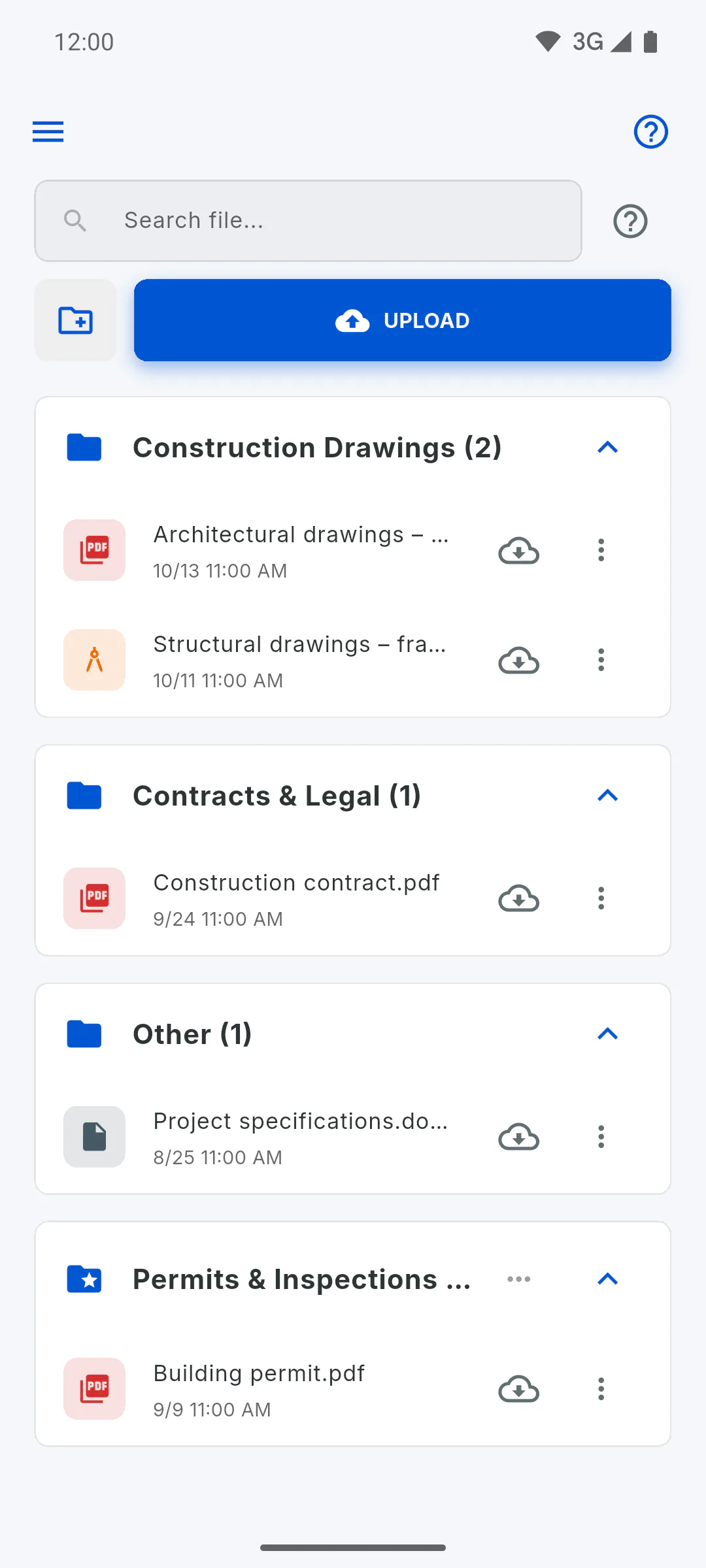
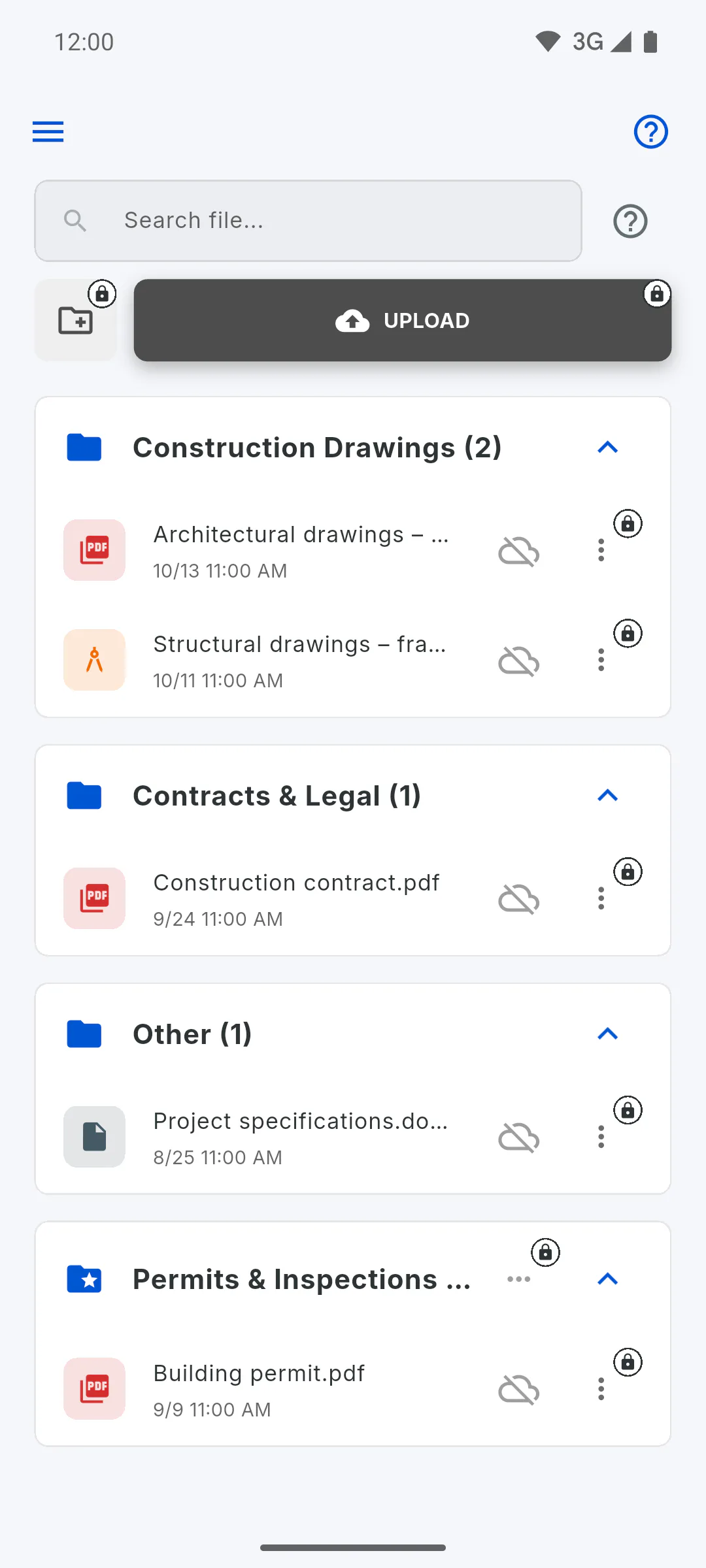
In Files, open the folder and tap the three dots to the right of the file.
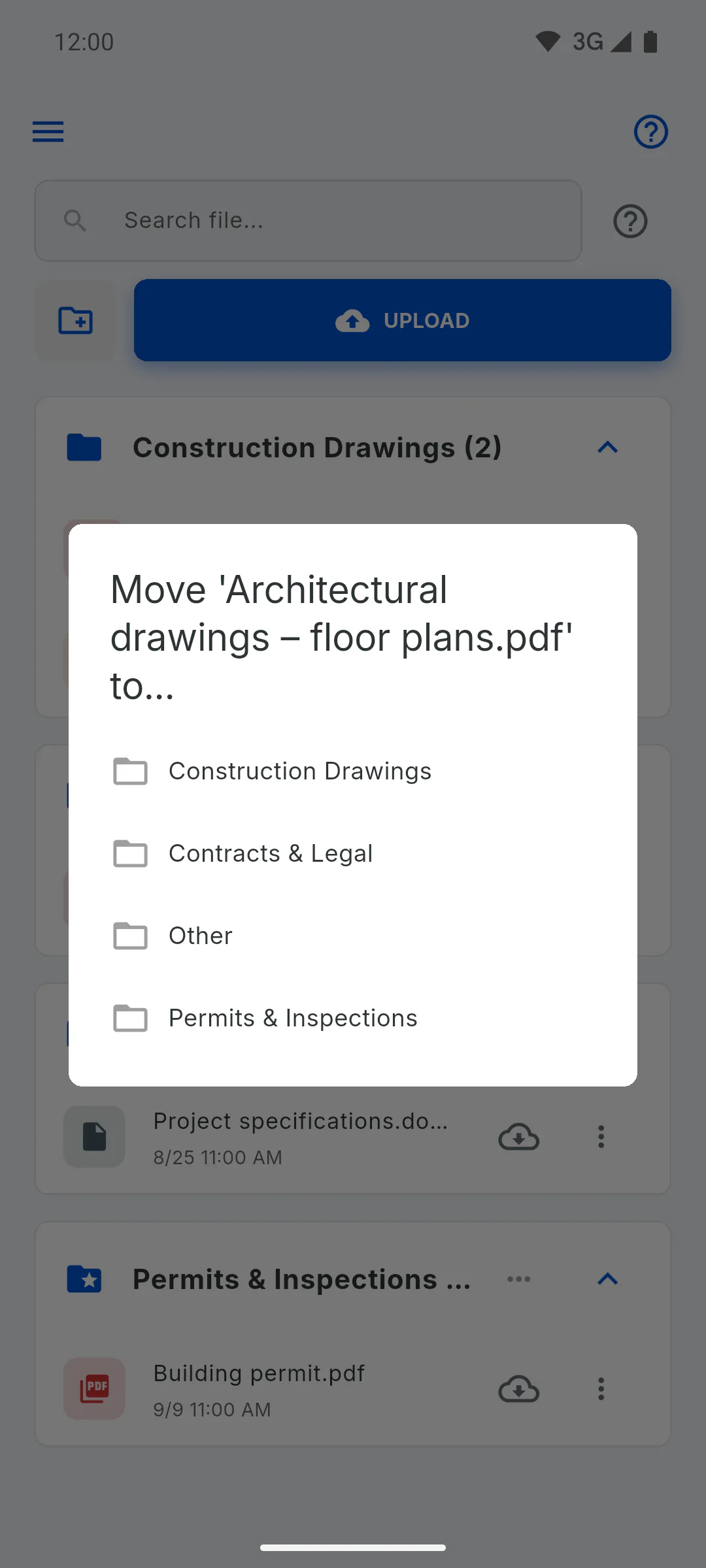
Step 2: Move it to another folder
Tap Move to.... In the window showing the file name, tap the destination folder. Moved to appears with the folder name.
- To create a new folder first: How to create, rename and delete file folders
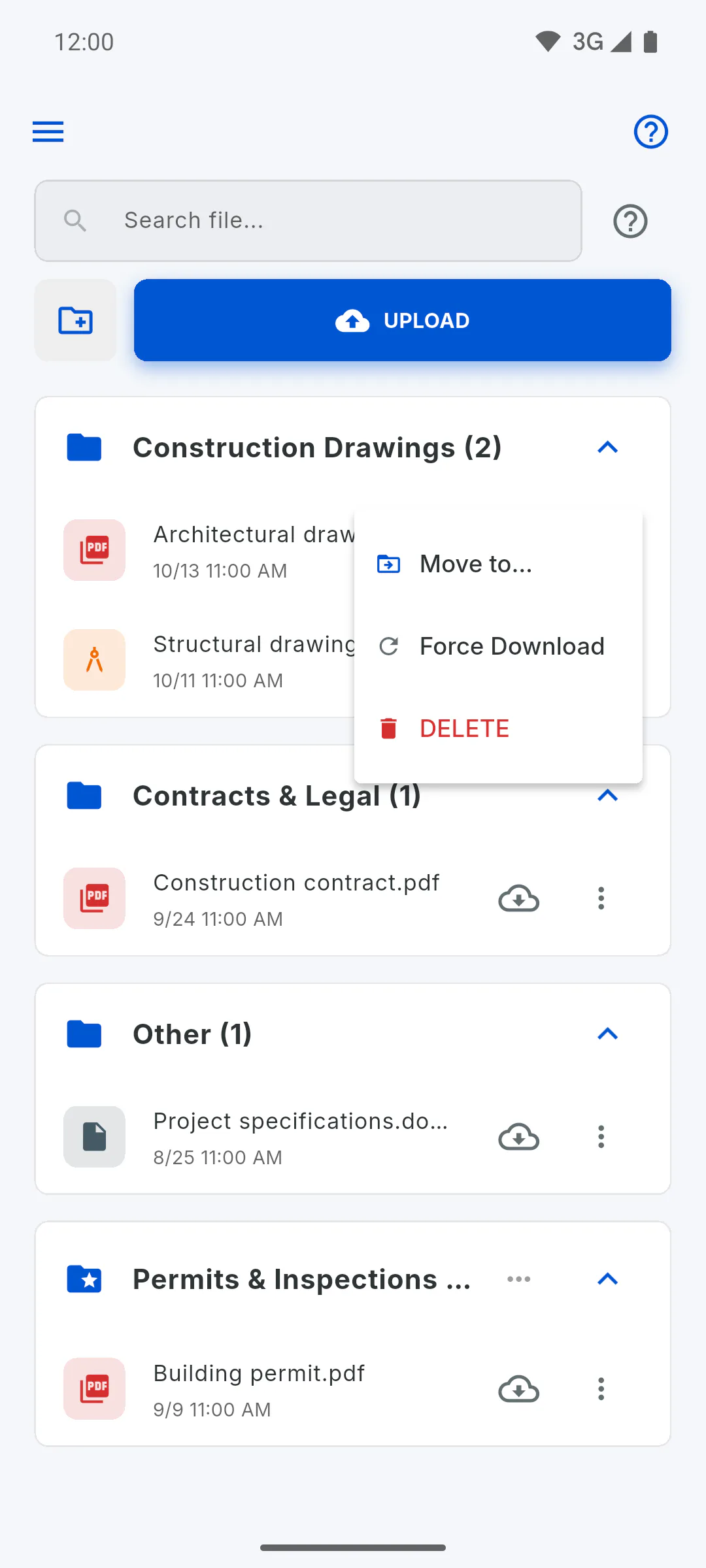
Step 3: Delete it
Tap Delete. The Delete file? window opens, warning that the file will be deleted for everyone on the project and cannot be recovered. Tap Delete to confirm (or Cancel to go back). The file is removed and File deleted and space freed! appears.
Step 4: Copy saved on the device
If the file was saved on this device for offline use, that copy is deleted too.
Step 5: Force Download
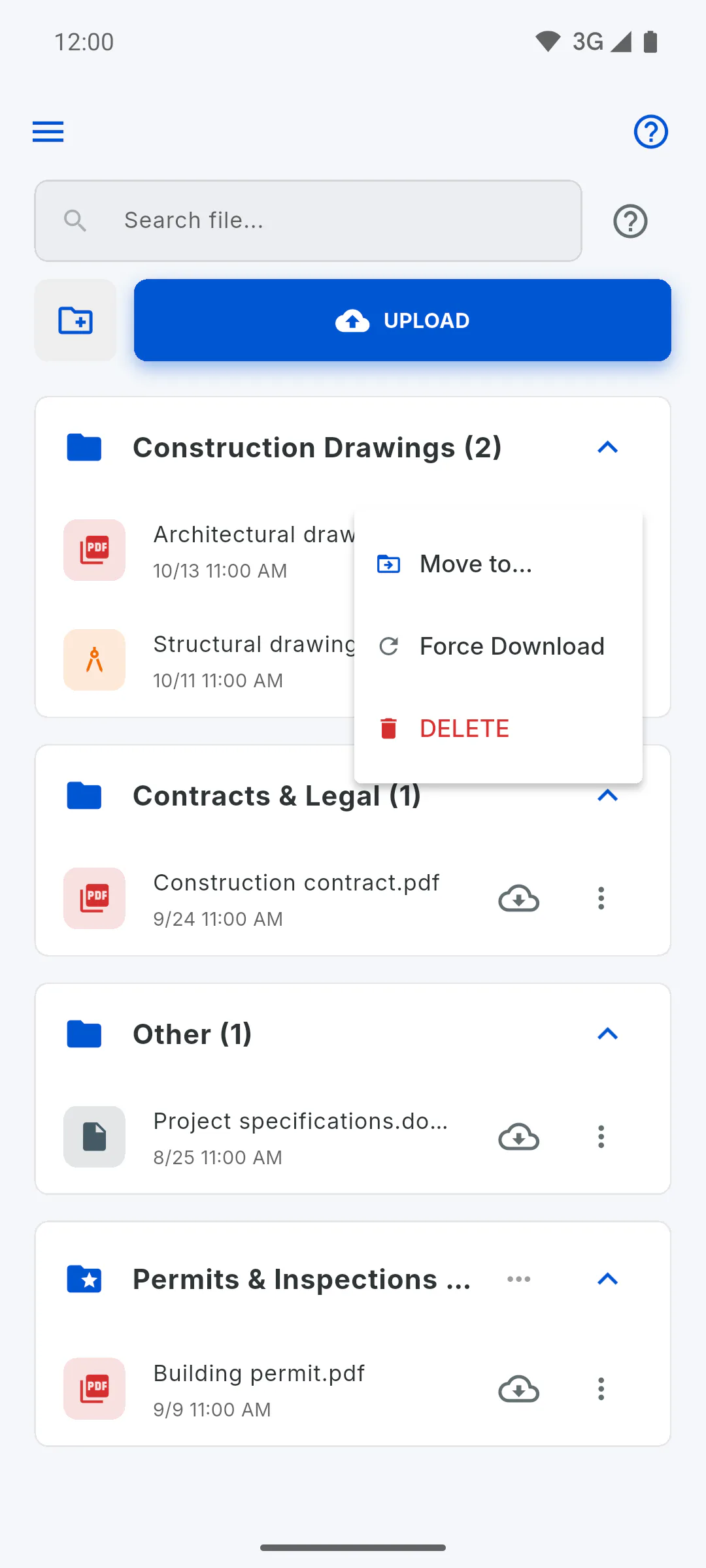
On a phone and in the Windows app, the same menu has Force Download, which downloads the file again for offline use. This is a PRO feature.
Step 6: Who can do this
The project owner and an invited engineer. For team members, the three dots menu next to the file appears grayed out with a padlock; tapping it opens a window that shows their role on the project and who can use it.
How to move or delete a file
Move a file to another folder, or delete what you no longer need with confirmation and free up storage space.
For managers6 steps
Didn't find what you were looking for?
Chat with support on WhatsApp or open a ticket right in the app.