
Step 1: The project folders
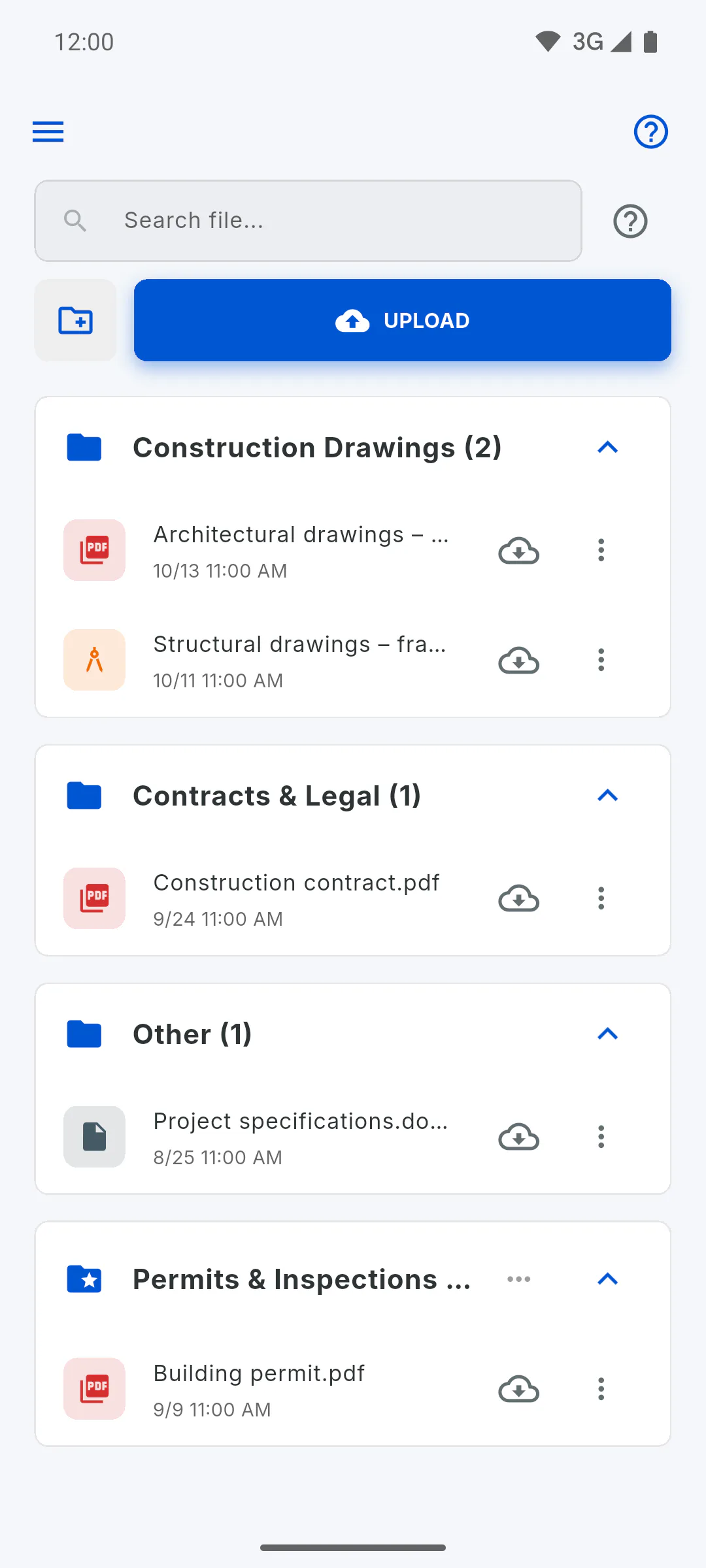
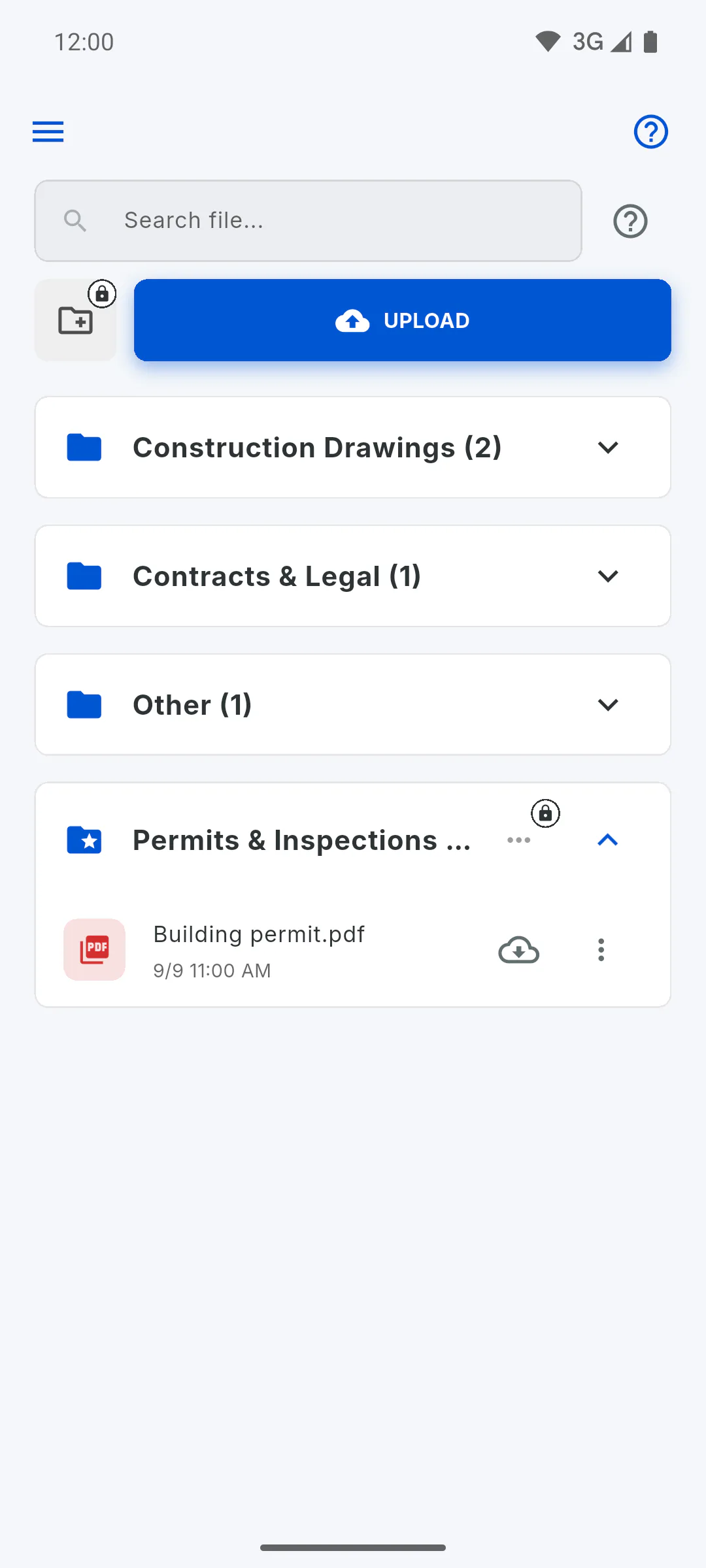
In Files, each folder shows its name and, in parentheses, how many files it holds. Construction Drawings, Contracts & Legal and Other come ready-made and can't be renamed or deleted: their three dots menu only has the Team lock. While the project has no files at all, the screen shows Empty DMS and, for the owner, the folders right below it.
Step 2: Create a folder
Tap the folder icon with a plus sign, next to the search box (Create Folder). In the New Folder window, type the Folder Name and tap Create. You can also create one while uploading, with Create New Folder...: in that case, upload the files again afterwards.
Step 3: Rename it
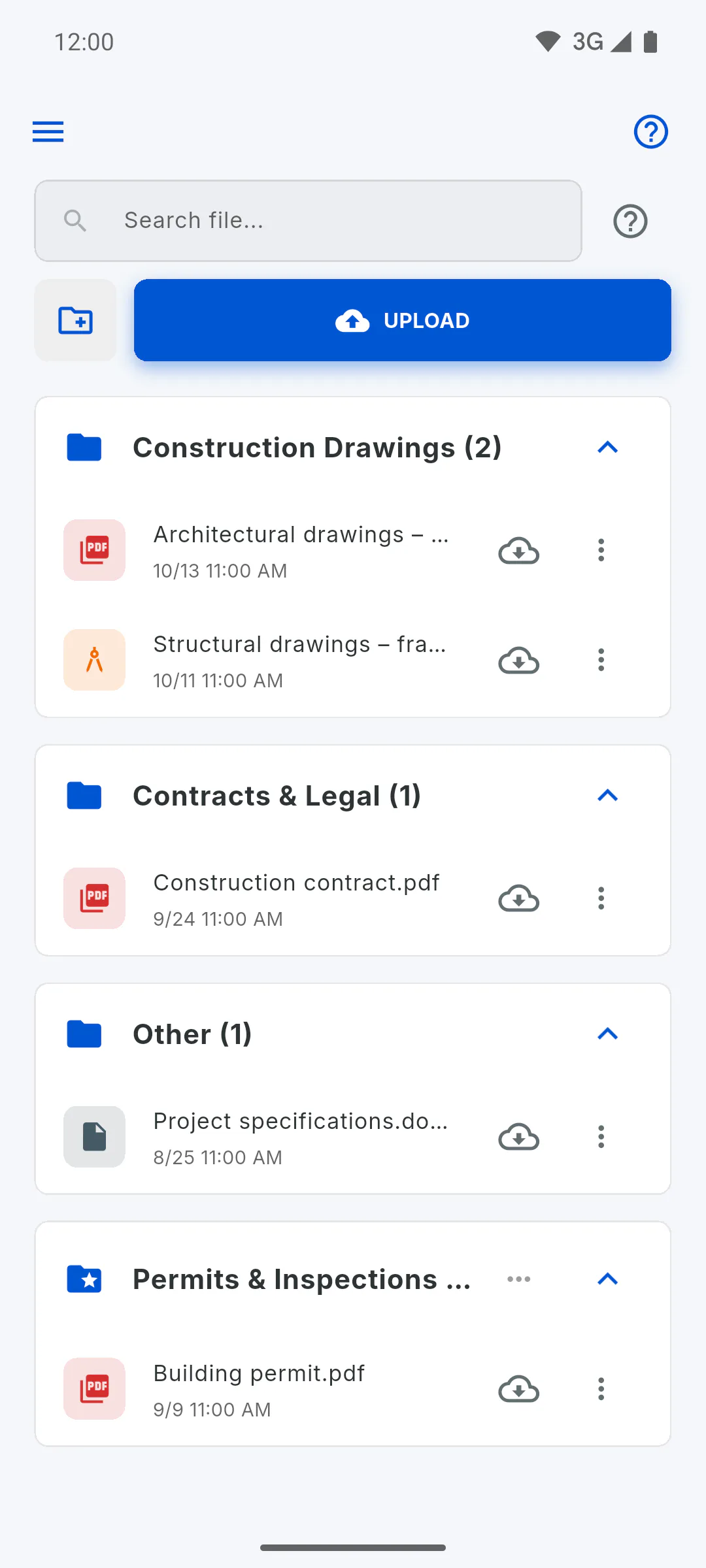
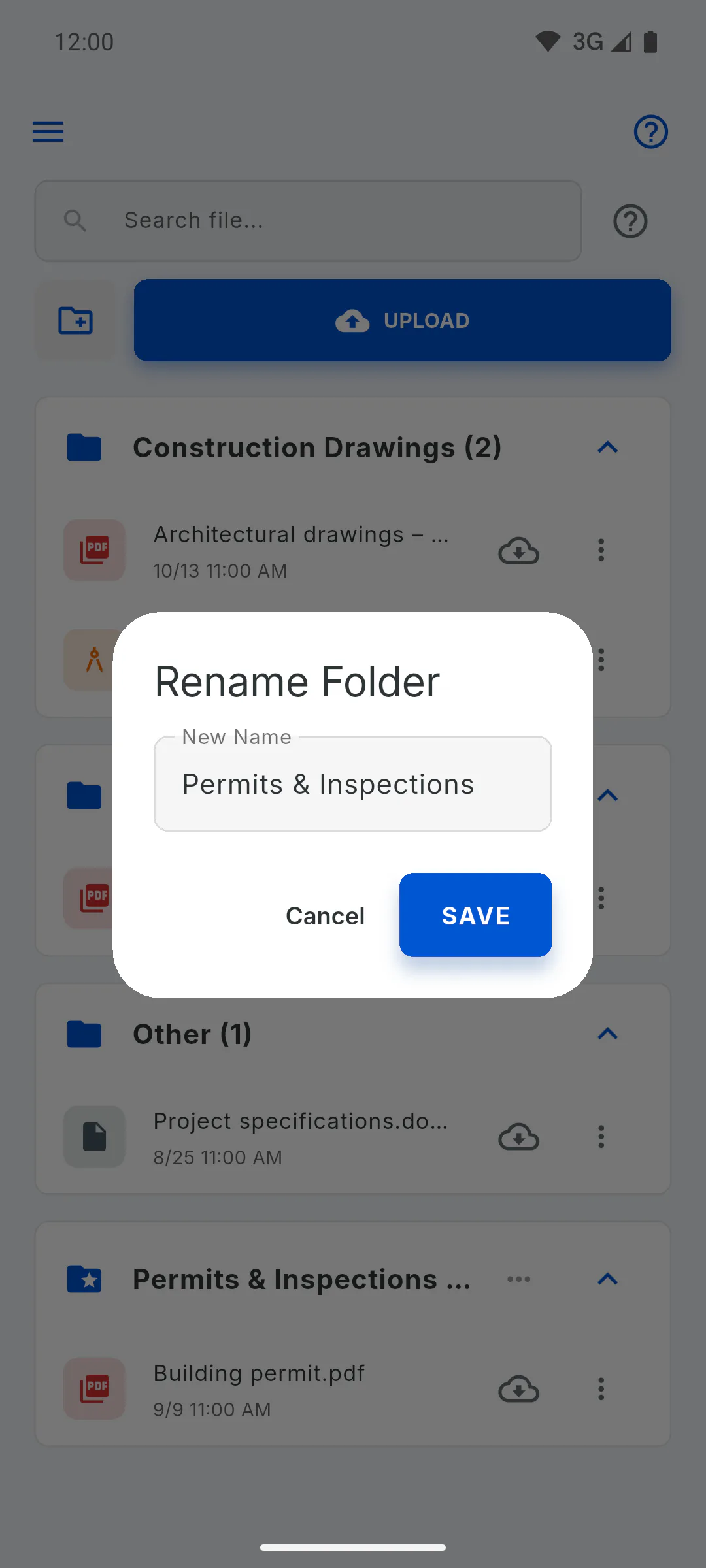
Tap the three dots next to the name of a folder you created, then Rename. Type the New Name and tap Save. Renaming... appears, then Folder renamed successfully!. The files stay inside it.
Step 4: Delete it
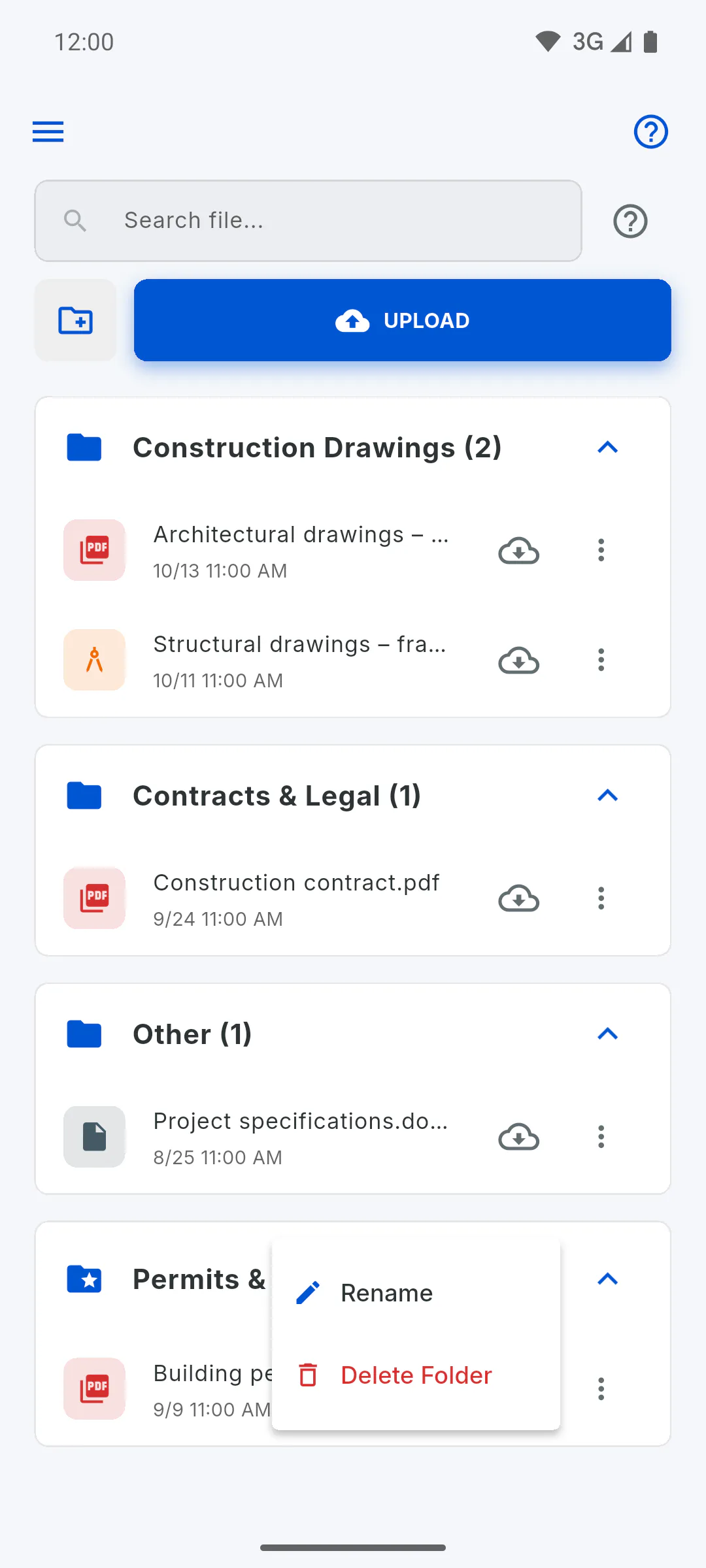
In the three dots menu, tap Delete Folder. Only empty folders can be deleted: if there are files inside, Folder not empty appears, and you need to move or delete those files first. In the Delete Folder? window, tap Delete. Folder deleted successfully. appears.
Step 5: Lock it for the Team
In the three dots menu of any folder, ready-made ones included, tap Lock for Team and, in the Lock this folder for Team? window, tap Lock. Folder locked for Team. appears and the folder gets the Locked for Team tag. To undo it, tap Unlock for Team in the same menu.
- In the New Folder window, check Lock for Team to create the folder already locked.
- Project with no files yet: the folders show below Empty DMS, so you can lock one before the first upload.
- The Team still sees the folder name. If it gives away something they shouldn't know, rename the folder: it stays locked.
Step 6: Who can do this
Only the project owner can create, rename, delete and lock folders. For invited engineers and team members, Create Folder and the three dots on folders appear grayed out with a padlock, and Create New Folder... also shows a padlock. Tapping one opens a window that shows their role on the project and who can use it. During an upload, that window opens over the folder list: once it's closed, the upload carries on and you just pick a folder.
- Engineers see every folder and its files. The Team sees a locked folder with only its name and a padlock, without the files or the file count; tapping it opens a window explaining that the owner locked the folder.
- Engineer, Team and Client: what each role sees and does on a project
How to create, rename and delete file folders
Create folders to organize the project files your way, rename them, delete the ones that are empty and lock the ones the Team shouldn't see.
For managers6 steps
Didn't find what you were looking for?
Chat with support on WhatsApp or open a ticket right in the app.