
Step 1: Find the switches
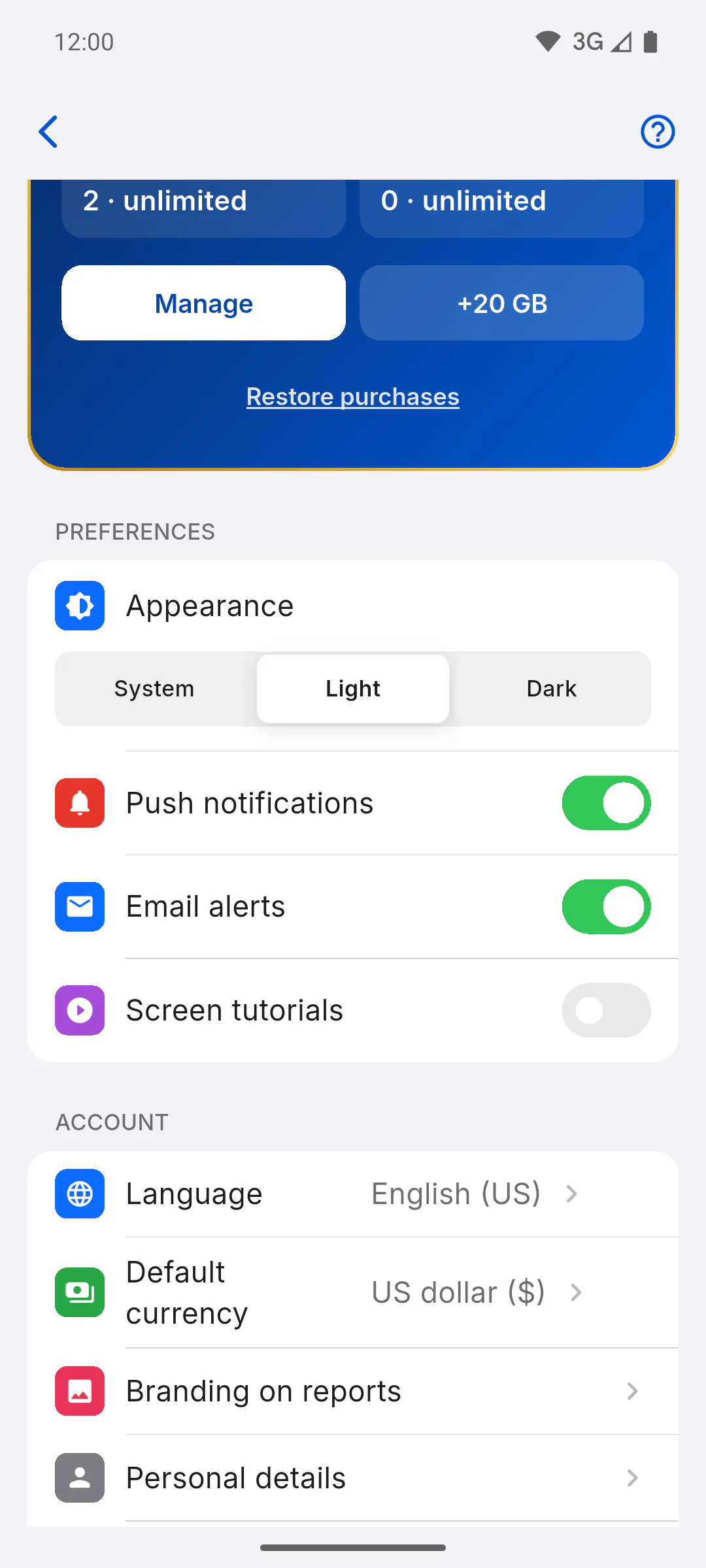
Managers and team: open Profile and find the Push notifications, Email alerts and News and offers by email switches in the PREFERENCES section. Clients: in the Client Portal, open the menu, tap Settings and scroll down to Notifications. Both places have the same three switches.
Step 2: Push notifications
The Push notifications switch decides whether ObraFácil sends alerts to your phone: new reports on projects you're part of, ObraFácil notices and offers, and subscription payment problems. Turned off, these alerts stop reaching your phone. The bell inside the app stays the same.
Step 3: It applies right away
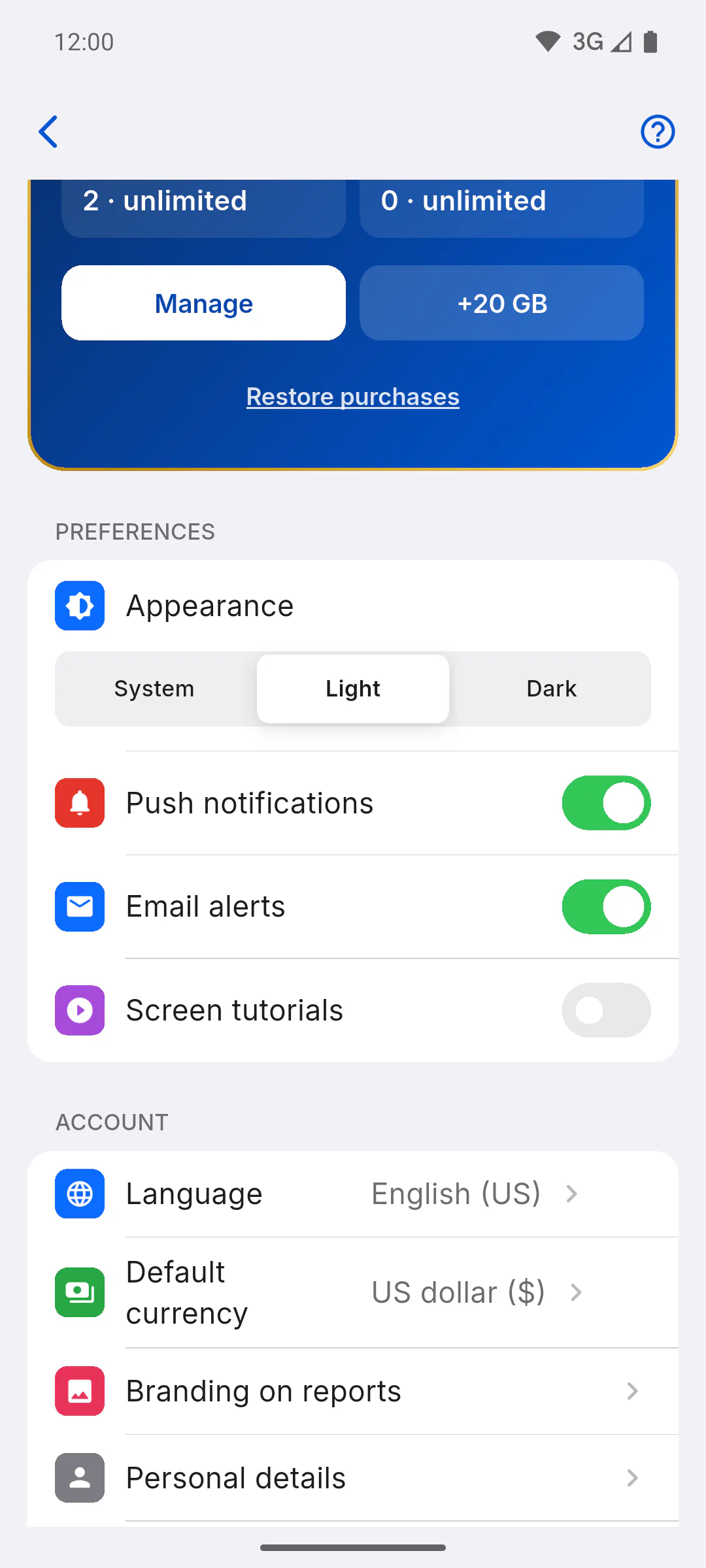
Just tap the switch: there's no save button. Your choice is saved to your account, so it applies on every device you sign in on.
Step 4: Your phone's permission
The switch doesn't change your phone's permission. If ObraFácil notifications are blocked in your phone's settings, nothing comes through, even with the switch on: allow them in your phone's settings, under apps, ObraFácil. To get nothing at all from the app, reminder alarms included, block them there. Why the app asks for camera, gallery and notification access
Step 5: What the switch doesn't control
Reminder alarms and the report upload progress (Uploading Daily Report...) are created by the phone itself and don't depend on this switch. Occurrence notifications only arrive in the bell: How bell notifications work
Step 6: Only on a phone, and on one at a time
Phone alerts only exist in the Android and iPhone app; in a web browser and in the Windows app, none arrive. If you use the same account on more than one phone, alerts go to the last one where you signed in or opened the app.
Step 7: Email alerts
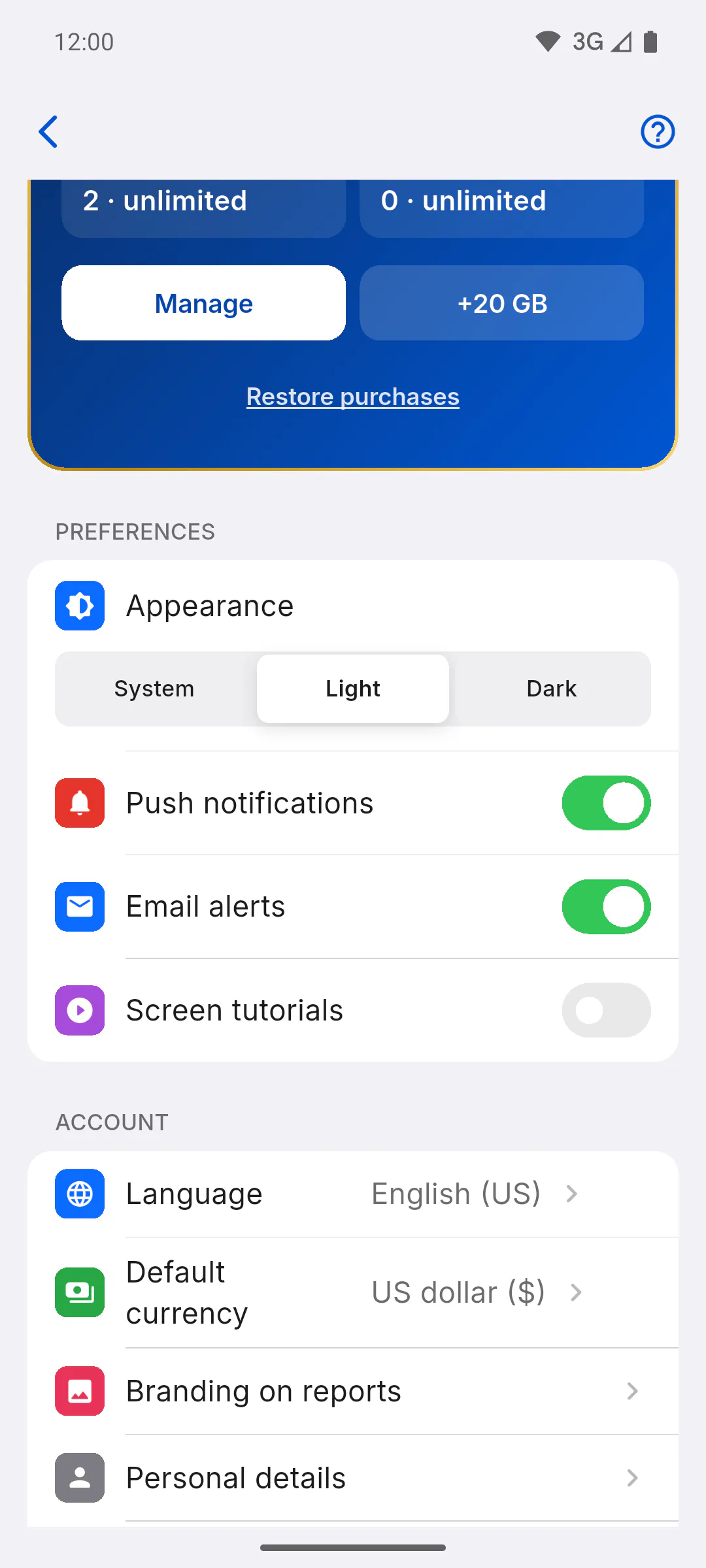
The Email alerts switch covers two kinds of email: the alert about a payment problem with a subscription bought through your phone's app store, and support's replies to your tickets. Other emails about your account, payments, security and projects, such as account confirmation, password, invitations, billing and refunds, always arrive, even with the switch off. News and offers have their own switch, explained next.
Step 8: News and offers by email
The News and offers by email switch decides whether ObraFácil tips, news and offers reach your inbox.
- New account: you only get them if you checked the box when signing up or turn the switch on here.
- Account created before version 2.0: the switch starts the same as Email alerts; once you change either one, each works on its own.
- Every news email has a link to unsubscribe: using it turns this switch off.
It doesn't affect emails about your account, payments, security and projects, which always arrive.
How to turn phone and email notifications on or off
Use the Push notifications, Email alerts and News and offers by email switches to choose what reaches your phone and your inbox. See what each one controls and what still depends on your phone's settings.
For managers, team members and clients8 steps
Didn't find what you were looking for?
Chat with support on WhatsApp or open a ticket right in the app.