
Step 1: Open a new entry
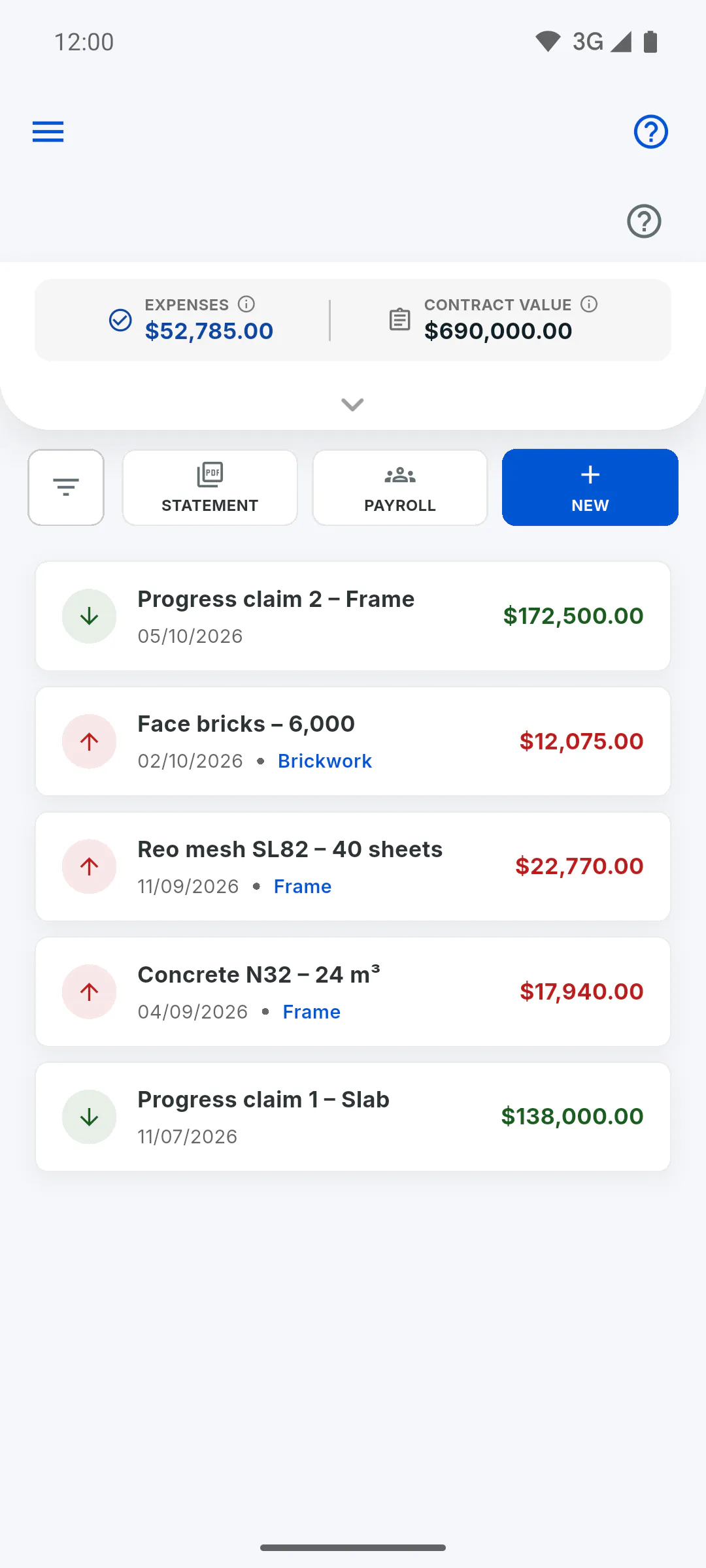
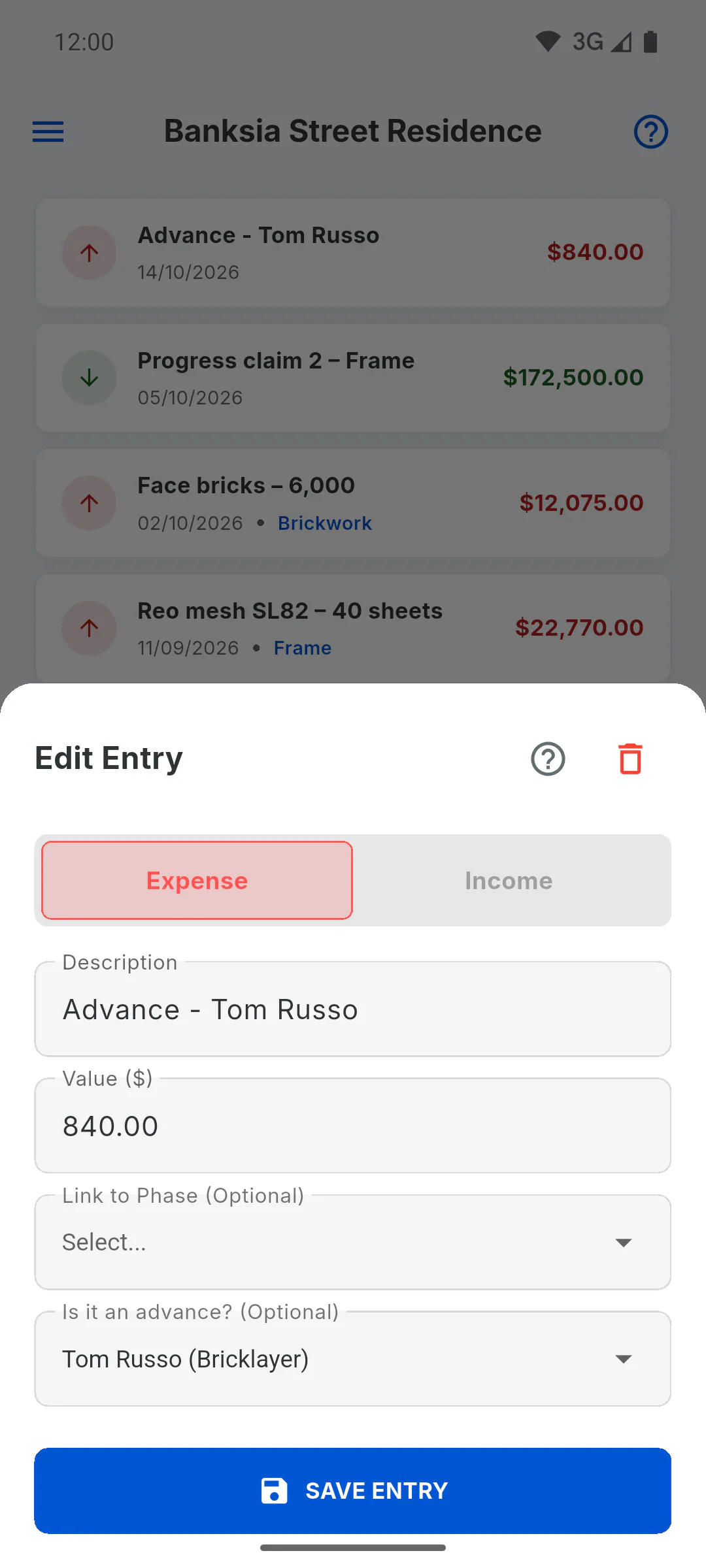
Open the project the team member works on, tap Financial and then New. Leave Expense selected: the advance field only appears on expenses.
Step 2: Pick the team member
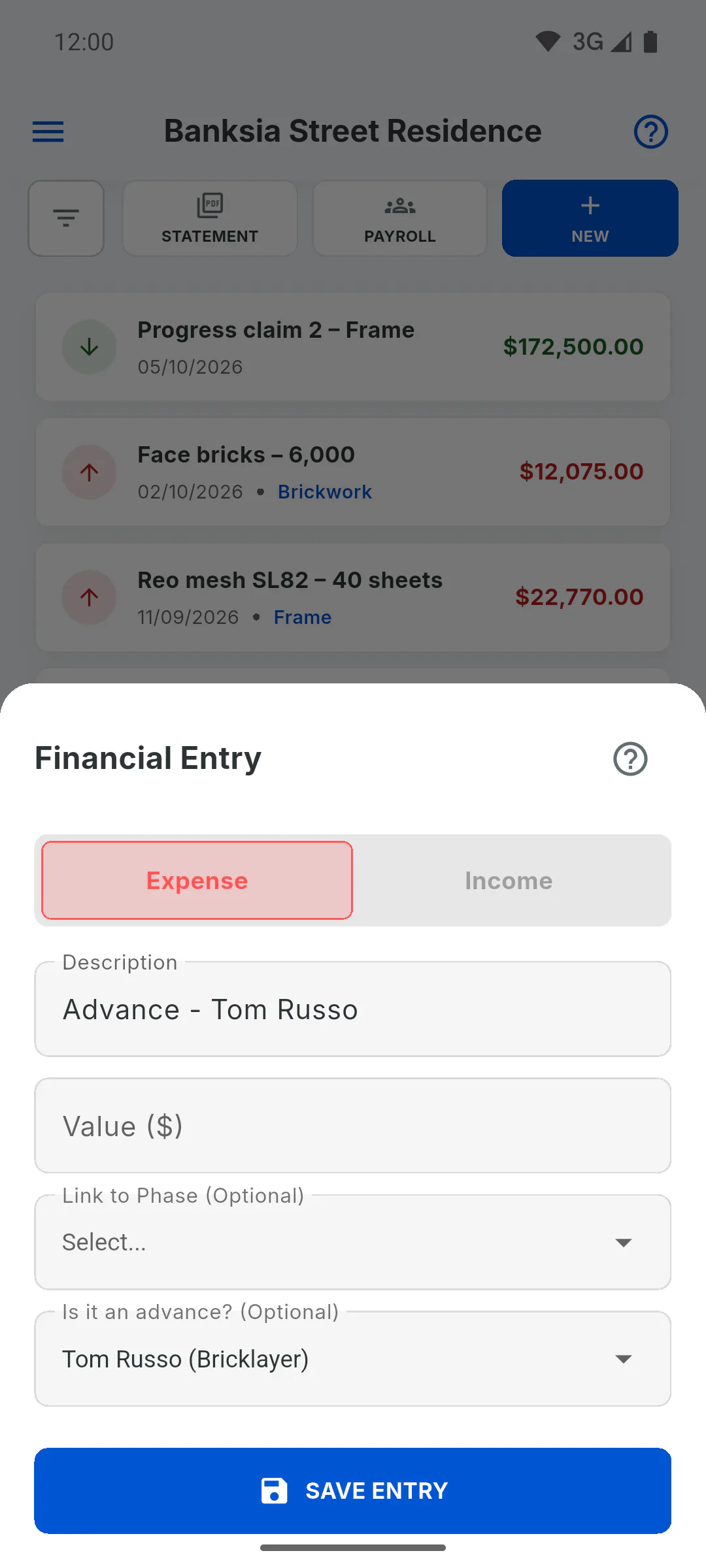
Under Is it an advance? (Optional), pick the person. The list shows everyone in My Team, active and inactive, with their role in brackets. If Description is empty, it's filled in with Advance - and the name.
Step 3: Amount and save
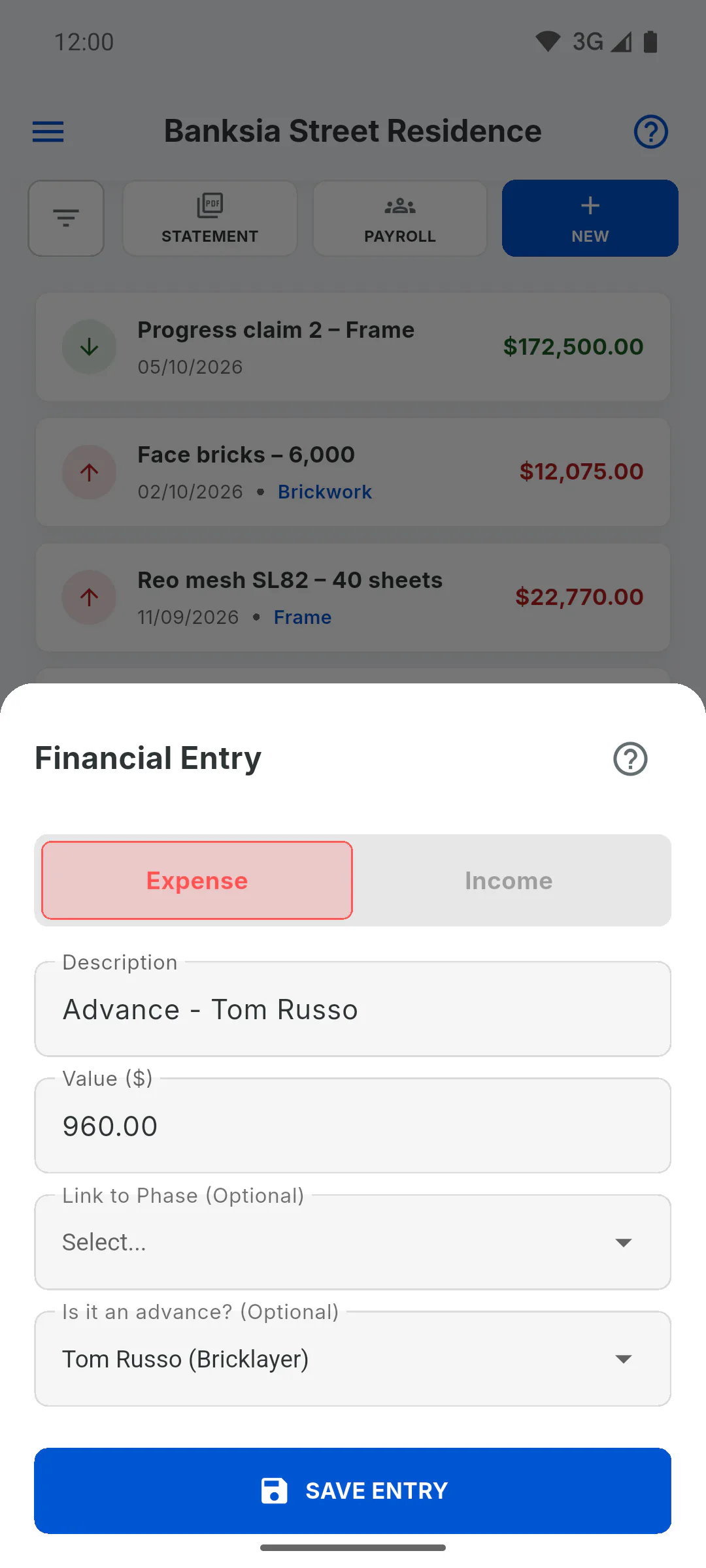
Type the Value and tap Save Entry. The advance is dated today. The stage is optional; with no stage, the advance goes into Admin Costs. Only the project owner can save entries in Financial.
Step 4: How it shows on payroll
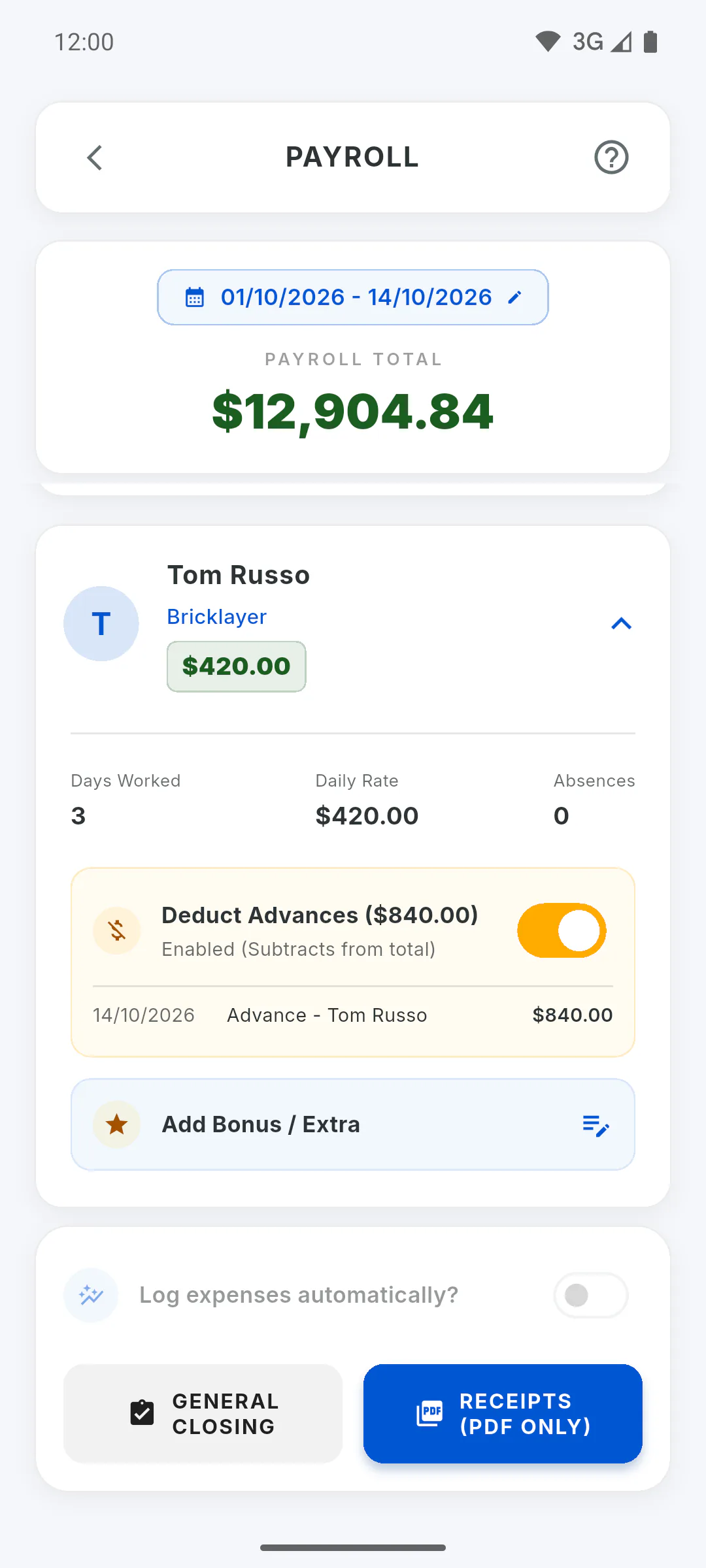
On this project's payroll, the advance shows up in the period it was logged, on the team member's card under Deduct Advances, and is taken off what they're owed. An advance logged on another project only shows on that project's payroll. For by-task work, every payment made to them on this project up to the end of the period is included, and payroll shows the balance.
Step 5: Fix mistakes
Tap the entry to change the team member or amount, or to delete it: How to edit or delete an entry. Payroll always uses what's in Financial at the moment you open it.
How to record an advance for a team member
Log money advanced to someone on your team in the project's Financial area, so payroll deducts it from what they're owed.
For managers5 steps
Didn't find what you were looking for?
Chat with support on WhatsApp or raise a ticket in the app.